Create your first mini program
Wanxiaozhi 3.0 supports generating WeChat mini programs through natural-language conversations. After you enter a requirement description, Wanxiaozhi automatically generates a Product Requirements Document (PRD) and builds a mini program application. After the application is generated, you can publish it as a WeChat mini program for users to access by scanning a QR code. This topic describes how to create, preview, edit, publish, and manage a mini program application.
Step 1: Enter Mini Program mode
Log on to Wanxiaozhi AI Website Builder with your Alibaba Cloud account.
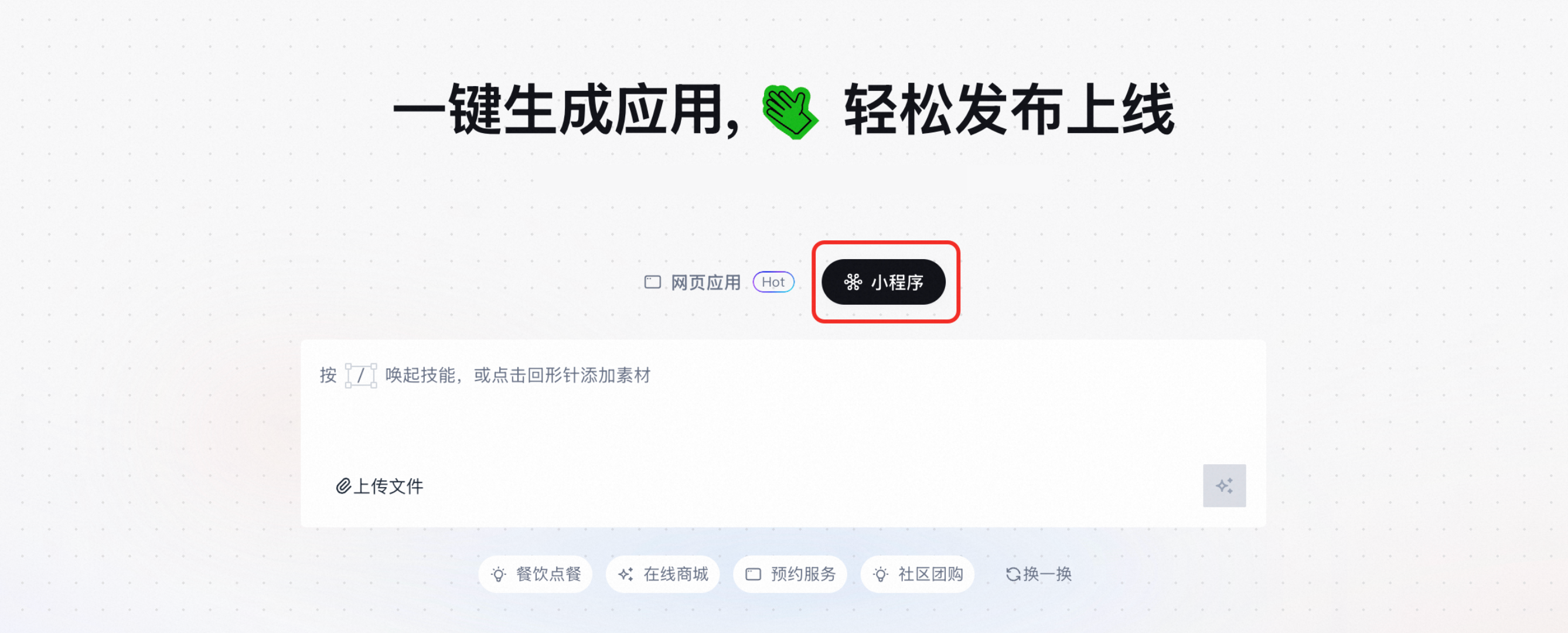
Above the conversation input box, click Mini Program to switch to Mini Program generation mode.
Step 2: Describe your mini program requirements
In the conversation input box, describe the mini program that you need in natural language. For example, enter "Help me build a to-do list mini program."
NoteThe more detailed your description is, the more accurate the generated results are.
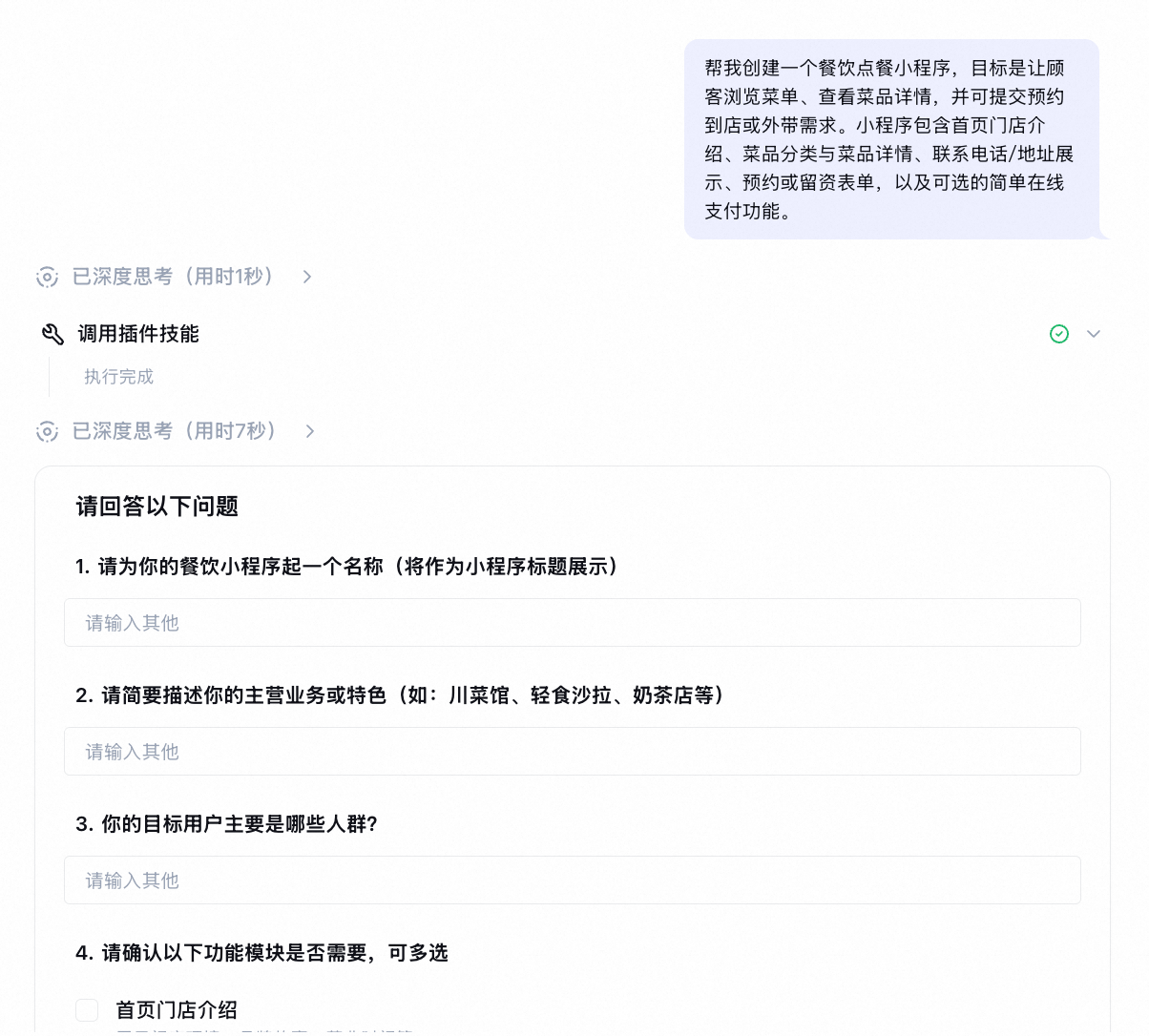
Wanxiaozhi asks for more details, such as the mini program type and target users.
Answer Wanxiaozhi's questions, or click Generate Plan with One Click to skip the follow-up questions. Skipping the questions can make the generated PRD less specific. (Recommended) Select Continue Refining Requirements for more accurate results.
Step 3: Confirm the requirements document and generate the application
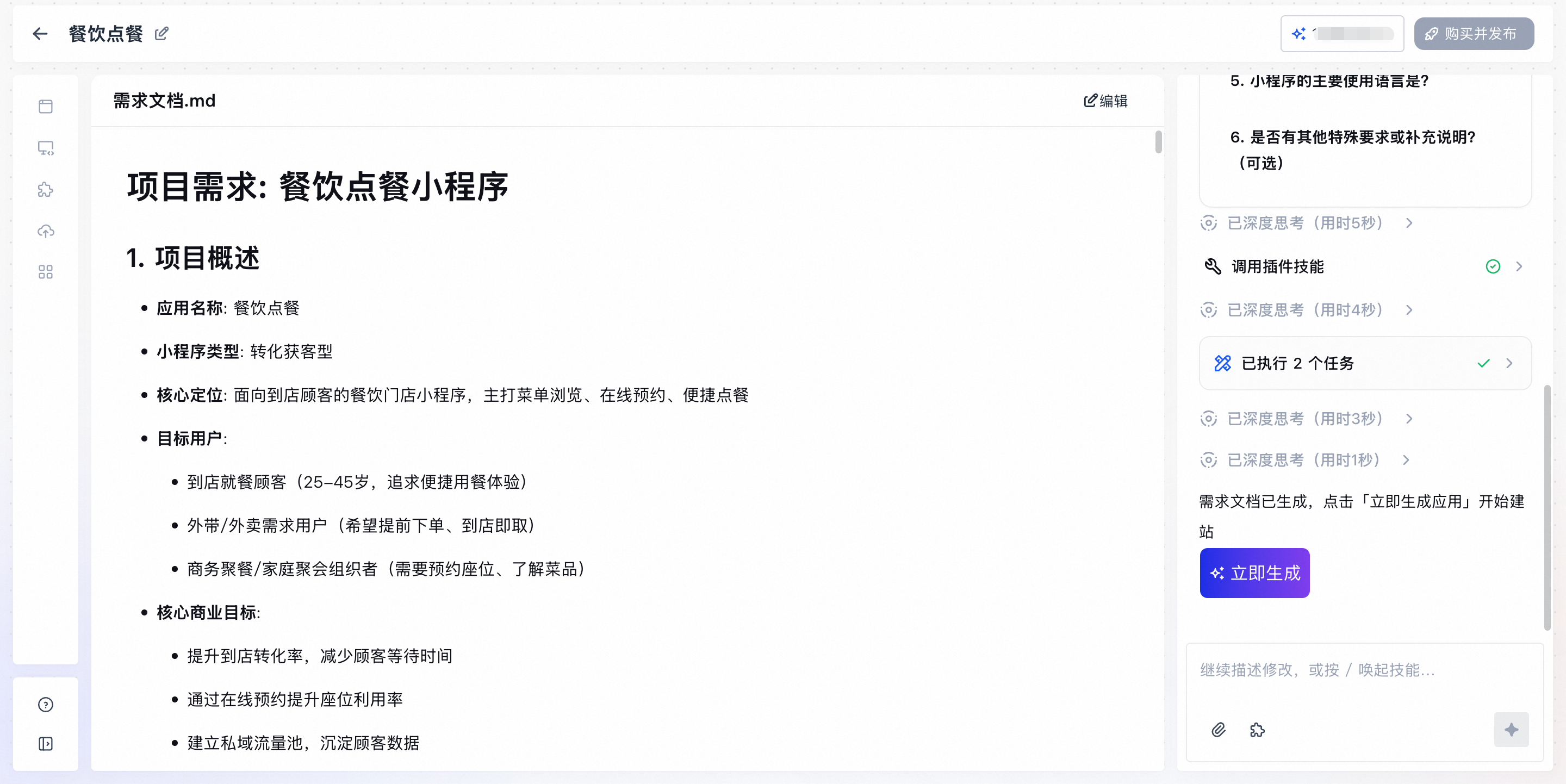
Wanxiaozhi automatically generates a PRD based on the conversation. The PRD includes the project overview, core features, interaction design, page structure, and visual strategy.
Review the PRD. To make changes, click Edit Document.
After you confirm the PRD, click Generate Application to start the build.
NoteThe system starts building the application and displays a build progress bar. Wait for the build to complete.
Step 4: Preview and edit the mini program
After the mini program is generated, the Manage, Preview, and Edit tabs appear at the top of the page. Preview mode opens by default.
Preview the mini program
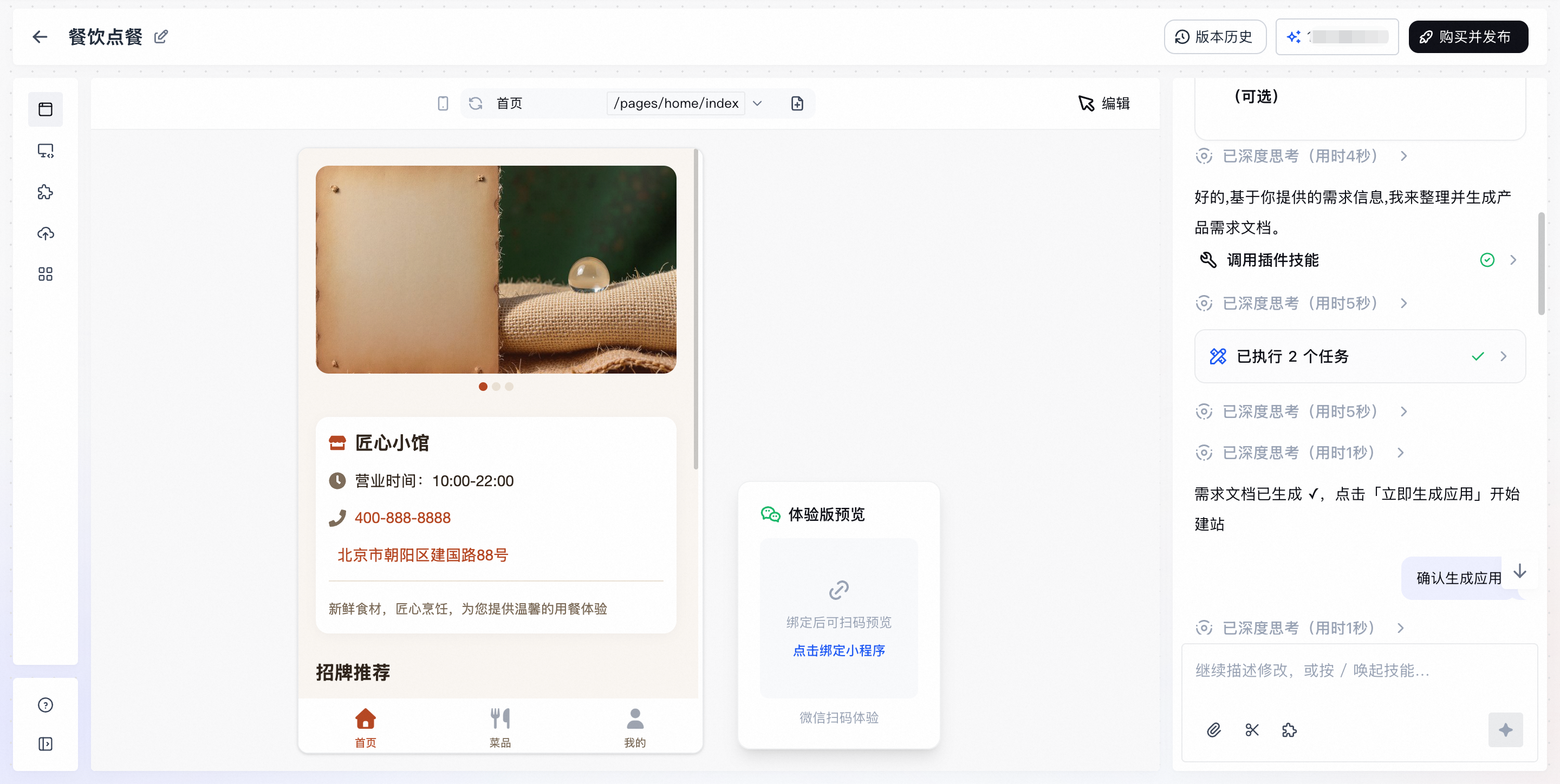
In Preview mode, the left pane displays a mobile preview of the mini program.
Switch pages: Click the drop-down list at the top to view different pages.
Mobile preview: Click the QR code card in the lower-right corner to bind a WeChat mini program account. After binding, scan the QR code to preview the trial version mini program on a mobile device.
Edit the mini program
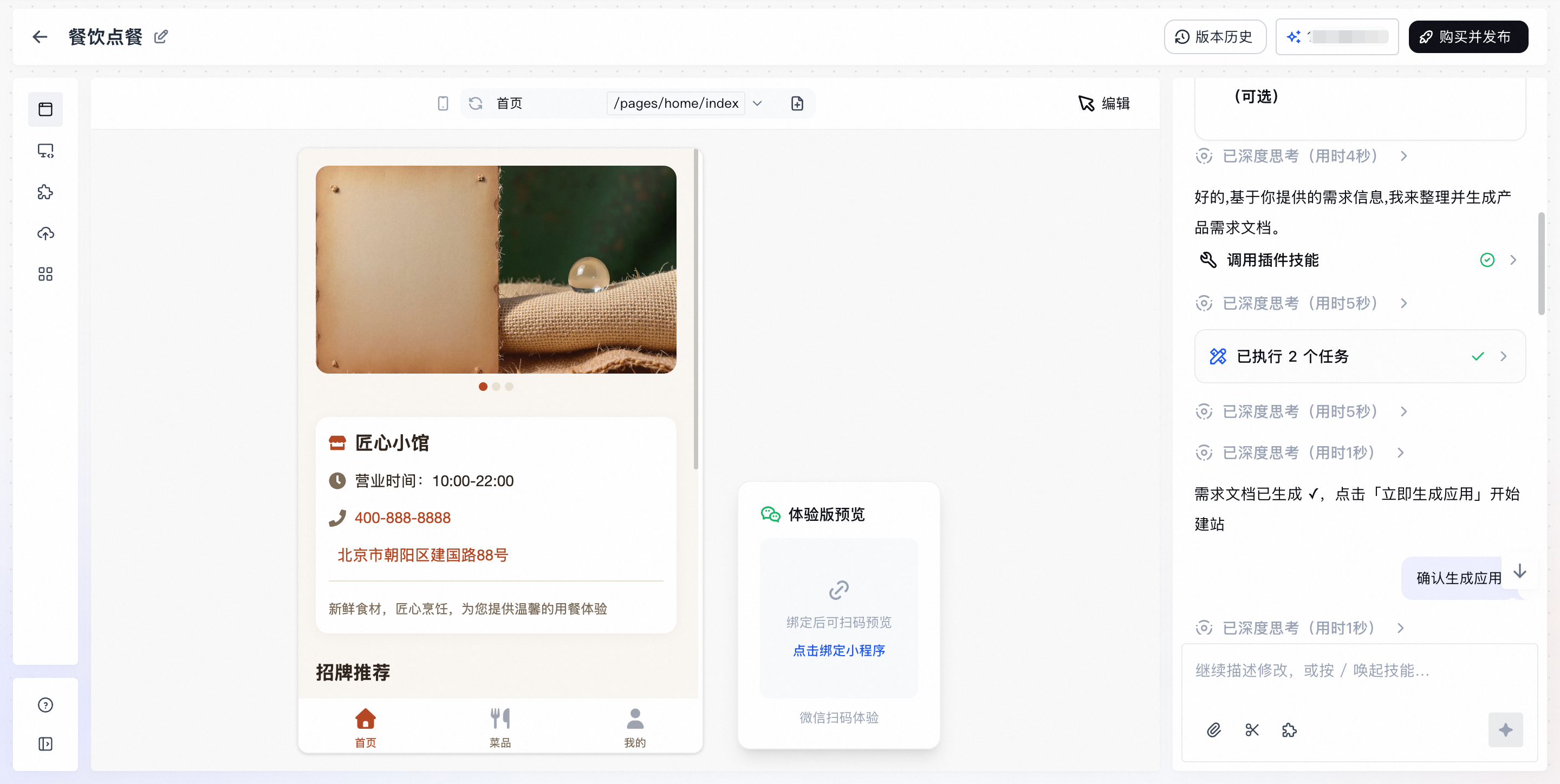
Click Edit in the upper-right corner to enter edit mode.
You can edit the mini program in the following ways:
Visual editing: Click an element to modify its text, replace its image, or make other changes directly in the preview.
AI conversation editing: Continue entering instructions in the dialog box on the right to have AI modify the mini program. For example, enter "Change the theme color to green."
After editing, click the Preview tab to return to preview mode and review the result.
Step 5: Bind a WeChat mini program account
Before you publish a mini program, bind the WeChat mini program account to Wanxiaozhi. Binding is completed by WeChat QR code authorization, as follows:
Click the QR code card in the lower-right corner, and select Existing Mini Program Account to authorize and bind the account.
If you do not have a mini program account, first click Register to create an account on the WeChat Mini Program Platform.
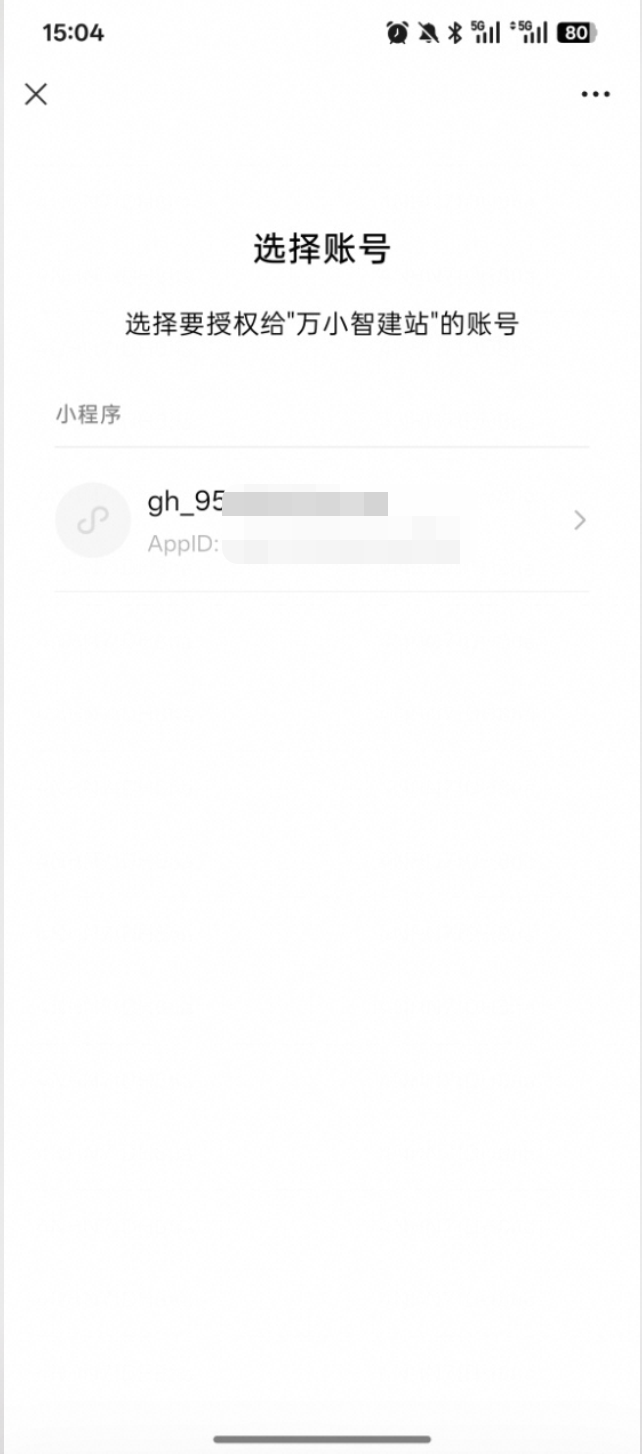
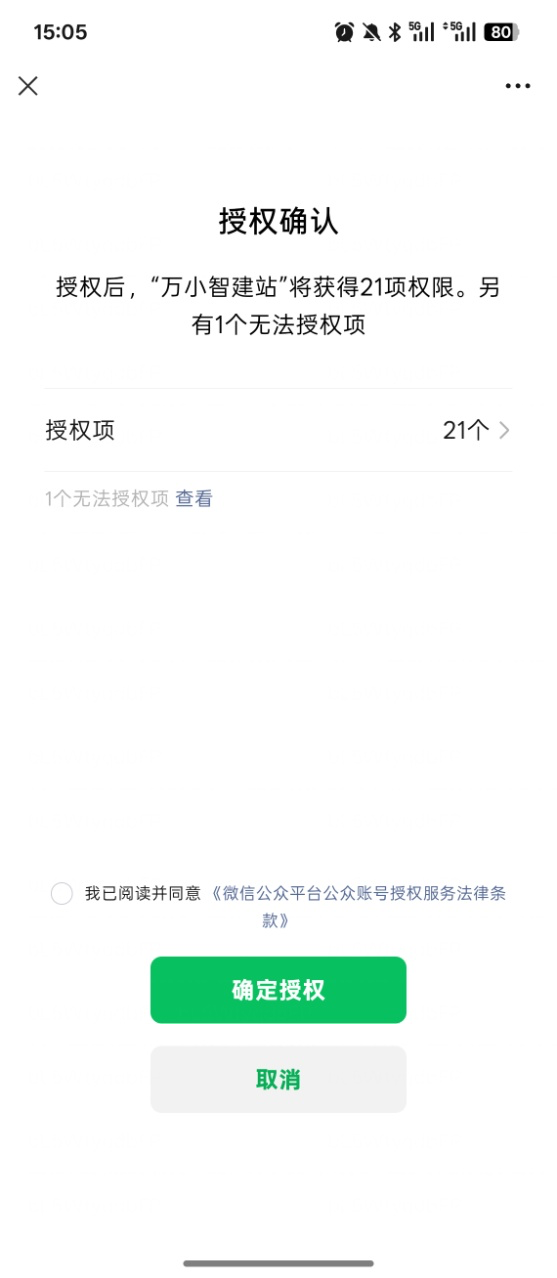
In the WeChat QR code authorization dialog box, use the WeChat account of the mini program administrator to scan the QR code for authorization, and select the mini program to authorize.

Because Wanxiaozhi develops the mini program on your behalf, you must authorize all required permissions before the mini program can be published.
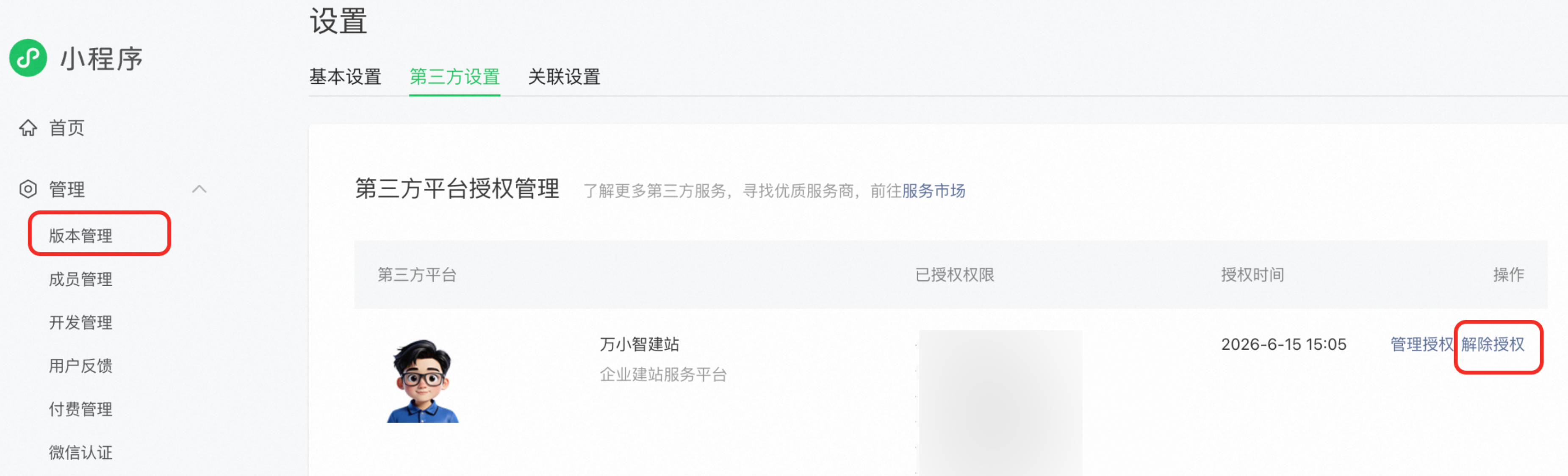
If authorization fails, check whether the mini program has already been authorized to another Wanxiaozhi application or third-party service provider. To authorize it again, first revoke the existing mini program authorization.
After authorization succeeds, scan the QR code card in the lower-right corner to preview the mini program on a mobile device. You can also click Publish in the upper-right corner to start the publishing process. For more information about publishing, see Step 6.
To publish an official version of the mini program, you must first purchase an instance. Click the Purchase and Publish button in the upper-right corner of the page to view version details.
Step 6: Publish the mini program
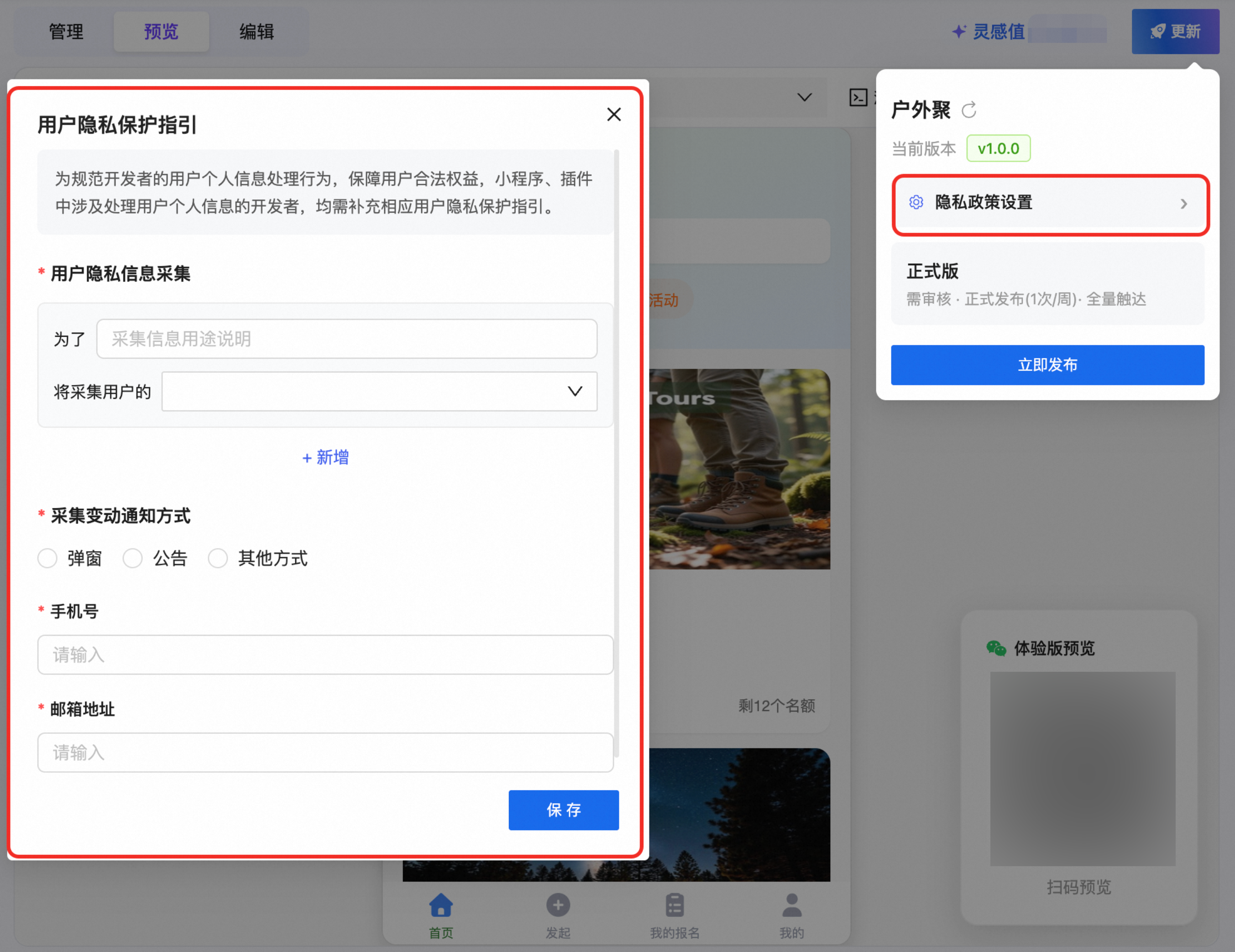
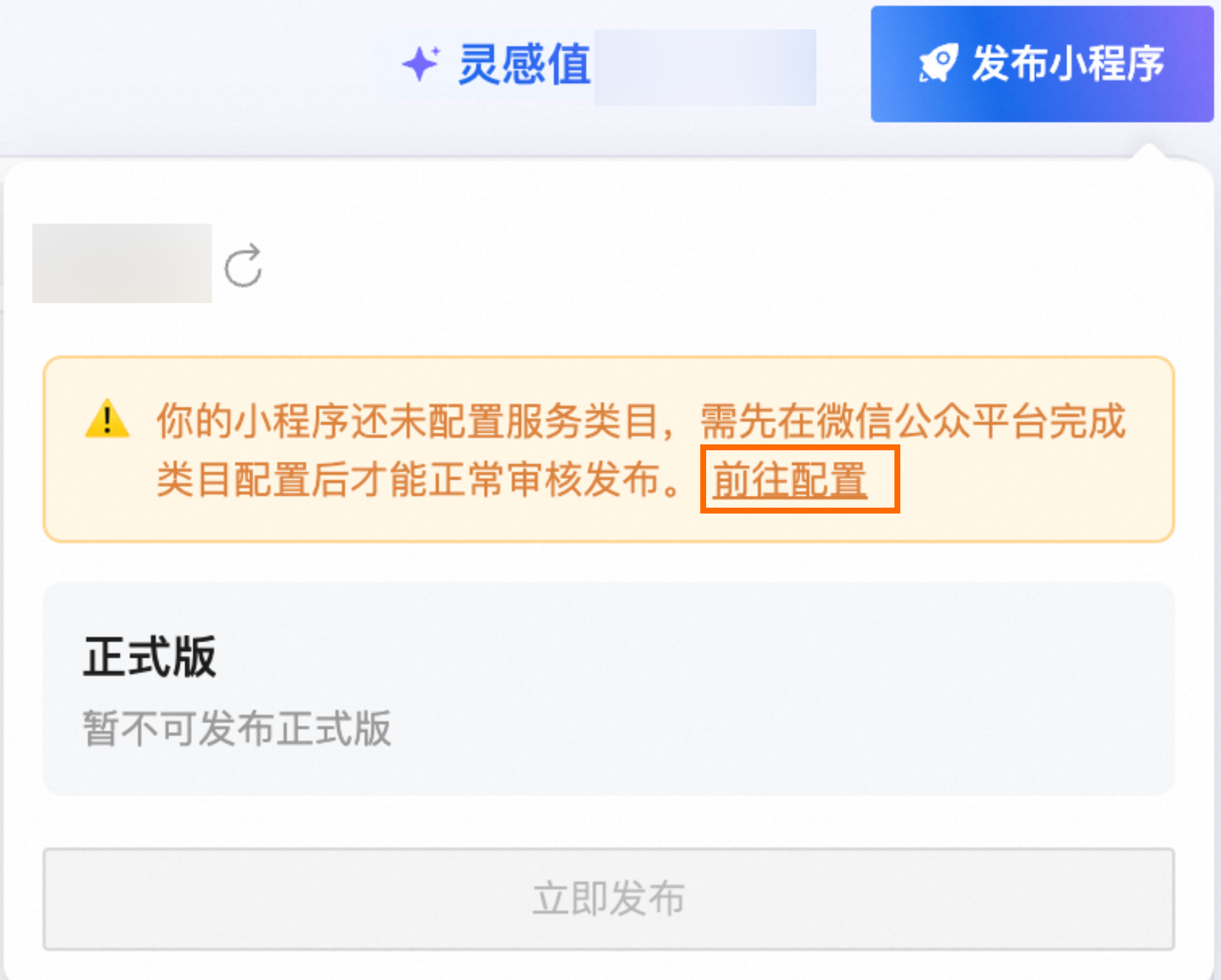
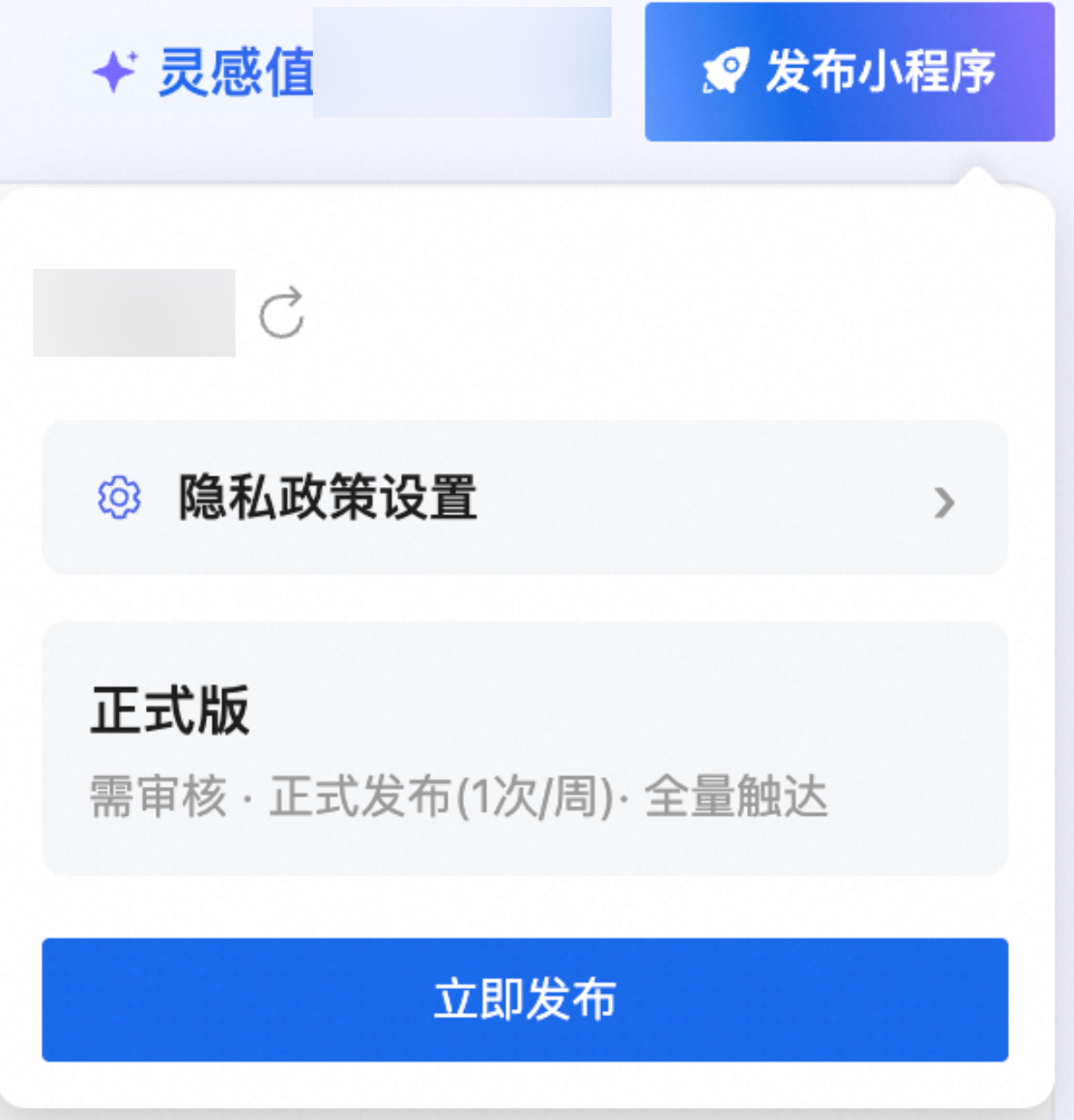
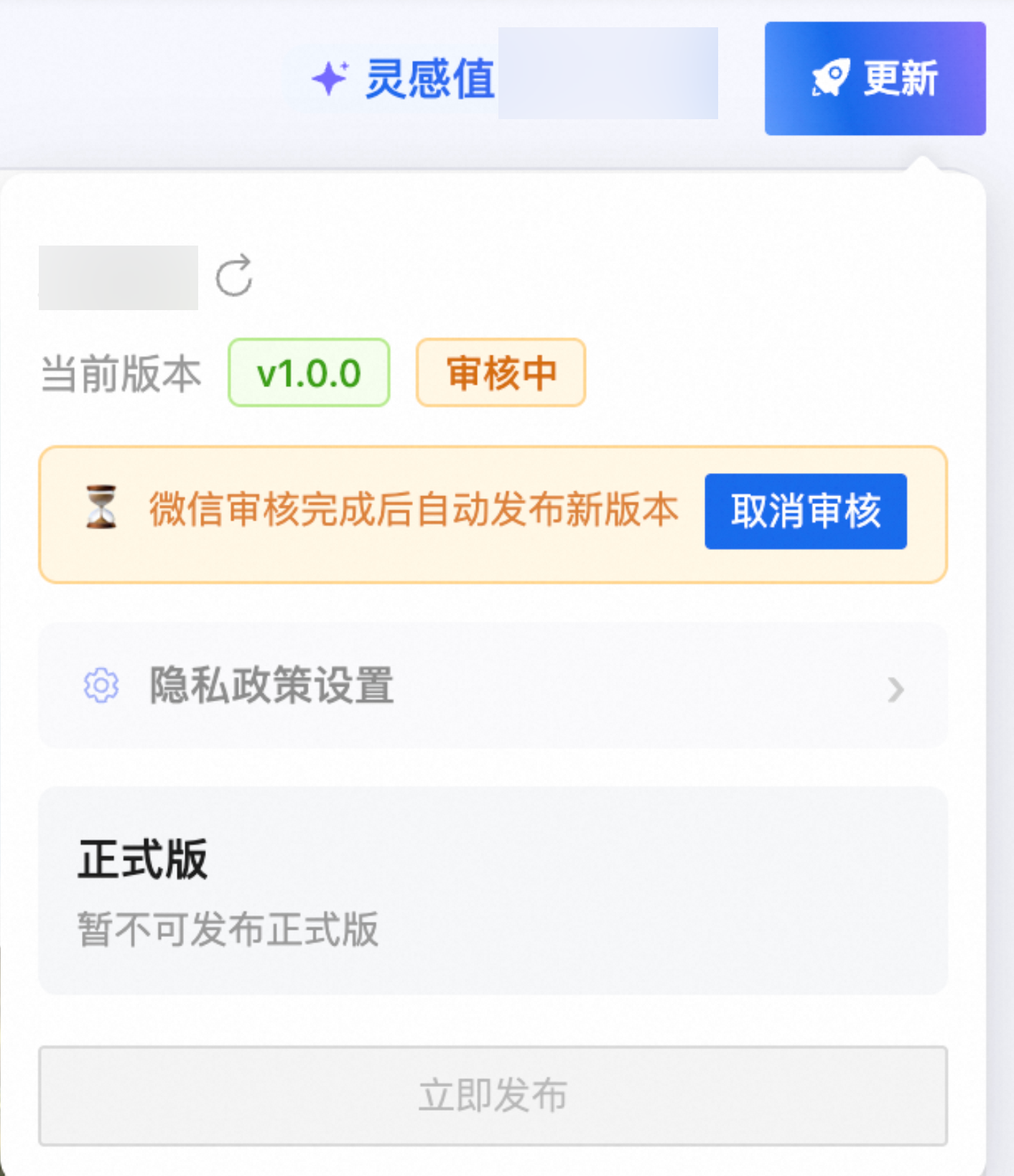
Click the Publish button. The system performs a pre-publish check. Follow the instructions to complete the following pre-publish settings:
Set the privacy policy: Click Privacy Policy Settings, and accurately complete the required compliance information.
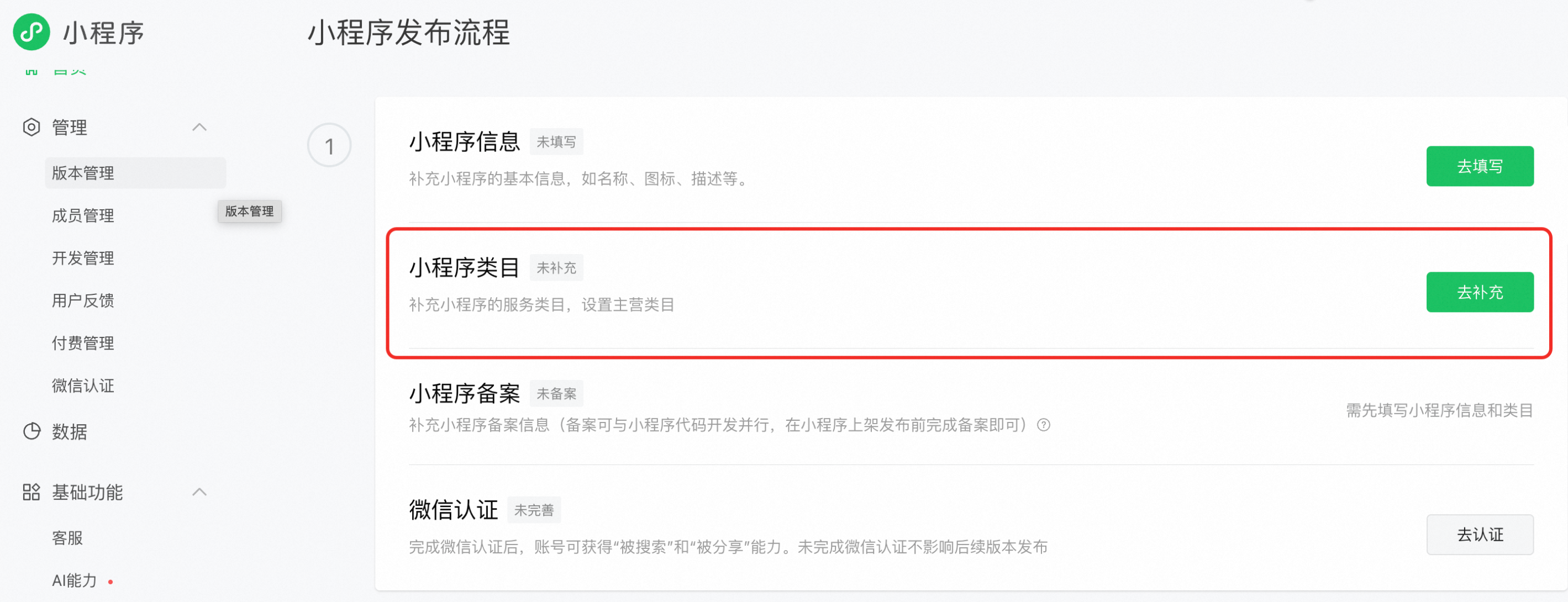
Set the service category: If the mini program does not have a service category, follow the prompt and click Go to Configure to go to the WeChat Mini Program Platform and configure the service category.
Mini program filing: If the mini program has not completed filing, it cannot be found by search after publication. Only the WeChat users in the Member Management list can use the mini program for debugging. This restriction is automatically removed after filing is complete.
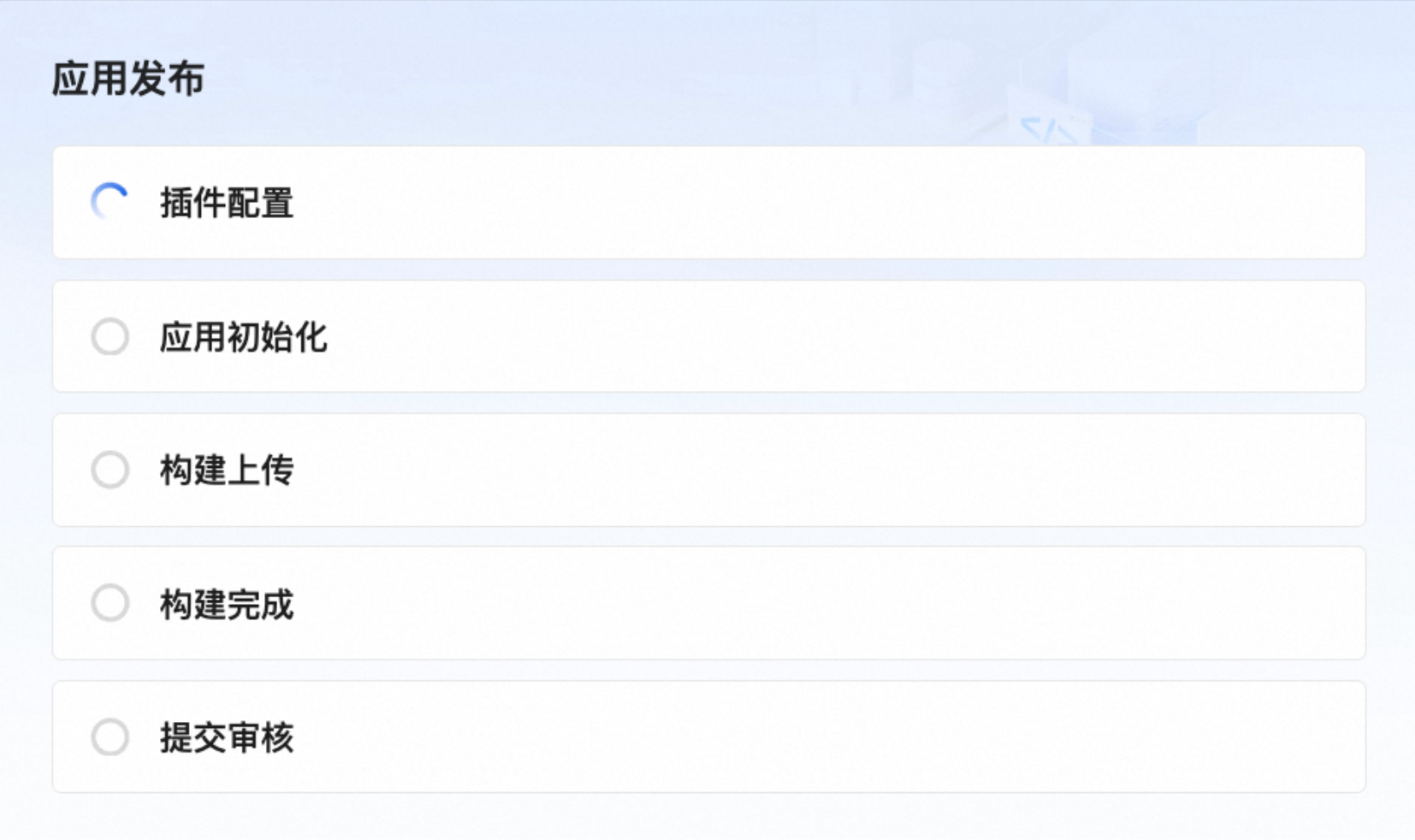
After you confirm that the authorization and configuration information is correct, click Publish Now. A loading indicator appears during publication. Wait for the process to complete.
After publication, the mini program enters the review state. The page displays the mini program thumbnail, QR code, name, version number, and current review status.
To publish a new version later, click Update in the upper-right corner of the page to restart the publishing process.
FAQ
Causes and solutions for authorization failure
If authorization fails during binding, check the following:
Whether the WeChat account used to scan the QR code has mini program developer status.
Whether the mini program has already been authorized to another service provider.
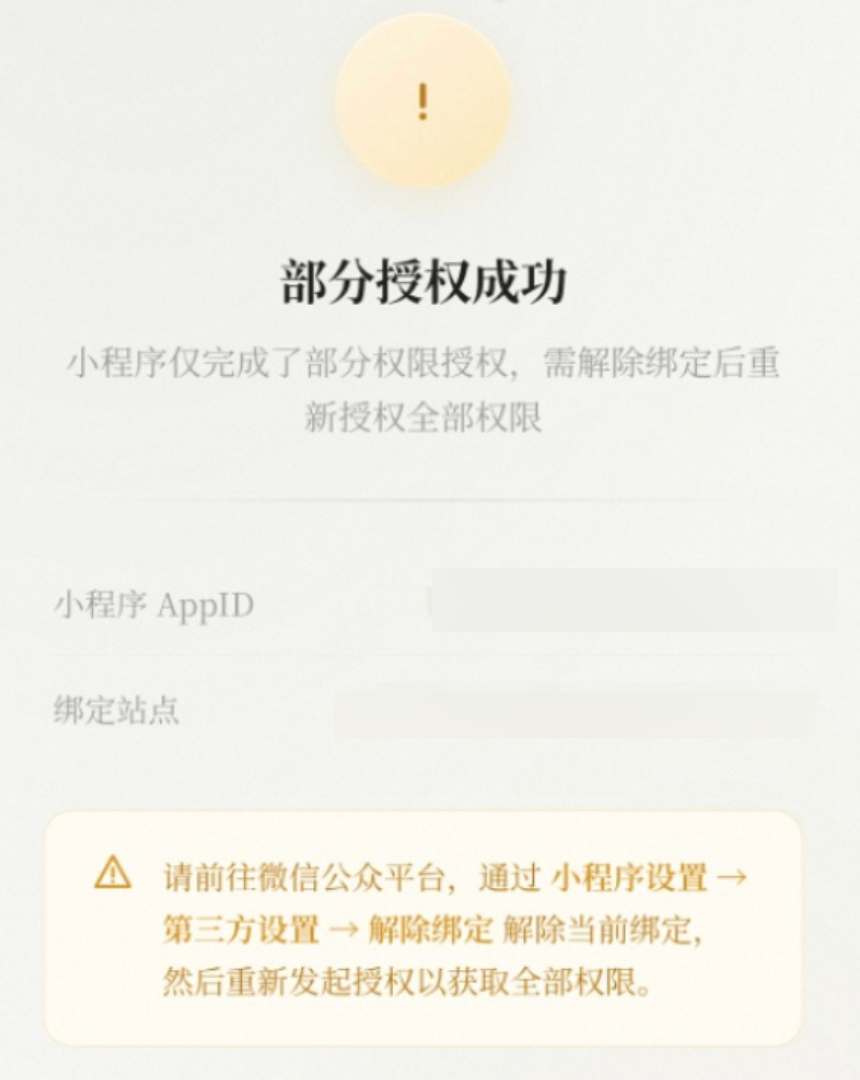
If the mini program has already been authorized to another service provider, go to the WeChat Mini Program Platform to revoke the authorization, and then scan the QR code to authorize it again.
How do I revoke mini program authorization?
Go to the WeChat Mini Program Platform, find Wanxiaozhi's authorization record in authorization management, and revoke it. You can authorize the mini program again after you revoke the authorization.