Mobile client
The Alibaba Cloud Workspace mobile client is available as an iOS client and an Android client. Use the client to connect to Alibaba Cloud Workspace from your mobile device.
Examples use the iOS client V7.7, Enterprise Edition. If your experience differs, upgrade to the latest version.
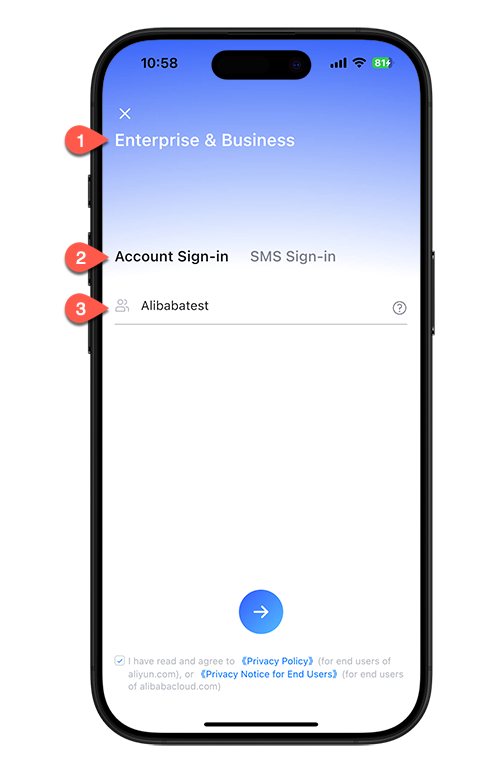
Logon screen 1: Organization ID
Enter your organization ID or office network ID.
-
Select the cloud computer edition: Enterprise & Business or Personal.
-
Select a logon method.
NoteText message logon is available only for Chinese mainland mobile numbers.
-
Enter your organization ID or office network ID.
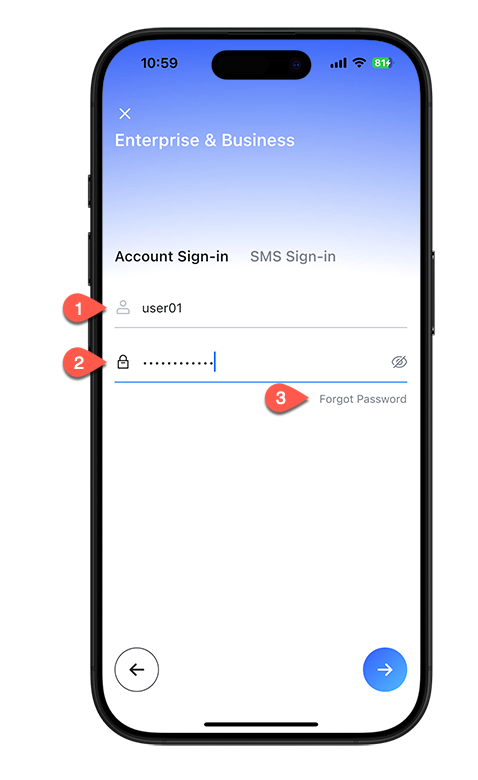
Logon screen 2: Credentials
Enter your logon credentials: username and password, or mobile number and verification code.
-
Enter your username.
-
Enter your password.
-
To reset an expired or forgotten password, click Forgot Password and follow the on-screen instructions.
Cloud resources screen
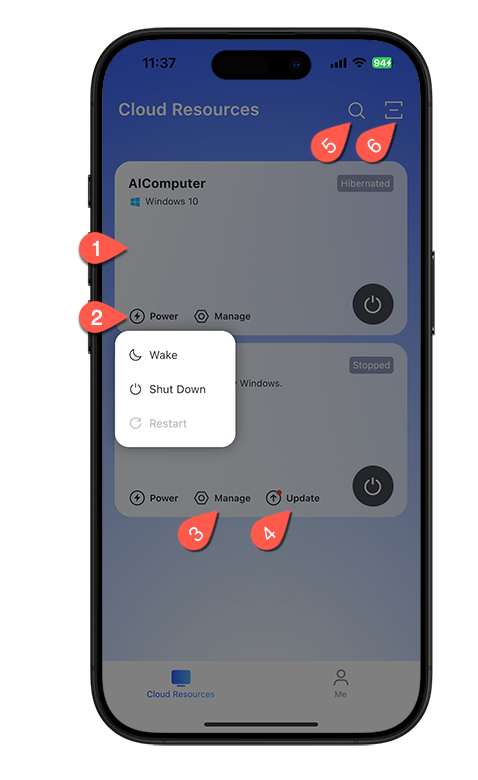
After logon, the client displays cloud computers assigned to you.
-
Resource card: Start, stop, restart, or update the cloud computer.
-
Power: Start, stop, restart, hibernate, or wake up the cloud computer.
-
Manage: Open cloud computer settings.
-
Update: Update the cloud computer image.
-
Scan to log on: Scan a QR code from your mobile device to log on to the desktop client.
User center
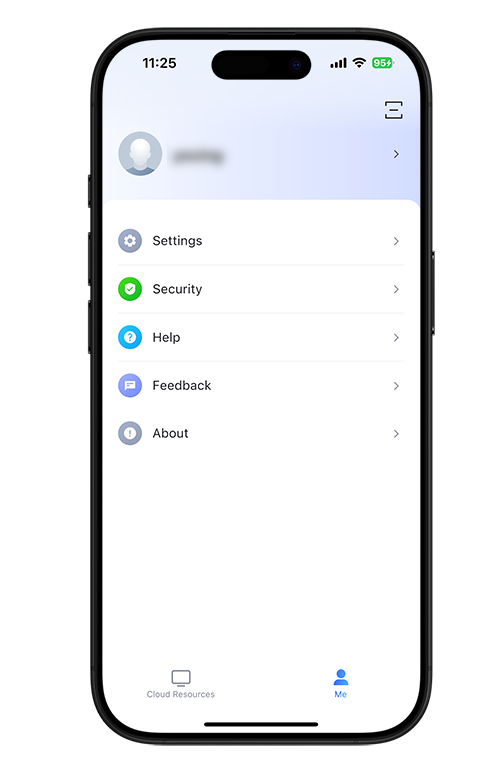
The Me screen provides access to account information, settings, and feedback.
-
Profile: View your username, organization ID, and contact information.
-
Settings: Configure general and network settings.
-
Security: Configure logon security settings.
-
Help: Open online documentation.
-
Feedback: Submit product feedback.
-
About: View version information and check for updates.