Best practices for node pool deployment sets
Assign a deployment set to a node pool to distribute ECS instances across physical servers. Affinity configurations let applications become aware of the underlying node topology and spread workloads evenly across nodes, improving disaster recovery and high availability.
Prerequisites
A deployment set is created.
Background
In a single zone, you typically deploy services across multiple hosts for high availability. If a physical server fails, all replicas on it are affected. ECS deployment sets distribute instances across different physical servers in a region, ensuring mutual isolation and reducing service unavailability risk.
Limitations
Feature usage notes in clusters
-
Deployment sets support only ACK managed clusters and ACK dedicated clusters.
-
Specify a deployment set only when creating a node pool. Deployment sets cannot be enabled for existing node pools. Each node pool supports one deployment set.
-
You cannot manually add or remove nodes from a deployment set. Scale the node pool to adjust node count. See Create and manage node pools.
-
Node pools with deployment sets do not support spot instances.
Deployment set quotas and instance type limits
-
Deployment set quota limits:
-
Node pool deployment sets use the high availability policy by default. You can create up to 20 ECS instances per zone within a deployment set. The total ECS instance count per Alibaba Cloud region is
20 × number of zones. Ensure sufficient ECS instance quotas and inventory for your required instance types. See Deployment sets .The maximum instance count per deployment set cannot be increased. To raise the maximum number of deployment sets for your account, apply through the Quota Center. See Limits on deployment sets.
-
If creating an ECS instance in a deployment set or restarting a pay-as-you-go instance (in economical mode) fails, the cause may be insufficient inventory. Wait and retry.
-
Instance family restrictions: Most instance families of generation 6 or later support deployment sets that use the high availability, high availability group, and low latency strategies.
Assign a deployment set to a node pool in the console
-
Log on to the ACK console. In the left navigation pane, click Clusters.
-
On the Clusters page, click the name of your cluster. In the left navigation pane, click .
-
On the Node Pools page, click Create Node Pool. In the Create Node Pool dialog box, configure the parameters, select a deployment set, and click Confirm.
See Create and manage node pools for node pool parameters. After you select a deployment set, the maximum node count in the node pool is limited. The default limit is 20 × the number of zones. Ensure sufficient deployment set quota to avoid node scale-out failures.Create and manage node pools for node pool parameters.

Use cases
Schedule pods from the same workload in a single node pool so that only one pod runs per node using pod anti-affinity
Schedule three pod replicas from a Deployment onto three different nodes.
-
Create a node pool with three nodes and assign a deployment set.
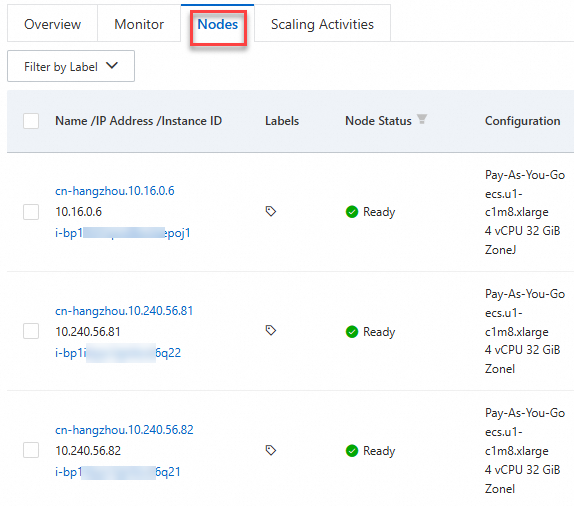
After creation, on the Node Pools page, click the node pool. On the Nodes tab, verify that three nodes were created.
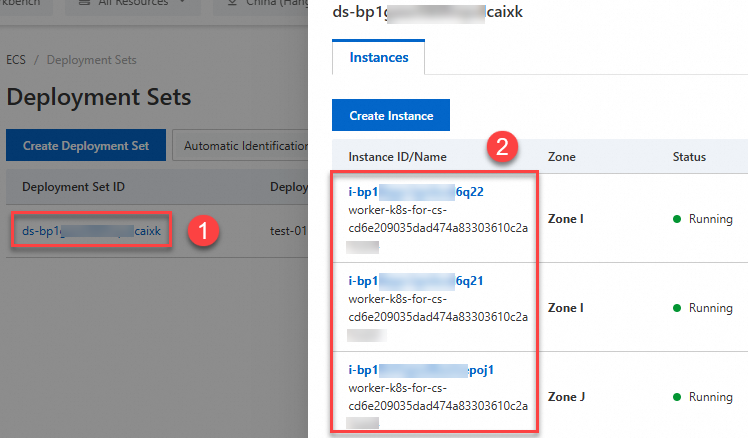
Log on to the ECS console. In the left navigation pane, choose . On the Deployment Set page, verify that all three nodes belong to the deployment set.
-
Configure your application with the following YAML.
Set pod anti-affinity to schedule three application pods onto different nodes.
apiVersion: apps/v1
kind: Deployment
metadata:
  name: nginx
  labels:
    app: nginx
spec:
  replicas: 3
  selector:
    matchLabels:
      app: nginx
  template:
    metadata:
      name: nginx
      labels:
        app: nginx
    spec:
      affinity:
        podAntiAffinity:
          requiredDuringSchedulingIgnoredDuringExecution:  # Set the scheduling policy.
          - labelSelector:
              matchExpressions:
              - key: app
                operator: In
                values:
                - nginx
            topologyKey: kubernetes.io/hostname
      nodeSelector:
          alibabacloud.com/nodepool-id: <nodepool-id>  # Specify the node pool ID.
      containers:
      - name: nginx
        image: anolis-registry.cn-zhangjiakou.cr.aliyuncs.com/openanolis/nginx:1.14.1-8.6
        resources:
          limits:
            cpu: 1
          requests:
            cpu: 1
Execution Result
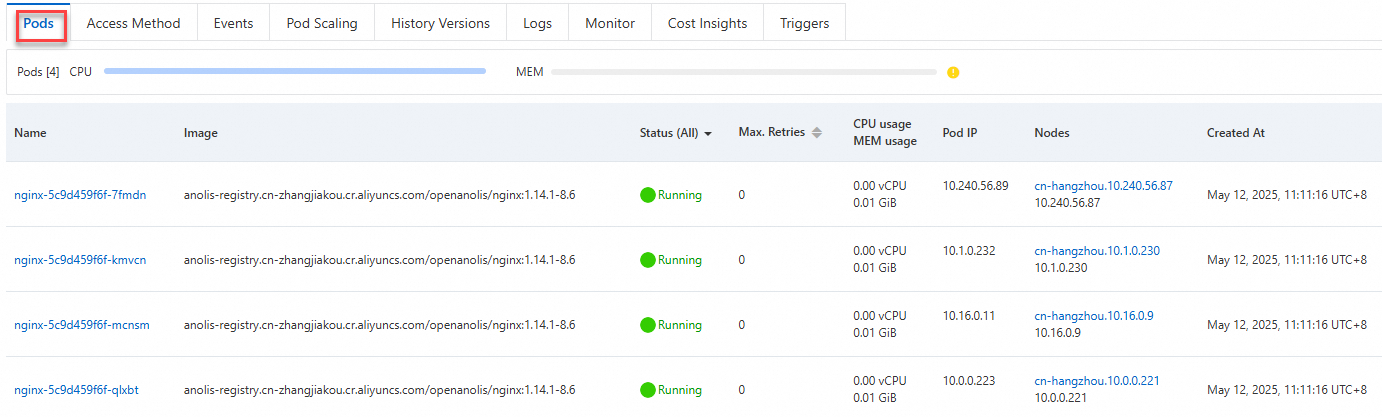
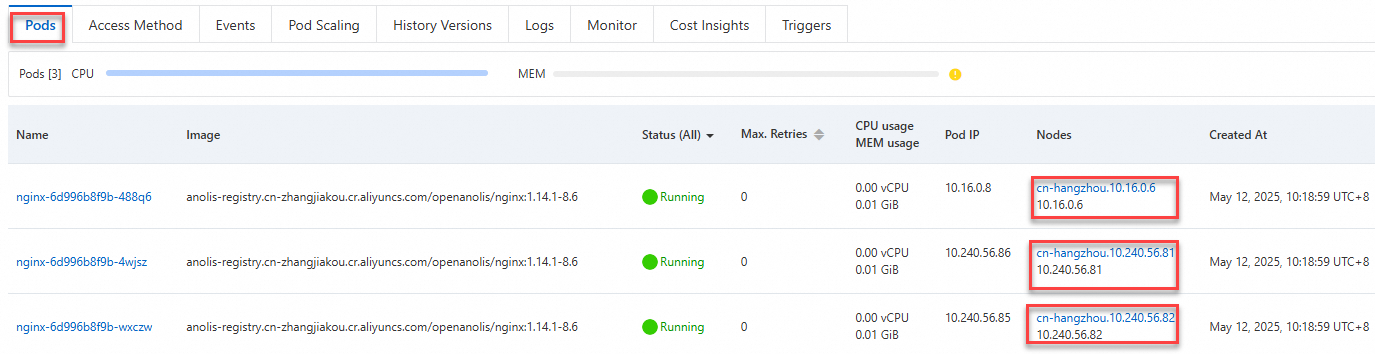
On the Deployments page, click the target Deployment. On the Pods tab, the three pods are scheduled onto different nodes.
Distribute pods from the same workload evenly across zones and nodes within a single node pool
-
Create a node pool with four nodes, assign a deployment set, and select vSwitches in multiple zones.
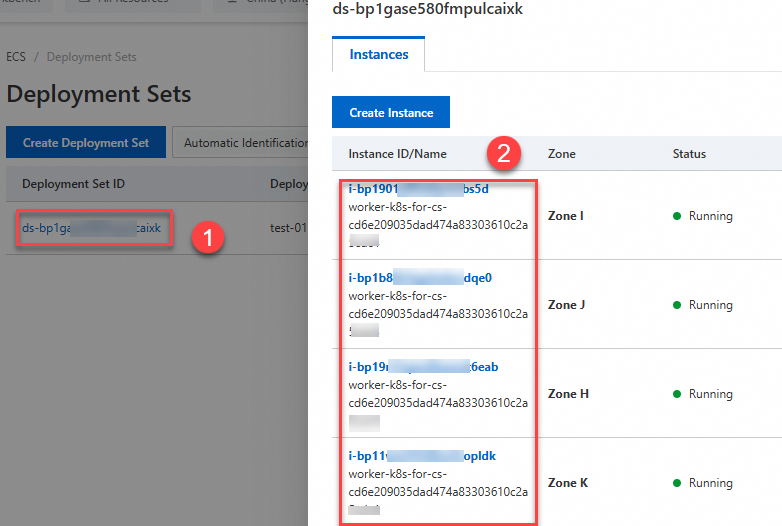
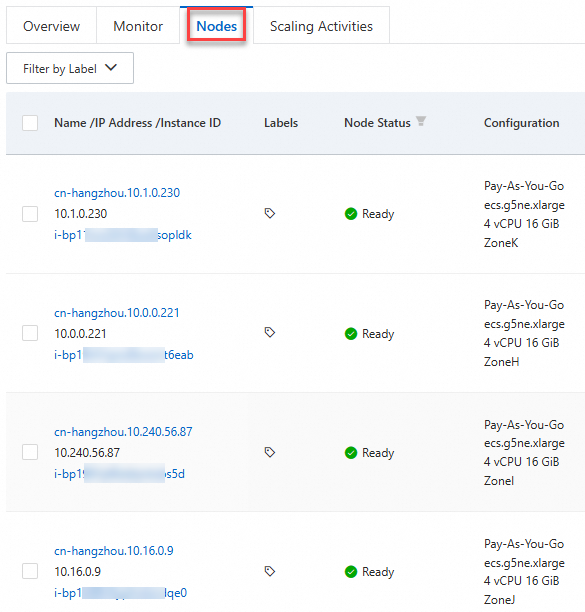
After creation, on the Node Pools page, click the node pool. On the Nodes tab, verify that four nodes exist across four zones. Per ESS’s even distribution policy, the ECS instances are spread across four zones and belong to the deployment set.
Log on to the ECS console. In the left navigation pane, choose . On the Deployment Set page, verify that all four nodes belong to the deployment set.

-
Configure your application with the following YAML.
Use pod topology spread constraints to distribute pods from the same application evenly across zones and nodes.
apiVersion: apps/v1
kind: Deployment
metadata:
  name: nginx
  labels:
    app: nginx
spec:
  replicas: 4
  selector:
    matchLabels:
      app: nginx
  template:
    metadata:
      name: nginx
      labels:
        app: nginx
    spec:
      topologySpreadConstraints:
        - maxSkew: 1
          topologyKey: kubernetes.io/hostname
          whenUnsatisfiable: DoNotSchedule
          labelSelector:
            matchLabels:
              app: nginx
        - maxSkew: 1
          topologyKey: topology.kubernetes.io/zone
          whenUnsatisfiable: DoNotSchedule
          labelSelector:
            matchLabels:
              app: nginx
      nodeSelector:
        alibabacloud.com/nodepool-id: <nodepool-id>  # Specify the node pool ID.
      containers:
      - name: nginx
        image: anolis-registry.cn-zhangjiakou.cr.aliyuncs.com/openanolis/nginx:1.14.1-8.6
        resources:
          limits:
            cpu: 1
          requests:
            cpu: 1
Execution Result
On the Deployments page, click the target Deployment. On the Pods tab, the pods are evenly distributed across zones and nodes.