Best practices for spot instance node pools
A spot instance node pool contains a mix of spot instances and pay-as-you-go instances at a specific ratio to reduce costs. This topic introduces the concept and use cases of spot instance node pools, and describes how to configure an instance mix, set the ratio of spot to pay-as-you-go instances, check the expiration status of spot instances, and gracefully handle spot instance expiration.
Overview
Spot instances use the pay-as-you-go billing model, where you pay for resources after you use them. The cost is calculated based on the market price and usage duration.
A spot instance is a special type of pay-as-you-go instance whose price fluctuates with supply and demand. They offer significant cost savings, reducing node costs by up to 90% compared to regular pay-as-you-go instances. When you create a spot instance, you must specify a bidding mode. If the real-time market price for the specified instance type is below your bid and there is sufficient inventory, the spot instance is successfully created.
After creation, a spot instance operates just like a standard pay-as-you-go instance. You can use it with other cloud products, such as cloud disks and elastic IP addresses (EIPs). Spot instances have a default one-hour protection period. After this period, the system checks the real-time market price and inventory every five minutes. If the market price exceeds your bid or if there is insufficient inventory, the spot instance is released.
Use cases
-
Spot instance node pools
Because spot instances in a node pool can be reclaimed on short notice, they are best suited for stateless, fault-tolerant applications. This includes batch processing, machine learning training workloads, big data ETL (such as Apache Spark), queue processing applications, and stateless API applications.
For applications that cannot tolerate such interruptions, use node pools with pay-as-you-go or subscription instances. These workloads include:
-
Cluster management tools, such as monitoring and operations tools.
-
Deployments or applications that require stateful workloads, such as databases.
-
-
Spot instance node pools with auto scaling
If your workload is suitable for a spot instance node pool and has distinct peak and off-peak periods, consider using a spot instance node pool with auto scaling enabled.
When auto scaling is enabled, the cluster autoscaler checks whether the spot instance node pool needs to scale out to deploy Pods and automatically scales in when nodes meet the scale-in criteria. A spot instance node pool with auto scaling enabled scales out faster and releases idle resources more promptly. The ability to quickly add instances helps compensate for the passive reclamation of spot instances and enhances cost savings by releasing idle resources.
Select and configure a spot instance mix
There is no "one-size-fits-all" solution for selecting instance types. Choose a configuration that best balances inventory, cost, and performance for your business needs. Alibaba Cloud ECS provides a wide range of instance types. The first step to effectively using a spot instance node pool is selecting an instance mix that minimizes potential business impact, especially in a bidding scenario.
You can select and configure your spot instance mix using the following methods.
Use console recommendations
The ACK console provides instance selection advice. When you create or edit a node pool, the console suggests instance types that are currently in stock for the selected region. You can further filter these instance types based on your resource requirements. After selecting instance types, the console calculates the elasticity strength and price range for the instances. You can use the elasticity strength recommendation to add more instance types and set a maximum instance price.
For more information about how to create or edit a node pool, see Create and manage node pools.
In the Selected Specifications section, you can view the selected instance types and adjust their purchase priority by using the Move Up and Move Down buttons. The bottom of the page displays the scaling group's elasticity strength level (for example, "Medium") and provides suggestions for improvement, such as selecting multiple vSwitches in different zones and choosing multiple instance types with sufficient inventory.
Use the spot-instance-advisor CLI
ACK provides an open-source command-line tool, spot-instance-advisor, to retrieve historical price fluctuations and current pricing information for spot instances. The spot-instance-advisor tool uses an API to fetch instance types and historical price curves for a region. It then uses statistical analysis to calculate and rank the instance types with the lowest core-hour cost and computes a price entropy value based on price dispersion. A higher entropy value indicates more frequent price fluctuations. We recommend selecting instance types with low entropy.
To download spot-instance-advisor, see spot-instance-advisor.
The spot-instance-advisor supports the following filter parameters.
Usage of ./spot-instance-advisor:
  -accessKeyId string
        Your accessKeyId of cloud account
  -accessKeySecret string
        Your accessKeySecret of cloud account
  -cutoff int
        Discount of the spot instance prices (default 2)
  -family string
        The spot instance family you want (e.g. ecs.n1,ecs.n2)
  -limit int
        Limit of the spot instances (default 20)
  -maxcpu int
        Max cores of spot instances  (default 32)
  -maxmem int
        Max memory of spot instances (default 64)
  -mincpu int
        Min cores of spot instances (default 1)
  -minmem int
        Min memory of spot instances (default 2)
  -region string
        The region of spot instances (default "cn-hangzhou")
  -resolution int
        The window of price history analysis (default 7)
Run the following command to get the most suitable instance type configuration for the current region.
TheaccessKeyId,accessKeySecret, andregionparameters are required. Specify values based on your business requirements.
./spot-instance-advisor --accessKeyId=<id> --accessKeySecret=<secret> --region=<cn-zhangjiakou>Configure the spot to pay-as-you-go ratio
By configuring the ratio of spot instances to pay-as-you-go instances in a node pool, you can ensure a stable baseline of pay-as-you-go instances while reducing costs with a planned proportion of spot instances.
-
Your cluster must be version 1.9 or later. To upgrade a cluster, see Manually upgrade a cluster.
-
Ensure that your cluster can add a sufficient number of nodes. For information on node quotas and how to request a quota increase, see Quotas and limits.
-
When you add existing nodes, ensure that the ECS instances in your Virtual Private Cloud (VPC) have an elastic IP address (EIP) bound to them, or that the corresponding VPC has a NAT Gateway configured. This ensures that nodes can access the public internet and prevents failures during node addition.
-
Log on to the ACK console. In the left navigation pane, click Clusters.
-
On the Clusters page, click the name of your cluster. In the left navigation pane, click .
-
On the Node Pools page, click Create Node Pool and configure the parameters.
The following table describes only the key configuration items. For detailed instructions, see Create and manage node pools.
Parameter
Description
vSwitch
We recommend that you select vSwitches in different zones to improve cluster high availability.
Billing Method
Select Spot Instance.
Expand Advanced Options and configure the following parameters.
Set scaling policy to cost optimization policy, set Pay-As-You-Go Instance Percentage (%) to
20, select the use pay-as-you-go instances to supplement spot capacity checkbox (this launches pay-as-you-go instances to meet the required count if spot instances are unavailable due to price or inventory), and select the enable supplemental spot instance checkbox (this proactively drains and replaces an instance 5 minutes before reclamation; disabling this may cause service interruptions).Scaling Policy
-
Priority-based Policy: Scales nodes based on the vSwitch priority that you configure (priority decreases from top to bottom). If an instance cannot be created in a higher-priority zone, the system automatically uses the next vSwitch in the priority list.
-
Cost Optimization: Scales out instances with the lowest vCPU unit price first.
If the node pool uses Preemptible Instance, they are prioritized. You can also configure a Pay-as-you-go Instance Percentage (%). If spot instances of a specific type cannot be created due to insufficient inventory, the system automatically attempts to create pay-as-you-go instances as supplements.
-
Distribution Balancing: Distributes ECS instances evenly across multiple zones. This policy applies only to multi-zone deployments. If the distribution becomes unbalanced due to issues such as insufficient inventory, you can perform the balancing operation again.
Use Pay-as-you-go Instances When Spot Instances Are Insufficient
If this option is enabled and an insufficient number of spot instances can be created due to price or inventory constraints, ACK automatically attempts to create pay-as-you-go instances as a supplement.
Enable Supplemental Spot Instance
When enabled, upon receiving a system message that a spot instance is about to be reclaimed (5 minutes before reclamation), ACK will attempt to scale out a new instance as compensation.
Compensation successful: ACK drains the old node and removes it from the cluster.
Compensation failed: ACK does not drain the old node. The instance will still be reclaimed and released after 5 minutes. When inventory is restored or price conditions are met, ACK will automatically purchase an instance to maintain the desired number of nodes. For more information, see Best practices for spot instance node pools.
The proactive release of spot instances can cause business disruptions. To improve the compensation success rate, we recommend also enabling Use Pay-as-you-go Instances When Spot Instances Are Insufficient.
Cloud resources and billing:
 ECS Instance
 -
After the configuration is complete, you can go to the node pool list, click Details in the Actions column, and then click the Basic Information tab. In the Node Configurations section, you can view the percentage of pay-as-you-go instances.
Check the expiration status of spot instances
To prevent unexpected node exits due to spot instance expiration, ACK uses the ack-node-problem-detector (NPD) component to obtain information about impending instance releases and notify you.
To install the NPD component, see Step 1: Install the ack-node-problem-detector component.
In an ACK cluster, ECS instances serve as nodes that support the cluster and its running services. Depending on their creation policy, some instances, such as spot instances and subscription instances, are subject to automatic release upon expiration. If pre-emptive actions like Pod eviction, node draining, or node replacement are not taken before an instance is automatically released, cluster services may be affected. An unexpected exit of a master node can lead to a cluster-level failure. To prevent issues from spot instance expiration, you can use the InstanceExpired status from the NPD component to learn of an impending release.
-
Log on to the ACK console. In the left navigation pane, click Clusters.
-
On the Clusters page, click the name of your cluster. In the left navigation pane, click .
-
On the Nodes page, click the name of the target node or, in the Actions column for the target node, choose .
-
On the node details page, check the status of the InstanceExpired condition.
In the Status section, check the status of the InstanceExpired condition.
Description of InstanceExpired statuses:
InstanceExpired status
Description
True
If the status of InstanceExpired is True and the Content is InstanceToBeTerminated, the spot instance is about to expire and will be released.
False
If the status of InstanceExpired is False and the Content is InstanceNotToBeTerminated, the spot instance is not expiring and can continue to be used.
Unknown
An Unknown status indicates a plug-in error. Please submit a ticket to resolve the issue.
If the InstanceExpired status is True, you can see related events about the instance expiration in the Events section.
If the InstanceExpired status is True, the spot instance is about to expire and be released. If you need to continue using the services on that node, schedule your applications to other nodes. For more information, see Schedule applications to a specific node.
Handle spot instance expiration gracefully
Graceful handling of spot instance expiration primarily involves monitoring and notifications, proactive node supplements and policies, and custom handling behaviors.
Monitoring and notifications
To notify you of a spot instance release as early as possible, ACK clusters use the NPD component to monitor pre-release messages for spot instances.
-
When no pre-release message is detected for the spot instance, the InstanceExpired value in the node's status is False. On the node details page, click the Status tab and check the InstanceExpired condition in the conditions list. When its status is False and the message is
InstanceNotToBeTerminated, it indicates that the spot instance is not currently being reclaimed. -
When the InstanceExpired value of a spot instance is True, it means the spot instance is about to expire and will be released. ACK notifies you of the impending release through a Kubernetes event. When a pre-release message is detected, an
InstanceToBeTerminatedevent appears in the cluster's Events panel, indicating that the instance is about to be released.
Enable Supplemental Spot Instance
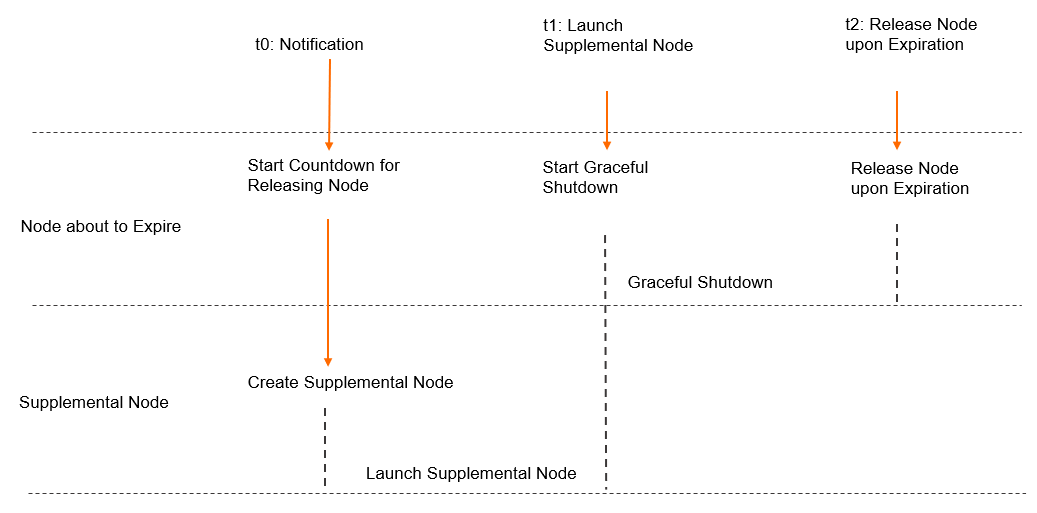
The expiration and release of spot instances is a key factor that affects the stability of workloads on a node. ACK provides various methods to quickly respond to spot instance release events, from configuration and auto scaling to monitoring and notifications. However, these methods typically act after the spot instance is reclaimed. During the period between reclamation and the provisioning of a new instance, the cluster's available resources are reduced. To minimize or eliminate this impact, ACK uses the node supplement feature to trigger the launch of a new instance before the expiring instance is reclaimed.
After you enable the supplemental spot instance feature, ACK automatically monitors whether a node instance is about to be released. When ACK detects an impending release, it automatically triggers a scaling activity to launch a new node. This new instance, created to replace the one about to be released, is called a supplemental instance. Once the supplemental instance is running successfully, it triggers the scale-in and release of the expiring spot instance. The release strategy includes graceful shutdown procedures such as cordoning the node (making it unschedulable), draining the node, and removing the node from the cluster. This process helps ensure that workloads on the expiring spot instance are smoothly migrated to other nodes in the cluster, minimizing the impact of the instance expiration on your business.
-
If the instance supplement fails due to reasons such as insufficient inventory, ACK does not drain the old node. The preemption of the spot instance may cause service interruptions. After a failure, when inventory is restored or price conditions are met, ACK automatically purchases an instance to ensure the desired node count.
To improve the supplement success rate, we recommend that you also enable Use Pay-as-you-go Instances When Spot Instances Are Insufficient.
-
The result of the instance supplement does not affect the reclamation of the expiring spot instance. Regardless of whether you Enable Supplemental Spot Instance, the expiring instance is still reclaimed 5 minutes after the pre-reclamation notice.
Add custom handling logic
In many real-world scenarios, decommissioning a node requires more steps than a standard graceful shutdown, such as removing the node's information from a registered DNS center. To handle such needs, monitor the InstanceExpired status of the node or listen for the InstanceToBeTerminated event. When you receive a notification that the node instance is expiring or will be released, you can treat the node as pending decommissioning and then run your custom logic. For specific instructions on how to monitor the expiration status of spot instances, see Check the expiration status of spot instances.