Cromwell workflow engine support
Cromwell is a workflow management system developed by the Broad Institute and is supported by Alibaba Cloud BatchCompute. Cromwell converts workflows written in Workflow Description Language (WDL) into BatchCompute jobs. You pay only for the compute and storage resources that your jobs use. This topic describes how to run workflows on Alibaba Cloud BatchCompute using Cromwell.
Activate BatchCompute
To use BatchCompute, you must activate the service and its dependencies, such as OSS. For more information, see the official documentation.
Download Cromwell
Activate an ECS instance as a Cromwell server
BatchCompute provides an ECS image for the Cromwell server. You can use this image to launch an ECS instance that functions as a server. The image includes the basic configurations and common software required by the official Cromwell documentation. In this image, the Cromwell working directory is /home/cromwell. Place the Cromwell JAR file that you downloaded in the /home/cromwell/cromwell directory.
Configuration file
The Cromwell configuration file includes:
- Cromwell common configurations.
- BatchCompute-related configurations. These configurations include storage and compute resources required for the BatchCompute backend.
For more information about the configuration parameters, see the official Cromwell documentation. The following code provides an example of a BatchCompute configuration file named bcs.conf:
include required(classpath("application"))


database {
  profile = "slick.jdbc.MySQLProfile$"
  db {
    driver = "com.mysql.jdbc.Driver"
    url = "jdbc:mysql://localhost/db_cromwell?rewriteBatchedStatements=true&useSSL=false&allowPublicKeyRetrieval=true"
    user = "user_cromwell"
    #Your MySQL password
    password = ""
    connectionTimeout = 5000
  }
}

workflow-options {
    workflow-log-dir = "/home/cromwell/cromwell/logs/"
}

call-caching {
  # Allows re-use of existing results for jobs you've already run
  # (default: false)
  enabled = false

  # Whether to invalidate a cache result forever if we cannot reuse them. Disable this if you expect some cache copies
  # to fail for external reasons which should not invalidate the cache (e.g. auth differences between users):
  # (default: true)
  invalidate-bad-cache-results = true
}

docker {
  hash-lookup {
    enabled = false
    # Set this to match your available quota against the Google Container Engine API
    #gcr-api-queries-per-100-seconds = 1000

    # Time in minutes before an entry expires from the docker hashes cache and needs to be fetched again
    #cache-entry-ttl = "20 minutes"

    # Maximum number of elements to be kept in the cache. If the limit is reached, old elements will be removed from the cache
    #cache-size = 200

    # How should docker hashes be looked up. Possible values are "local" and "remote"
    # "local": Lookup hashes on the local docker daemon using the cli
    # "remote": Lookup hashes on docker hub and gcr
    method = "remote"
    #method = "local"
    alibabacloudcr {
      num-threads = 5
      #Alibaba Cloud Container Registry credentials
      auth {
    #endpoint = "cr.cn-shanghai.aliyuncs.com"
        access-id = ""
        access-key = ""
      }
    }
  }
}

engine {
  filesystems {
    oss {
      auth {
        endpoint = "oss-cn-shanghai.aliyuncs.com"
        access-id = ""
        access-key = ""
      }
    }
  }
}

backend {
  default = "BCS"

  providers {
    BCS {
      actor-factory = "cromwell.backend.impl.bcs.BcsBackendLifecycleActorFactory"
      config {
        root = "oss://your-bucket/cromwell_dir"
        region = "cn-shanghai"
        access-id = ""
        access-key = ""

        filesystems {
          oss {
            auth {
              endpoint = "oss-cn-shanghai.aliyuncs.com"
              access-id = ""
              access-key = ""
            }

        caching {
              # When a cache hit is found, the following duplication strategy will be followed to use the cached outputs
              # Possible values: "copy", "reference". Defaults to "copy"
              # "copy": Copy the output files
              # "reference": DO NOT copy the output files but point to the original output files instead.
              #              Will still make sure than all the original output files exist and are accessible before
              #              going forward with the cache hit.
              duplication-strategy = "reference"
            }
          }
        }

        default-runtime-attributes {
          failOnStderr: false
          continueOnReturnCode: 0
          autoReleaseJob: false
          cluster: "OnDemand ecs.sn1.medium img-ubuntu-vpc"
          #cluster: cls-6kihku8blloidu3s1t0006
          vpc: "192.168.0.0/16"
        }
      }
    }
  }
}
If you use the ECS image from the previous section to launch a Cromwell server, the configuration file is located at /home/cromwell/cromwell/bcs_sample.conf. You can modify this file with your configurations to use Cromwell.
- OSS internal endpoint:
- engine.filesystems.oss.auth.endpoint =
"oss-cn-shanghai-internal.aliyuncs.com" - backend.providers.BCS.config.filesystems.oss.auth.endpoint =
"oss-cn-shanghai-internal.aliyuncs.com"
- engine.filesystems.oss.auth.endpoint =
- BatchCompute internal endpoint:
- backend.providers.BCS.config.user-defined-region =
"cn-shanghai-vpc" - backend.providers.BCS.config.user-defined-domain =
"batchcompute-vpc.cn-shanghai.aliyuncs.com"
- backend.providers.BCS.config.user-defined-region =
- Container Registry internal endpoint: docker.hash-lookup.alibabacloudcr.auth.endpoint =
"cr-vpc.cn-shanghai.aliyuncs.com"
Running modes
Cromwell supports two modes:
- Run mode
- Server mode
For more information about the two modes, see the official Cromwell documentation. The following sections describe how to use BatchCompute in these two modes.
Run mode
Run mode is suitable for running a single workflow written in a WDL file. The command is as follows: java -Dconfig.file=bcs.conf -jar cromwell.jar run echo.wdl --inputs echo.inputs
- WDL file: Defines the workflow. Each task in the workflow corresponds to a BatchCompute job.
- Inputs file: Specifies the inputs for the workflow and its tasks defined in the WDL file. An example is shown below:
{
  "workflow_name.task_name.input1": "xxxxxx"
}
Upon successful execution, each task in the workflow defined in the WDL file is submitted as a BatchCompute job. You can then log on to the BatchCompute console to view the job status.
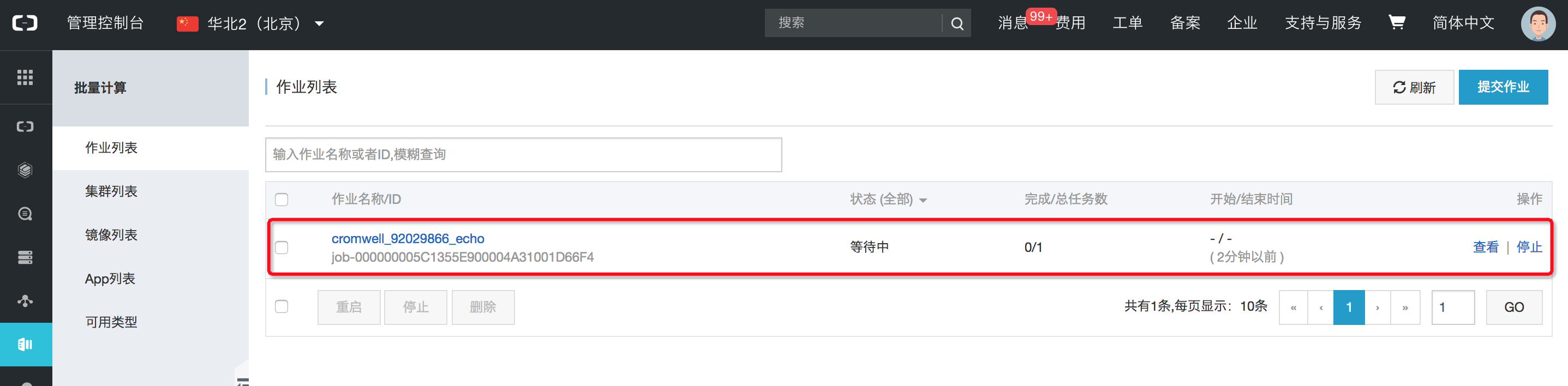
The workflow is complete after all of its corresponding jobs are complete.
Server mode
Start the server
Unlike `run` mode, which can only process one WDL file at a time, `server` mode can process multiple WDL files in parallel. For more information about `server` mode, see the official Cromwell documentation. You can use the following command to start the server: java -Dconfig.file=bsc.conf -jar cromwell.jar server Once the server is running, it can accept workflow processing requests from clients. The following sections describe how to submit workflows to the server using the API and the command-line interface (CLI).
Submit a workflow using the API
39.105.xxx.yyy, enter http://39.105.xxx.yyy:8000 in your browser. You can submit tasks from the web interface, as shown in the following figure: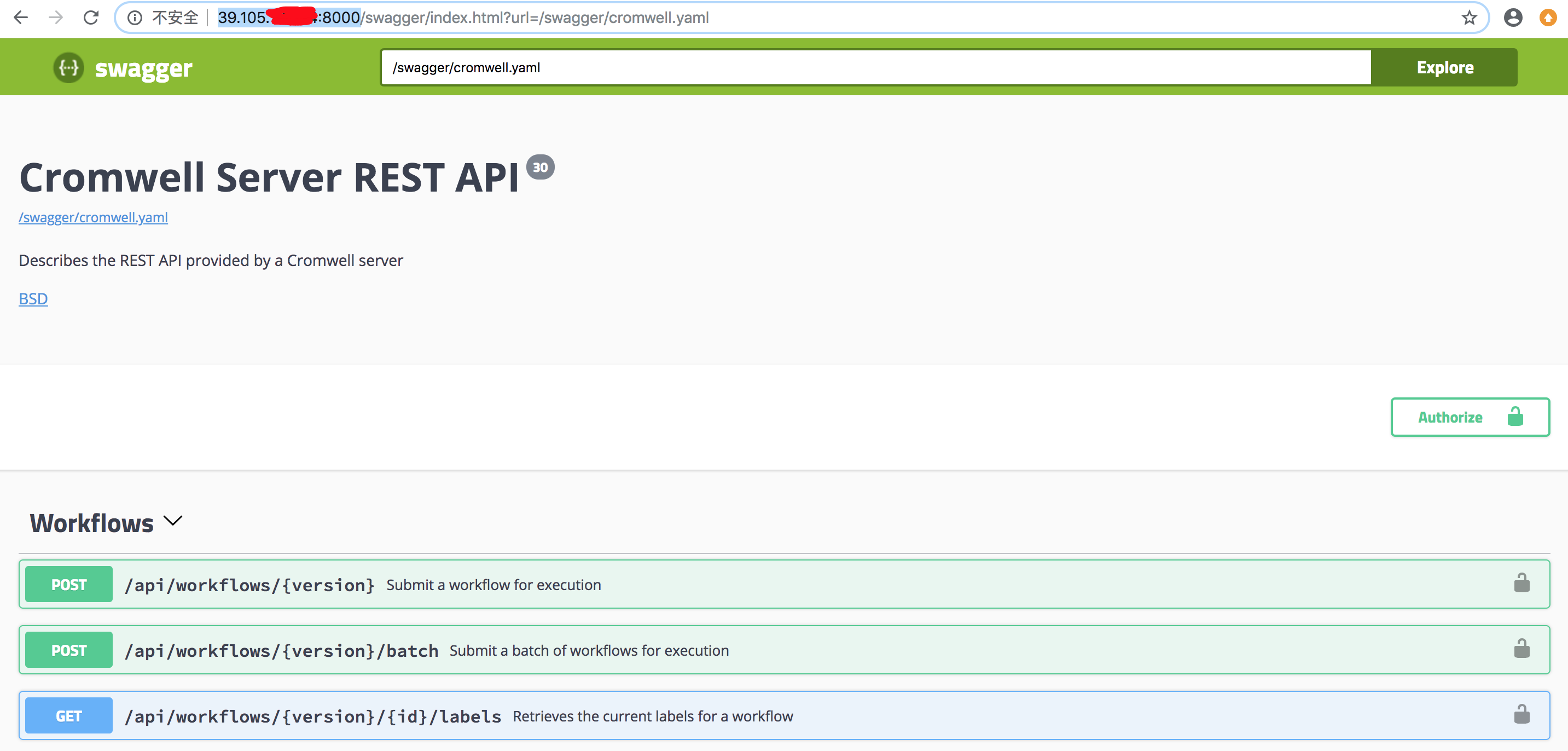 For more information about API operations and their usage, see the Cromwell official documentation.
Submit a workflow using the CLI [Recommended]
In addition to using the API, you can submit a workflow using widdler, an open source CLI tool provided by Cromwell. Use the following command to submit a workflow:
python widdler.py run echo.wdl echo.inputs -o bcs_workflow_tag:tagxxx -S localhostThe -o key:value parameter is used to set an option. BatchCompute provides the bcs_workflow_tag:tagxxx option to configure a tag for the job output directory, as described in the next section, "View run results".
If you use the ECS image from the previous section to launch a Cromwell server, widdler is already installed in /home/cromwell/widdler. Use the following command to submit a workflow:
widdler run echo.wdl echo.inputs -o bcs_workflow_tag:tagxxx -S localhostFor more information about command usage, run the widdler -h command or see the official documentation.
View run results
After the workflow runs, the output is uploaded to the OSS path defined in the configuration file or the WDL file. The directory structure in the OSS path is as follows:
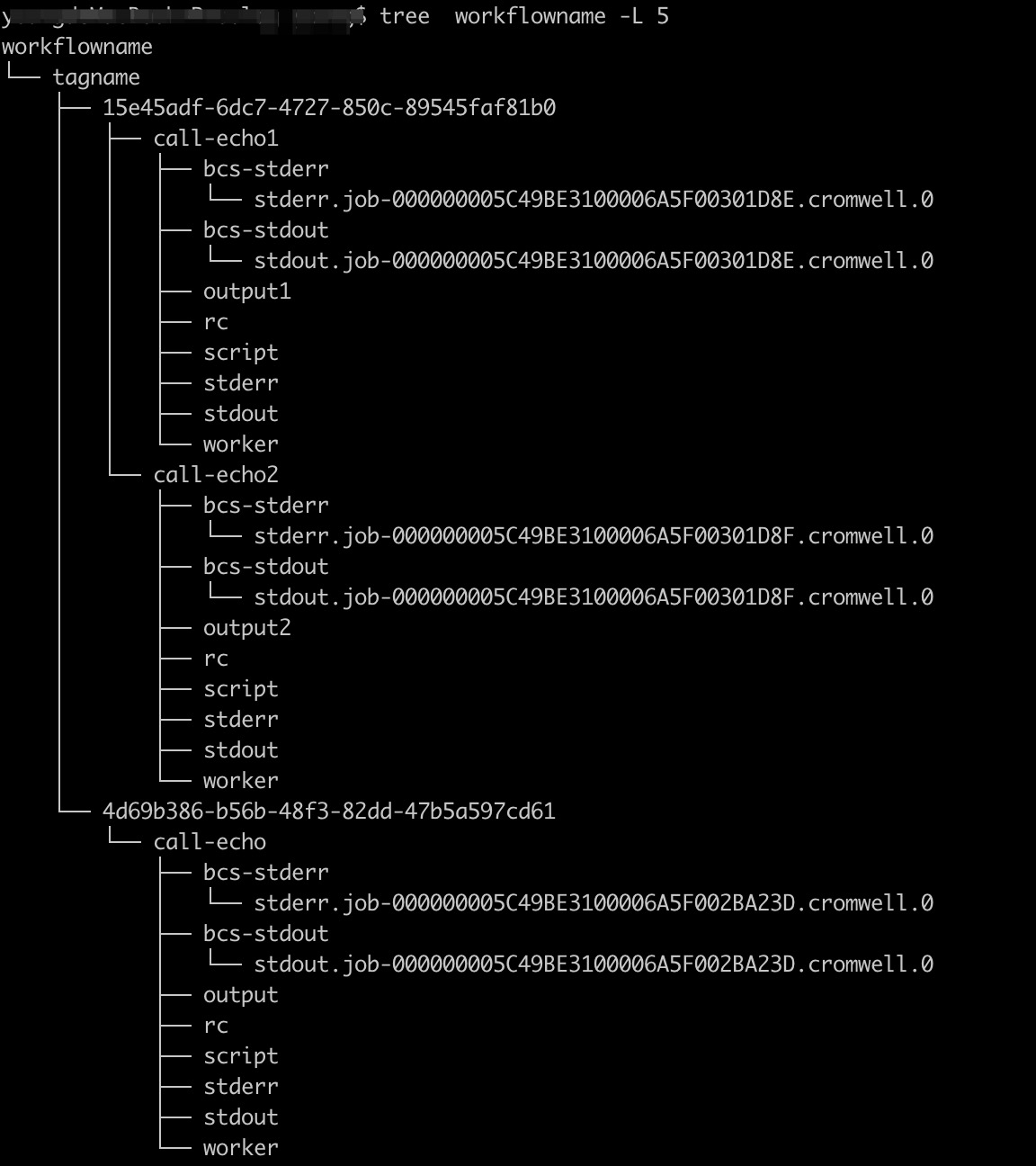
As shown in the preceding figure, the `config.root` directory specified in the configuration file contains the following output directories:
- First layer: The workflow name, workflowname.
- Second layer: The directory tag set by the
-oparameter in the CLI command. - Third layer: The workflow ID. A new ID is generated for each run.
- Fourth layer: The output for each task in the workflow. For example, the workflow
15e45adf-6dc7-4727-850c-89545faf81b0in the figure has two tasks. The directory for each task is named call-taskname. The directory contains three parts:- BatchCompute logs, including bcs-stdout and bcs-stderr.
- The output of the current task, such as output1 and output2 in the figure.
- The stdout and stderr of the current task execution.
Usage recommendations
The following are recommendations for configuring BatchCompute.
Use clusters
BatchCompute provides two ways to use clusters:
- Automatic clusters
- Fixed clusters
Automatic cluster
Specify the default resource type, instance type, and image type in the configuration file. When you submit a BatchCompute job, these configurations are used to automatically create a cluster. For example:
default-runtime-attributes {
        cluster : "OnDemand ecs.sn1ne.large img-ubuntu-vpc"
      }
If you do not want to use the default cluster configuration for a specific workflow, you can specify the BatchCompute cluster configuration for a task in the workflow inputs file. To do this, pass cluster_config as an input to the task. For example:
{
      "workflow_name.task_name.cluster_config": "OnDemand ecs.sn2ne.8xlarge img-ubuntu-vpc"
}
Reset the runtime configuration for the task:
task task_demo {
    String cluster_config

    runtime {
        cluster: cluster_config
  }
}
This overwrites the default configuration and creates the cluster with the new configuration.
Fixed cluster
When you use an automatic cluster, a new cluster must be created, which involves a waiting period. If startup time is a concern, or if you submit many jobs, consider using a fixed cluster. For example:
default-runtime-attributes {
        cluster : "cls-xxxxxxxxxx"
      }
Note: When you use a fixed cluster, release the cluster promptly when you no longer need it. Otherwise, you will continue to be charged for the instances in the cluster.
Cromwell server configuration recommendations
- For high-load workloads, use a high-configuration machine as the Cromwell server, such as an ecs.sn1ne.8xlarge instance with 32 cores and 64 GB of memory.
- For high-load workloads, increase the maximum number of open files on the Cromwell server. For example, on Ubuntu, you can modify the
/etc/security/limits.conffile to set the maximum number of files to 1,000,000:root soft nofile 1000000 root hard nofile 1000000 * soft nofile 1000000 * hard nofile 1000000 - Ensure that the Cromwell server has a database configured to prevent the loss of job information.
- Set the number of concurrent workflows in the bcs.conf file. For example,
system.max-concurrent-workflows = 1000
Request BatchCompute quota increases
For high-load scenarios, you may need to contact BatchCompute to increase the relevant quotas, such as:
- The total number of jobs for a user, including completed, running, and waiting jobs.
- The number of clusters for concurrently running jobs, including fixed and automatic clusters.
Use NAS
When you use NAS, note the following:
- NAS must be used within a VPC. When you add a mount target, you must specify a VPC.
- Therefore, the runtime configuration must include VPC and mount information.
- VPC information
- Mounts information
The following example is for your reference:
runtime {
    cluster: cluster_config
    mounts: "nas://1f****04-xkv88.cn-beijing.nas.aliyuncs.com:/ /mnt/ true"
    vpc: "192.168.0.0/16 vpc-2zexxxxxxxx1hxirm"
  }
To mount multiple directories, use the following format:
runtime {
    mounts: "nas://1f****04-xkv88.cn-beijing.nas.aliyuncs.com:/ /mnt1/ true, nas://1f****04-xkv99.cn-beijing.nas.aliyuncs.com:/ /mnt2/ true"
}
Separate the two mount groups with a comma.
Advanced feature support
Glob
Cromwell supports the use of glob patterns to specify multiple files in a workflow as the output of a task. For example:
task globber {
  command <<<
    for i in `seq 1 5`
    do
      mkdir out-$i
      echo globbing is my number $i best hobby  out-$i/$i.txt
    done
  >>>
  output {
    Array[File] outFiles = glob("out-*/*.txt")
  }
}

workflow test {
  call globber
}
When the task finishes, the multiple files specified by the glob pattern are uploaded to OSS as output.
Call Caching
Call Caching is an advanced feature of Cromwell. It saves you time and money by reusing the results of previously run tasks. If a task has the same inputs and runtime conditions as a previous run, Cromwell skips execution and uses the cached results. For example, consider a workflow with many tasks. If the workflow fails on a specific task, you can fix the error and resubmit it. Cromwell checks the completed tasks. If they meet the caching conditions, they are not rerun. The workflow resumes from the failed task.
Configure Call Caching
To use the Call Caching feature with the BatchCompute backend, you need the following configuration items:
database {
  profile = "slick.jdbc.MySQLProfile$"
  db {
    driver = "com.mysql.jdbc.Driver"
    url = "jdbc:mysql://localhost/db_cromwell?rewriteBatchedStatements=true&useSSL=false"
    user = "user_cromwell"
    password = "xxxxx"
    connectionTimeout = 5000
  }
}

call-caching {
  # Allows re-use of existing results for jobs you have already run
  # (default: false)
  enabled = true

  # Whether to invalidate a cache result forever if we cannot reuse them. Disable this if you expect some cache copies
  # to fail for external reasons which should not invalidate the cache (e.g. auth differences between users):
  # (default: true)
  invalidate-bad-cache-results = true
}

docker {
  hash-lookup {

    enabled = true

    # How should docker hashes be looked up. Possible values are local and remote
    # local: Lookup hashes on the local docker daemon using the cli
    # remote: Lookup hashes on alibab cloud Container Registry
    method = remote
    alibabacloudcr {
      num-threads = 10
      auth {
        access-id = "xxxx"
        access-key = "yyyy"
      }
    }
  }
}

engine {
  filesystems {
    oss {
      auth {
        endpoint = "oss-cn-shanghai.aliyuncs.com"
        access-id = "xxxx"
        access-key = "yyyy"
      }
    }
  }
}

backend {
  default = "BCS"

  providers {
    BCS {
      actor-factory = "cromwell.backend.impl.bcs.BcsBackendLifecycleActorFactory"
      config {

        #Other configurations are omitted

        filesystems {
          oss {
            auth {
              endpoint = "oss-cn-shanghai.aliyuncs.com"
              access-id = "xxxx"
              access-key = "yyyy"
            }
            caching {
              # When a cache hit is found, the following duplication strategy will be followed to use the cached outputs
              # Possible values: copy, reference. Defaults to copy
              # copy: Copy the output files
              # reference: DO NOT copy the output files but point to the original output files instead.
              #              Will still make sure than all the original output files exist and are accessible before
              #              going forward with the cache hit.
              duplication-strategy = "reference"
            }
          }
        }

        default-runtime-attributes {
          failOnStderr: false
          continueOnReturnCode: 0
          cluster: "OnDemand ecs.sn1.medium img-ubuntu-vpc"
          vpc: "192.168.0.0/16"
        }
      }
    }
  }
}- database configuration: Cromwell stores the execution metadata of workflows in a database. You must add a database configuration. For more information, see the official Cromwell guide.
- call-caching configuration: Enables or disables Call Caching.
- docker.hash-lookup configuration: Enables hash lookups and provides information about Alibaba Cloud Container Registry. This is used to find the hash value of an image.
- backend.providers.BCS.config.filesystems.oss.caching configuration: Specifies how to use the original output after a Call Caching hit. BatchCompute supports reference mode, which avoids copying the original results. This saves time and cost.
Hit conditions
When you use BatchCompute as the backend, Cromwell uses the following conditions to determine whether a task needs to be rerun:
| Condition | Explanation |
| inputs | The inputs of the task, such as sample files on OSS. |
| command | The command line defined in the task. |
| continueOnReturnCode | A common runtime parameter. The return code that allows execution to continue. |
| docker | A common runtime parameter. The Docker configuration for the backend. |
| failOnStderr | A common runtime parameter. Specifies whether the task fails if stderr is not empty. |
| imageId | A BatchCompute backend runtime parameter. It identifies the ECS image for the job. You do not need to specify this parameter if you use an official image, such as img-ubuntu-vpc. |
| userData | The BatchCompute backend user-defined data. |
If the preceding parameters for a task have not changed, Cromwell determines that the task does not need to be rerun. It directly retrieves the results of the previous execution and continues the workflow.