SGE cluster version 1.1
BatchCompute supports the automated creation of Sun Grid Engine (SGE) clusters.
BatchCompute uses the SGE version that is included with CentOS. For more information, see SGE.
BatchCompute provides a public image named BatchCompute SGE. You can use this image to quickly and reliably build an SGE cluster.
You can search for the keyword BatchCompute SGE in the Alibaba Cloud Marketplace to find the image. The image is free to use. For more information, see How to create an instance using an image.
2. Create a custom image (Optional)
This step is optional. If you do not have special requirements for the image, you can skip to the next step. To install software on top of this OS image, you must create a custom image based on the BatchCompute SGE image.
Create the custom image based on the BatchCompute SGE V1.1 image.
In addition to the command line, BatchCompute SGE V1.1 provides a one-click feature in the console to create, scale out, or delete SGE clusters.
During the image creation process, do not run any SGE-related commands or update Python.
After you create the custom image, register it with BatchCompute.
3. Create an SGE cluster in the console
3.1. Set the cluster name and image
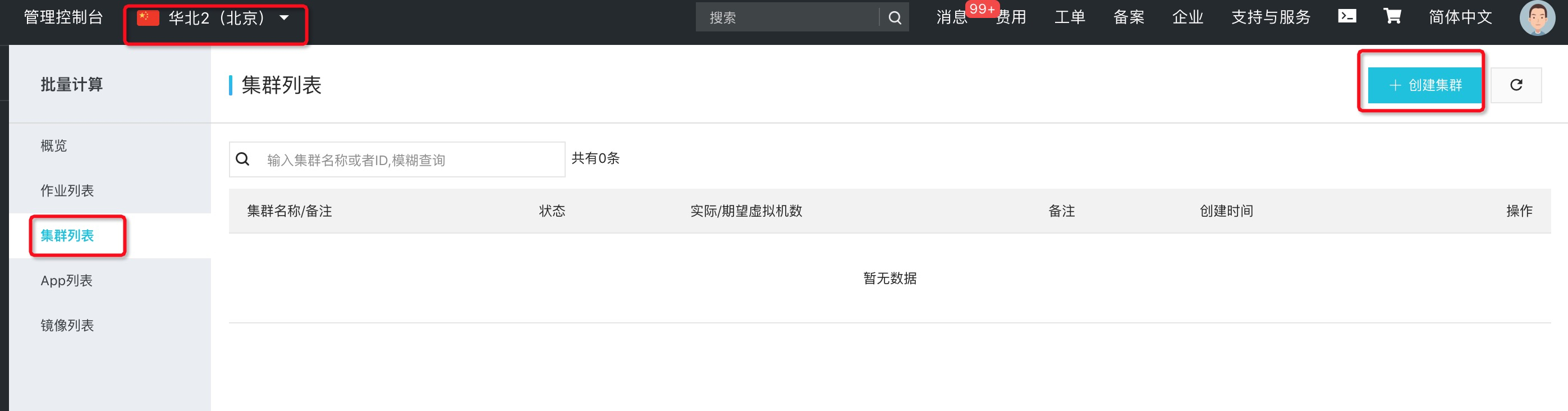
Log on to the BatchCompute console. Select the region where you want to create the cluster, and then click Create Cluster.
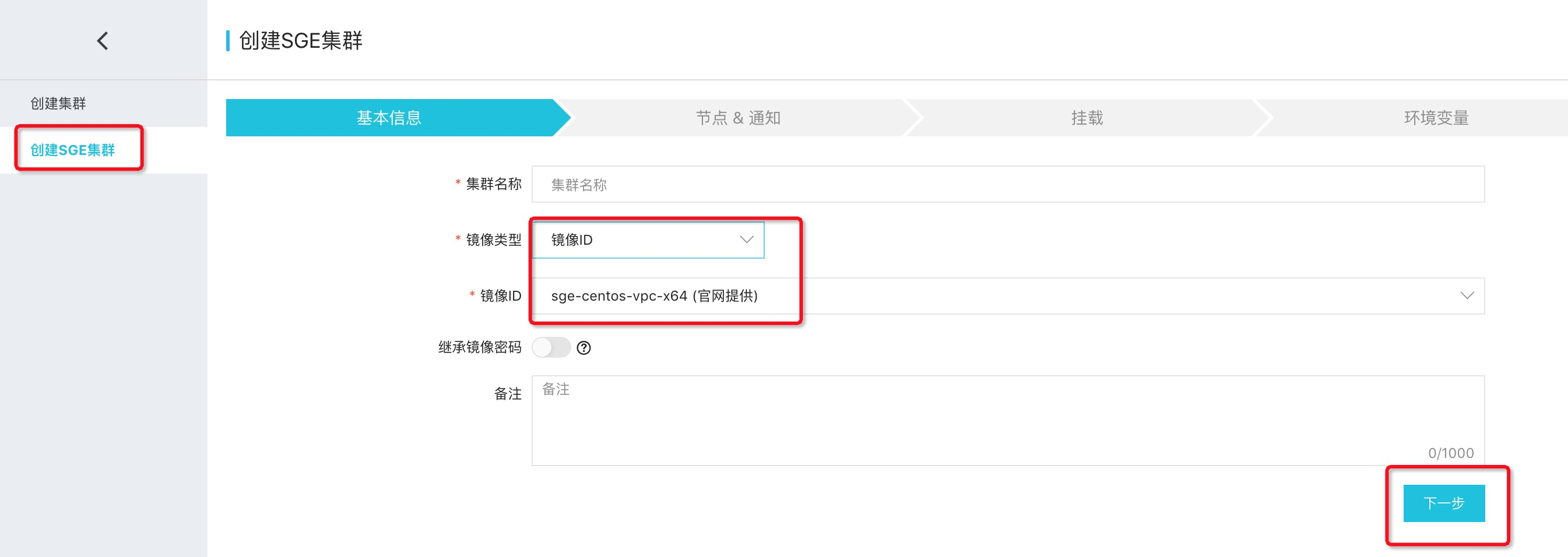
Select Create SGE Cluster. If you are using the public image, select sge-centos-vpc-x64. If you are using a custom image, select the custom image that you registered. After you complete the settings, proceed to the next step.
3.2. Set group information
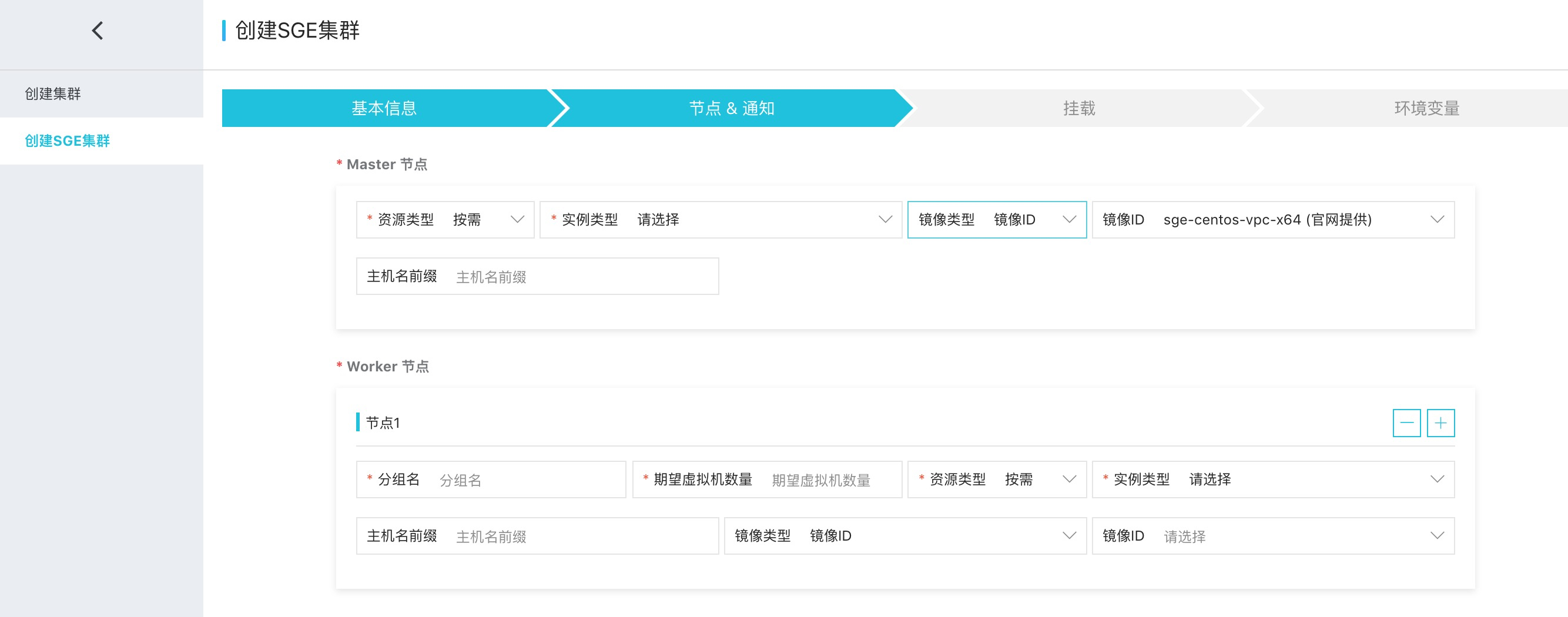
Configure the instance type and image ID for the SgeMaster as needed.
SGE worker nodes support multiple groups. The instance type, number of instances, and image ID can be different for each group.
All worker nodes in the SGE cluster support passwordless logon from the Master node using the
ssh hostnamecommand.All worker nodes in the SGE cluster can communicate with each other over the network. However, passwordless logon between worker nodes is not supported.
The SGE Master belongs to a separate group, and its instance type can be different from that of the worker nodes. This group must contain exactly one node.
3.3. Set mount information
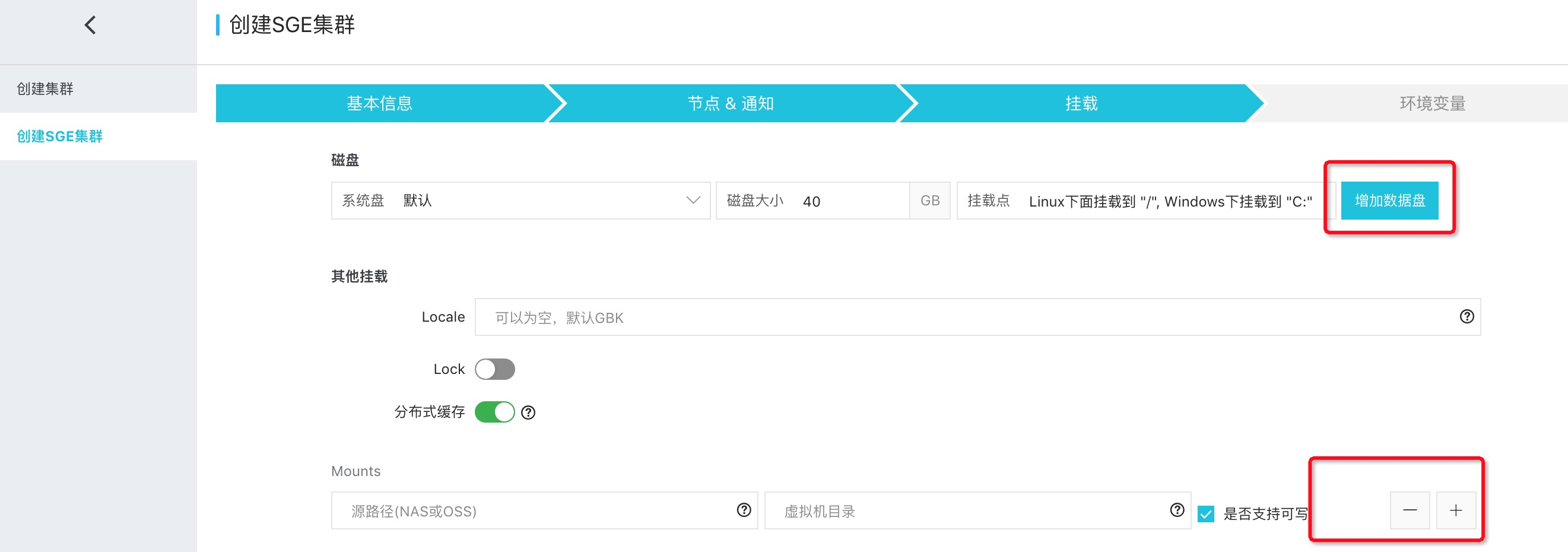
Configure the data disk, NAS, and OSS mount information as needed.
If you mount an OSS bucket to a local path, only read operations are supported on the OSS bucket.
If you write data to the local path that is mapped to the OSS bucket, the data is not uploaded to the OSS object and is lost after the node restarts.
3.4. Set network information
You can place the cluster in a specified VPC or use the default network settings.
If you mount a NAS file system, the cluster must be in the same VPC as the NAS file system. Otherwise, the mount operation fails.
SGE clusters can be deployed only in VPCs.

3.5. Set environment variables
Configure environment variables as needed.
3.6. Submit the creation operation
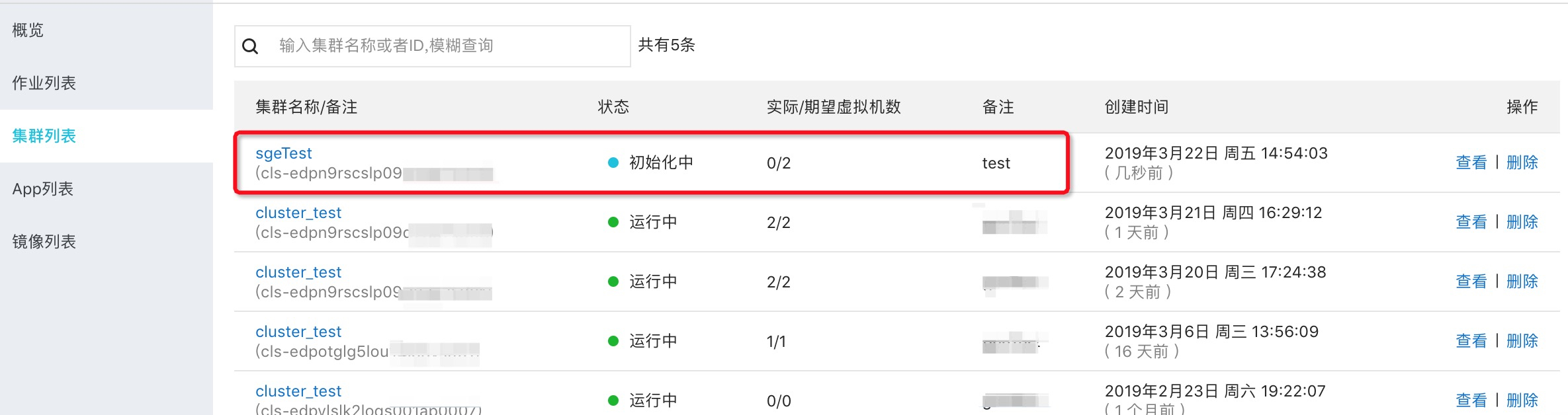
After you complete the settings, submit the request to create the cluster. After the request is submitted, the cluster enters the Initializing state.
4. View the SGE cluster
On the cluster list page, click View to open the details page of the SGE cluster.
4.1. Cluster status display
4.2. Cluster mount display
4.3. Cluster instance group display
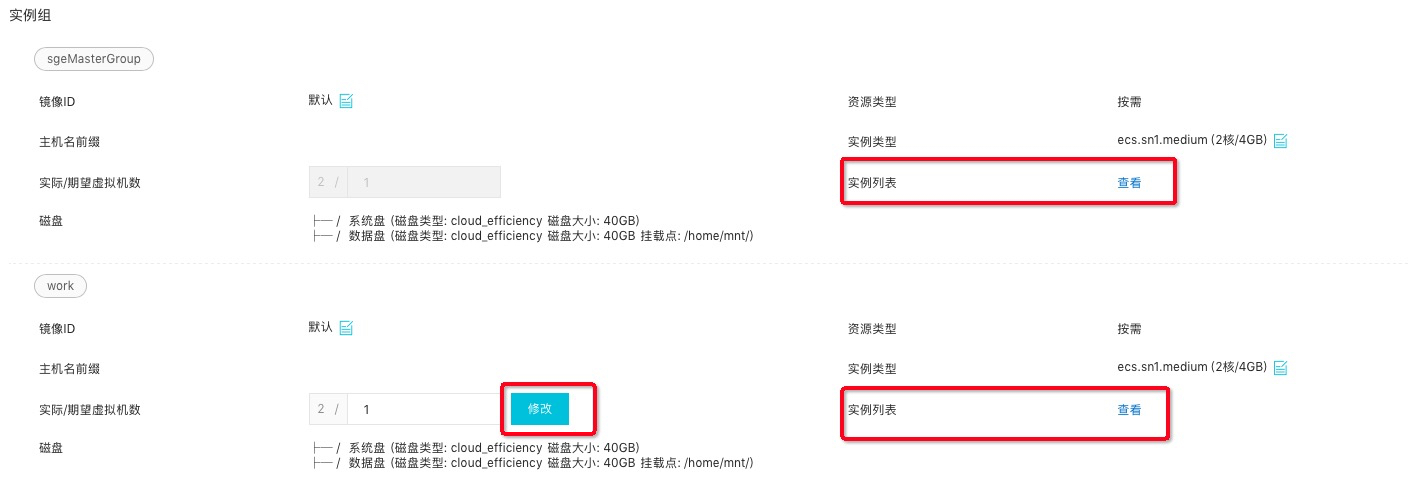
This section displays the instance type, number of instances, and image information for each group.
You can scale out or scale in SGE clusters by group.
You can expand a group to view the list of instances within it. This list includes the instance IP address in the VPC and the logon password.
4.4. Cluster instance list display
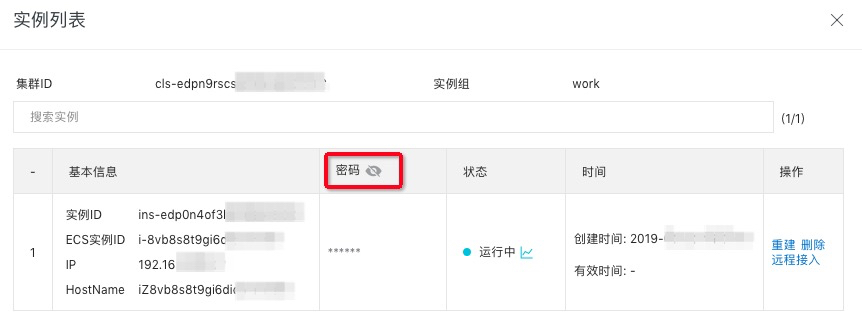
This page displays the instance ID, name, hostname, IP address, and logon password for each instance.
To view the password, disable the password hiding feature.
You can log on to an instance using VNC.
4.4. Viewing cluster operation logs
This section displays the operation history for the cluster.
5. Scale an SGE cluster
In the BatchCompute console, find the SGE cluster that you want to scale and go to its details tab. In the instance group section, change the desired number of instances and click Modify.
The Master group cannot be scaled out or scaled in.

6. Delete an SGE cluster
In the BatchCompute console, find the SGE cluster that you want to delete, go to the cluster details tab, and then click Delete.

7. Log on to the SGE Master node
In the BatchCompute console, find your SGE cluster and go to its details tab. In the sgeMasterGroup instance group, view the instance list to obtain the public IP address and logon password of the Master node.

Use the ssh command to log on to the Master node as the root user.
ssh root@<Public IP>After you log on to the Master node, you can use SGE commands to configure the cluster and submit jobs.
The cluster takes some time to start. If an SGE command fails after you log on to the Master node, wait a few moments and try again.