Configure OAuth credentials for Alibaba Cloud CLI
Sign in once through a browser to grant Alibaba Cloud CLI temporary credentials for calling cloud APIs. The CLI handles token refresh and renewal automatically, so you never store or rotate long-lived AccessKey pairs. This is the recommended authentication method for local development. This topic describes the prerequisites, configuration and authorization flow, and credential verification for OAuth credentials, as well as the token lifecycle and automatic refresh mechanism.
Prerequisites
Environment requirements
-
Alibaba Cloud CLI version
3.3.0or later. Runaliyun versionto check your installed version. If your version is earlier than3.3.0, see Install or update the CLI to upgrade before you use OAuth credentials. -
An account that can sign in to the console: an Alibaba Cloud account (root account), a RAM user, or an enterprise user through SSO. If you are using a RAM user, make sure console logon is enabled. For more information, see Enable console logon.
-
The default browser sign-in flow requires a browser in the environment where Alibaba Cloud CLI runs. Alibaba Cloud CLI
3.5.2and later also supports manual sign-in: explicitly add--no-browserto the configure command, authorize in a browser on a computer or phone, and paste the complete callback URL back into the CLI. Terminal-only environments can use manual sign-in without port forwarding.
Install the Alibaba Cloud CLI application and assign identities
A RAM administrator must complete this setup before any user can use OAuth credentials. After the initial setup, adding new users requires only Step 2.
-
Install the CLI application (one-time): Sign in to the RAM console. In the left navigation pane, choose . Switch to the Third-party Application tab. If the
official-cliapplication is not listed, click Provision Official Application and select Official CLI. -
Assign identities: Open the
official-cliapplication details page and switch to the Allowed Identities tab. Click Add Users or roles to add RAM users or roles that need to use Alibaba Cloud CLI.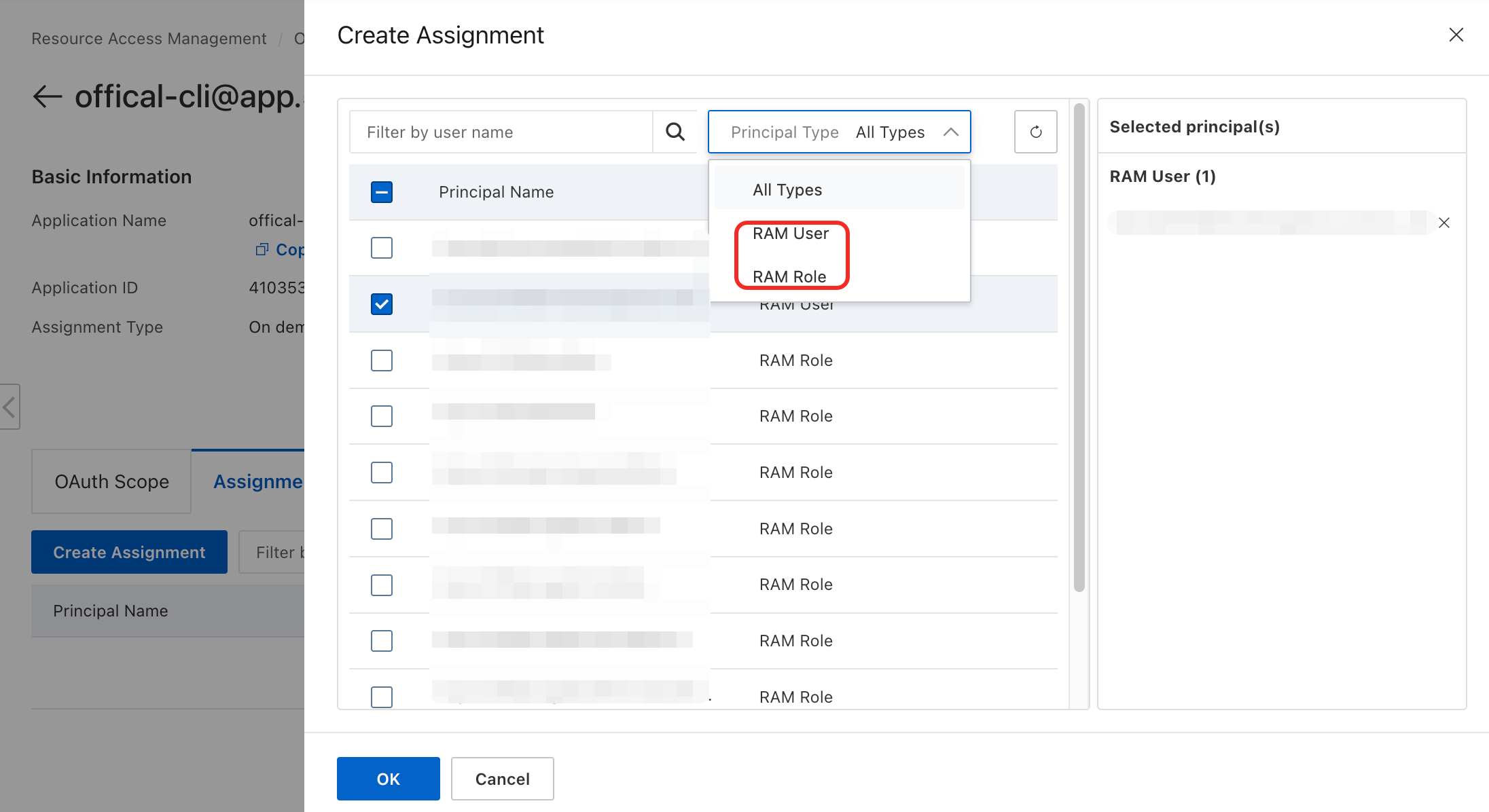
These steps are documented in Install the CLI application and Assign identities.
Configure credentials
OAuth credentials require the interactive command aliyun configure --mode OAuth to complete sign-in and authorization. The default flow uses browser sign-in; add --no-browser to use manual sign-in. The aliyun configure set command only writes parameters without triggering sign-in.
-
Run the following command. Replace
<ProfileName>with a name of your choice (for example,OAuthProfile):aliyun configure --mode OAuth --profile <ProfileName> -
Select the sign-in site when prompted for
OAuth Site Type:aliyun configure --profile OAuthProfile --mode OAuth Configuring profile 'OAuthProfile' in 'OAuth' authenticate mode... OAuth Site Type (CN: 0 or INTL: 1, default: CN):-
Enter
0orCNfor the China site. -
Enter
1orINTLfor the International site. -
Press Enter to accept the default (CN).
-
-
Complete browser sign-in. A browser window opens automatically. Sign in with your RAM user credentials. If the browser does not open, copy the sign-in URL (SignIn URL) displayed in the CLI prompt and paste it into a browser manually:
Please open the following URL in your browser to authorize: https://signin.aliyun.com/oauth2/v1/auth?... -
Authorize the application. On the authorization page in the browser, click Authorize. After successful authorization, the browser displays
Authorization successful. You can close this window. -
Set the default region and language:
Default Region Id []: cn-shanghai
Default Language [zh|en] en: en
Available values are listed in Regions and endpoints. Set the default region to where your resources reside, as some services do not support cross-region calls.
-
When the terminal displays
Configure Donewith a welcome message, the configuration is complete.
After successful configuration, the new profile becomes the active profile automatically. To switch to a different profile, run aliyun configure switch --profile <ProfileName>.
Manual sign-in (cross-device)
Alibaba Cloud CLI 3.5.2 and later supports manual sign-in. Use this method when the environment running the CLI cannot open a browser and you need to sign in on another computer or phone. You must explicitly add --no-browser. Both the China site and the International site are supported.
-
Run the following command in the terminal where the CLI runs.
oauth-profileis the custom profile name used in this example; replace it with your own profile name.aliyun configure --mode OAuth --profile oauth-profile --no-browserWhen you create a profile, the terminal first prompts you to select the sign-in site:
Configuring profile 'oauth-profile' in 'OAuth' authenticate mode...
OAuth Site Type (CN: 0 or INTL: 1, default: CN):
Enter
0orCNto select the China site, or1orINTLto select the International site. Press Enter to accept the default CN. The authorization domain ishttps://signin.aliyun.comfor the China site andhttps://signin.alibabacloud.comfor the International site. -
Copy the authorization link generated by the current terminal session, open it in a browser on your computer or phone, and sign in and authorize. Manual mode displays the following English prompts. In the example authorization URL,
...indicates omitted dynamic values. You must use the complete link generated by the current terminal for actual sign-in and cannot use the example in this topic directly.Open this link in a browser on your computer or phone: https://signin.aliyun.com/oauth2/v1/auth?client_id=...&code_challenge=...&code_challenge_method=S256&redirect_uri=http%3A%2F%2F127.0.0.1%3A12345%2Fcli%2Fcallback&response_type=code&state=... Sign in. The browser will redirect to a local address starting with: http://127.0.0.1:12345/cli/callback The page may fail to load. This is expected. Paste the entire redirected URL from your browser's address bar below. Example: http://127.0.0.1:12345/cli/callback?code=abc123xyz&state=example-state Callback URL (Ctrl+C to cancel): -
After authorization, the browser redirects to a local address that starts with
http://127.0.0.1:12345/cli/callback. Manual mode does not listen on this port, so the page fails to load or a connection error is reported. This is expected and does not affect the validity of the callback URL in the address bar. -
Copy the complete callback URL from the browser address bar, including the
codeandstateparameters, paste it after theCallback URL (Ctrl+C to cancel):prompt in the current CLI session, and press Enter. Do not enter a device code, short code, or verification code, and do not paste only thecodevalue. The protocol, host, port, and path of the callback URL must behttp://127.0.0.1:12345/cli/callback, thestatemust match the current sign-in, and thecodemust not be empty. Do not paste an address from another sign-in session or add a URL fragment. PressCtrl+Cto cancel.If the pasted callback address does not meet the requirements, the CLI displays the following prompt. Copy the complete callback URL for the current sign-in again:
invalid OAuth callback address. Please paste the complete callback URL for this login. -
On success, the terminal displays:
OAuth configuration completed. The temporary Access Key Id and Access Key Secret have been set in the profile.Follow the terminal prompts to continue setting the default region and language to finish configuring the profile.
Credential refresh
OAuth credentials consist of three token layers. The CLI manages renewal automatically — no manual intervention needed during normal use:
-
Temporary security credentials (STS token)
-
OAuth access token
-
OAuth refresh token
Each time a token renews successfully, the old token is invalidated. The configuration file (~/.aliyun/config.json) updates automatically.
Delete credentials
Run the following command to delete a specific OAuth profile:
aliyun configure delete --profile <ProfileName>After deletion:
-
The profile and all its stored OAuth and STS tokens are removed from
~/.aliyun/config.json. -
This does not revoke the OAuth application authorization in RAM. No administrator action is needed.
FAQs
Browser does not open during authorization
For the default browser sign-in flow without --no-browser, the CLI prints the sign-in URL in the terminal. Copy and open it manually if the browser does not open. If the page fails to load, check:
-
Local ports 12345–12349 are available (the CLI uses one for the authorization callback).
-
Network connectivity to
signin.aliyun.com(China site) orsignin.alibabacloud.com(International site).
For an environment without a browser, use the manual sign-in method described above. Manual sign-in neither opens a browser nor requires a local listener or port forwarding. A callback page that fails to load after authorization is expected in that mode.
Error: The call is not authorized / You are not allowed to do this action.
The administrator has not installed the CLI application in the Alibaba Cloud account that the user belongs to. Refer to the steps in Install the Alibaba Cloud CLI application and assign identities to install the application and add the user to the official-cli OAuth application authorization list.
Can I switch from AccessKey to OAuth without deleting my existing profile?
Yes. Create a new OAuth profile — your existing profiles are preserved. Switch between them at any time using aliyun configure switch --profile <profile-name>.
Does CLI OAuth support RAM role sign-in?
Yes. Use either of these approaches:
-
Sign in through role-based SSO from your identity provider (IdP). This requires role SSO to be configured.
-
Sign in as a RAM user first, then switch identity to the target RAM role in the console.
Perform these steps before configuring OAuth credentials, so that the CLI automatically detects your current sign-in identity as the RAM role when the browser authorization window opens.