Version management
Add a new version to a template.
Add a Version
On the Basic Configuration > Template Management page, click the + icon. Enter a version number and select the device types. Then, click Submit to create the new version.
The version number must be in the number.number.number format. The system provides a default set of templates for version 1.1.0.
From the drop-down list, select the device types to include in this version. You can select multiple types.

Delete a device type
On the Basic Configuration > Template Management page, click a version number. Find the device type that you want to delete, click the three dots icon in its upper-right corner, and then click Delete.
Before you delete a device type, confirm that it is not used by any outlets associated with the version. If an outlet continues to use the device type, the content on its price tags will not be displayed correctly.
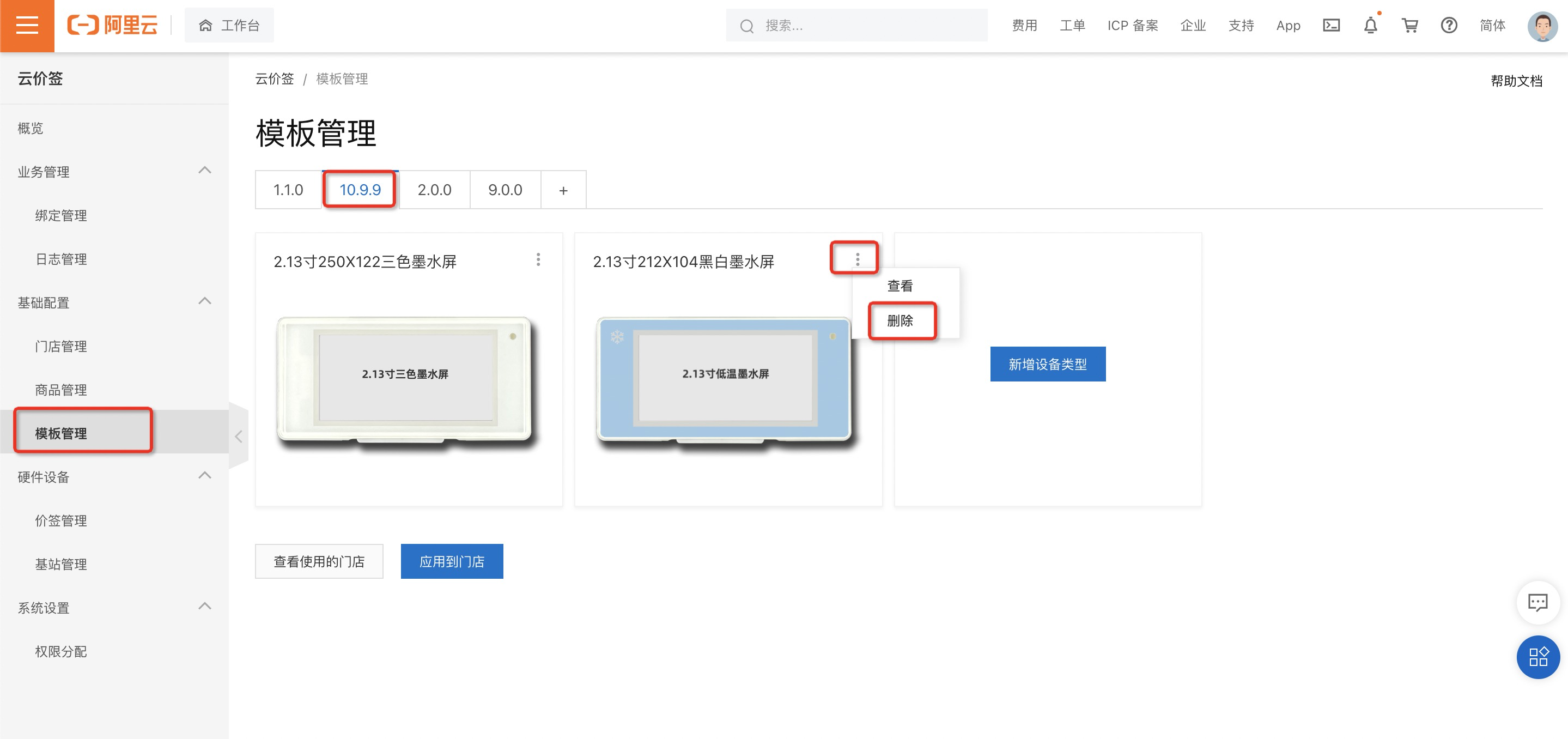
Add a device type
On the Basic Configuration > Template Management page, click a version number. Click Add Device Type, select a device type, and then click Submit.

Templates for a device type
On the Basic Configuration > Template Management page, click a version number. Find the device type that you want to view. Click the three dots icon > View on the right, or click the device image to open the list of templates for that device type.

Edit a template
In the template list for the device type, find the template that you want to edit. Click the three dots icon > Edit on the right. In the dialog box that appears, you can modify the template type.

Delete a template
Find the template that you want to delete and click the three dots icon > Delete on the right. In the confirmation message that appears, click OK.
Before you delete a template, you must confirm that no associated outlets are using products that are mapped to this template. For more information, see Template and product information mapping. If an outlet continues to use the template, the content on its price tags cannot be displayed.

Add a new template
In the template list for the device type, click Add Template. Click the Template Type drop-down list, select a type, and then click OK.
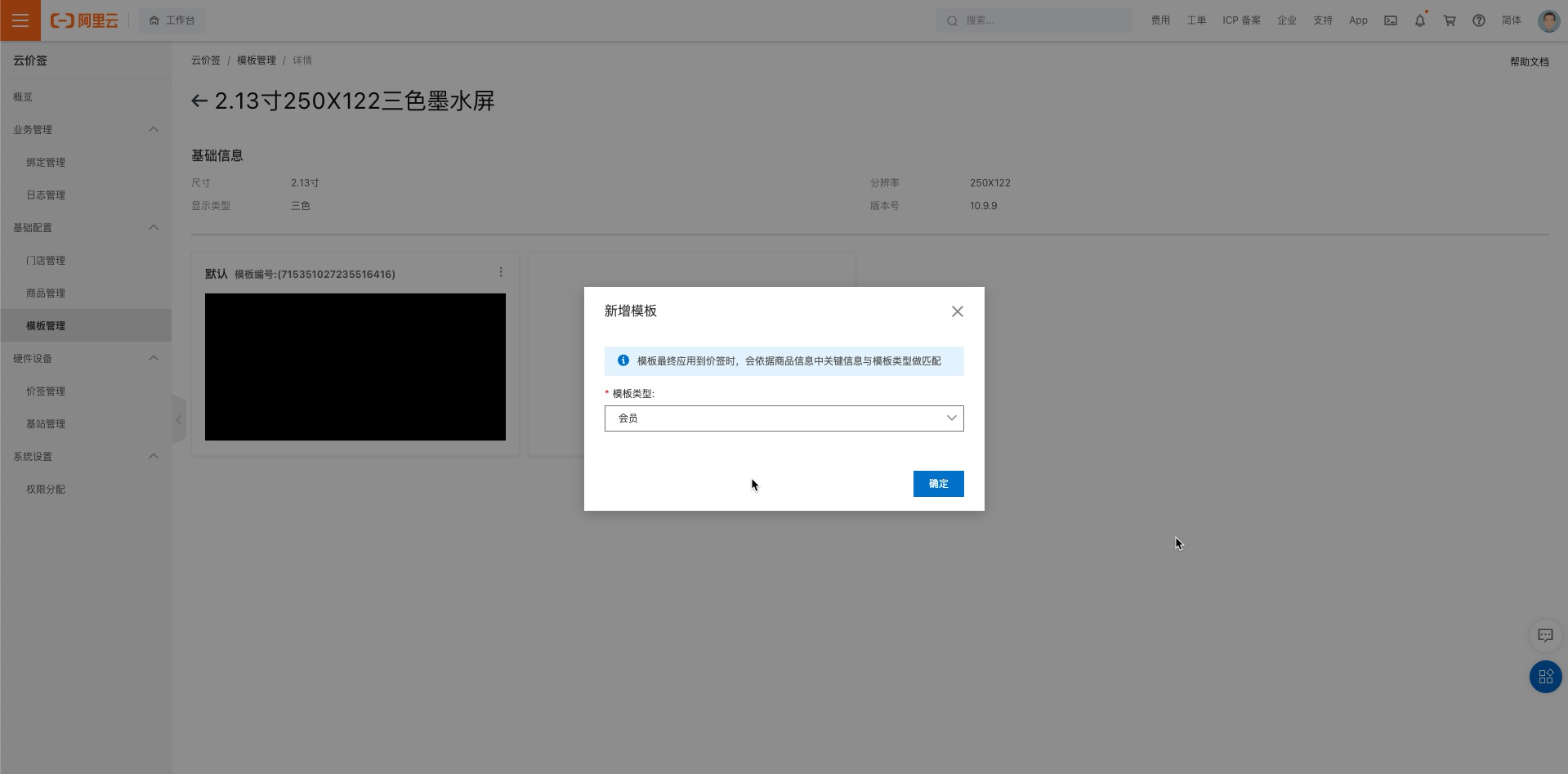
Design a template
In the template list for the device type, find the template that you want to design. Click the three dots icon > View on the right, or click the template image to go to the template design page. For more information about the design operations, see Template Design.
Copy from another template
In the template list for the device type, click Copy from Another Template. Specify the source template to copy, and then click OK.
The copy feature provides a quick way to create templates with similar content. The source template can have a different size than the current device. After you copy the template, you can customize it.
A template list for a device type cannot contain multiple templates of the same type.

View associated outlets
On the Basic Configuration > Template Management page, click a version number. Click View Associated Outlets to see a list of outlets that are affected by changes to this version.
Apply to outlets
On the Basic Configuration > Template Management page, click a version number. Click Apply to Outlets to apply the current version to multiple outlets at once. The selected outlets will perform a full refresh using the template content from the current version. Products that are later attached to these outlets will also use this version.
To prevent price tag display issues, carefully check for differences between the template types in the old and new versions that the outlets use.

Permissions
This feature requires outlet administrator permissions or higher. For more information about how to configure permissions, see Permission Management.