Template creation
You can use the visual editor to easily create display templates for electronic shelf labels (ESLs).
Visual editor
The visual editor consists of the widget, widget tree, canvas, and widget attribute sections.
The widget section allows you to select the widget to use. A widget is a component that is abstracted from the content to be displayed. Each template contains several widgets, such as the text, image, rectangle, QR code, and barcode widgets.
The widget tree displays the widgets that are used in the current template in a tree structure. You can select the widget that you want to modify in the widget tree.
The canvas is the core of the visual editor. You can drag widgets to different locations on the canvas. The canvas displays your modifications on widgets in real time.
The widget attribute section displays the attributes of the selected widget. You can modify the attribute values, and the modifications are displayed in real time on the canvas.

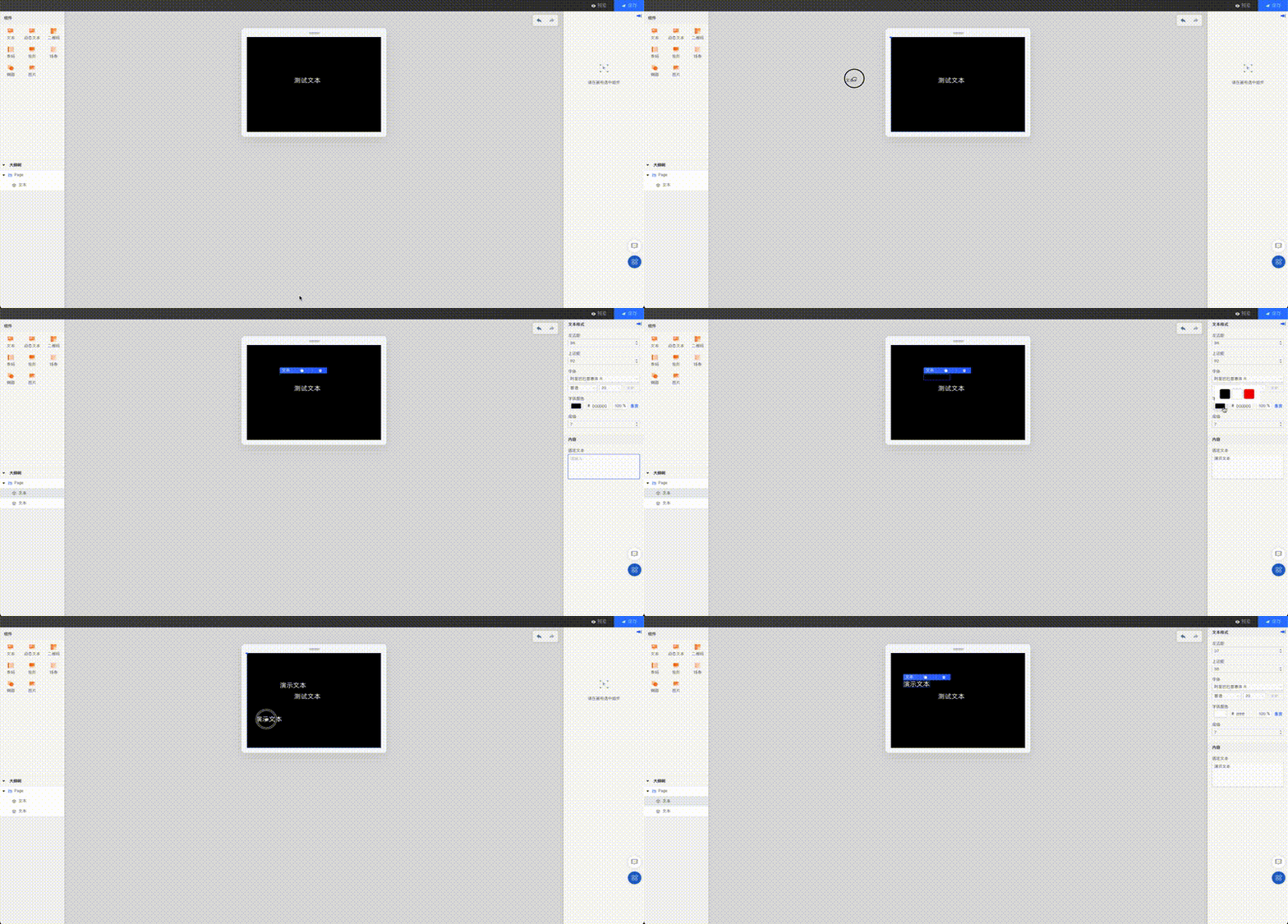
Add a widget to the canvas
In the Widget section, click and hold the widget that you want to add and drag the widget to the Canvas section.
Remove a widget from the canvas
Click a widget in the Canvas or Widget Tree section. Then, click the Delete icon to remove the widget from the canvas.
Replicate a widget on the canvas
Click a widget in the Canvas or Widget Tree section. Then, click the Replicate icon to replicate the widget on the canvas.
Undo or redo a modification operation
In the upper-right corner of the Canvas section, click the leftward arrow to undo a modification operation and the rightward arrow to redo a modification operation.
Modify the attributes of a widget
Click a widget in the Canvas or Widget Tree section. In the widget attribute section, modify the attributes of the widget.  For more information about the attributes of a widget, see the topic for the widget.
Widget |
Description |
Displays static text. A text widget is often used to display invariant text on an ESL. |
|
Displays a rectangle. A rectangle widget is often used to set the background color and supports rounded corners. |
|
Displays an ellipse. An ellipse widget is often used to set the background color and supports ellipses and circles. |
|
Displays a static image. An image widget is often used to display an invariant image on an ESL. |
|
Displays a line. A line widget is often used to separate content areas and supports horizontal and vertical lines. |
|
Displays dynamic text. A dynamic text widget is often used to display the text that varies with commodities. |
|
Displays a QR code based on the commodity information. |
|
Displays a barcode based on the commodity information. |
Save a template
In the upper-right corner of the visual editor, click Save. The content on the canvas is saved to the server. This ensures that the canvas content is not lost due to reasons such as an unexpected browser crash.
To prevent the content on the canvas from being lost due to reasons such as an unexpected browser crash, we recommend that you click Save each time you modify a widget.

Preview a template
In the upper-right corner of the visual editor, click Preview to preview the display effects of the template on an ESL.