Back up data
After you add a data source, you must create a backup plan to run backup jobs. Once the plan is created, Cloud Backup periodically backs up your data at the specified interval.
Prerequisites
Activated the Cloud Backup service. Activating Cloud Backup is free, but using the backup features of Cloud Backup incurs Cloud Backup storage fees. For more information, see Billing
Verified that your Cloud Parallel File Storage (CPFS) file system can reach Alibaba Cloud over the Internet. If Internet access is unavailable, connect the CPFS file system to an Alibaba Cloud virtual private cloud (VPC) through a leased line or VPN. The required routes for on-premises to cloud connections are 100.64.0.0/10 or 100.64.0.0/11 and 100.96.0.0/11. For more information, see Connect a VPC to a data center (single-tunnel mode)
-
A backup client is installed on the machine that performs the backups. For more information, see Install a backup client.
-
You have added a Cloud Parallel File Storage (CPFS) for Lingjun data source in the Cloud Backup console. For more information, see Add a data source.
Usage notes
The backup and restoration rates for Cloud Backup are based on data from a lab environment and are for reference only. For more information, see File backup and restoration rates.
Create a backup plan
The first backup job after you create a plan runs a full backup. Subsequent jobs run incremental backups by default.
Log on to the Cloud Backup console.
In the left navigation pane, choose Backup > CPFS Backup.
In the top navigation bar, select a region.
On the CPFS Backup page, for the target data source, click Create Backup Plan in the Actions column.
-
In the Create Backup Plan panel, configure the following parameters.
Parameter
Description
Source Paths
Enter the path of the directory to back up. Only one directory is supported; wildcard characters are not supported. The path must be relative to the Data Source Path. Use
/to back up the entire directory.Backup Rule
Select one of the following options:
-
Include All Files: Backs up all files in the source path.
-
Include Files or Exclude Files: Enter a file list in the Enter Paths field. Cloud Backup backs up or skips the specified files under the source path.
The file list is a subpath of the source path. Path matching works as follows:
-
If the subpath starts with a forward slash (
/), the filter matches the full path under the source path.For example, if the source path is /ifs/dataset and the file list is /subdir/data, Cloud Backup targets files and directories at /ifs/dataset/subdir/data.
If the source path is /ifs/dataset and the file list is /abc*, Cloud Backup targets files and directories at /ifs/dataset/abc with the prefix
abc. -
If the subpath does not start with a forward slash (
/), the filter matches any relative path under the source path.For example, if the source path is /ifs/dataset and the file list is abc*, Cloud Backup targets any file or directory under /ifs/dataset with the prefix
abc.If the source path is /ifs/dataset and the file list is abc, Cloud Backup targets all files and directories named
abcanywhere under /ifs/dataset.
-
Backup Policy
Select a backup policy from the drop-down list.
Cloud Backup runs backup jobs automatically based on the selected backup policy. A backup policy defines settings such as backup vault encryption, backup interval, retention period, cross-region replication policy, and automatic data archiving.
If the default backup policy does not meet your needs, click Create Backup Policy or Edit Policy. For details on each policy parameter, see Policy center.
Switch to full backup when incremental backup fails
When enabled, the system automatically runs a full backup if an incremental backup fails. An incremental backup fails when:
-
The include or exclude filter rules are modified.
-
The previous backup data in the backup vault has expired.
Backup Sub-task Slice Size
When you use a backup client group with multiple clients running backup jobs concurrently, this setting defines the minimum number of files allocated to each client.
-
After the plan is created, its Plan Status is enabled, and Cloud Backup runs backup jobs at the specified start time and backup interval.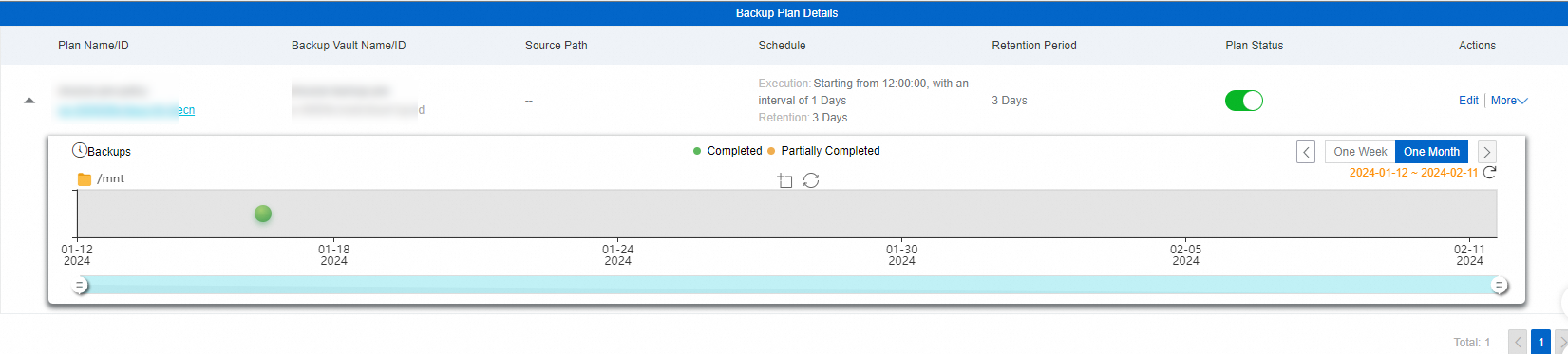
Successful backups
When the scheduled backup time arrives, Cloud Backup starts the backup job. When the job Status is Completed, the backup is finished.
The backup job record displays information such as the amount of data transferred, file count, transfer speed, execution time, and completion progress.
You can view each backup record in the Backup History. You can use these historical backups to restore files later. For more information, see Restore data.
Click a backup record node on the backup history timeline to view details such as completion time, expiration time, backup data volume, backup ID, and status. You can then perform subsequent operations by using the Restore and Browse buttons.
Troubleshooting
If the Status of a backup plan or backup job is abnormal, refer to the following suggestions.
-
Follow the prompts on the UI to modify and confirm your configurations.
-
The Status of the Backup Jobs is Failed (The client does not exist. Check whether the client is uninstalled or whether the ECS instance is released.). The backup plan status is Failed with the error message The client does not exist. Check whether the client is uninstalled or whether the ECS instance is released.
-
Check whether the backup directory configuration for the CPFS mount point is correct.
-
No backup client is in the backup client group, or a required dependency is not installed. Reconfigure the backup client. For more information, see Install a backup client.
NoteThe default client installation paths are provided for reference. Use the actual installation path.
-
Windows log path: Local Disk (C) > Program Files > Aliyun Hybrid Backup Service Client > logs
-
Linux log path: /opt/alibabacloud/hbrclient/logs
-
-
-
The Status of the Backup Plans is Paused.
The backup plan is paused. After a plan is paused, Cloud Backup no longer performs backups for the associated data source. We recommend that you enable the backup plan as soon as possible.
-
If you need further assistance, contact online technical support. Provide the backup plan ID, region, data source type, and task ID. Describe the issue in detail, including the steps that led to the problem and the expected outcome.
Manage backup plans
From the Actions column on the backup plan list, you can also:
|
Operation |
Description |
|
Edit |
Modify the backup plan. |
|
⋮ > Run Now |
Run a backup job immediately. |
|
⋮ > Delete Plan |
Delete an obsolete backup plan. |
|
⋮ > Alert Settings |
Configure alert notifications for the backup plan. When a backup fails or the client disconnects from the server, Cloud Backup sends alert notifications based on the configured settings. The following alert methods are supported:
|