Analysis platform settings
Dataphin analysis platform settings are essential for utilizing the platform. They encompass configurations for dedicated compute resources, temporary table lifecycle management, data result download options, and approval processes. This topic outlines the steps to configure these settings.
Prerequisites
Complete the creation of compute sources. For additional details, see .
Permission description
Configuration settings are restricted to super administrators and system administrators.
Procedure
Navigate to the Management Center from the Dataphin home page using the top menu bar.
Access the Analysis Platform settings page by following the instructions in the figure below.
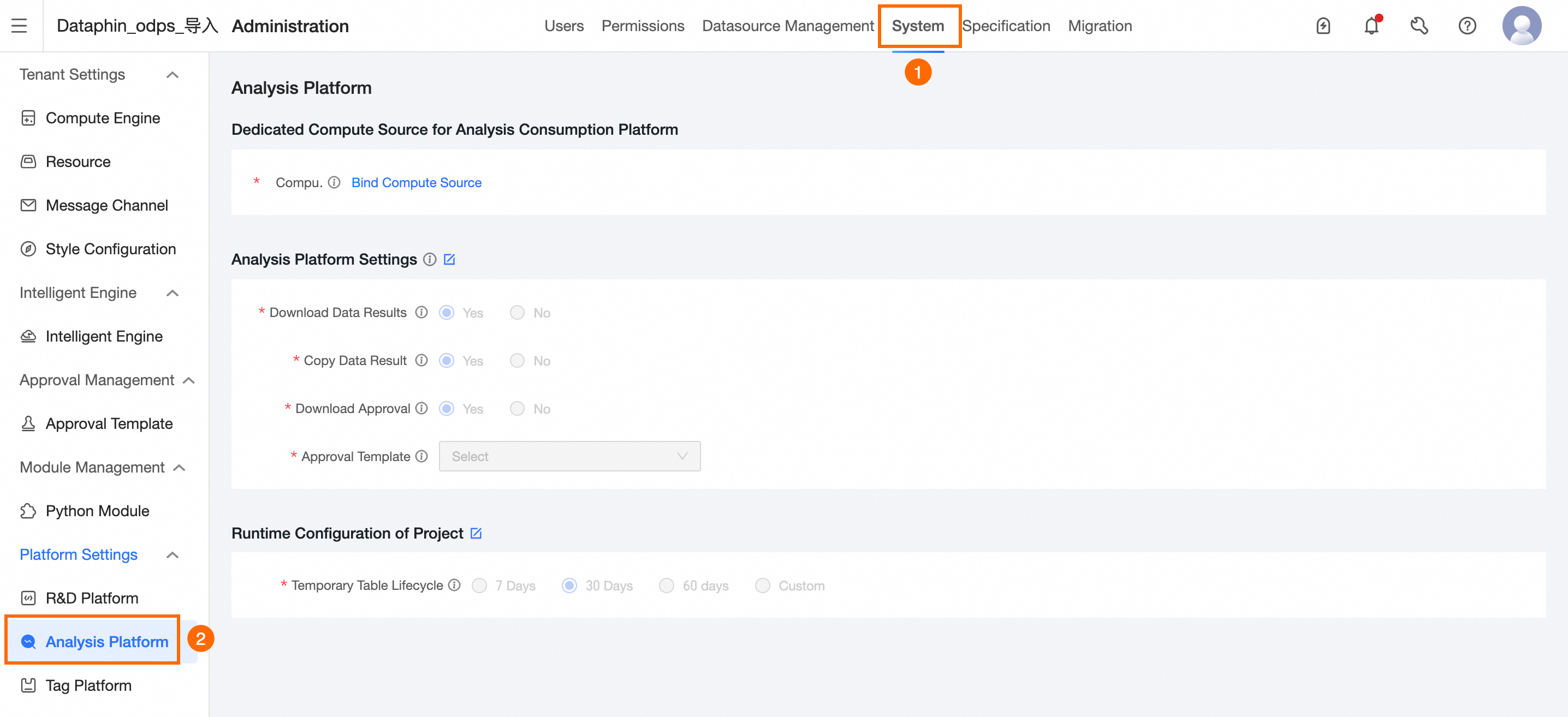
On the Analysis Platform settings page, set the desired parameters.
NoteThe Allow Data Result Download, Enable Download Approval, and Approval Template are specific to compute sources dedicated to the analysis platform and database SQL. Other projects' results adhere to their respective download and approval guidelines.
Parameter
Description
Compute Source Dedicated to Analysis Platform
Compute Source
Allocated for task computations on the analysis platform.
To bind a dedicated compute source for the first time, follow these steps:
Select Bind Compute Source.
In the Bind Compute Source For Analysis Platform dialog box, choose the required compute source.
Click Confirm to finalize the binding.
ImportantOnce bound, the compute source cannot be modified.
The analysis platform supports various offline compute sources, including MaxCompute.
Analysis Platform Settings
Temporary Materialized Table Lifecycle
The storage duration for temporary materialized tables can be set to 7 days, 30 days, 60 days, or custom (up to a maximum of 365 days).
This setting governs the lifespan of non-temporary tables created during runtime in dedicated compute sources.
NoteLonger lifecycles will occupy storage for extended periods; select the duration judiciously.
Allow Data Result Download
Enables the download of Notebook computation results from the analysis platform.
Enable Download Approval
Requires approval for downloading Notebook computation results from the analysis platform when activated.
Approval Template
Sets the approval template for download requests, with options for project administrator, section administrator, or security administrator approval.
Project-level runtime configuration
Project-level Runtime Temporary Table Lifecycle
This setting governs the lifecycle of temporary tables created at the project level during runtime. Options include 7 days, 30 days, 60 days, or custom (up to 365 days).
To finalize, click Save.
What to do next
With the analysis platform settings configured, you can begin Notebook development on the platform. For more information, see .