Section | Description |
①Overview | This section displays the table's type, environment, name, tags, and description. You can also perform the following operations: Search for other asset objects: Search for and view other assets. View Asset Details: If the asset is published to the Asset Catalog, you can view the published information on its catalog details page. View Production/Development Object: Switch to the asset details in the corresponding production or development environment. Tags: Displays the tags configured for the current asset. To modify the tags, click Edit: Each tag can be up to 128 characters long. Each asset can have up to 20 tags. Super administrators can modify tags for any table type. Table owners can modify tags for tables they own, and domain architects can modify tags for logical tables in the domains they manage.
Favorite: Click to add the asset to, or remove it from, your favorites. After you favorite an asset, you can find your 30 most recent favorites on the My History tab in the Asset List for quick access. To view all your favorited assets, go to the Personal Data Center. For more information, see View and manage my favorited assets. Analyze: Click to go to the Notebook page and automatically create a corresponding Notebook task. For more information, see Create a Notebook. Request Permissions: Click to open the permission request page for the table. For more information, see Request, renew, and release table permissions. Report Quality Issue: Report data quality issues, such as unstable data generation or inaccurate data content, to the quality owner. This notifies the owner to make timely corrections, improving asset usability and health. For configuration details, see Add and manage a problem list. To use the Report Quality Issue feature, you must enable the data quality module. You can then track the status and resolution of reported issues in the data quality module's issue list. Generate SELECT Statement: Click More in the upper-right corner and select Generate SELECT Statement to create a query statement for the current table. You can choose whether to include escape characters. Copy the generated statement and run it on the ad-hoc query or analysis page. View DDL Statement: Click More in the upper-right corner and select View DDL Statement. Logical tables do not support DDL operations. This section displays the DDL statement for a physical table with the same schema as the logical table. You can use this statement to quickly create a corresponding table in a target data source for purposes like data synchronization. You can also select a Data Source Type and click Generate DDL Statement to generate a DDL statement for creating a table with the same schema in the specified type of data source. If you select Automatically add escape characters, the generated DDL statement will include the appropriate escape characters for the selected source type to prevent conflicts with system keywords. 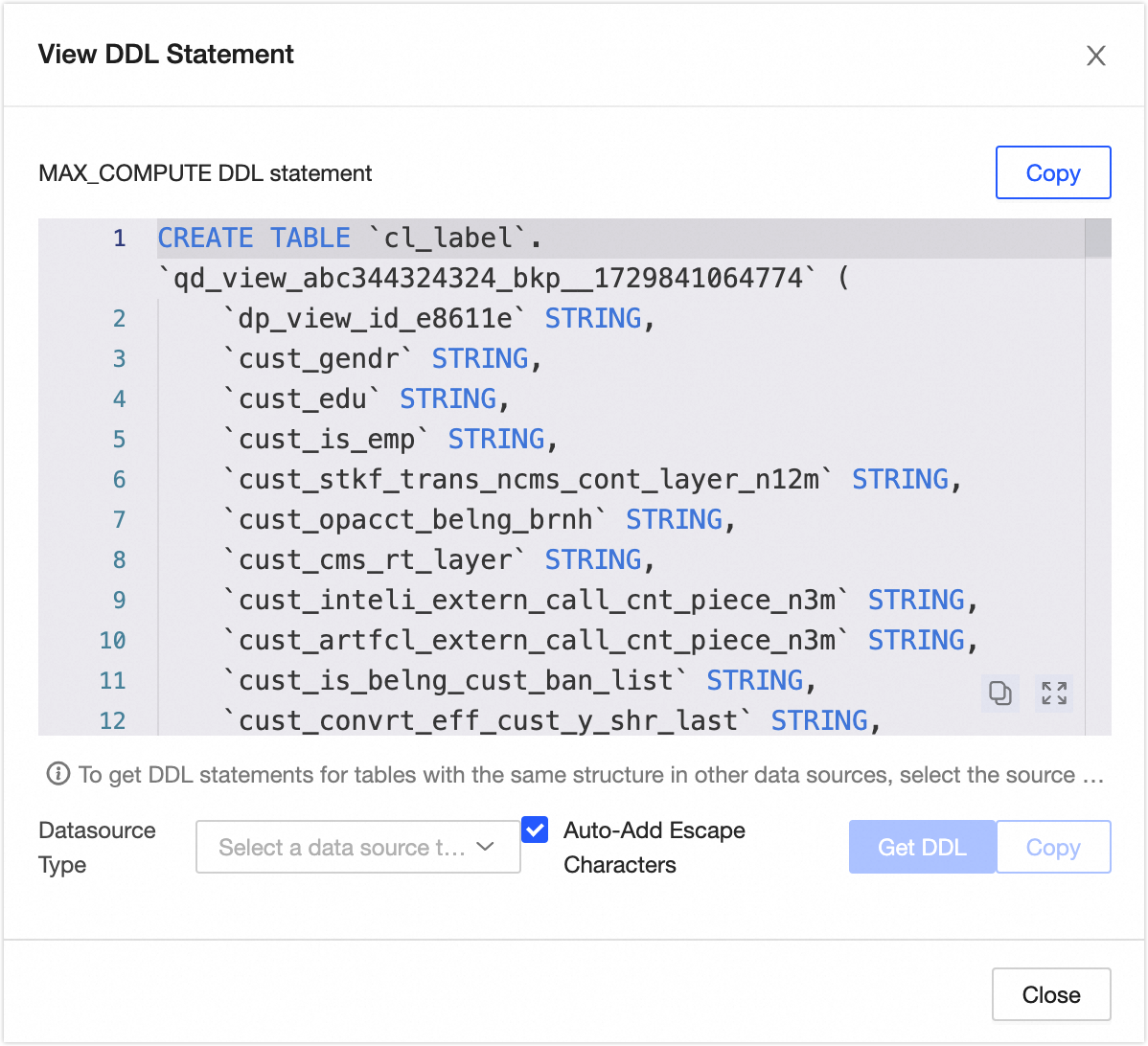
Edit Table: In the upper-right corner, click More and select Edit Table to go to the Development > Table Management page and edit the table's DDL information. For more information, see Create and edit an offline physical table. Export Fields: In the upper-right corner, click More and select Export Fields to export field information from the table as a CSV file. This allows developers or business users to analyze and use the data. View Transfer History: In the upper-right corner, click More and select View Transfer History to view the 100 most recent ownership transfer records for the table. View Permission List: In the upper-right corner, click More and select View Permission List to view the table's permissions. Refresh Metadata: In the upper-right corner, click More and select Refresh Metadata. If a table was not created in Dataphin or if a query for a new table returns no results due to metadata latency, click Refresh Metadata to fetch the latest metadata and update the table metadata in Dataphin.
Note The Analyze, Request Permissions, Report Quality Issue, Edit Table, View Transfer History, and View Permission List operations are not supported for analysis platform tables. |
②Details | |
③Lineage and impact | |
④Quality overview | If you have enabled the data quality feature, this section displays an overview of rule checks and a list of quality monitoring rules for the current table. Click View Report Details or View Rule Details to open the corresponding page in the data quality module.
Note The Quality Overview is not available for analysis platform tables. |
⑤Data exploration | If you have enabled the data quality feature, you can configure data exploration tasks for the table to quickly get an overview of the data and assess its usability and potential risks. To enable automatic exploration, go to Governance > Metadata Center > Exploration and Analysis and enable the relevant settings. For more information, see Create a data exploration task. |
⑥Data preview | If sample data exists for the table, it is displayed by default. You can also manually trigger a query to fetch the latest data. If no sample data exists, a data preview query is triggered automatically. Sample Data: Displayed when both the data sampling and data preview switches are enabled in the configuration. Sample data is shown only for fields where you have column-level permissions and that do not require data masking. The system stores and sorts sample data for each field independently but does not guarantee that row-level records are complete or correct. Data Preview: If you have permission to query the table, you can preview its data. The preview shows results only for fields where you have SELECT permissions (including field-level and row-level permissions), and displays up to the first 50 rows. To request permissions, see Request, renew, and release table permissions.
You can search or filter the data by field, view single-row details, auto-fit column widths, expand or collapse field display names, and transpose rows and columns. You can also click the sort icon next to a field to sort it in ascending or descending order, or select Unsorted. Double-click a field value to copy it.
Note A preview is not available for fields of the HLL (HyperLogLog) type. |
⑦Generation information | Generation tasks include tasks that write data to the asset, tasks that use this table as an output (based on automatic lineage parsing or custom configurations), and tasks where the node output name matches project_name.table_name. The list of generation tasks is updated in near real-time, while the generation details are updated on a T+1 basis. 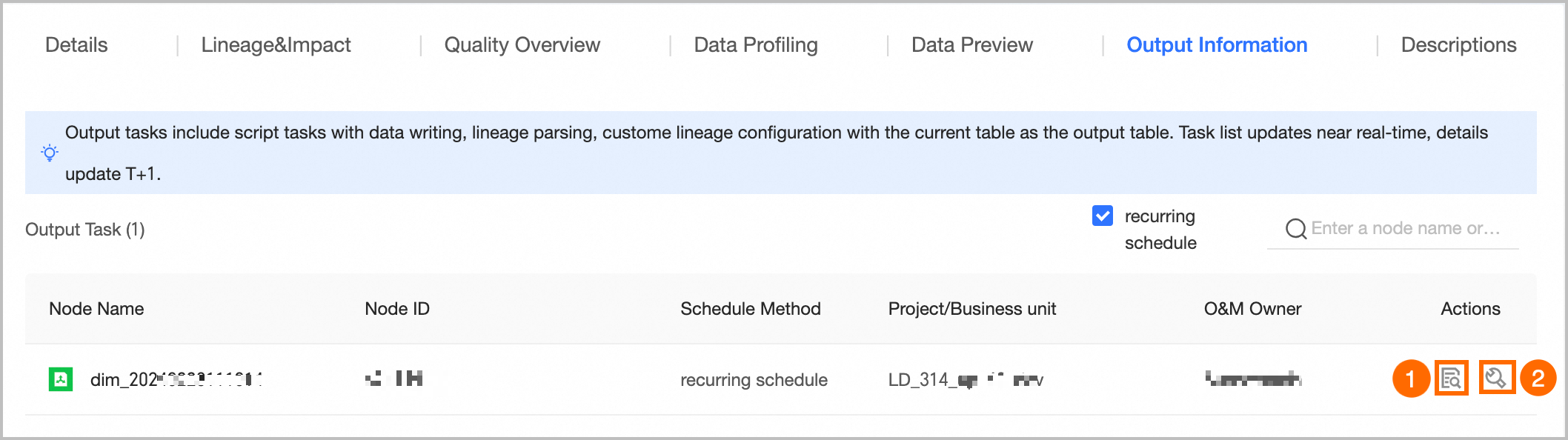
① View generation details: You can only view generation details for scheduled tasks. For more information, see Generation details. ② Go to O&M: Click Go to O&M to go to the task list in the O&M center, which is automatically filtered to the current task.
|
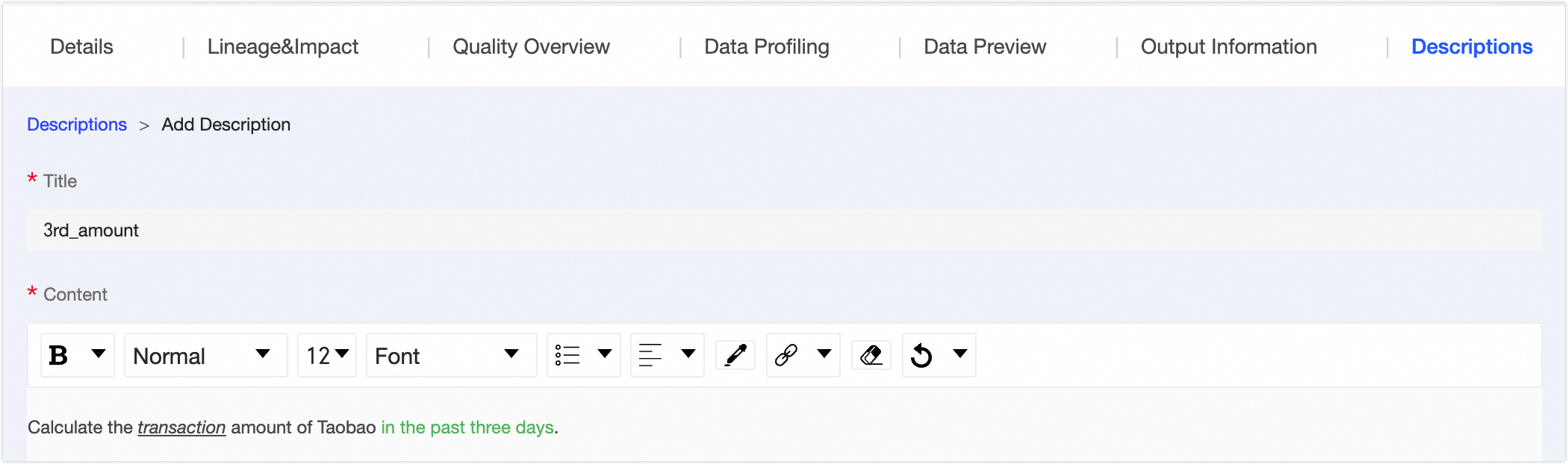
⑧Usage guide | You can add a usage guide for the table to provide information for data consumers. Click Add Usage Guide, enter a title and content, and save your changes. |
⑨Asset information | Displays detailed information about the physical table, including Basic information, Change information, and Usage information. Basic information: Includes the environment, table type, creation time, creator, owner, and generation tasks. Owner: The owner of the current table. You can transfer ownership to another user. In the Transfer Owner dialog box, you can choose whether to simultaneously transfer ownership of the development and production tables. Select a New Owner and click OK to complete the transfer. We recommend that you notify the new owner after the transfer. You can view transfer information on the transfer history page. For more information, see View transfer history.
Note Super administrators can transfer ownership for all table types. A table owner can transfer ownership of the tables they own. Domain architects can transfer ownership of logical tables in the domains they manage. In special cases, if an aggregate logical table does not have an initial owner, super administrators and domain administrators can assign one.
Generation tasks: You can view the generation tasks for the current table. Click a task name to go to the O&M details page for that task.
Note You can only view generation details for scheduled tasks.
Change information: Includes data changes, last accessed time, and DDL changes. Data change: Dataphin collects the time of the last table content change (DML operation) from the computing engine. This information is updated in near real-time. Last accessed: The time of the last SELECT operation (DQL operation) on the table, based on SQL parsing within Dataphin. Access from external systems is not counted. This information is updated in real time. DDL change: The time of the last table structure change (DDL operation), based on SQL parsing within Dataphin. Changes from external systems are not counted. This information is updated in real time.
Usage information: Includes favorites, page views, and access count. Favorites: The number of users who have favorited the current table. This information is updated in real time. Page views (PV): The number of page views (PV) for the current table's details page. The count increases by one each time the page is refreshed. This information is updated in real time. Access count: Based on SQL parsing, each time the table is queried in a Dataphin task (a DQL operation) counts as one access. The count is updated on a T+1 basis and shows the total access count for the last 30 days.
|
 icon in the Actions column to go to the asset details page.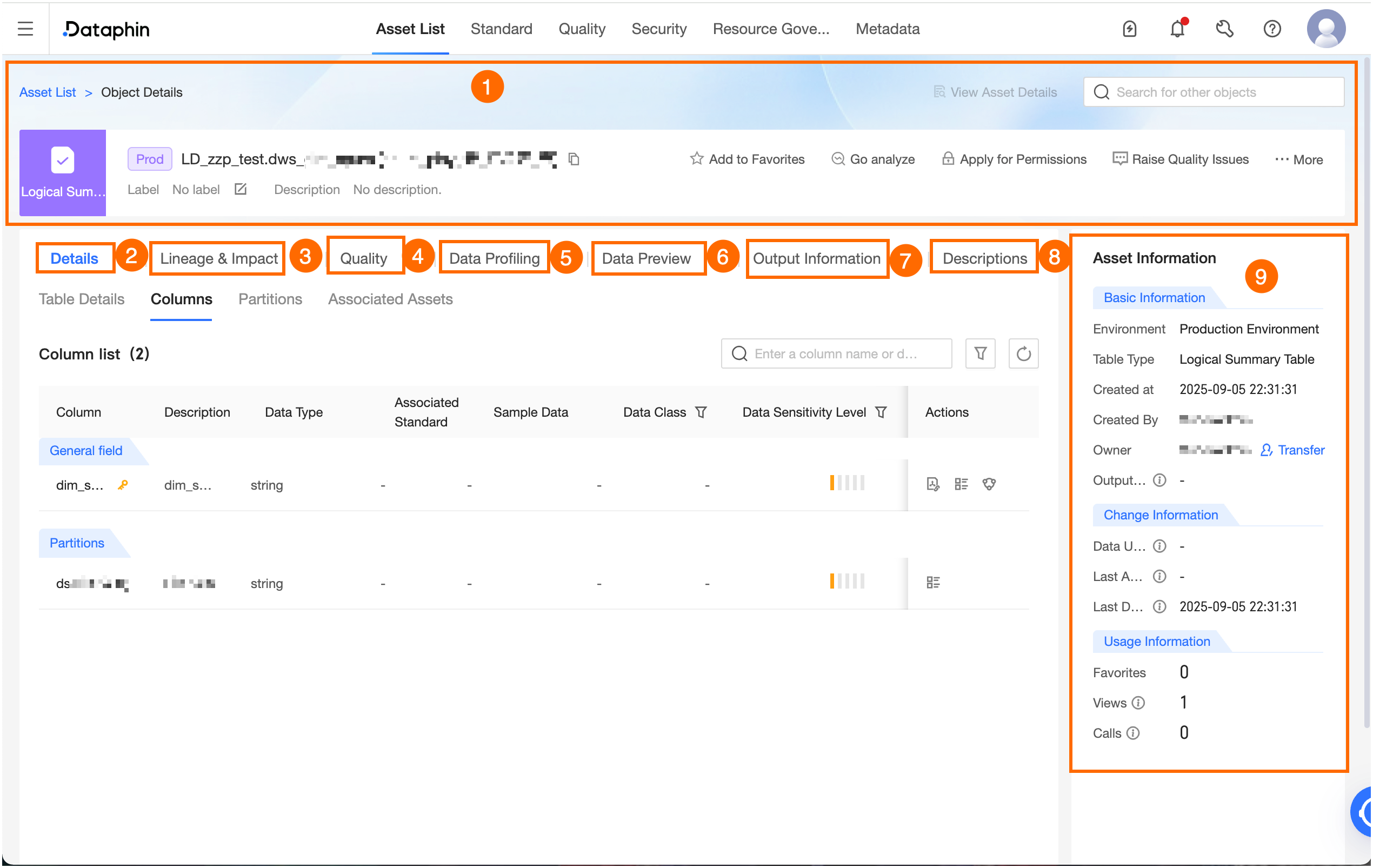
 icon to view the field lineage centered on the specified field.