Manage Invalid Mappings
The invalid mapping relationships feature displays mappings between effective data standards and asset objects. When mapping rules are executed, assets with invalid mappings are filtered out. Consequently, tagging monitoring and evaluation are not performed, and tagging evaluation details are not generated based on these mappings. This topic describes how to view, add, and manage invalid mapping relationships.
Permissions
Super administrators, data standard administrators, and standard owners for a mapping can cancel invalid mappings.
Access Invalid Mappings
On the Dataphin homepage, in the top menu bar, choose Administration > Standard.
In the navigation pane on the left, choose Compliance Evaluation > Mapping. On the Mapping page, click the Invalid Mapping tab.
View Invalid Mappings
Invalid mappings show the relationships between active data standards and asset objects. You can view them from two perspectives: Aggregate by Asset and Expand All.
View Invalid Mappings: Aggregate by Asset
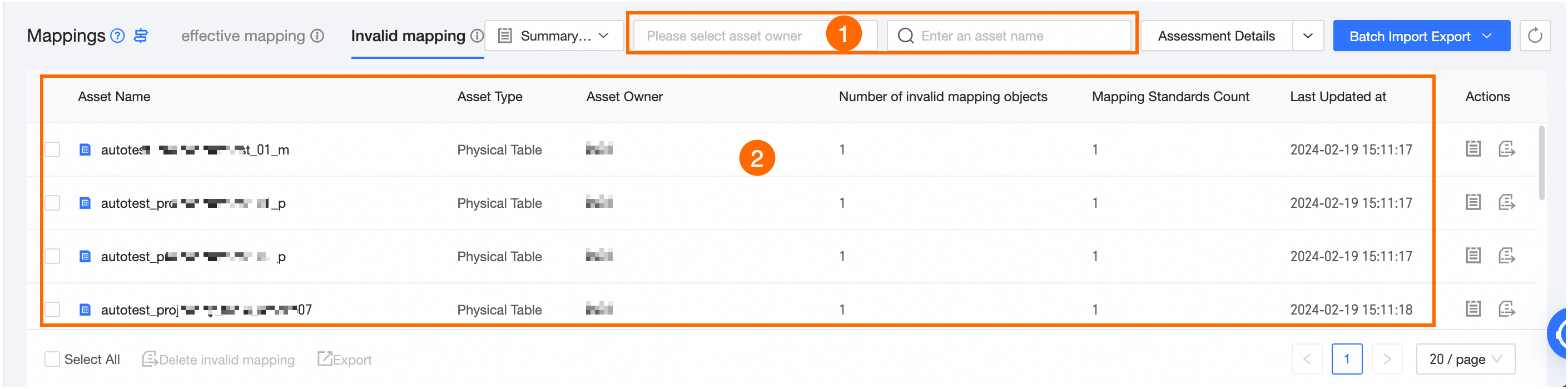
Area | Description |
① Filter and search area | Filter by asset owner. Search asset names using fuzzy search. |
② List information area | This area shows the following information: Asset Name, Asset Type, Asset Owner, Valid Mapped Objects, Mapped Standards, and Last Updated.
|
View Invalid Mappings: Expand All
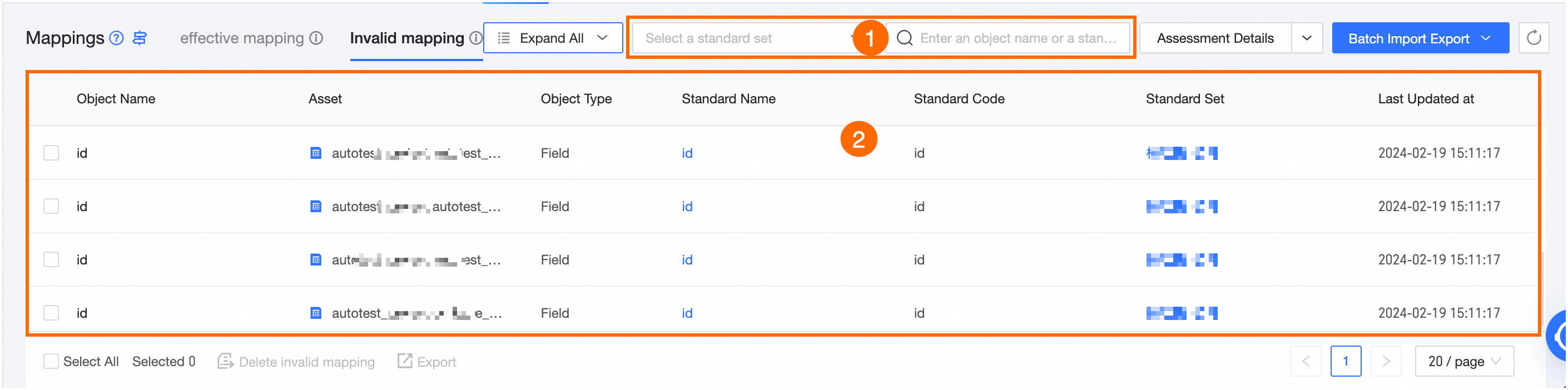
Area | Description |
① Filter and search area | Filter by data standard set. Search object names or standard names using fuzzy search. |
② List information area | This area shows the following information: Object Name, Asset, File Format, Standard Name, Standard Code, Standard Set, and Last Updated.
|
Details of Invalid Mappings
You can view mapping details from the Aggregate by Asset perspective.
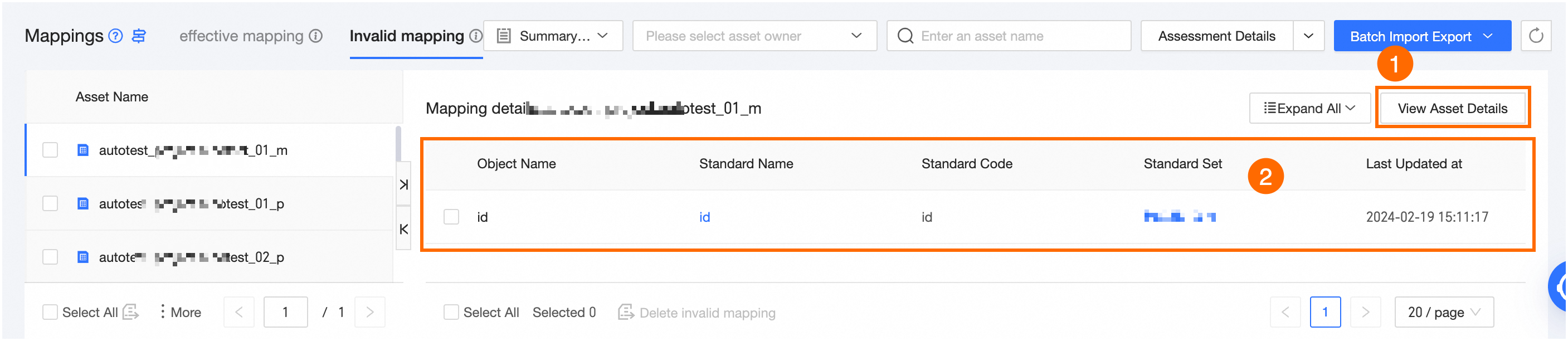
Area | Description |
① View Asset Details | Click the View Asset Details button to open the asset's product page in the asset catalog. |
② Mapping details list area | This area shows the following information: Object Name, Standard Name, Standard Code, Standard Set, and Last Updated.
|
Manage Invalid Mappings
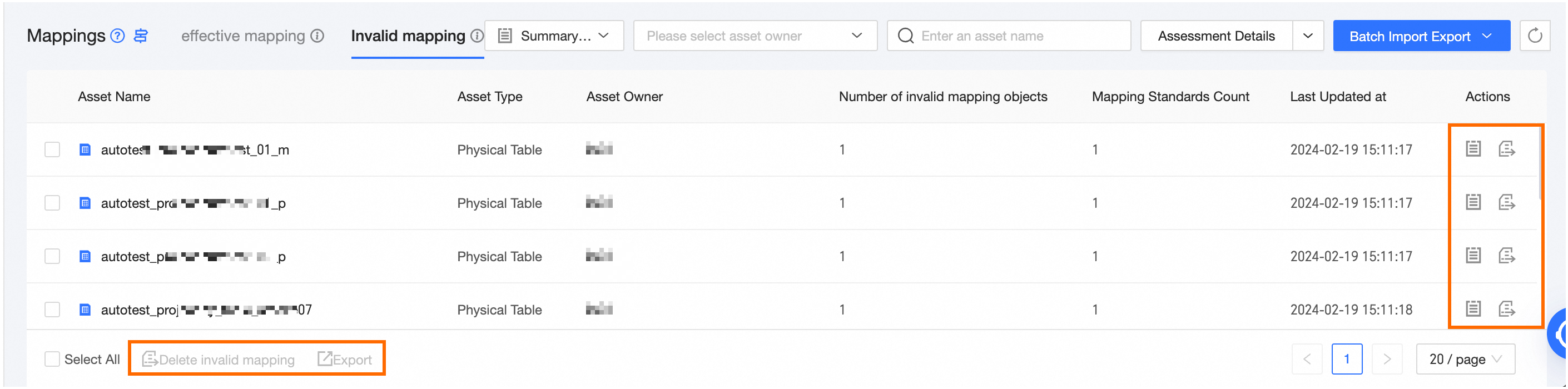
You can perform different operations on assets or objects, depending on the view you use: Aggregate by Asset or Expand All. See the table below.
Description | Single-item operation | Batch operation |
Operations: Aggregate by Asset | Perform actions on the asset in the current mapping. All objects in that asset inherit the same action. You can View Mapping Details or Cancel Invalid Mapping for the asset. | Select one or more assets on the page and click Cancel Invalid Mapping or Export. |
Operations: Expand All | Not available. | Select one or more objects on the page and click Cancel Invalid Mapping or Export. |
Operation | Description |
View Mapping Details | Click the asset name or click View Mapping Details in the Actions column. For more information, see Details of Invalid Mappings. |
Cancel Invalid Mapping | If an invalid mapping is canceled, and a subsequent mapping rule regenerates the mapping relationship, it will be subject to monitoring and evaluation. In the Batch Cancel 'Invalid Mapping' Status For Selected Relationships dialog box, click OK. The mapping relationships will then be moved to the valid mapping list. |
Export | Select assets (in the Aggregate by Asset view) or objects (in the Expand All view). Then click Export at the bottom of the page to export the selected invalid mappings. View the export task and download the file in Batch Operation Records. |