effective mapping management
Effective mapping relationships link data standards and asset objects. They are either automatically generated based on configured data standard mapping rules or manually added. These relationships describe how an asset object complies with a data standard or how a data standard is associated with an asset object. Effective mapping relationships are required for data standard compliance monitoring. This topic describes how to manage effective mapping relationships.
Permissions
Super administrators, data standard administrators, and standard owners in mapping relationships can invalidate confirmed mappings, unmap relationships, configure quality monitoring rules, and add new mappings.
Super administrators and data standard administrators can configure compliance assessment tasks for all manually added mapping relationships. They can also view the operational logs of these assessment tasks.
Access Effective Mappings
On the Dataphin homepage, select Governance > Standard in the top menu bar.
In the navigation pane on the left, select Compliance Assessment > Mapping. On the Mapping page, click the Effective Mapping tab.
View Effective Mappings
The effective mapping list displays mapping relationships between data standards and asset objects. These relationships are either automatically generated based on configured data standard mapping rules or manually added. You can view effective mappings from two perspectives: Summarized by Asset and Expand All.
View Effective Mappings Summarized by Asset
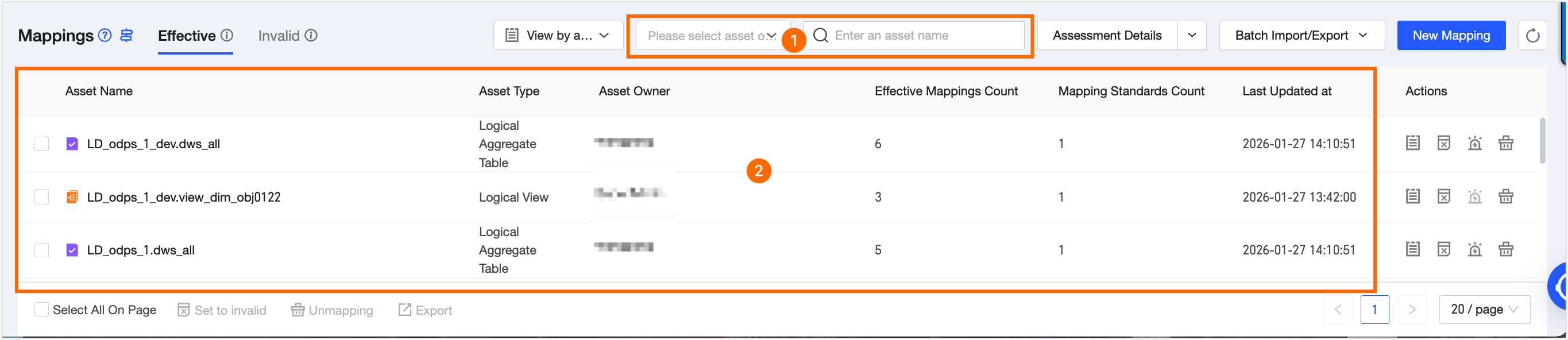
Area | Description |
①Filter and Search Area | Filter by asset owner. You can also fuzzy search by asset name. |
②List Information Area | This area displays the Asset Name, Asset Type, Asset Owner, Number of Effective Mapped Objects, Number of Mapped Standards, and Last Updated Time.
|
View Effective Mappings from Expand All Perspective
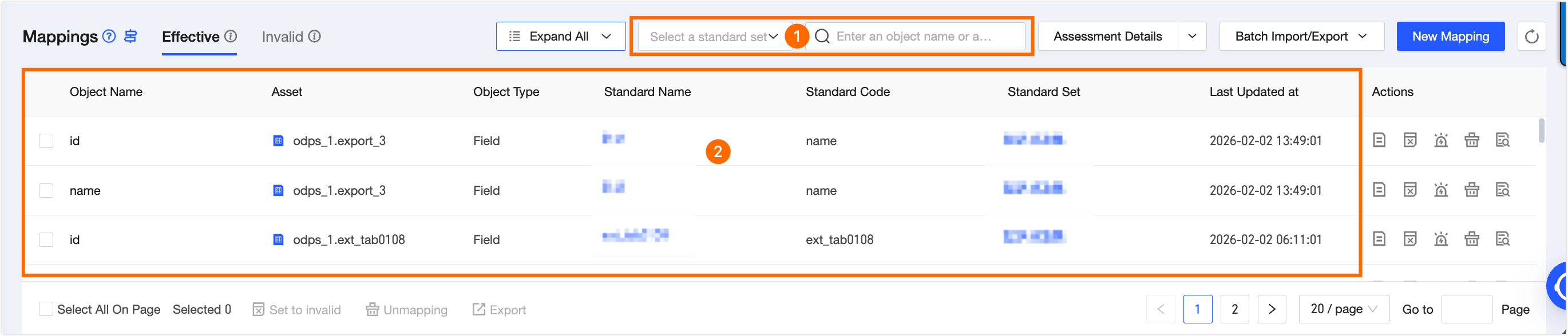
Area | Description |
①Filter and Search Area | Filter by data standard set. You can also fuzzy search by object name or standard name. |
②List Information Area | This area displays the Object Name, Associated Asset, File Format, Standard Name, Standard Code, Associated Data Standard Set, and Last Updated Time.
|
Effective Mapping Details List
You can view mapping details by asset summary.
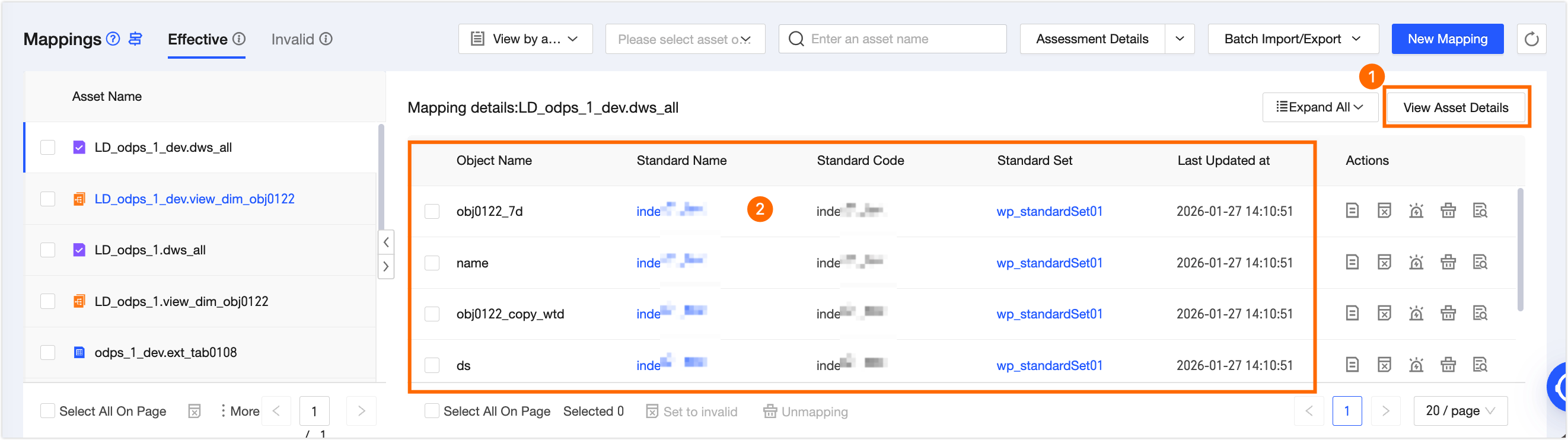
Region | Description |
①View Asset Details | Click the View Asset Details button to go to the product page of this table in the asset directory. Note External assets do not support viewing asset details. |
②Mapping Details List Information Area | Displays the Object Name, Standard Name, Standard Encoding, Data Standard Set, and Last Updated Time.
|
Add a mapping
On the Effective Mapping tab, click the Add Mapping button in the upper-right corner.
In the Add Mapping dialog box, configure the parameters.
Parameter
Description
Data Standard
Select the data standard to map the asset object to. You can select only active standards for which you have management permissions.
Object type
Select Column or Metric.
Column: Includes all columns from Dataphin data tables.
Metric: Includes derived metrics, extended metrics, and registered metrics from logical aggregate tables.
Data table
Select a data table based on the object type. Click the Filter icon to filter data tables by business category, project, or table type.
If the object type is Column, table owners can select all data tables for which they have permissions. Project administrators can select physical tables, logical dimension tables, logical fact tables, physical views, materialized views, and logical views within their projects.
If the object type is Metric, you can select only logical aggregate tables.
Super administrators and standard administrators can select all assets.
Column/Metric
Select the asset object based on the object type.
Column: Select the column from the data table to map to the data standard.
Metric: Select the metric from the data table to map to the data standard. Only metric owners can select metrics for which they have permissions.
Click OK. Dataphin validates the asset permissions for the new mapping and checks whether the mapping is invalid.
If the validation is successful, the mapping is added.
If the validation fails, view the reason in the Mapping Addition Result dialog box.
If the mapping already exists in the invalid mappings list, select Skip or Change to Valid Mapping.
Manage Valid Mappings
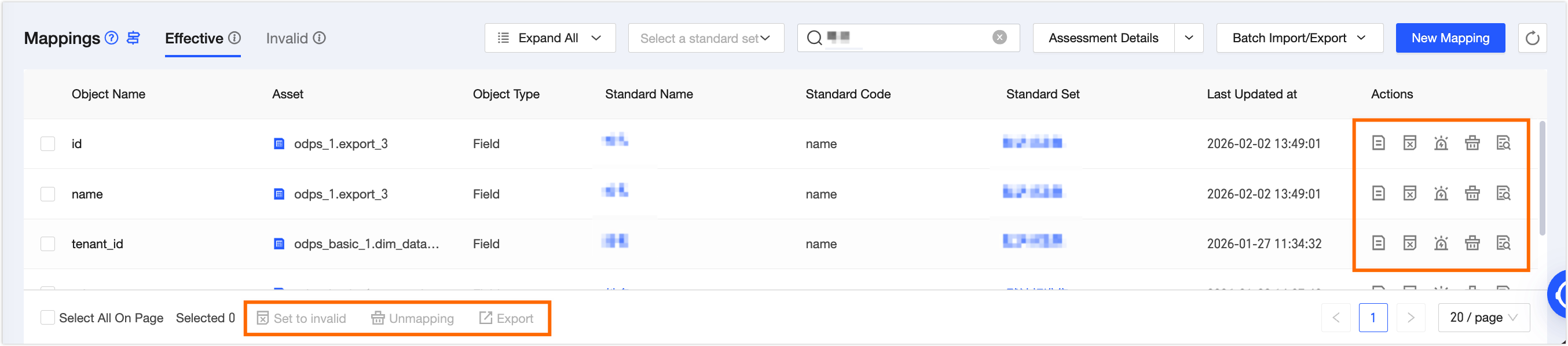
You can perform different operations on assets or objects from two perspectives: Asset Summary View and Fully Expanded View. For details, see the table below.
View | Single Operation | Batch Operations | Standard Mapping Details Operations |
Operations in Asset Summary View | Perform operations on assets in the current mapping. All objects with generated mapping relationships under this asset follow the asset's operations. Perform the following operations on this asset: View Mapping Details, Set as Invalid Mapping, Configure Quality Monitoring, and Unbind Mapping. | On this view, perform the following operations on selected assets: Set as Invalid Mapping, Unbind Mapping, or Export. | Perform operations on all objects with generated mapping relationships included in the asset within the current mapping.
|
Operations in Fully Expanded View | Perform the following operations on specific objects (Dataphin fields or Dataphin metrics) in the current mapping: View Standard Evaluation Results, Set as Invalid Mapping, Configure Quality Monitoring, Unbind Mapping, and View Mapping Specifics. | On this view, perform the following operations on selected specific objects (Dataphin fields or Dataphin metrics): Set as Invalid Mapping, Unbind Mapping, or Export. | None |
Operation | Description |
View Bid Evaluation Results | Click the View Standard Evaluation Results |
View Mapping Details | Click View Mapping Details in the Actions column to view mapping specifics. For more information, see the Valid Mapping Details List. |
Set as Invalid Mapping | Assets set as invalid mappings do not participate in standard monitoring evaluations and do not generate standard evaluation specifics. In the Batch Set All Selected Mappings as Invalid dialog box, click OK. The mappings move to the invalid mappings list. |
Configure Quality Monitoring | Quality monitoring rules support referencing Data Standard Monitoring. The system also displays quality monitoring rules already configured for the current asset object in other modules as a reference. This avoids configuring too many duplicate monitoring rules, which can waste resources or cause conflicts. For more information, see Configure Quality Monitoring. |
Unbind Mapping | You can remove valid mapping relationships and choose between two options: Remove And Add To Invalid Mappings or Remove Only, Reconfirm Upon Remapping.
|
View Mapping Specifics | View detailed information for valid asset mappings. This includes basic information and mapping record details. |
Export | After checking assets (in Asset Summary View) or objects (in Fully Expanded View) in the list, click the Export button at the bottom of the page to export the selected valid mappings. View the export operation information and download the exported file in Batch Operation Records. |
 icon in the Actions column to go to the evaluation details dialog box for this object under Standard Evaluation Specifics - Asset Object View.
Configure quality monitoring
In the Summarized by Asset view, you can configure quality monitoring rules for all objects—such as fields—that have mapping relationships with an asset—such as a data table. Configure rules in batches by asset to work efficiently and save time.
In the Expand All view, focus on a single asset object. Then reference all valid mapping relationships for that object to generate quality monitoring rules based on associated data standards.
Both views use the same configuration method. The only difference is the scope of available monitoring rules to reference. The following steps use the asset-level granularity as an example.
You must enable the Asset Quality module.
You can configure up to 200 quality monitoring rules per asset in data standards. External registered assets do not support quality monitoring rule configuration.
Quality rule execution results configured on this page affect the pass rate shown on the Non-compliance Assessment Details page. However, quality monitoring rules generated from data standard monitoring in the Quality module are excluded from non-compliance assessment statistics. All quality monitoring rules configured from any entry point appear in the Quality module’s rule list and quality reports.
Quality monitoring rules configured here appear in the Quality module’s rule list. But you can edit or delete them only on this page.
Click the Configure quality monitoring
 icon in the Actions column to open the Configure quality monitoring panel.
In the Configure quality monitoring dialog box, reference Data Standard Monitoring. You also see quality monitoring rules already configured for this asset in other modules, for reference.
Data Standard Monitoring
On the Data Standard Monitoring tab, click Create Data Standard Monitoring.
In the Create Data Standard Monitoring dialog box, select the data standard monitoring rules to reference.
Click Confirm Addition to create the monitoring rule for the referenced data standard.
In the Data Standard Monitoring list, you can schedule monitoring rules, enable or disable them, view them, edit them—including name, strength, and description—and delete them.
NoteAfter referencing a rule, you cannot change its details. You can still schedule it or adjust its strength.
You can filter standard rules by the Validity, Uniqueness, Completeness, or Stability rule templates. Or search by rule name.
In the reference dialog box, you can set the scheduling method, rename the rule, adjust its strength, and enable or disable it. You can also click the standard code under the associated standard to view standard details.
Click the
icon in the Actions column to view a quality rule.Editable fields vary depending on which feature generated the quality rule. For details, see Quality rule editing guidelines.
Other quality rules
The Other quality rules list shows quality rules configured for this asset outside this page. This helps avoid duplicate monitoring rules that waste resources or cause conflicts.
In the Configure quality monitoring dialog box, select Other quality rules.
On the Other quality rules tab, click Go to Quality Monitoring.
You go to the rule details page for this asset in Asset Quality. To create a new quality rule, see Create a Dataphin table quality rule.
In the Other quality rules list, you can schedule and view monitoring rules.
 icon in the Actions column to open the Configure quality monitoring panel.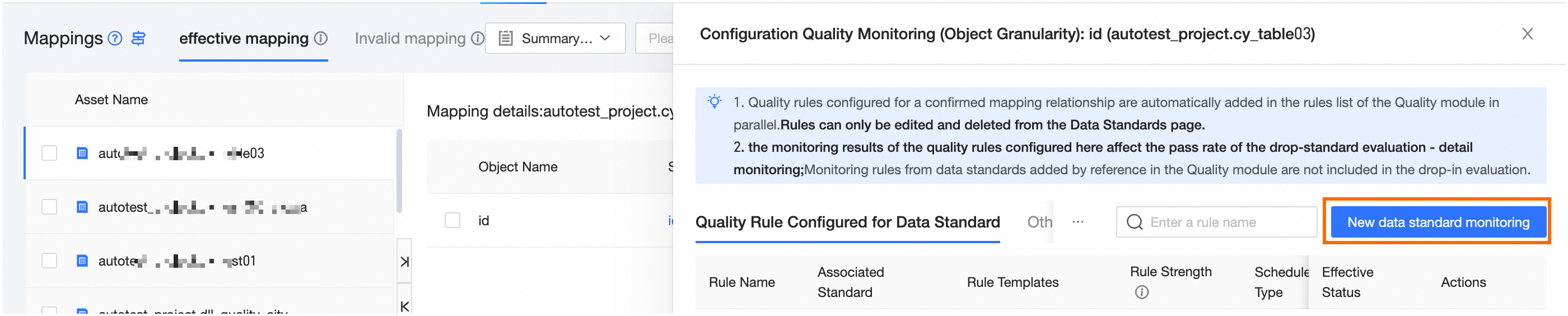
 icon in the Actions column to view a quality rule.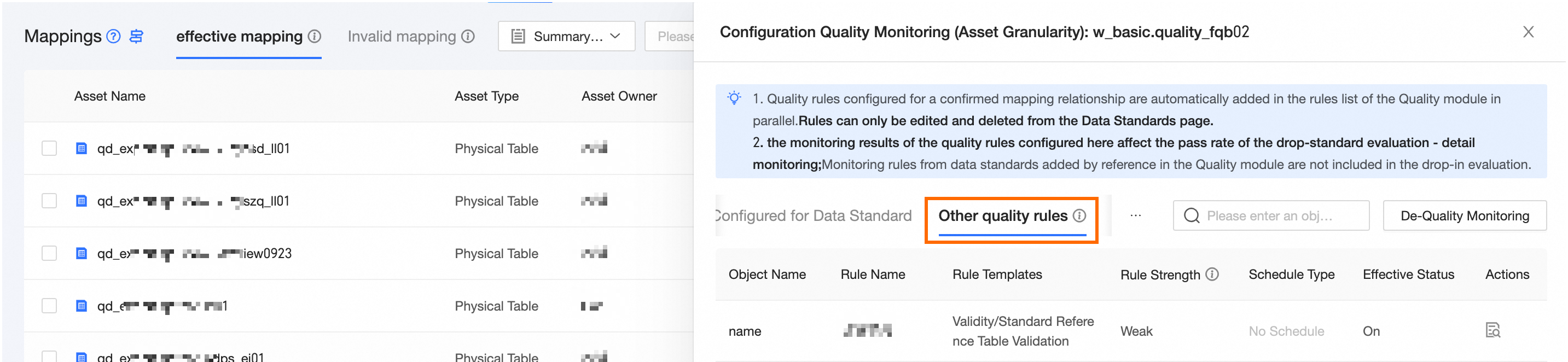
Configure Off-Standard Assessment
Configuring Off-Standard Assessment runs scheduled off-standard assessments on manually added valid mapping relationships. It also generates assessment details. In addition, when an off-standard assessment task runs, it updates the execution results of quality monitoring rules configured in the Data Standard module.
On the Mapping Relationships List page, click Assessment Configuration in the upper-right corner to open the Edit Off-Standard Assessment Configuration dialog box.
In the Edit Off-Standard Assessment Configuration dialog box, configure the parameters.
Parameter
Description
Scheduled Assessment
When enabled, valid mapping relationships that you add manually undergo off-standard assessment at the scheduled time. When disabled, no off-standard assessment runs.
Assessment Time
Performs periodic selection evaluations at the configured time, which can be set to Daily, Weekly, or Monthly.
Click OK to complete the off-standard assessment configuration.
View Bid Evaluation Run Records
Only the last 30 days of manual mapping bid evaluation run records are retained, with a maximum of 1,000 entries.
On the effective mapping list page, click the drop-down arrow icon after the bid evaluation configuration. Then, click Bid Evaluation Run Records to access the Bid Evaluation Records - Manual Mapping dialog box.
In the Bid Evaluation Records - Manual Mapping dialog box, view the manual mapping bid evaluation run records. These records include the ordinal number, start time, end time, and execution task status. Also, click the View icon under the Actions column to view the operational logs for manual mapping bid evaluation.