Block overview
A block is a black box that encapsulates basic widgets. This topic describes the features of blocks to help you quickly understand and use them.
Blocks define internal and external data transmission. Internally, they encapsulate business-related widget styles, widget layouts, default data, and blueprint logic. The default data does not include data sources other than static data and APIs. Externally, blocks define business-related data interfaces.
The block feature is available in the Professional Edition and later versions. To use this feature, you must upgrade DataV to the Professional or Premium Edition.
Block interface node descriptions
Blocks define internal and external data transmission. You can configure this transmission in the blueprint editor using the Data Interface node, Event Interface node, and Action Interface node. The differences between these interfaces are as follows:
Data Interface: Accepts data from external data sources. The blueprint editor then distributes the data to internal widgets.
Event Interface: Accepts events from internal widgets and exposes the data externally.
Action Interface: Accepts actions triggered by external widgets. This causes internal widgets to execute the corresponding business logic.
When you use a block, treat it as a single unit. You only need to understand and set the externally defined block interfaces without managing the internal logic. To configure and use block interfaces in the block editor, see Use block interfaces.
Block example description
The following figure shows a block example. The block defines two data interfaces, one event interface, and three action interfaces. The following examples explain the function of each interface type.
Import Rose Chart data interface: Imports data into the ECharts Rose Chart widget immediately after the data is received.
List Carousel Click event interface: Exposes data externally when the When a row is clicked event is triggered in the List Carousel widget.
Update Style action interface: After data is retrieved, it is processed by the Serial Data Processing logic node. Then, the Update Widget Configuration action of the Vertical Capsule Column Chart widget is called.
The following figures show the Data Source Configuration, Interaction Configuration, and Blueprint Parameter Content panels for the block in the preceding example.
Data Source Configuration Interaction Configuration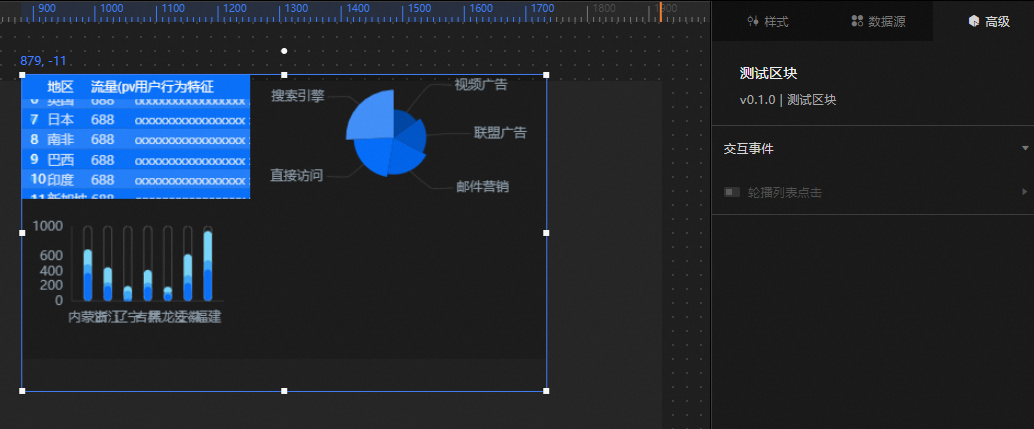 Blueprint Parameter Configuration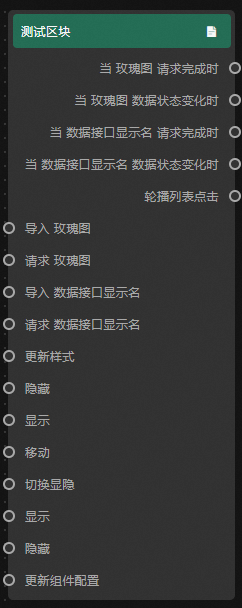
Block usage FAQ
Q: Are there widgets inside a block?
A: Yes. You can drag widgets from the layer bar in the block editor to the canvas to configure block widgets.
Q: Is there interaction within a block?
A: Yes. In the blueprint editor, you can connect the block interface nodes to the corresponding widget nodes within the block to configure interactions. This completes the interaction configuration for the required business logic. For more information, see Use block interfaces.
Q: Is there interaction between the inside and outside of a block?
A: You can use APIs to create and use blocks in a visualization. For more information, see Use Block APIs and Add a Block.
Q: How do I debug block features?
A: You can use the block preview feature to debug configured features, such as block interfaces. For more information, see Preview blocks.
Q: After a block is built, how do I use it in the visualization application canvas editor?
A: First, publish the block. Then, go to the visualization application canvas editor. In the editor, open the widget library and select the block module. You can view the built blocks in the block list and add the ones you need. For more information, see Publish blocks and Add blocks.
Q: After a new version of a block is published, how do I perform a one-click upgrade for an old block that is in use in a visualization application?
A: In the canvas editor, click the target block to open its configuration panel on the right. In the upper-right corner of the panel, click the upgrade icon. The method for upgrading a block is the same as for upgrading a widget.
Q: How can I create blocks quickly and easily?
A: In addition to creating a blank block on the Blocks panel, you can also upgrade a favorited widget to a block with one click from the My Favorite Widgets panel on the workbench. For more information, see Upgrade a favorited asset to a block.