use-block-interfaces
This topic describes how to configure the data, event, and action interfaces in a block by using the Blueprint Editor in the block editor to Data Transmission Service the inside and outside of the block.
Background information
Configure the block interface in the block editor and use the sample interface based on the block requirements defined in Block Sample Description.
Configuring the Use Block Interface in the Block Editor
Create a block. For more information, see Create a blank block.
Click the newly created blank block to enter the block editor.
In the block editor, add the carousel list, ECharts polar area chart, and vertical capsule histogram components.
Right-click the widgets and select Export to Blueprint Editor.
Click the
 icon in the upper-right corner of the block editor. On the Data Interface Settings tab, configure the data interface style as shown in the following figure. For more information about how to configure data interfaces in a block, see Configure data interfaces.
 Click the
 icon in the upper-right corner of the block editor. On the Event Settings tab, configure the event style as shown in the following figure. For more information about how to configure an event interface in a block, see Configure an event interface.
 Click the
 icon in the upper-right corner of the block editor. On the Action Settings tab, configure the action style as shown in the following figure. For more information about how to configure actions in a block, see Actions.
 After you configure the interfaces of the block, click the
 icon in the upper-left corner of the block editor to go to the Blueprint Editor page.
 Drag the three block interfaces from Blueprint Editor to the canvas of Blueprint Editor. You can see that each block interface corresponds to the content defined in the preceding steps.
You can use the method of connecting nodes in Blueprint Editor to connect block interface nodes with corresponding component nodes to configure the required business logic. The following figure shows the business logic of the current block sample requirement. For more information about how to configure a blueprint connection, see Features.
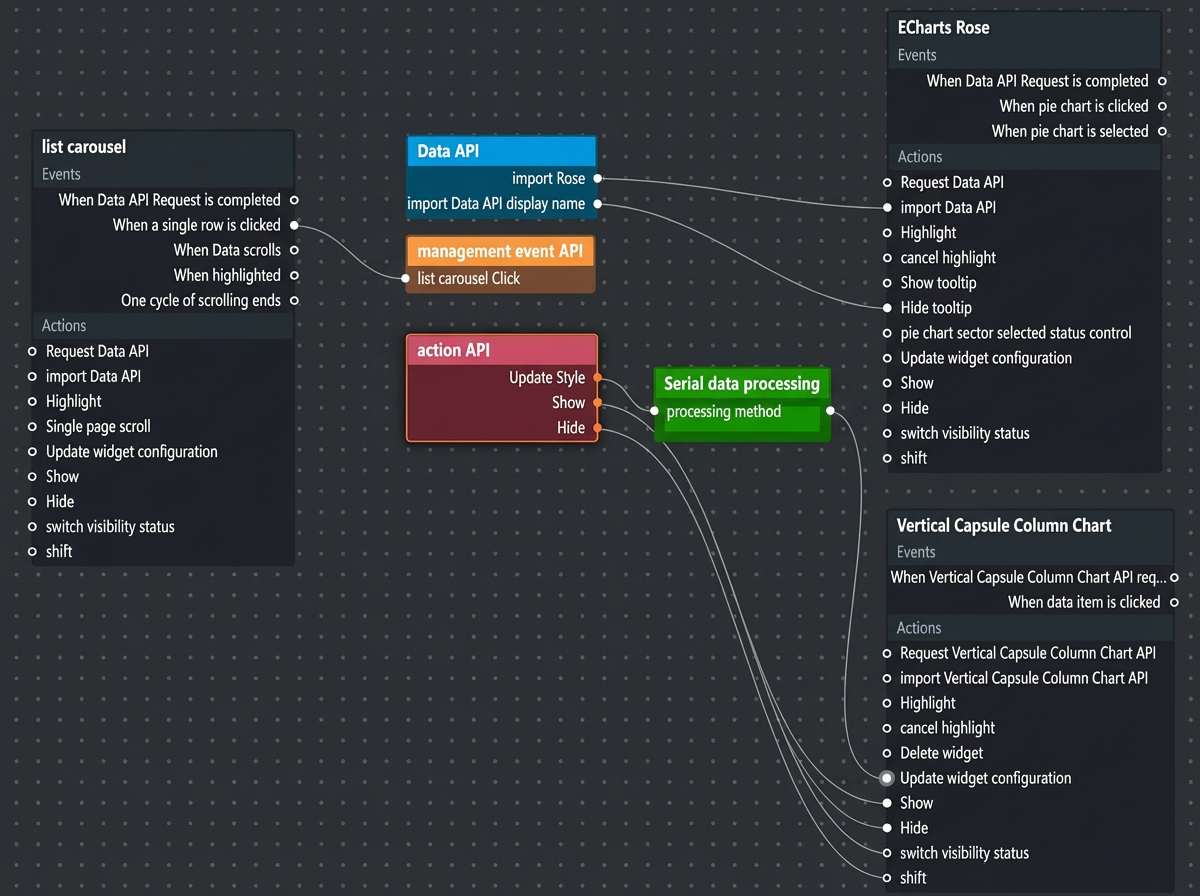
Configure the use block interface in Canvas Editor
In the block editor, you can preview and test the content of each interface in the block after you configure the interaction between the interface content and the blueprint logic in the block. After the interface content is tested, you can publish the sample block. For more information, see Preview a block and Publish a block.
Switch to the console page. You can click a dashboard and click Edit to open the canvas editor.
Click the Component Library tab and select Block. You can view all published blocks in the block list.
Click the required sample block to add the block to Canvas Editor.
Click a block in the canvas. In the right-side configuration panel, click the Data Source tab. On the Data Source tab, you can view all configurations of the data interfaces in the block.
Click the Advanced tab. On the Advanced tab, you can view all the configurations of the API operations in the block.
On the canvas, right-click the target block and select Export to Blueprint.
Click the
 icon in the upper-left corner of Canvas Editor to go to Blueprint Editor.
 Drag the sample block node to the canvas of Blueprint Editor to view information about all events and action interfaces in the block. The event actions in the blueprint of a block can be called by other widgets in the blueprint editor by connecting lines and configuring logical nodes. For more information, see Features.
 icon in the upper-left corner of Canvas Editor to go to Blueprint Editor.