Add an ApsaraDB RDS for SQL Server data source
This topic describes how to add an ApsaraDB RDS for SQL Server data source to DataV over a private network and the public network.
Prerequisites
You have created an ApsaraDB RDS for SQL Server data source.Add a data source over a private network
Log on to the DataV console.
On the My Data tab, select Data Source Management and click Add Data.
- From the Type list, select ApsaraDB RDS for SQL Server.
- Select Private Network and then select the region where the RDS instance is located.
- Select a network type for the private network connection. The options are Virtual Private Cloud and Classic Network.
- Virtual Private Cloud
- Turn on the VPC switch to enable the Virtual Private Cloud mode.
- Enter the database information.
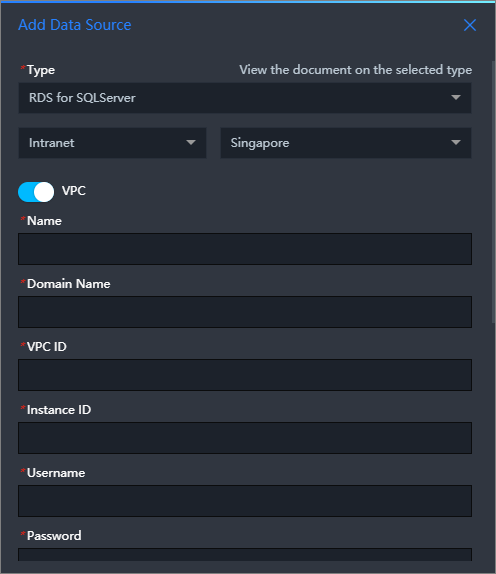
Parameter Description Name The display name of the data source. You can enter any name. VPC ID The ID of the VPC instance. This is the VPC where your ApsaraDB RDS for SQL Server instance is located. You can obtain the ID from the Network TypeBasic Information page in the ApsaraDB RDS console 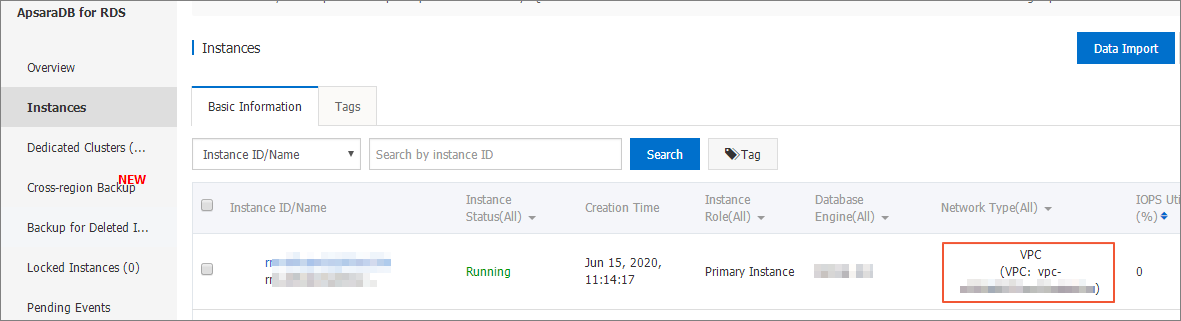
Instance ID The ID of the database instance in the VPC. You can obtain the ID from the instance's basic information page in the ApsaraDB RDS console. Note You can typically find the VPC instance ID in the console of the database product. However, the instance ID displayed in the console may not always be the one required for the DataV data source configuration. If the connection fails, you must use the database product's OpenAPI to get the correct VPC instance ID. This ID is usually the `VpcCloudInstanceId` or `VpcInstanceId` found in the database instance details. For more information about the API operation to query instance details, see DescribeDBInstanceAttribute - Query instance details.SQL Server Version Optional. Select this option if you use a version of SQL Server earlier than 2012. Domain Name The endpoint used to connect to the database. Important This endpoint is not a website URL or a native IP address. It is the endpoint that the DataV server uses to access your database over the public network or a private network in some Alibaba Cloud regions.For example, if you use an ApsaraDB RDS for SQL Server instance over a private network, the domain name is similar to `rm-bpxxxxxxxxx33150.sqlserver.rds.aliyuncs.com`. You can obtain it from the instance's basic information page in the ApsaraDB RDS console.
Port The port that the database uses. Username The username used to log on to the database. Password The password used to log on to the database. Database The name of the database. encrypt If you turn on this switch, the data source is compatible with Microsoft Azure SQL Database. - After you enter the database information, the system automatically tests the connection to verify that the database is accessible.
- Classic Network
- Turn off the VPC switch to enable the Classic Network mode.
- Enter the database information.
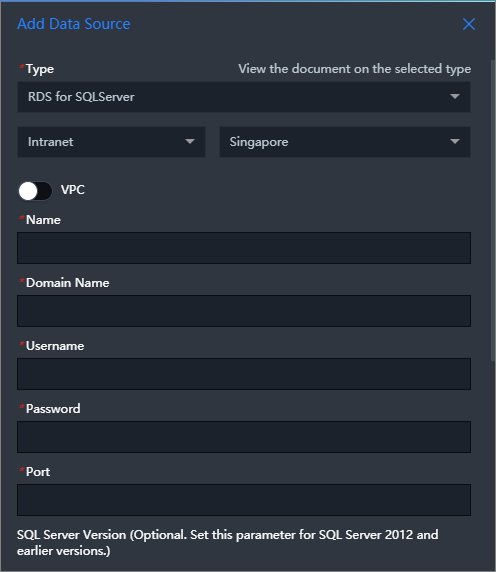
Parameter Description Name The display name of the data source. You can enter any name. SQL Server Version Optional. Select this option if you use a version of SQL Server earlier than 2012. Domain Name The endpoint used to connect to the database. Important This endpoint is not a website URL or a native IP address. It is the endpoint that the DataV server uses to access your database over the public network or a private network in some Alibaba Cloud regions.For example, if you use an ApsaraDB RDS for SQL Server instance over a private network, the domain name is similar to `rm-bpxxxxxxxxx33150.sqlserver.rds.aliyuncs.com`. You can obtain it from the instance's basic information page in the ApsaraDB RDS console.
Port The port that the database uses. Username The username used to log on to the database. Password The password used to log on to the database. Database The name of the database. encrypt If you turn on this switch, the data source is compatible with Microsoft Azure SQL Database. - After you enter the database information, the system automatically tests the connection to verify that the database is accessible.
- Virtual Private Cloud
- After the connection test is successful, click OK to add the data source.
The new data source appears in the data source list.
Add a data source over the public network
Log on to the DataV console.
On the My Data tab, select Data Source Management and click Add Data.
- From the Type list, select ApsaraDB RDS for SQL Server.
- Select Public Network as the network type.
For more information about how to set a public endpoint, see Set connection endpoints.
- Enter the database information.
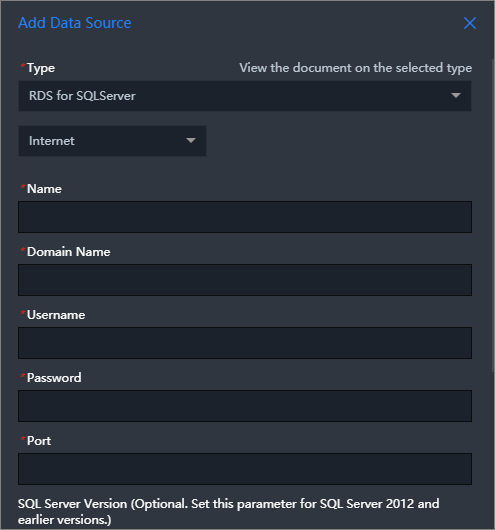
Parameter Description Name The name of the data source. You can specify a custom name. SQL Server Version Optional. Select this option if you use a version of SQL Server earlier than 2012. Domain Name The endpoint used to connect to the database. Important This endpoint is not a website URL or a native IP address. It is the endpoint that the DataV server uses to access your database over the public network or a private network in some Alibaba Cloud regions.For example, if you use an ApsaraDB RDS for SQL Server instance over the public network, the domain name is similar to `rm-bpxxxxxxxxxxxxdo.sqlserver.rds.aliyuncs.com`. You can obtain it from the instance's basic information page in the ApsaraDB RDS console.
Port The port that the database uses. Username The username used to log on to the database. Password The password used to log on to the database. Database The name of the selected database. encrypt If you turn on this switch, the data source is compatible with Microsoft Azure SQL Database. After you enter the database information, the system automatically tests the connection to verify that the database is accessible.
- After the connection test is successful, click OK to add the data source.
The new data source appears in the data source list.