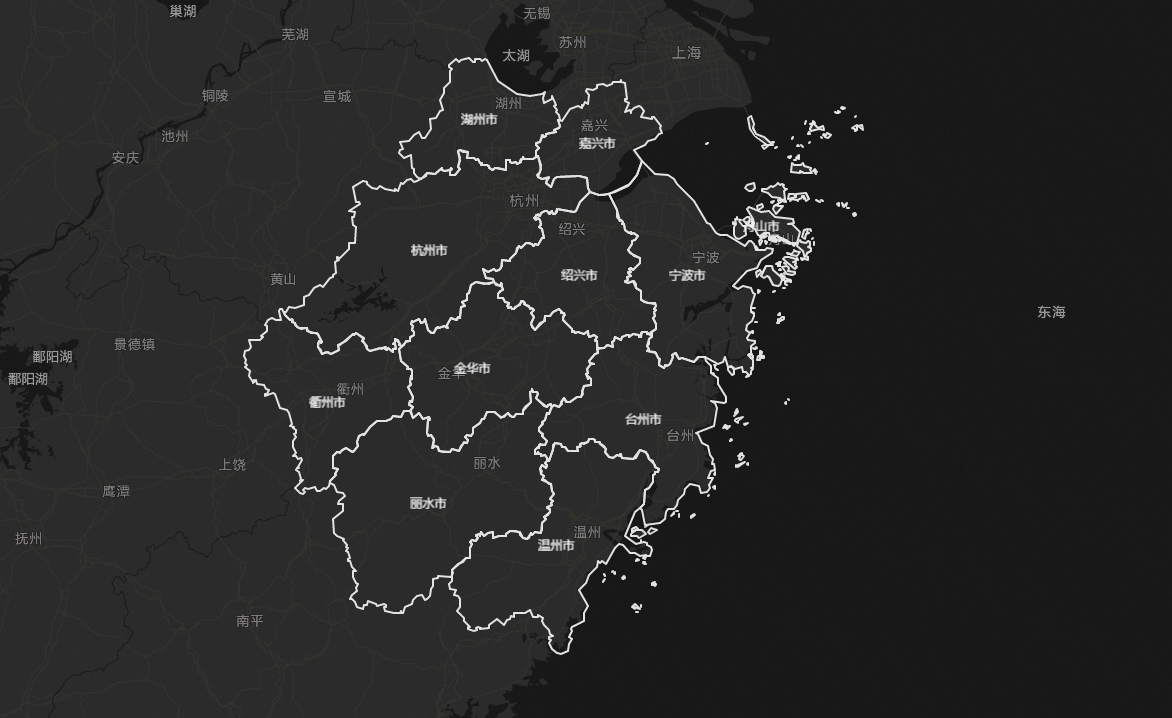
Customize map borders
Use the Choropleth Layer sub-widget in a Basic Flat Map to customize map borders.
Procedure
Log on to the DataV console.
-
On the My Visualizations page, click Edit on your visualization project.
-
On the canvas editor page, click the
 icon in the upper-left corner to expand the Asset List.
 -
Click Map > Basic Flat Map to add the Basic Flat Map widget to the canvas.
-
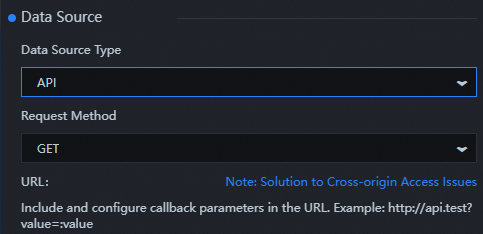
On the Data panel of the Choropleth Layer sub-widget, select Geographic Border GeoJSON Data Interface, and set Data Source Type to API.
-
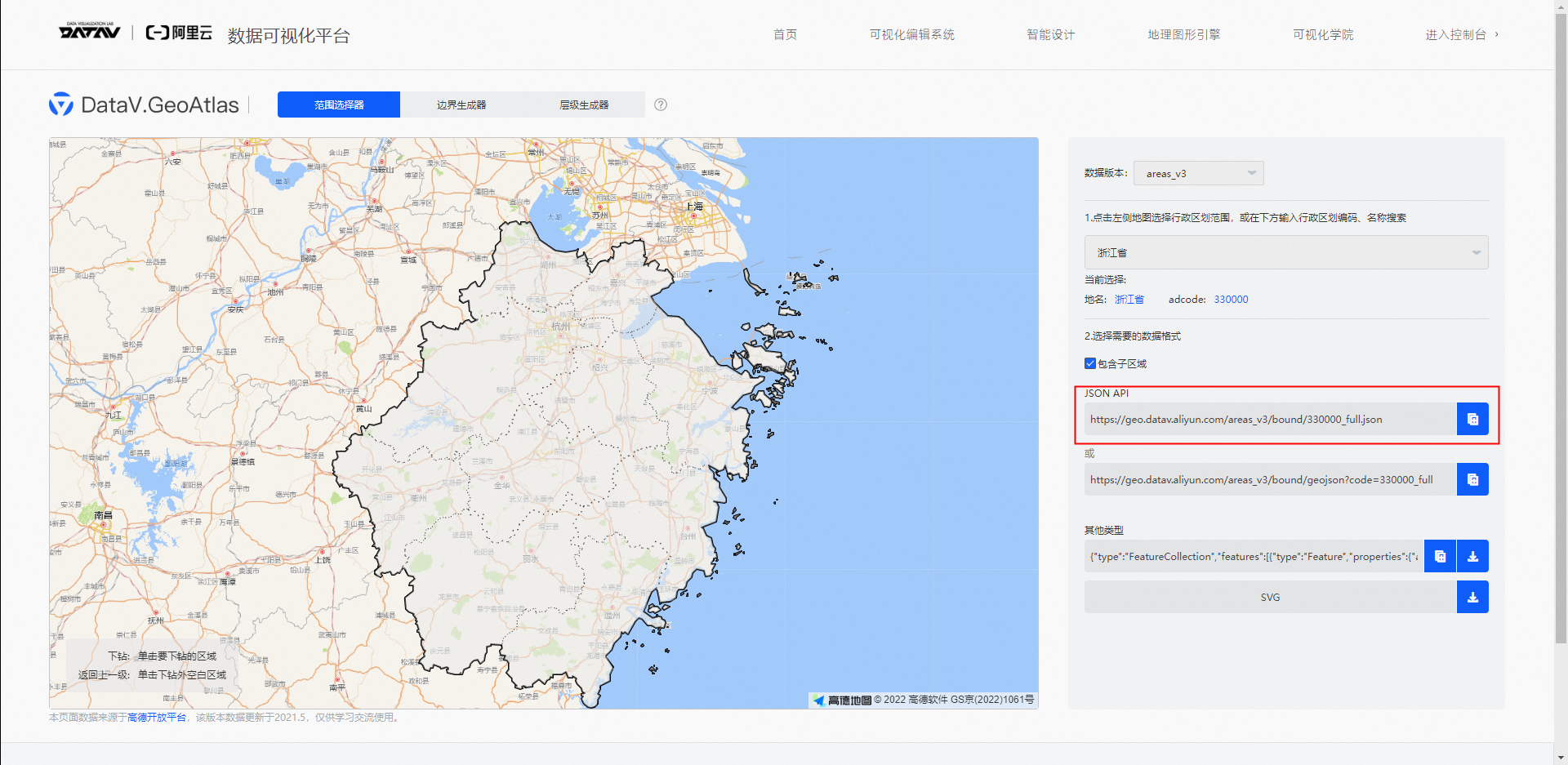
Log on to DataV.GeoAtlas, select the Range Selector, and copy the JSON API for Zhejiang Province.
-
Return to the Data configuration panel of the Choropleth Layer.
-
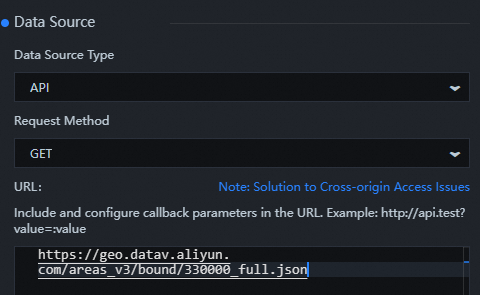
Paste the API link into the URL field for the Geographic Border GeoJSON Data Interface.
-
Click the
 icon in the upper-right corner, and adjust the map scaling and position to preview the custom borders.