Light layer
This article describes the icon style and the configuration items meaning of the light layer.
Chart style
The light layer is a subcomponent of the 3D spherical map. It supports independent style configurations, including light intensity and color, to simulate the light and color effects of the outer layer of the earth. 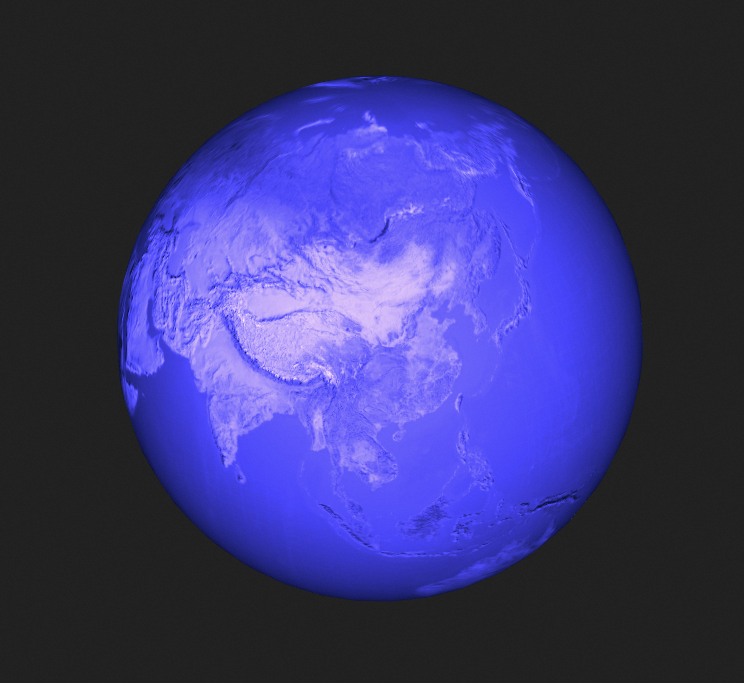
Settings
- Search for Configurations: In the right-side panel of Canvas Editor, click the Settings tab, and click Search for Configurations in the upper-right corner. Enter the required configuration item in the search box, and click the search icon to quickly locate the configuration item. Fuzzy match is supported. For more information, see Search for Configurations.
Ambient light
Parameter
Description
Color
The color of the ambient light. For more information, see Color picker.
Strength
The intensity of the ambient light.
self-luminous
Parameter
Description
Color
The color of the spot light. For more information, see Color picker.
Strength
The intensity of the spot light.
Radius: the radius of the light range. Valid values: 1 to 16.
Data tab
This component does not support data configuration.
Interaction tab
This widget does not support interaction events.
Configure interactions in Blueprint Editor
In Canvas Editor, click the
 icon on the right side of Light Layers in the 3D Globe Map component list.
 Click the
 icon in the upper-left corner.
 In Blueprint Editor, click the Light Layer component in the Import Nodes pane. You can view the parameters of the light layer on the canvas, as shown in the following figure.
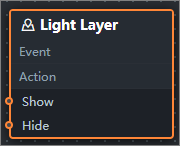
Event: The earth layer does not support events.
Policy Action
Policy Action
Description
Display Widget
A widget is shown without the need to specify parameters.
Hide components
A widget is hidden without the need to specify parameters.