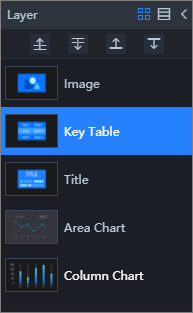
Manage layers
This topic describes how to manage layers in the canvas editor.
Preparations
Prerequisites
You have created a DataV application.
Open the canvas editor
Before you manage layers, open the canvas editor.
Access the DataV console.
On the My Visualizations page, hover over the target application and click Edit to open the canvas editor.
NoteClick the
 icon in the upper-left corner of the canvas editor to show or hide the Layers pane.
Switch views
You can switch between the list view and the thumbnail view as needed.
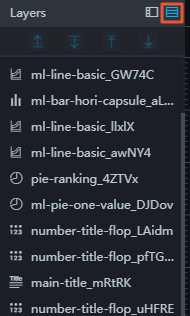
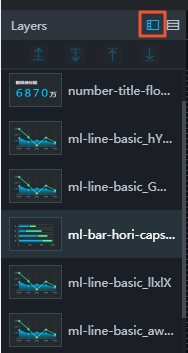
In the upper-right corner of the Layers pane, there are two view icons: List and Thumbnail.
Click the List icon to switch to the list view. This view shows the icon and title of each widget, which helps you quickly find widgets.
Click the Thumbnail icon to switch to the thumbnail view. This view shows a thumbnail and the title of each widget. This helps you preview widgets and adjust their layer positions.
Move widget layers
Moving widget layers helps you control the stacking order of widgets on the canvas.
The higher a layer is in the list, the closer to the front it appears on the canvas.
The lower a layer is in the list, the further back it appears on the canvas.
If two widgets overlap, the widget on a higher layer covers the widget on a lower layer.
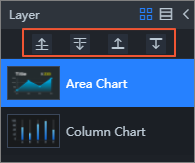
In the Layers pane or on the canvas, select one or more widgets. Then, use one of the following methods to change their layer order:
At the top of the Layers pane, click the Bring Forward, Send Backward, Bring to Front, or Send to Back icon.
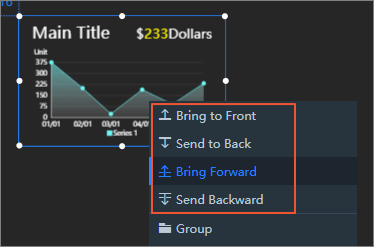
On the canvas, right-click a widget and select Bring to Front, Send to Back, Bring Forward, or Send Backward from the menu.
In the Layers pane, drag the selected widget up, down, to the top, or to the bottom of the list.