Manage asset lists
DataV offers a growing number of assets. The term 'widget' no longer covers all of them. This topic explains what an asset list is and how you can use it.
Asset package sources
The All Assets drop-down list displays all the asset packages in your account. These packages are divided into three categories: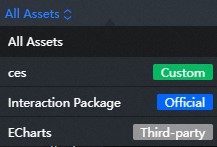
Official: Asset packages provided by the official DataV team.
Third-party: Asset packages provided or authorized by third-party companies and individuals. An icon
 appears in the lower-left corner of assets in these packages.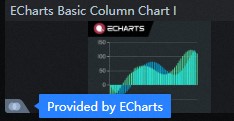
Custom: Asset packages that you create or for which other users grant you write permission. An icon
 appears in the lower-left corner of assets in these packages.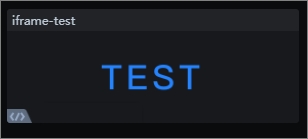
Switch asset packages
Click All Assets above the asset list to open the asset package drop-down list. Click a package to switch the displayed content.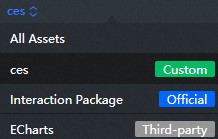
Purchase asset packages
In the asset package drop-down list, a Not purchased icon is displayed next to packages that you have not purchased. You cannot use these packages directly. To purchase a package, select it and click Go to purchase. You will be redirected to the purchase page.
Add asset packages
If an asset package has not been added, a Not added icon appears next to it in the drop-down list. You must add the package before you can use it. To do so, click the package and follow the on-screen instructions.
Search and filter assets
Click All Assets to view all available assets. Assets are organized by category to help you find them quickly. You can browse by category or click the  search icon above the list to find a specific asset.
Asset content details
The asset list is a panel that contains all available assets. These assets include widgets, blocks, materials, and models.
In the Asset panel, the Widget asset type includes regular widgets and BI analysis widgets. For more information, see the Widget Guide.
The Asset panel now includes a new asset type: Block. For more information, see Block Management.
The new Material asset type has been added to the Asset panel. For more information, see Material Overview.
The Asset panel now includes the Model asset type. For more information, see Model Overview.
All assets from the list can be added to the canvas editor. In the editor, you can perform operations and configure styles for the asset. For more information about managing assets in the canvas editor, see Asset Management.