Toolbar management
The canvas editor toolbar provides Filter Settings and layer search, allowing you to adjust visual styles and precisely locate layers.
Preparations
Prerequisites
You have created a visualization application.
Access the canvas editor
Before you begin, access the canvas editor:
Access the DataV console.
-
On the Projects page, hover your mouse over the target application and click Edit to access the canvas editor page.
Filter Settings
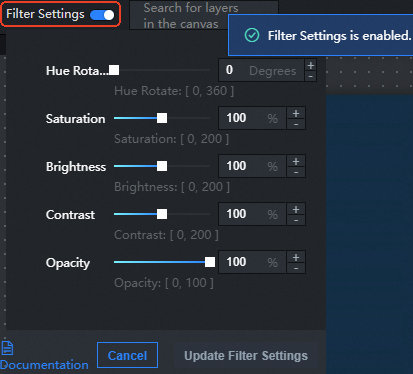
Filter Settings supports multi-dimensional color adjustments for visualization widgets, including Hue Rotate, Saturation, Brightness, Contrast, and Opacity.
-
On the canvas editor page, click the
 icon in the upper-left corner of the editor page. The Toolbar opens.
 -
In the upper-left corner of the canvas, turn on the Filter Settings switch.
When you first turn on the Filter Settings switch, the Filter Settings panel opens automatically. After you close it by clicking a blank area, click the Filter Settings text to reopen the Filter Settings panel.
When the Filter Settings switch is turned off, the Filter Settings panel is read-only.
-
In the Filter Settings panel, modify the widget's Hue Rotate, Saturation, Brightness, Contrast, and Opacity.
You can preview filter effects on the widget in real time.
-
After you complete the modifications, click Update Filter Settings to apply the effects to the widget.
By default, the Update Filter Settings button is grayed out. It becomes active after you modify any filter parameter.
Layer search
Layer search lets you quickly find and locate any layer widget in your visualization application, making it easier to manage complex canvases with many elements.
-
On the canvas editor page, click the
icon in the upper-left corner of the editor page. The Toolbar opens. -
In the search bar at the top of the canvas, enter or select a layer name to find the widget. After you select the target layer, the system automatically locates and selects it, so you can adjust the widget style and configure data.
NoteThe search feature supports fuzzy matching based on layer name keywords.