Add a Simple Log Service (SLS) data source
Add a Simple Log Service (SLS) data source to DataV and configure the required parameters. SLS is a one-stop service for real-time data management.
Prerequisites
The Simple Log Service (SLS) data source that you want to add is prepared.
Limits
This feature is available only in DataV Enterprise Edition and later versions.
Add a Simple Log Service (SLS) data source
Access the DataV console.
-
On the Workbench page, click in the navigation pane on the left. On the Data Source page, click New Data Source.
-
From the Type dropdown, select Simple Log Service (SLS).
-
Enter the required details for Simple Log Service (SLS).
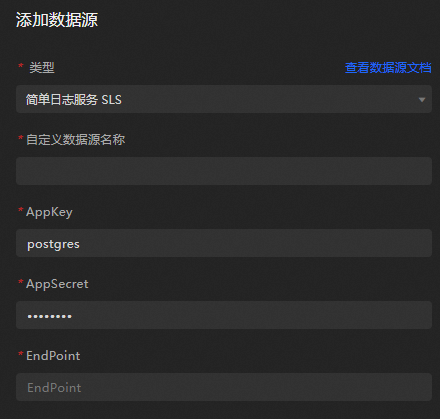
Parameter
Description
Custom Data Source Name
The display name of the data source. Specify a custom name.
AppKey
The AccessKey ID of the account that has access privileges to the target SLS.
AppSecret
The AccessKey Secret of the account that has access privileges to the target SLS.
EndPoint
The endpoint of the SLS service. Specify the endpoint based on the network type and region. For more information, see the endpoint document.
For example, in the VPC network in the Shanghai region, the EndPoint is entered as https://cn-shanghai-intranet.log.aliyuncs.com.
-
Once the information is entered, click OK to complete the addition of the data source.
The new data source is automatically listed in the data source directory.
Use a Simple Log Service (SLS) data source
Access the DataV console.
-
On the Workbench page, hover over the data dashboard you want to edit and click Edit.
ImportantIf you have not created a data dashboard, see Create a PC Dashboard Using a Template.
-
On the canvas editing page, select a widget from the canvas.
If the canvas has no widgets, add one first. For more information, see Widget Canvas Operations.
-
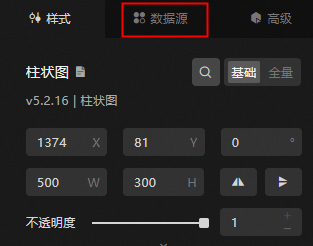
In the widget configuration panel on the right, select Data Source.
-
In the Set Data Source section, choose Data Source Type as Simple Log Service (SLS).
-
From the Select An Existing Data Source dropdown, pick the configured log service data source.
-
Below, in the Query field, input the query parameters.
Specify query parameters as a JSON object. The following parameters are supported:
{ "projectName": "test", "logStoreName": "access-log", "topic": "test", "from": 1509897600, "to": 1509984000, "query": "" , "line": 100, "offset": 0 }NoteFor more information about query syntax, see query syntax and features.
-
Click View Data Return Results to check the returned data.
What to do next
To use the data source in your widgets, see Configure a widget data source.
FAQ
For more information, see FAQ about data source configuration and usage.