Add an Alibaba Cloud Elasticsearch data source
This topic describes how to add and use an Alibaba Cloud Elasticsearch data source in DataV. You can use Elasticsearch with DataV to display data analytics and search results on a large screen.
Prerequisites
You are now ready to add an Elasticsearch data source.
Limits
This feature is available only in DataV Enterprise Edition and later versions.
Add an Alibaba Cloud Elasticsearch data source
Access the DataV console.
On the Workbench page, click in the navigation pane on the left. On the Data Source page, click New Data Source.
From the Type list, select Elasticsearch.
Enter the Elasticsearch data source information.
ImportantDataV requires access permissions to your Alibaba Cloud Elasticsearch service. You can grant these permissions using an associated RAM role.
In the Add Data Source dialog box, click Get Instance List. In the dialog box that appears, view the information about the service-linked role.
Role Name: AliyunServiceRoleForDataVDataSourceES
System Policy: AliyunServiceRolePolicyForDataVDataSourceES
Permission Description: Allows the DataV service to use this role to access your Elasticsearch, RDS, and ADS services.
Permission description:
{
    "Statement": [
        {
            "Effect": "Allow",
            "Action": [
                "elasticsearch:ListInstance",
                "elasticsearch:DescribeInstance",
                "rds:DescribeDBInstanceAttribute",
                "adb:DescribeDBClusterAttribute",
                "gpdb:DescribeDBInstanceNetInfo"
            ],
            "Resource": "*"
        },
        {
            "Action": "ram:DeleteServiceLinkedRole",
            "Resource": "*",
            "Effect": "Allow",
            "Condition": {
                "StringEquals": {
                    "ram:ServiceName": "datasource-es.datav.aliyuncs.com"
                }
            }
        }
    ],
    "Version": "1"
}
To delete the AliyunServiceRoleForDataVDataSourceES service-linked role, see Delete a service-linked role.
For more information about service-linked roles, see Service-linked roles.
Parameter
Description
Custom Data Source Name
The display name of the data source. You can enter any name.
Region
The region of the Elasticsearch instance. The default region is China (Hangzhou).
Instance ID
The ID of the Elasticsearch instance. Click Get Instance List to retrieve a list of your instances. Select an instance from the list or enter the instance name. When you click Get Instance List, a role is automatically created to grant DataV access to Elasticsearch.
For more information about how to obtain the ID of an Elasticsearch instance, see View the basic information of an instance.
Password
The password that was set when the selected Elasticsearch instance was created. Each instance has a different password.
After you complete the configuration, the system automatically tests the connection.
Click OK to add the data source.
The new data source appears in the data source list.
Use an Alibaba Cloud Elasticsearch data source
Access the DataV console.
-
On the Workbench page, hover over the data dashboard you want to edit and click Edit.
ImportantIf you haven't created a data dashboard on your Workbench page, please see Create a PC Dashboard Using a Template for guidance on creating one.
-
On the canvas editing page, select a widget from the canvas.
If your canvas lacks widgets, please add them first. For more information, see Widget Canvas Operations.
-
In the widget configuration panel on the right, select Data Source.
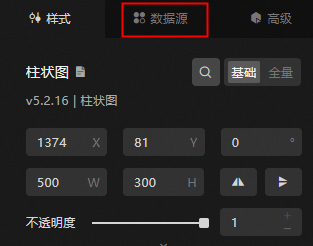
In the Set Data Source section, set Data Source Type to Elasticsearch.
From the Select Existing Data Source list, select the Elasticsearch data source.
In the index field, enter the query index.
In the Query field, enter the query body. The query body is a JSON object.
Click View Data Response to view the data response.
What to do next
After you obtain the raw data, see Configure a widget data source to adapt the data for your widgets.
FAQ
For more information, see FAQ about data source configuration and usage.