Add a DataWorks DataService Studio data source
This topic describes how to add a DataWorks DataService Studio data source in DataV and use an API that is generated from a DataWorks table to display data on a DataV screen.
Prerequisites
A DataWorks DataService Studio service is available.
Limits
This feature is available only in DataV Enterprise Edition and later versions.
Background information
By default, APIs generated in DataService Studio do not support HTTPS. Therefore, you must open DataV over HTTP by clicking Log on to the console.
To use APIs generated in DataService Studio over HTTPS, you must bind a certificate to API Gateway. For more information, see Enable HTTPS for your API.
After you publish an API in DataService Studio, the API is connected to API Gateway. The default second-level domain provided by API Gateway limits the number of calls to 1,000 per day. To remove this limit, you can bind an independent domain to the group in the API Gateway console.
Add a DataWorks DataService Studio data source
Access the DataV console.
On the Workbench page, click in the navigation pane on the left. On the Data Source page, click New Data Source.
From the Type list, select DataWorks DataService Studio.
Enter the DataWorks DataService Studio information.
Parameter
Description
Custom Data Source Name
The display name for the data source. You can enter any name.
Region
The region where the DataWorks project is located.
Project
The DataWorks project (workspace).
AppKey
The AppKey for an account with access permissions to the project in DataService Studio. This key is used for API calls and can be obtained from the DataService Studio console.
AppSecret
The AppSecret for an account with access permissions to the project in DataService Studio. This secret can be obtained from the DataService Studio console.
NoteIn the DataWorks DataService Studio console, click Service Management API Call to obtain your AppKey and AppSecret.
After you configure the parameters, click OK.
The new data source appears in the data source list.
Use the DataWorks DataService Studio data source
Prepare the API data created in DataWorks DataService Studio.
You can log in to the DataWorks DataService Studio console and generate an API. For more information, see Overview of API generation.
Access the DataV console.
-
On the Workbench page, hover over the data dashboard you want to edit and click Edit.
ImportantIf you haven't created a data dashboard on your Workbench page, please see Create a PC Dashboard Using a Template for guidance on creating one.
-
On the canvas editing page, select a widget from the canvas.
If your canvas lacks widgets, please add them first. For more information, see Widget Canvas Operations.
-
In the widget configuration panel on the right, select Data Source.
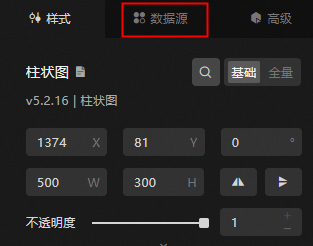
Set Data Source Type to DataWorks DataService Studio.
From the Select Existing Data Source list, select the DataWorks DataService Studio data source that you added.
From the Select API list, select the DataWorks DataService Studio API that you generated.
Click View Data Response to view the data response.
What to do next
After you obtain the raw data, see Configure a widget data source to adapt the data for your widgets.
FAQ
For more information, see FAQ about data source configuration and usage.