Ambient light layer
The ambient light layer is a layer in the 3D city builder used to adjust rendering effects. It provides ambient light to supplement global illumination. The ambient light layer supports independent style configurations, such as light intensity and color. This topic describes the configuration items for the ambient light layer.
In the layer list on the left side of the scene editor, click the Ambient Light Layer, and then configure the style and data of the Ambient Light Layer in the configuration panel.
This widget is available only to users of DataV Professional Edition or later. To use this widget, you must first upgrade your edition to Professional or later.
If the Ambient Light Layer is not in the layer list, it means you have not added the Ambient Light Layer. To add the layer, see Add a sub-widget.
Style panel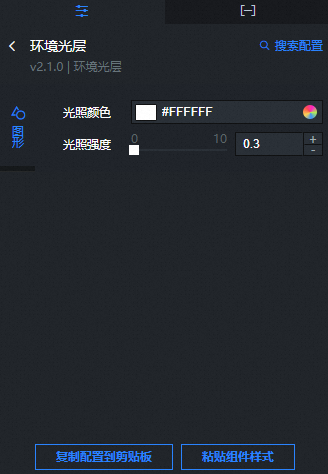
-
Search Configuration: To quickly find a specific configuration item, click on the Configuration panel in the upper right corner and enter the item's name in the Search Configuration field. The system utilizes a fuzzy match to assist in locating items. For more information, see search configuration items.
The following table describes the parameters for the ambient light layer.
Parameter
Description
Light Color
The color of the ambient light. To change the color, see Color picker.
Light Intensity
Sets the light intensity coefficient for the ambient light layer. Drag the slider to change the value. The value ranges from 0 to 10.
Data panel
This layer requires no data configuration.
Blueprint interaction
On the scenario editor page, in the layer list on the left, click the
 icon to the right of the Ambient Light Layer.
Click the
 icon in the upper-left corner of the page.
On the Blueprint Editor page, click the Ambient Light Layer in the Import Nodes pane. The configuration parameters for the ambient light layer appear on the canvas.
Events: None.
Actions
Action
Description
Show Widget
Shows the widget. No parameters are required.
Hide Component
Hides the widget. No parameters are required.