Path animation model
A path animation model is a layer in 3D Urban Builder used to create models. It supports independent style configurations, such as general, graphic, animation, and interaction styles. This topic describes the configuration items for the path animation model.
In the layer list on the left of the scene editor, click the Path Animation Model layer. In the configuration panel, you can set the style and data for the Path Animation Model layer.
If the Path Animation Model is not in the layer list, this indicates that you have not added the Path Animation Model layer. For more information, see Add a widget.
Style panel
Avoid adding multiple path animation models to prevent page stuttering or slow loading due to excessive performance overhead.
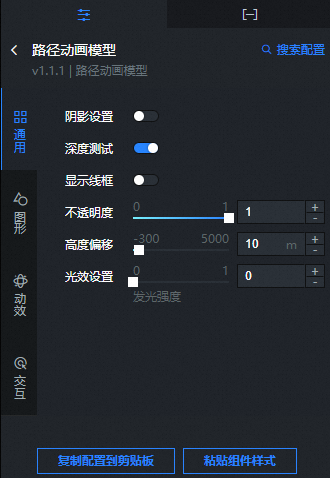
-
Search Configuration: To quickly find a specific configuration item, click on the Configuration panel in the upper right corner and enter the item's name in the Search Configuration field. The system utilizes a fuzzy match to assist in locating items. For more information, see search configuration items.
General
Parameter
Description
Shade Settings
Turn on the switch to enable shade effects for the model loaded by the path animation model. Turn off the switch to disable shade effects.
Depth Test
Turn on the switch to enable depth testing for the model loaded by the path animation model. Turn off the switch to disable depth testing.
NoteIf depth testing is enabled, the object may be obscured by objects behind it.
Show Wireframe
Turn on the switch to show the wireframe of the model loaded by the path animation model. Turn off the switch to hide the wireframe.
Opacity
Set the opacity coefficient for the model loaded by the path animation model. The value ranges from 0 to 1.
Height Offset
The offset value of the model's height from the ground plane. The value ranges from -300 to 5000.
Light Effect Settings
Drag the slider to set the luminous intensity of the model loaded by the path animation model. The value ranges from 0 to 1.
Graphics
Parameter
Description
Model Address
Set the address of the model to be loaded by the path animation model.
Rotate
Drag the sliders to set the rotation angle of the model on the x-axis, y-axis, and z-axis.
Scaling
Drag the sliders to set the scaling value of the model on the x-axis, y-axis, and z-axis.
Animation
Parameter
Description
Model Animation
Set the animation style for the model loaded by the path animation model.
Autoplay: Turn on the switch to enable animation playback. Turn off the switch to disable animation playback.
Loop Mode: Set the loop mode for the animation playback. Options include Repeat Playback, Single Playback, and Reverse Playback.
Animation Speed: Drag the slider to set the animation speed for the model. The value ranges from -1.5 to 1.5.
Scanlight Animation
Turn on the switch to set the scanlight animation style. Turn off the switch to disable it.
Front Type: Set the front type for the scanlight animation. Options include Plane and Curved.
Scan Axis: When Plane is selected for Front Type, the scan axis can be the X, Y, or Z axis.
Direction: Set the direction for the scanlight animation. Options include Positive and Negative.
Color: Set the color for the scanlight animation. For more information, see Color picker to modify the color.
Scanlight Length: Drag the slider to set the length ratio of the scanlight animation. The value ranges from 0.01 to 1.
Scanlight Speed: Drag the slider to set the speed ratio of the scanlight animation. The value ranges from 0 to 0.05.
Path Animation
Turn on the switch to enable the path animation. Turn off the switch to stop the path animation.
Autoplay: Turn on the switch to enable autoplay for the path animation. Turn off the switch to pause the playback.
Loop Mode: Set the loop mode for the path animation. Options include Repeat Playback and Single Playback.
Animation Time: Drag the slider to set the animation playback time in ms.
Show Path: Turn on the switch to show the path. Turn off the switch to hide the path.
Path Height: Drag the slider to adjust the elevation of the motion path. The value ranges from 0 to 5000.
Curve Tension: Drag the slider to adjust the curve of the path. The value ranges from 0 to 1. A larger value creates a more pronounced curve.
Model Expand
Click the
 or
or  icon on the right to add or delete a model expand style. Click the
  or
or  icon to configure multiple model expand styles. Click the
  icon to copy the currently selected model expand style and add a new one with the same configuration.
Face ID: Enter the name of the object in the model to expand.
Offset: Drag the slider to set the offset for the object to be expanded.
Offset Direction: Set the offset direction for the object on the x-axis, y-axis, and z-axis.
Duration: Drag the slider to set the duration of the model expansion animation.
Interaction: Set the interaction style for the path animation model.
Parameter
Description
Mouse Interaction
Turn on the switch to enable mouse interaction. Turn off the switch to disable mouse interaction.
Click Area
Set the click area for the model. Options include Partial and Overall.
Click Color
The color of the selected object when you click the model.
 icon to copy the currently selected model expand style and add a new one with the same configuration.
Data panel
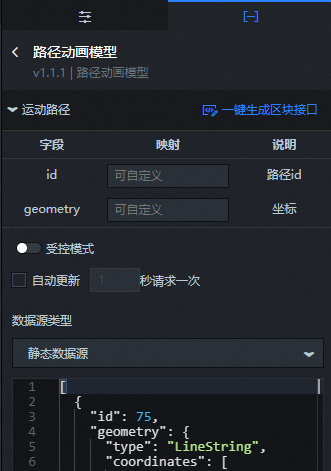
Field |
Description |
id |
The path ID loaded by the path animation model. |
geometry |
The path coordinates loaded by the path animation model. |
Configuration Item |
Description |
Controlled Mode |
Turn on the switch to prevent the widget from requesting data upon initialization. Data is requested only through a callback ID or a method configured in the blueprint editor. Turn off the switch to allow automatic data update requests. The switch is off by default. |
Automatic Update Request |
Select this option to enable dynamic polling and manually set the polling frequency. If you clear this option, data is not updated automatically. You must manually refresh the page or trigger data update requests using the blueprint editor or callback ID events. |
Data Source |
Click Configure Data Source. In the Set Data Source panel, you can modify the data source type and data query code, preview the data source return results, and view the data response. |
Data Result |
Displays the response result of a data request. When the data source changes, click the |
 icon on the right to view the real-time data response.
You can also use the layer data API as a block data API to configure more data source types in the data dashboard or to interact with data from common chart widgets. For more information, see One-click generation of block APIs.
If you created your 3D City Builder project in Spatial Data Project mode and the project contains data primitive layer content, you can use the Spatial Build Data Source to obtain spatial map data when you configure the data panel in the scene editor. The steps are as follows:
In the layer configuration panel, select the Data tab. Click the Data Source Type drop-down list at the bottom of the panel and select Spatial Build Data Source.
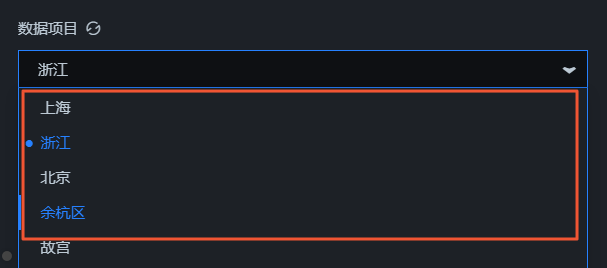
From the Data Project drop-down list at the bottom of the panel, select an existing data project from the spatial build platform.
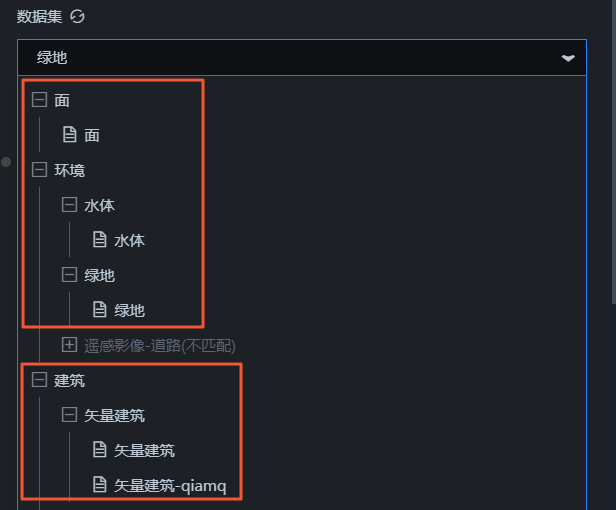
After you select a data project, select a matching dataset from the Dataset drop-down list.
NoteIf no configurable data types are available for the Data Project and Dataset configuration items, click Go to Spatial Build Platform to Manage Data in the panel to configure data in the spatial build platform. For more information, see Overview of spatial data management.
Blueprint interaction
In the layer list on the left side of the scene editor, click the
icon next to Path Animation Model.Click the
icon in the upper-left corner of the page.On the blueprint editor configuration page, click the Path Animation Model layer in the import node bar. The configuration parameters for the path animation model appear on the canvas, as shown in the following figure.
Events
Event
Description
When Motion Path Request Is Complete
Triggered when the motion path request is complete. The output data is an array that includes the id and geometry fields.
Left-click Model
Triggered when you left-click the model. The output includes the clicked object, object name, and object instance ID.
Right-click Model
Triggered when you right-click the model. The output includes the clicked object, object name, and object instance ID.
Model Load Complete
Triggered when the model is loaded. The output data is an object.
Actions
Action
Description
Request Motion Path
Re-requests server-side data. The data output from an input data processing node or a layer node is used as a parameter. For example, if the path animation model is configured with an API data source of
https://api.testand the data passed to the Request Motion Path action is{ id: '1'}, the final request URL ishttps://api.test?id=1.Import Motion Path
Imports a motion path. The input data for the action is an array that includes the id and geometry fields.
Show Widget
Shows the widget. No parameters are required.
Hide Widget
Hides the widget. No parameters are required.
Scanlight Animation
Updates the scanlight animation configuration. The input data for the action is an object. The following is a data example.
{
  "enable": false,   // Enable or disable the scanlight animation. The default value is false.
  "frontier": 1,     // The front type. The default value is 1.
  "axisType": 1,     // The scan axis. The default value is 1.
  "direction": 1,    // The scan direction. The default value is 1.
  "color": "#6699ff",// The scanlight color.
  "length": 0.05,    // The scanlight length.
  "speed": 0.05      // The scanlight speed.
}
Play All Model Animations
Plays all model animations. No parameters are required.
Stop All Model Animations
Stops all model animations. No parameters are required.
Play Model Animation
Plays a specified model animation by its name.
Stop Model Animation
Stops a specified model animation by its name.
Expand Model
Expands the model. The input data for the action is an object that includes the model group ID, offset, offset direction, and duration fields.
Expand Model by Group
Expands the model by group. The input data for the action is an array that includes the model group ID, offset, offset direction, and duration fields.
Restore Expanded Model
Restores the expanded model. No parameters are required.
Initialize Path Animation
Initializes the path animation data and plays the animation. The input data for the action is an object that includes the path, animation time, loop, curve tension, and show path fields.
Start Path Animation
Plays the path animation from the beginning. No parameters are required.
Stop Path Animation
Stops the path animation playback. No parameters are required.
Resume Path Animation
Resumes the path animation from where it was paused. No parameters are required.
Pause Path Animation
Pauses the path animation. The animation can be resumed. No parameters are required.
 icon next to Path Animation Model.
 icon in the upper-left corner of the page.