Spotlight
The spotlight layer adds an additional light source to the 3D city builder. It simulates the lighting and color effects of a spotlight. You can adjust the spotlight style to enlarge or shrink the illuminated area within a specific range. The spotlight supports independent style configurations, such as helper styles, shadow projection parameters, light intensity, and color. This topic describes the configuration items for the spotlight.
In the layer list on the left side of the scene editor, click the Spotlight layer to configure the style and data for the Spotlight layer in the configuration panel.
This widget is available only in DataV Professional Edition or later versions. To use this widget, upgrade to the Professional Edition or a later version.
If Spotlight is not in the layer list, the Spotlight layer has not been added. For more information, see Add a sub-widget.
Style panel
Avoid adding multiple spotlights. This can cause high performance overhead, which can lead to page stuttering or slow loading.
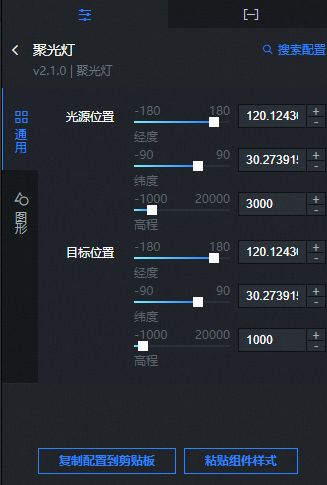
-
Search Configuration: To quickly find a specific configuration item, click on the Configuration panel in the upper right corner and enter the item's name in the Search Configuration field. The system utilizes a fuzzy match to assist in locating items. For more information, see search configuration items.
General
Parameter
Description
Source Position
Sets the position of the spotlight source.
Longitude: Drag the slider to set the longitude of the spotlight source. The value range is -180 to 180.
Latitude: Drag the slider to set the latitude of the spotlight source. The value range is -90 to 90.
Altitude: Drag the slider to set the altitude of the spotlight source from the ground. The value range is -1000 to 20000.
Target Position
Sets the target position of the spotlight.
Longitude: Drag the slider to set the longitude of the target position. The value range is -180 to 180.
Latitude: Drag the slider to set the latitude of the target position. The value range is -90 to 90.
Altitude: Drag the slider to set the altitude of the target position from the ground. The value range is -1000 to 20000.
Graphic
Parameter
Description
Light Color
The color of the spotlight. For more information, see Color picker.
Light Intensity
Drag the slider to set the light intensity coefficient of the spotlight. The value range is 0 to 10.
Attenuation Coefficient
Drag the slider to set the attenuation coefficient of the projected light. The value range is 0 to 2.
Angle
Drag the slider to set the angle of the spotlight. The value range is 0 to 0.5.
Distance
Drag the slider to set the maximum distance the spotlight can reach. The default value is 0, which means the distance is infinite. The value range is 0 to 30000.
Penumbra
Drag the slider to set the radius ratio of the blur gradient at the edge of the spotlight's shadow. The value range is 0 to 1.
Cast Shadow
Turn on the switch to enable the cast shadow effect. Turn off the switch to disable the effect.
NoteTo enable the cast shadow effect, the materials of other widgets must support receiving shadows. The light and shadow affect all materials that support this light source. Casting shadows increases performance overhead. Use this feature with caution.
Helper
Controls the helper's light source and shadow camera styles. Turn on the switch to show the spotlight helper. Turn off the switch to hide the spotlight helper.
Shadow Parameters
After you enable the cast shadow effect, you can set custom shadow parameters for the spotlight, including the near plane distance, far plane distance, shadow map, and focus.
Data panel
This layer does not require data configuration.
Blueprint interactions
On the scene editor page, click the
 icon next to Spotlight in the layer list.
Click the
 icon in the upper-left corner of the page.
On the Blueprint Editor page, click the Spotlight layer in the Import Node bar. The blueprint editor configuration parameters for the spotlight appear on the canvas, as shown in the following figure.
Events: None.
Actions
Action
Description
Show Widget
Shows the widget. No parameters are required.
Hide Widget
Hides the widget. No parameters are required.