Searchlight
The searchlight is a presentation layer in the 3D City Builder. It is not a true light source and does not change the material of other objects. The searchlight is used to simulate the effect of a cone-shaped light beam. You can independently configure its style, including the light's opacity and the attenuation index for color, distance, and angle. This topic describes the configuration items for the searchlight.
In the layer list on the left side of the scene editor, click the Searchlight layer to configure the style and data of the Searchlight layer in the configuration panel.
This widget is available only in DataV Professional Edition or a later version. To use this widget, you must upgrade DataV to the Professional Edition or a later version.
If Searchlight is not in the layer list, it means that the Searchlight layer has not been added. To add the layer, see Add a sub-widget.
Style pane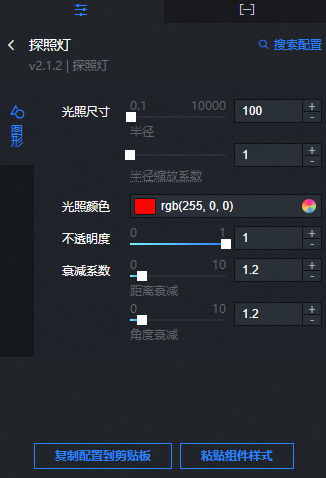
-
Search Configuration: To quickly find a specific configuration item, click on the Configuration panel in the upper right corner and enter the item's name in the Search Configuration field. The system utilizes a fuzzy match to assist in locating items. For more information, see search configuration items.
The following table describes the Graphics parameters in the searchlight configuration pane.
Parameter
Description
Light Size
Sets the size of the searchlight.
Radius: Drag the slider to set the radius of the projected light. The value ranges from 0.1 to 10000. The unit is meters.
Radius Scaling Factor: Drag the slider to set the scaling factor for the searchlight radius. Adjust this parameter only when the required radius exceeds the available range.
Light Color
The color of the searchlight. To change the color, see Color picker.
Opacity
Drag the slider to set the opacity of the searchlight. The value ranges from 0 to 1. A larger value indicates that the light is more opaque.
Attenuation Factor
Sets the attenuation factor for the searchlight.
Distance Attenuation: Drag the slider to set the attenuation factor for the light projection distance. The value ranges from 0 to 10.
Angle Attenuation: Drag the slider to set the attenuation factor for the light projection angle. The value ranges from 0 to 10.
Data pane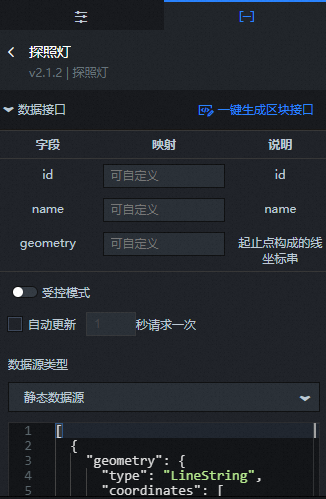
Parameter |
Description |
id |
The ID of the searchlight. |
name |
The name of the searchlight. |
geometry |
The coordinate string of the line formed by the start and end points of the searchlight's illumination. |
Configuration Item |
Description |
Controlled Mode |
Turn on the switch to prevent the widget from requesting data upon initialization. Data is requested only through a callback ID or a method configured in the blueprint editor. Turn off the switch to allow automatic data update requests. The switch is off by default. |
Automatic Update Request |
Select this option to enable dynamic polling and manually set the polling frequency. If you clear this option, data is not updated automatically. You must manually refresh the page or trigger data update requests using the blueprint editor or callback ID events. |
Data Source |
Click Configure Data Source. In the Set Data Source panel, you can modify the data source type and data query code, preview the data source return results, and view the data response. |
Data Result |
Displays the response result of a data request. When the data source changes, click the |
 icon on the right to view the real-time data response.
You can also use the layer data API as a block data API to configure more data source types in the data dashboard or to interact with data from common chart widgets. For more information, see One-click generation of block APIs.
If you created your 3D City Builder project in Spatial Data Project mode and the project contains data primitive layer content, you can use the Spatial Build Data Source to obtain spatial map data when you configure the data panel in the scene editor. The steps are as follows:
In the layer configuration panel, select the Data tab. Click the Data Source Type drop-down list at the bottom of the panel and select Spatial Build Data Source.
From the Data Project drop-down list at the bottom of the panel, select an existing data project from the spatial build platform.
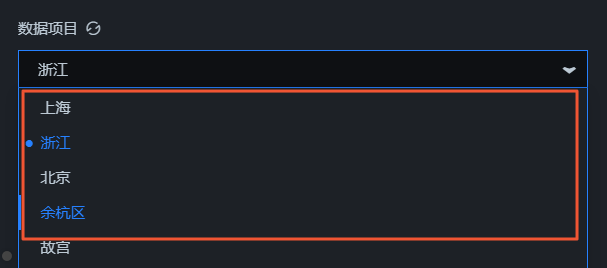
After you select a data project, select a matching dataset from the Dataset drop-down list.
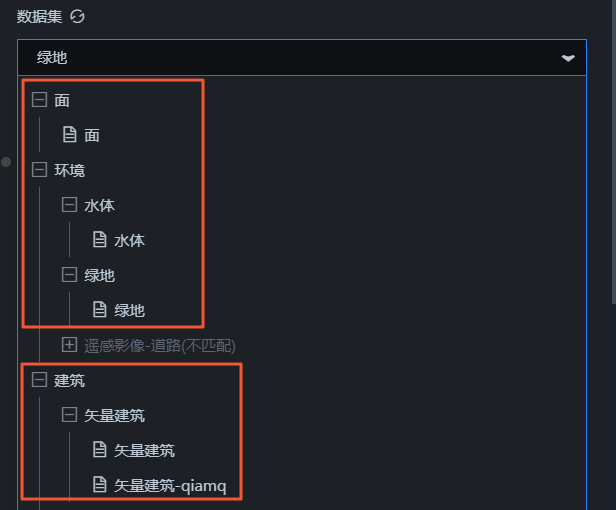 Note
NoteIf no configurable data types are available for the Data Project and Dataset configuration items, click Go to Spatial Build Platform to Manage Data in the panel to configure data in the spatial build platform. For more information, see Overview of spatial data management.
Blueprint interaction
In the layer list on the left of the scenario editor, click the
 icon to the right of the Searchlight layer.
Click the
icon in the upper-left corner of the page.On the Blueprint Editor configuration page, click the Searchlight layer in the imported nodes section. The configuration parameters for the searchlight node appear on the canvas, as shown in the following figure.
Events
Event
Description
When a data API request is complete
This event is triggered after a data API request is returned and processed by a filter. The event also returns the processed data in JSON format. For a data example, see the Data Response section on the Data tab of the widget's configuration pane in the canvas editor.
Actions
Action
Description
Request data API
Requests server-side data again. Data from upstream processing nodes or layer nodes is passed as parameters. For example, if a spotlight component has its API data source set to
https://api.testand the data passed to the Request data API action is{ id: '1'}, the final API request ishttps://api.test?id=1.Import data API
Processes data in the format required by the component, then imports the data to redraw the component. This action does not request new server-side data. For a data example, see the Data Response area on the Data tab of the component's configuration panel in the canvas editor.
Show component
Shows the component. No parameters are required.
Hide component
Hides the component. No parameters are required.
 icon to the right of the Searchlight layer.
 icon in the upper-left corner of the page.