Water body
The water body is a basemap layer in the 3D City Builder that displays procedurally generated rivers and lakes. You can configure it at two levels of data precision: L1 and L2. This topic uses L2 precision as an example to describe the style and data configurations for the water body, including texture styles, water color, and flow direction.
In the layer list on the left side of the scene editor, click the Water Body layer to open the configuration panel for procedurally generated rivers and lakes and configure the style and data of the Water Body layer.
If Water Body is not in the layer list, you must first add the Water Body layer. For more information, see Add a sub-widget.
Style panel
Graphics: The following table describes the parameters on the graphics configuration panel for the water body.
Parameter
Description
Water color
The color of the water. For more information, see Color picker to modify the color.
Color map
In the Color map area:
Move the mouse over the image and click Delete to remove the current image. Then, click the image area or drag a local image into the area to add a new map.
Move the mouse over the image and click Change to upload a different local image.
You can also enter the URL of an image to use an image from a remote server as the map.
Normal map
In the Normal map area:
Move the mouse over the image and click Delete to remove the current image. Then, click the image area or drag a local image into the area to add a new map.
Move the mouse over the image and click Change to upload a different local image.
You can also enter the URL of an image to use an image from a remote server as the map.
Ripples
Set the ripples of the water, including low-frequency and high-frequency sizes. The value range is 0 to 100.
Animation: The following table describes the parameters on the animation configuration panel for the water body.
Parameter
Description
Flow direction
The direction of the water flow. It includes Horizontal and Vertical directions. Turn the Horizontal and Vertical switches on or off to show or hide the flow in that direction.
Flow speed
The speed of the water flow. The value range is 0 to 100.
Data panel
Re-select data: In the data panel, click Re-select data to open the Select Range dialog box and re-select the data range specifically for the water body layer. For more information, see the procedure in the "Select a scene range" section of Create a scene using official basemap data.
Refresh data: Refreshes the data added in the data panel.
Blueprint interactions
On the current Scene Editor page, in the layer list on the left, click the
 icon to the right of the Water Body layer.
Click the
 icon in the upper-left corner of the page.
On the blueprint editor configuration page, click the Water body layer in the import node bar. The configuration parameters for the water body appear on the canvas, as shown in the following figure.
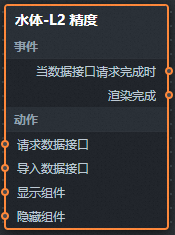
Events
Event
Description
When a Data API Request Completes
The event is triggered after the data API request is returned and processed by the filter. The event also returns the processed data in JSON format. For a data sample, see the Data Response area on the Data tab of the widget's configuration panel on the right of the canvas editor.
Rendering complete
The event is triggered when the water body widget is rendered. The event also returns data of the object type.
Actions
Action
Description
Request data from API
Requests server-side data again. This action uses data from input data processing nodes or layer nodes as parameters. For example, if a water body layer is configured with the API data source
https://api.test, and the data passed to the Request data from API action is{ id: '1'}, the final request URL ishttps://api.test?id=1.Import data
Processes data into the component's format, then imports the data to redraw the component. This action does not request server-side data again. For data examples, see the Data Response area on the Data tab in the component's configuration panel on the right of the canvas editor.
Show component
Shows the component. No parameters are required.
Hide component
Hides the component. No parameters are required.