Retail e-commerce data modeling
DataWorks intelligent data modeling includes a pre-built industry model template for retail e-commerce data warehouses, which you can import with a single click. This document explains dimensional modeling theory and intelligent data modeling by walking through the core model-building steps in a retail e-commerce context.
Use case workflow
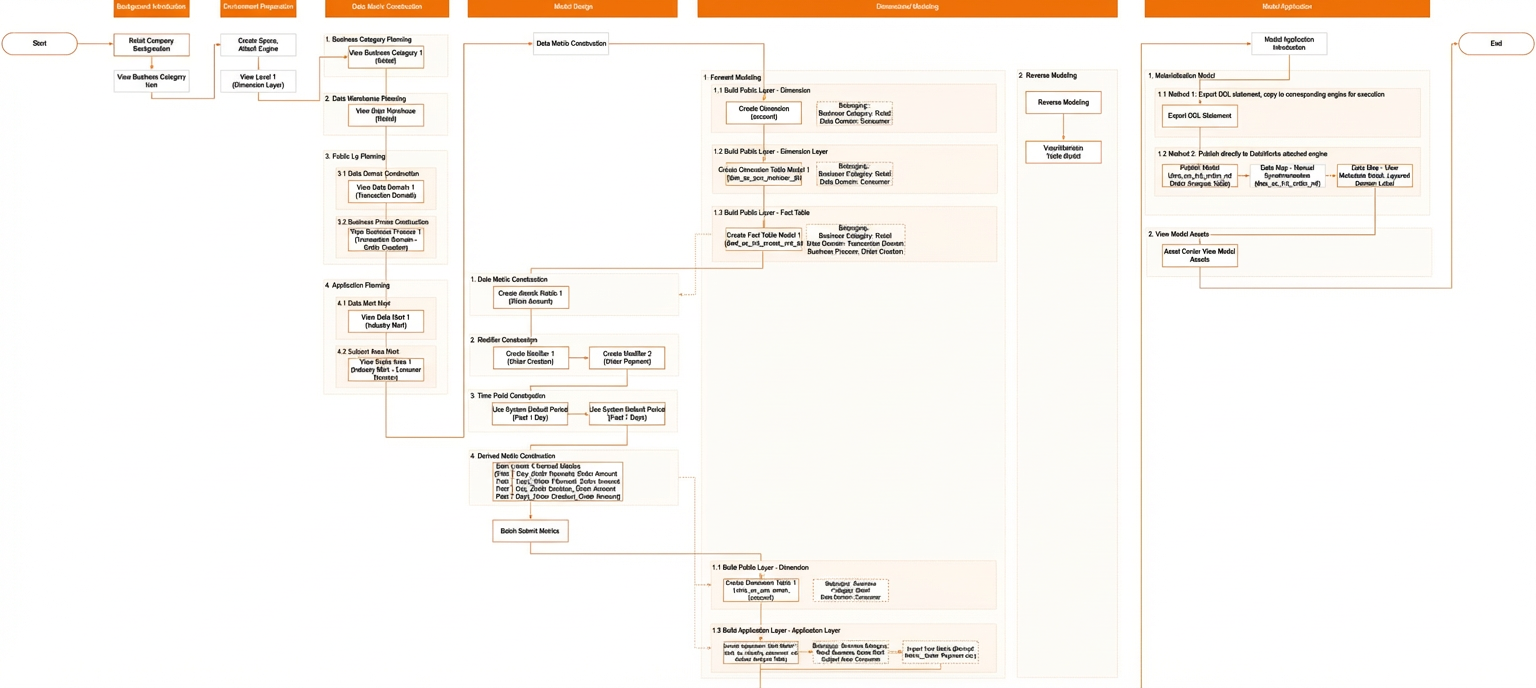
Company background
This retail e-commerce company sells a wide variety of products. As the business expands, it generates a growing volume of new data, such as user access logs and transaction records. Analyzing this data helps the company understand user behavior and sales trends to inform operations and decision-making.
Data modeling uncovers patterns and trends in data, leading to better analysis and insights. Therefore, the company needs to build a complete set of data models.
Use DataWorks smart modeling to develop and manage the entire set of models. You can integrate these models with other DataWorks modules and use them with cloud data warehouse products. You can also export the corresponding DDL or ETL code for more flexible applications. After completing this use case, you will learn how to use these models in other DataWorks modules.
You can view your data models and metrics in the data assets module of DataWorks.
Data asset management is currently in invitational preview. Users of DataWorks Standard Edition, Professional Edition, or Enterprise Edition can submit a ticket to the helpdesk to request to be added to the whitelist for free access. After the invitational preview ends, data asset management must be purchased separately. To upgrade or purchase a DataWorks edition, see Features of DataWorks editions.
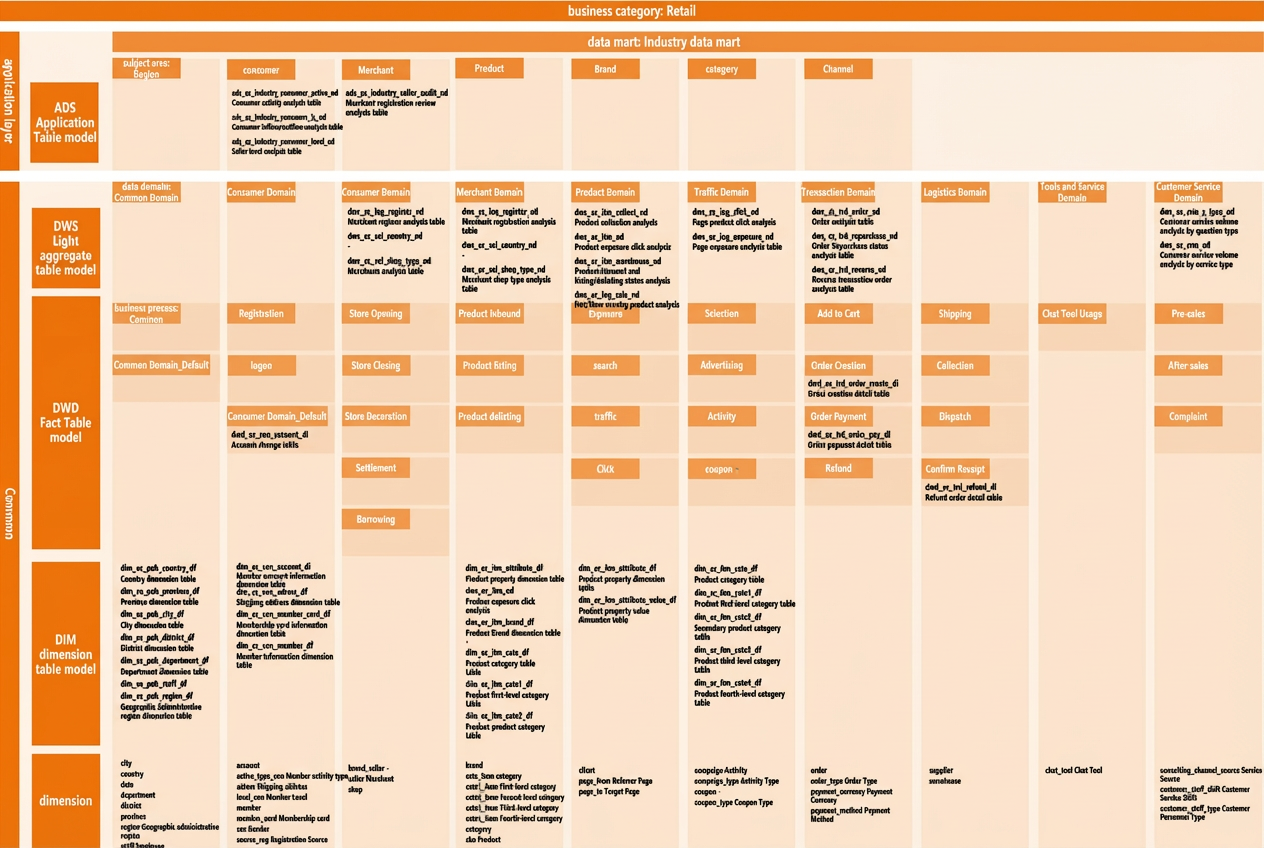
On the Business View page in data assets, models within each data domain appear in 3D. Click any model to view its basic information, such as its data domain, description, tags, and type.
The following figure shows the layer and domain division, fact table models, and dimension models used in this use case.
Dimensional modeling prerequisites
Intelligent modeling heavily relies on Kimball's dimensional modeling theory. Before you proceed, ensure you are familiar with the basic concepts of data warehouse layering and dimensional modeling.
This section provides a brief introduction to dimensional modeling theory with examples. For more information about dimensional modeling methodologies and designing dimension and fact tables, see Chapters 2–6 and 11 of Star Schema The Complete Reference[1] and The Data Warehouse Toolkit, Third Edition[2].
The following figure shows the implementation workflow.
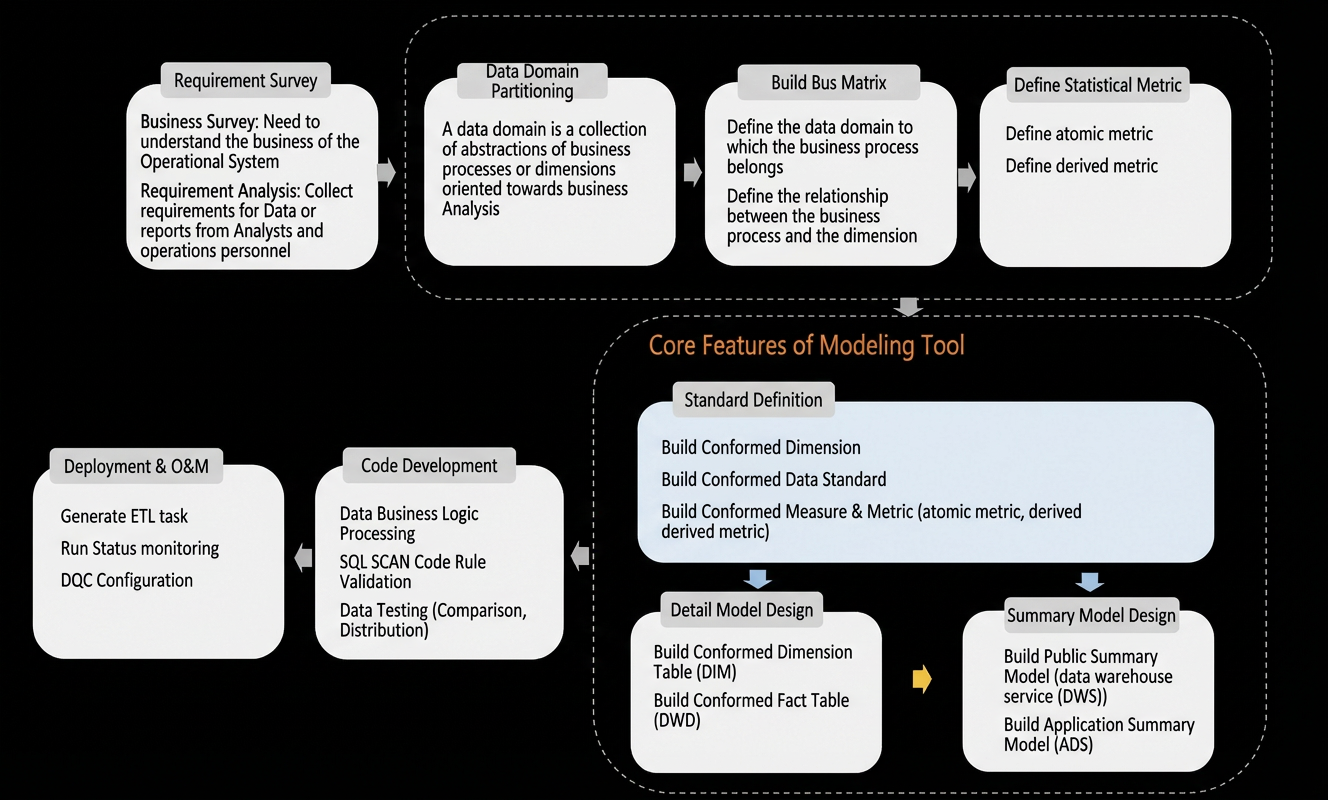
The preceding figure is adapted from The Way of Big Data: Alibaba's Big Data Practice by the Alibaba Data Technology and Product Department.
Data warehouse planning concepts
-
business category: A collection of metrics and dimensions for a major type of business. During model design, you can assign models to their corresponding business categories to make them easier to find and use. For example, retail e-commerce can be a top-level business category, which can be further divided into in-store retail and e-commerce.
-
data domain: A collection of one or more business processes or dimensions. For example, in e-commerce, data domains include customer, product, and transaction.
-
business process: A business activity or event, such as placing an order or making a payment.
-
data mart: An organization of data that is based on a business category and oriented towards a specific application or product. It is typically located in the data application layer and relies on integrated data from the public layer. Examples include an e-commerce data mart (data application mart) and a supply chain data mart (business mart).
-
subject area: A division of a data mart based on an analysis perspective. It is usually a collection of closely related data subjects. For example, an industry data mart can be divided into subject areas such as product and channel.
-
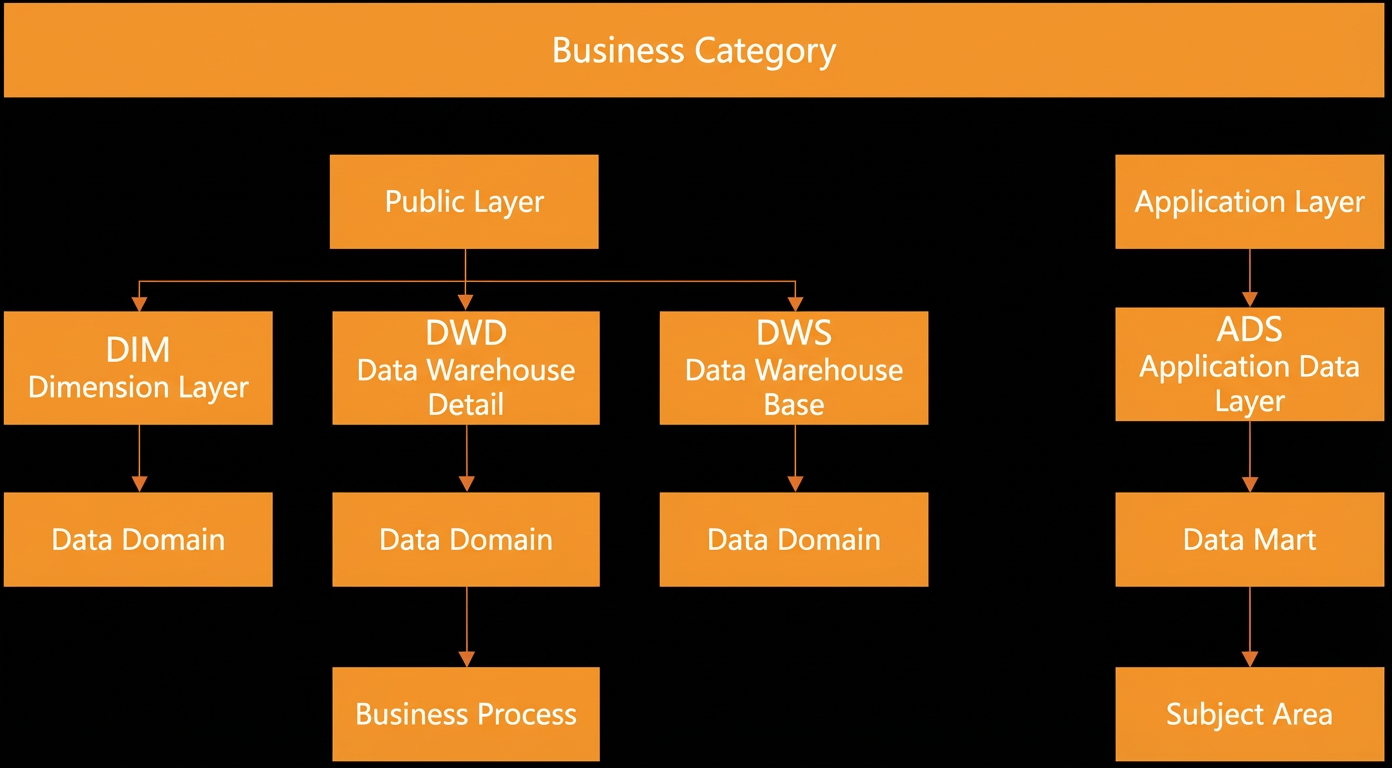
data warehouse layering: The following figure shows the data warehouse layers:
Dimension concepts
dimension: A perspective for observing business conditions. It provides the "who, what, where, when, why, and how" context surrounding a business process event. Examples include a customer dimension, a date dimension, and a city dimension.
Metric concepts
metric: A statistical value that measures a business characteristic. It reflects the status of a specific business activity. Examples include the number of customers, sales amount, and payment amount.
A metrics system consists of atomic metrics, modifiers, time periods, and derived metrics.
-
atomic metric: A measure within a specific business process, such as the "payment amount" in the "order payment" business process. A measure is a numeric value that can be analyzed, such as sales amount or payment amount.
-
modifier: A qualifier that limits the business scope of a metric. For example, it can limit the "payment amount" metric to the "maternal and infant products" category.
-
time period: The time range or point in time for which a metric is measured, such as "last 7 days" for the "payment amount".
-
derived metric: A metric defined by a combination of an atomic metric, modifiers, and a time period. An example is the "payment amount" for "maternal and infant products" over the "last 7 days".
Prerequisites
Create a workspace and MaxCompute data source
-
Log on to the DataWorks console. In the left-side navigation pane, click Work space. Select China (Shanghai) as the region. On the Workspaces page, click Create a workspace. On the Create a workspace page, configure the workspace parameters and click Create a workspace. The following table lists the key parameters. Leave the other parameters at their default values.
Parameter
Description
Workspace Name
Enter a globally unique name for the workspace. If the name is taken, choose another.
For this tutorial, set the workspace name to retail_e_commerce_<custom_string>.
Isolate Development and Production Environments
For this tutorial, select simple mode. By default, the switch for isolating production and development environments is turned off.
DataWorks workspaces are available in two modes: simple mode and standard mode.
-
simple mode: A DataWorks workspace is mapped to a single engine instance. You cannot set up separate development and production environments. This mode is suitable for simple data development without strict controls over the development process or table permissions.
-
standard mode: A DataWorks workspace is mapped to two engine instances, allowing you to set up separate development and production environments. This mode promotes standardized code development and provides strict control over table permissions. This prevents unauthorized operations on production tables and ensures data security.
For more information, see Differences between workspace modes.
-
-
Create a MaxCompute data source. MaxCompute is a paid service. When creating the data source, you can use an existing MaxCompute project or create a new one. For instructions, see Bind a MaxCompute compute engine.
Import the model
-
After the workspace is created, find it in the workspace list. In the Operation column, click .
-
The data warehouse layering page opens by default. In the top menu bar, click Industry Model Template.
-
Click the Retail E-commerce template.
-
Click Use Complete Edition. On the Load Template configuration page, select a Loading Method and click Confirm. Wait for the template to finish loading. You can then go to the corresponding modules to explore its features.
NoteBefore you import the model, ensure the current account has the Project Owner, Workspace Admin, or Model Designer role. (For the personal edition, you must use a main account.) For details on authorization, see Workspace-level module permission control.
Model design
Data warehouse planning
Business categories
When your enterprise has complex business operations, different business units may need to share data domains but also want to quickly locate their own data during model design and application. In this case, you can plan different business categories. After modeling fact tables and dimension tables, you can associate them with a business category. For more information, see Business Category.
You can view the "Retail" business category imported from the retail e-commerce industry template. If you need more granular classifications, you can create subcategories. Its abbreviation is ec, and the description is "General transaction-based businesses similar to retail e-commerce."
Data warehouse layering
To improve data processing efficiency, you must layer your data models. Data warehouse layering is the architectural practice of dividing your data models into hierarchies, based on an analysis of your business, data, and systems. DataWorks creates a common five-layer architecture by default, as shown in the following table. You can also create other layers. Each table model must belong to exactly one layer.
|
Layer |
Description |
|
ODS (Operational Data Store) layer |
The ODS layer stores unprocessed raw data. The table structure in this layer mirrors that of the source system and serves as the staging area for the data warehouse. |
|
DIM (Dimension) layer |
The DIM layer models data by using dimensions. Based on your business requirements, you can store dimension tables for a logical model or dimension definitions for a conceptual model. By defining dimensions, setting primary keys, adding attributes, and relating different dimensions, you can build conformed dimension tables for consistent analytics across the enterprise. Recommended naming convention for dimension tables: dim_{business_category}_{data_domain}_{custom_content}_{storage_policy}. |
|
DWD (Data Warehouse Detail) layer |
The DWD layer models business activity events. Based on the characteristics of specific business events, it creates the most granular detail tables. You can denormalize important dimension attributes into the detail tables to create wide tables, depending on your data usage patterns. This reduces joins between detail and dimension tables and improves usability. Recommended naming convention: dwd_{business_category}_{data_domain}_{business_process}_{custom_content}_{storage_policy}. |
|
DWS (Data Warehouse Summary) layer |
The DWS layer models analytical subjects. Based on the metric requirements of upstream applications and products, it creates public, aggregate fact tables at common granularities. Recommended naming convention: dws_{business_category}_{data_domain}_{custom_content}_{time_period}. |
|
ADS (Application Data Service) layer |
This layer provides customized metric tables for specific business analyses, built from the aggregated data in lower layers. Recommended naming convention: ads_{business_category}_{data_mart}_{subject_area}_{custom_content}_{time_period}. |
Public layer
The public layer processes and integrates common data from the source layer, establishes unified metrics and dimensions, and builds reusable, detailed fact data and summary data for analysis and reporting. This layer contains detail tables, dimension tables, and summary tables.
In public layer planning, you must create data domains and business processes to organize the detail, dimension, and summary table models that you will create.
-
Data domains
Partitioning data into domains improves data management, increases data utilization, and reduces redundancy, which provides clearer business insights. A data domain is designed for business analysis and represents a distinct set of business activities. When defining data domains, ensure they cover all current business needs while also being flexible enough to incorporate new business areas without disruption.
Examples of data domains:
Data domain
Description
Consumer Domain
Includes data related to behaviors such as visitor registration and member login.
Item Domain
Includes data related to seller behaviors such as stocking, listing, and delisting items.
Transaction Domain
Includes data related to all transaction behaviors between consumers and sellers, such as adding items to a cart, placing an order, and making a payment.
Register each domain in the system so you can associate them when you create business processes and public layer table models. Each business process and public layer table model must belong to exactly one data domain.
The retail e-commerce industry model template includes predefined data domains.
The data domains imported by the template include: Default Domain (default), Public Domain (pub), Consumer Domain (con), Seller Domain (sel), Item Domain (itm), Log Domain (log), Marketing Domain (mkt), Transaction Domain (trd), CRM Domain (crm), Logistics Domain (lgt), and Tools and Services Domain (tls).
-
Business processes
After clarifying your business requirements, analyze the entire business lifecycle, identify key steps, and select the relevant business processes.
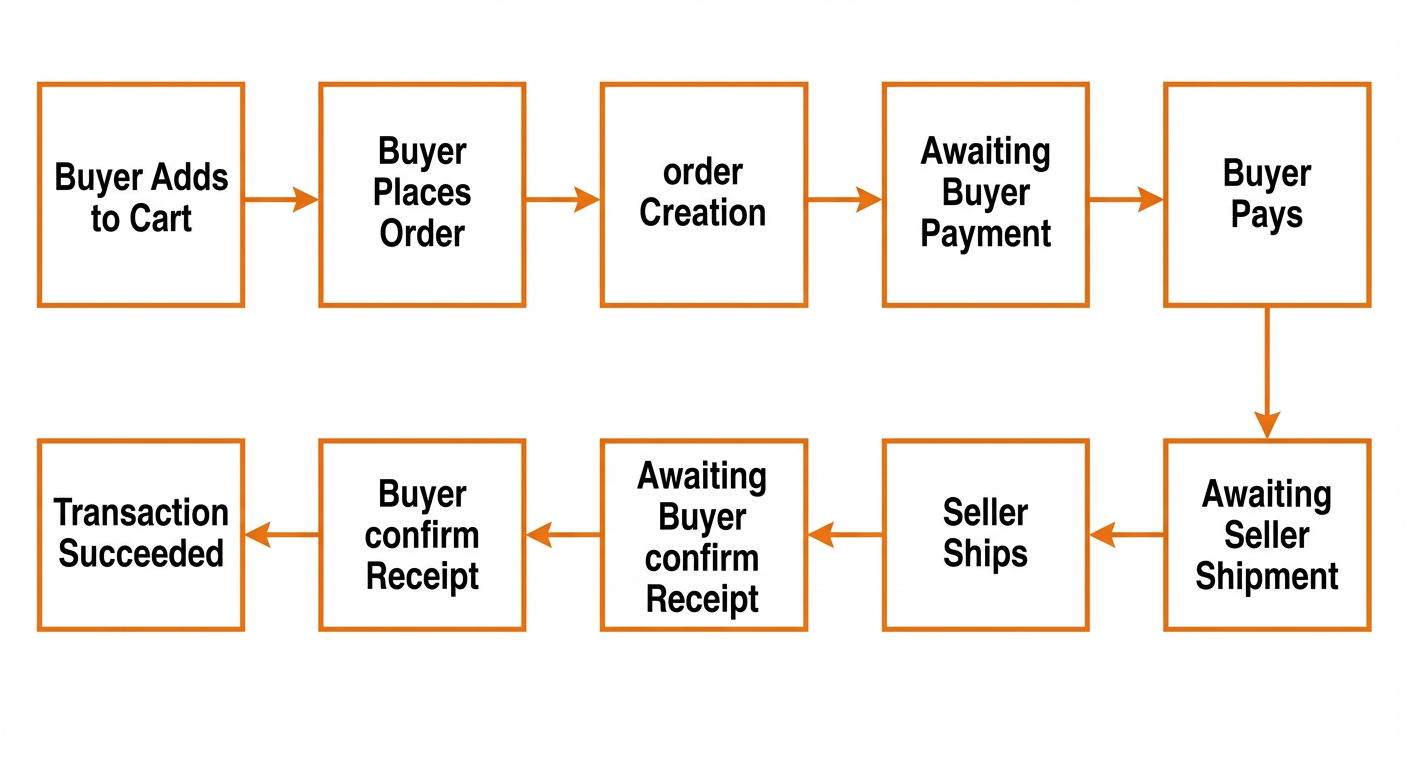
For example, a transaction involves multiple steps: a buyer adds an item to the cart, places an order, the order is created, the system waits for payment, the seller ships the item, the buyer confirms receipt, and the transaction is completed. For analysis, you only need to focus on core steps such as adding an item to the cart, creating an order, paying for an order, and completing the transaction. From these core steps, you can abstract the business processes "add to cart", "create order", and "pay for order".
 Note
NoteThe preceding figure is adapted with modifications from The Way of Big Data: Alibaba's Big Data Practice by Alibaba's Data Technology and Product Department.
Register these abstracted business processes in the system to associate them when creating public layer summary table models and metrics. Each public layer summary table model and metric must belong to exactly one business process. For example, the "order payment" business process, with the abbreviation "order_pay", belongs to the transaction data domain and contains data about order payments.
On the Business Process list page, you can view all imported business processes, including their abbreviations, associated data domains, and descriptions.
If you view the "Transaction" data domain, you can see its associated business processes, such as "add to cart", "create order", "pay for order", and "refund".
Application layer
The application layer provides customized data statistics for specific application scenarios or products. It uses data from the public layer. This layer contains application tables and dimension tables. In application layer planning, you must create data marts and subject areas to organize the application table models and dimension table models that you create later.
-
Data marts
A data mart is a collection of data that is organized by business category for a specific application or product. It is typically located in the application layer and relies on integrated data from the public layer.
The retail e-commerce industry model template includes predefined data marts. For example, the "Industry Mart" primarily serves the analytical needs of industry operations personnel and belongs to the "Retail" business category. Data within this data mart is further divided into subject areas such as "Product", "Category", and "Brand" from different perspectives. When you create application layer derived metrics and models, you must associate them with the target data mart and subject area.
-
Subject areas
After creating a data mart, divide the "Industry Mart" into subject areas such as "Product", "Category", "Brand", "Consumer", "Seller", "Channel", and "Region" to support statistical analysis.
The retail e-commerce industry model template includes predefined subject areas. For example, the "Consumer" subject area is used to analyze consumer profiles for industry operations and belongs to the "Industry Mart". When you create application layer derived metrics and models, you must associate them with the corresponding subject area.
Creating dimensions
A dimension provides a perspective for analyzing business data. In dimensional modeling, you plan and create dimensions, then associate them with dimension tables. This association allows you to analyze business data from multiple perspectives.
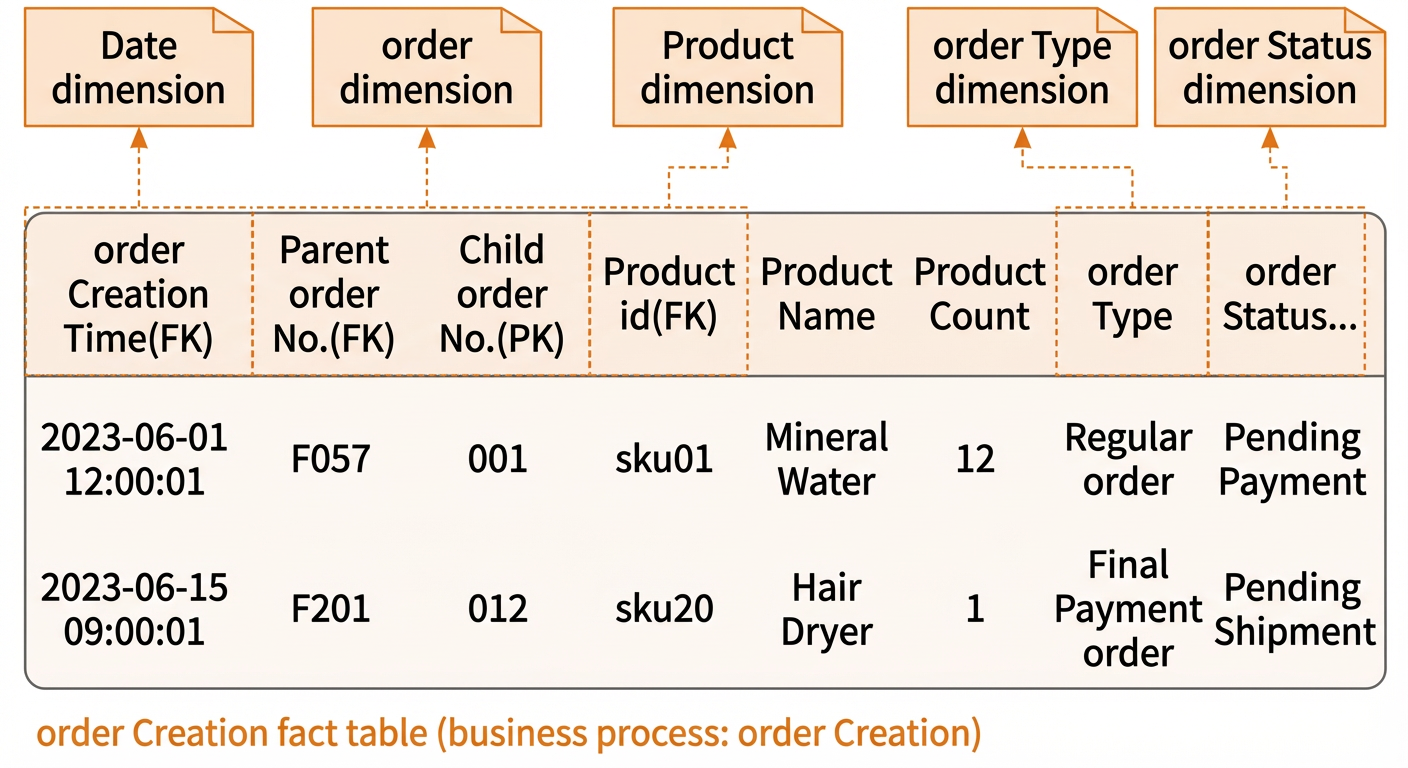
As shown in the following figure, you can use the date dimension, order dimension, product dimension, order type dimension, and order status dimension to describe the order creation process.
Dimension examples:
|
Data domain |
Dimension |
|
consumer domain |
account, member, etc. |
|
product domain |
brand, category, product, etc. |
|
transaction domain |
order, order type, payment currency, payment method, etc. |
The retail e-commerce industry model template has already imported dimensions for various data domains. For this example, we will create a new dimension named "account_test". This dimension belongs to the "Public Layer - Dimension Layer" and is in the "consumer domain". The English abbreviation is "account_test" and the Chinese name is "Account_Test".
Build a dimension table model
A dimension table typically consists of a primary key column and columns that represent dimensions, also known as dimension attributes. These attributes provide the context for facts. Dimension attributes are the primary source for query constraints, groupings, and report labels, and are crucial for data usability.
For example, a product dimension table consists of a primary key ("product ID"), dimension attributes ("product name" and "unit price"), and a foreign key ("brand ID") that links to the brand dimension table.
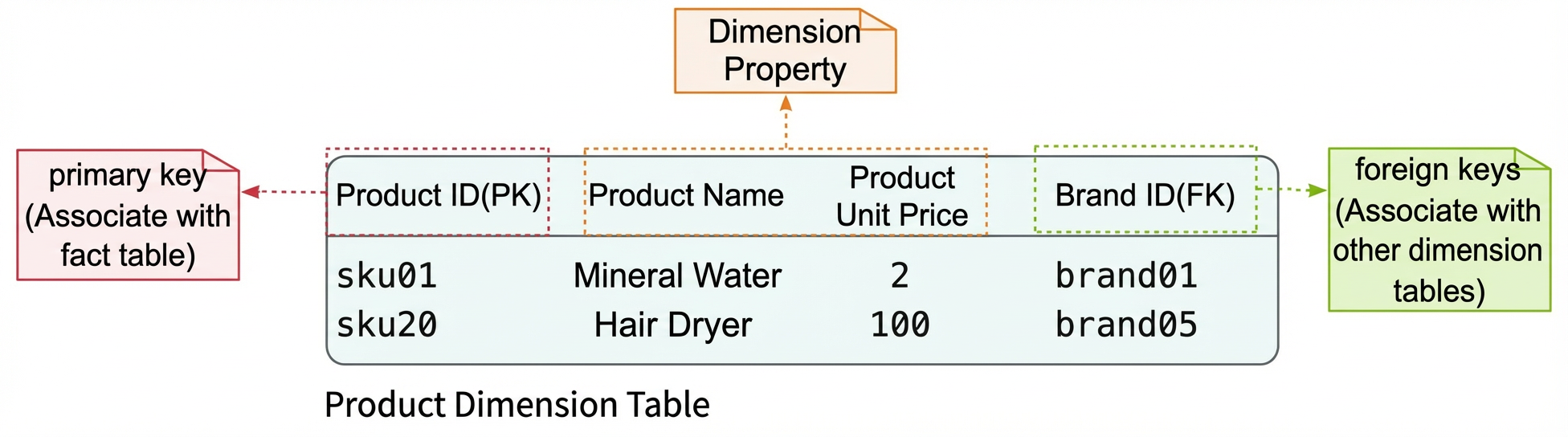
Dimension design is an important and complex topic that is not covered in detail in this case. For more information, see Chapters 5 and 6 of The Star Schema: The Complete Reference[1] and Sections 3 and 4 of Chapter 2 in The Data Warehouse Toolkit, Third Edition[2].
The retail e-commerce industry model template includes dimension table models for each data domain. In this example, we create a new model named 'Product Attribute Dimension Table_Test'.
-
Basic information
Parameter
Value
*Data warehouse layering
Public layer - dimension layer
Business category
Retail
*Data domain
Product domain
Storage policy
Daily full (df)
Dimension
Product (sku)
Table naming convention
You can configure a strict or weak table naming convention check for each layer under Data Warehouse Planning > Data Warehouse Layering. When creating a new table model, select a check to automatically populate the table name with abbreviations based on the selected data warehouse layering, business category, and data domain.
*Table name
dim_ec_itm_attribute_df_test
Recommended table naming convention for a dimension table: dim_{business_category}_{data_domain}_{custom_content}_{storage_policy}
*Chinese table name
Product Attribute Dimension Table_Test
Lifecycle
7
Description
Dimension table for product attributes in retail and general transaction businesses.
-
Column and partition column management
You can configure columns and partition columns manually, or by using quick mode or code mode. Use quick mode to import an existing table or view when creating a new model, and use code mode when updating a model.
In this example, we use code mode with the FML language (an SQL-like language for dimensional modeling; see Code Mode Modeling) to quickly overwrite and import the columns. (Note: You must save the basic information before editing and importing in code mode.)
FML script for the product attribute dimension table:
-- After a model is published as a physical table (before approval, during publishing, or after successful publishing), the table name cannot be modified.
CREATE DIM TABLE dim_ec_itm_attribute_df_test ALIAS 'Product Attribute Dimension Table'
(
   id          ALIAS 'id' STRING COMMENT 'The ID of the attribute.',
   gmt_create  ALIAS 'Creation Time' TIMESTAMP COMMENT 'The time when the entry was created.',
   gmt_modified ALIAS 'Modification Time' TIMESTAMP COMMENT 'The time when the entry was last modified.',
   name        ALIAS 'Attribute Name' STRING COMMENT 'The name of the attribute.'
)
COMMENT 'Dimension table for product attributes in retail & general transaction businesses.'
PARTITIONED BY
(
   ds ALIAS 'Business Date, yyyymmdd' STRING COMMENT 'The business date in yyyymmdd format.'
)
WITH('life_cycle'='7');
Build a detail table model
A detail table stores raw, granular data about business activities. It is generated by aggregating data based on a specific dimension.
A detail table is a type of fact table. As the core of dimensional modeling in a data warehouse, a fact table is designed around a business process and describes it using measures. A fact table stores the numeric measures of an event and is surrounded by multiple dimension tables.
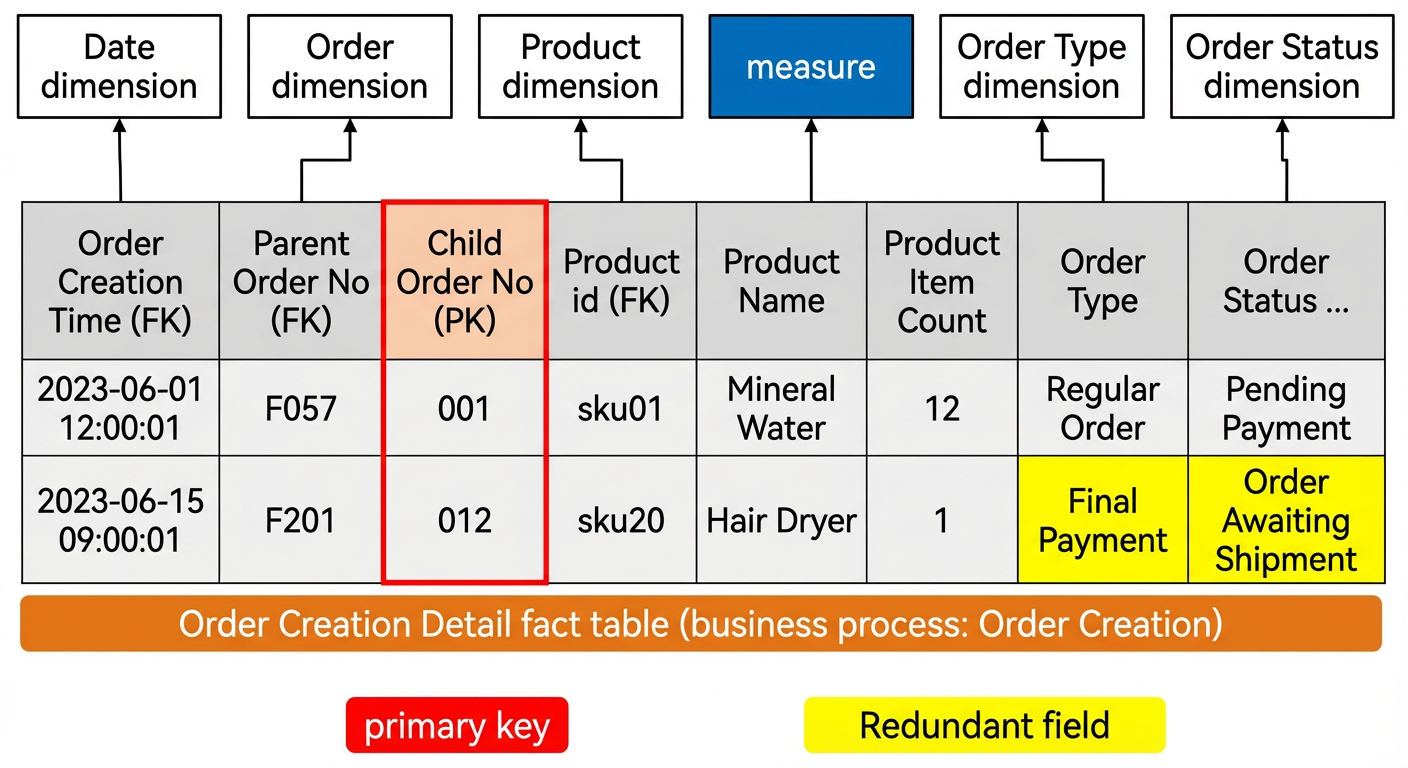
The date dimension, order dimension, product dimension, order type dimension, and order status dimension describe the context of the "order creation" business process. "Number of items" serves as the measure for this business process.
Fact table design methods:
For example, let's design a fact table model for an order creation detail table.
-
Method 1 (Common):
-
Copy the table structure from the Operational Data Store (ODS).
This structure usually contains the necessary dimension and measure information.
-
Denormalize dimension attributes.
Denormalizing frequently used dimension attributes reduces the number of joins required for downstream queries and simplifies data access.
-
-
Method 2 (From scratch, based on modeling theory):
-
Choose the business process.
The process is "order creation" within the "transaction" data domain.
-
Define the granularity.
To ensure maximum flexibility, choose the most detailed, atomic granularity. For example, an e-commerce order can have a parent order and multiple sub-orders. Each sub-order corresponds to a single product. When these sub-orders are settled together, they form a parent order. To ensure the fact table's flexibility, we choose the sub-order level as the granularity for each row.
-
Identify the dimensions.
Relevant dimensions include 'product', 'shipping address', 'order', and 'order type'.
-
Identify the facts.
You can identify facts by asking, "What measures quantify this business process?" Facts are almost always numeric values. For example, in the "order creation" business process, the value of the "number of items" is a fact.
-
Denormalize columns.
In a traditional star schema, dimensions are stored in dimension tables and are accessed through foreign keys in the fact table to reduce storage consumption. However, to improve downstream query performance and simplify data access, it is common to denormalize frequently used dimension attributes directly into the fact table. This reduces the number of required table joins. For example, the 'order creation detail table' denormalizes attributes from the 'shipping address dimension table', such as 'shipping address' and 'consignee phone number'.
-
Fact table design is a complex topic that is not covered in detail here. For more information, see Chapter 4 and Chapter 11 of The Star Schema: The Complete Reference[1] and Chapter 2, Section 2 of The Data Warehouse Toolkit, Third Edition[2].
The retail e-commerce industry model template includes detail table models for each data domain. In this example, we will create a new model named "Order Creation Detail Table_Test".
-
Basic information:
Parameter
Value
*Data warehouse layer
Public Layer - detail data layer
Business category
Retail
*Business process
Transaction domain/Order creation
Storage policy
Daily incremental (di)
Table name rule
-
*Table name
dwd_ec_trd_order_create_di_test
(Recommended naming convention: dwd_{business_category}_{data_domain}_{business_process}_{custom_content}_{storage_policy})
*Table display name
Order Creation Detail Table_Test
Lifecycle
7 days
-
Column and partition column management
Use code mode with FML to quickly overwrite and import the table schema.
FML script for the order creation detail table:
-- The table name cannot be modified after the model is published as a physical table.
CREATE FACT TABLE dwd_ec_trd_order_create_di_test ALIAS 'Order Creation Detail Table'
(
   gmt_create      ALIAS 'Order Creation Time' DATETIME COMMENT 'The time when the order was created.',
   gmt_modified    ALIAS 'Order Modification Time' DATETIME COMMENT 'The time when the order was last modified.',
   gmt_pay         ALIAS 'Order Payment Time' STRING COMMENT 'The time when the order was paid.',
   master_order_id ALIAS 'Parent Order ID' STRING COMMENT 'The ID of the parent order.',
   sub_order_id    ALIAS 'Sub-order ID' STRING COMMENT 'The ID of the sub-order.',
   item_id         ALIAS 'Item ID' STRING COMMENT 'The ID of the item.',
   item_name       ALIAS 'Item Name' STRING COMMENT 'The name of the item.',
   num             ALIAS 'Number of Items' STRING COMMENT 'The number of items in the order.',
   order_type      ALIAS 'Order Type' STRING COMMENT 'The type of the order.',
   status          ALIAS 'Order Status' STRING COMMENT 'The status of the order.',
   address         ALIAS 'Shipping Address' STRING COMMENT 'The shipping address.',
   phone           ALIAS 'Consignee Phone Number' STRING COMMENT 'The phone number of the consignee.',
   name            ALIAS 'Consignee Name' STRING COMMENT 'The name of the consignee.'
)
COMMENT 'Order Creation Detail Table'
PARTITIONED BY
(
   ds ALIAS 'Business Date, yyyymmdd' STRING COMMENT 'The business date in yyyymmdd format.'
)
WITH('life_cycle'='7');
Building data metrics
A metric is a quantifiable measure of a specific business activity. To build a metric system, define Atomic Metric and Derived Metric. You can then import these metrics as fields when building a summary table model.
Typically, during the requirements analysis phase, you identify specific business metrics from requests by analysts and operations teams. You then extract derived metrics from these business metrics. Finally, you break down the derived metrics into their constituent time periods, modifiers, and atomic metrics.
For example, an analyst wants to view the "total order amount for yesterday," "total order amount for last week," and "total order amount for the last fiscal year" (business metrics). The model designer extracts the derived metrics, such as last_1_day_order_creation_total_order_amount, last_7_days_order_creation_total_order_amount, and fiscal_year_order_creation_total_order_amount. Finally, they abstract the time periods ("last 1 day," "last 7 days," "fiscal year"), the modifier ("order creation"), and the atomic metric ("total order amount").
Metric examples:
|
Domain/process |
Atomic metric |
Derived metric |
|
Consumer Domain - Registration |
Number of members |
- |
|
Transaction Domain - Order Creation |
Order amount, Number of orders, Average order value |
|
|
Product Domain - Product Inbound |
Number of products |
- |
The retail e-commerce industry model template includes predefined atomic metrics, modifiers, time periods (system-provided), and derived metrics. For example, create an atomic metric named Order_Amount_Test. Assign it to the Transaction Domain/Order Creation business process, set its description to "Sum of order amounts," and its calculation function to "SUM." Configure it to retain two decimal places and use the unit "CNY (Chinese Yuan)."
Examine a modifier named Order Creation. Its English name is order_create and its business definition is "order creation." It belongs to the summary data layer, the Retail business category, and the transaction data domain.
Review the system-provided time periods. Daily granularities include "last 1 day" and "last 3 days," while yearly granularities include "calendar year" and "fiscal year." For example, the abbreviation for "calendar year" is cy.
Create four derived metrics in bulk: last_1_day_order_payment_order_amount, last_7_days_order_payment_order_amount, last_1_day_order_creation_order_amount, and last_7_days_order_creation_order_amount.
-
Atomic metric:
Order_Amount_Test -
Modifiers:
Order Payment,Order Creation(Select these individually. If selected together, they will be concatenated, as derived metrics can support multiple modifiers.) -
Time periods:
last 1 day,last 7 daysOn the Derived Metrics page, you can bulk-create derived metrics. Select the atomic metric (
Order_Amount_Test), then select the modifiers (Order Payment,Order Creation) and time periods (last 1 day,last 7 days). The system automatically combines them to generate four derived metrics. To make these metrics available in summary and application table models, you must bulk-submit all 109 derived metrics under the public layer - transaction domain from the list page.
Build a public summary model
A summary table organizes statistical data for multiple derived metrics that belong to a single data domain and share the same time period and dimension. This table provides a foundation for business queries, OLAP analysis, and data distribution.
The retail e-commerce industry model template includes pre-imported summary table models for each data domain. In this example, we will create a new model named 'Order Analysis Table_Test'. This summary table shows derived metrics for the 'order' dimension across various time periods, such as '1d' (last 1 day), '3d' (last 3 days), and '1w' (last 7 days).
-
Basic information:
Parameter
Value
Data warehouse layer
public layer - summary data layer
Business category
Retail
Data domain
Transaction
Time period
1d (last 1 day), 3d (last 3 days), 1w (last 7 days), 2w (last 14 days), 1m (last 30 days), cm (calendar month), cy (calendar year), std (to date)
Modifier
order_create (order creation), order_pay (order payment)
Table naming convention
-
Table name
dws_ec_trd_order_nd_test
Recommended naming convention: dws_{business_category}_{data_domain}_{custom_content}_{time_period}
Table alias
Order Analysis Table_Test
Lifecycle
7 days
-
Field and partition field management
Use Shortcut Mode > Import from Metrics to import fields. You can filter and bulk-import them based on the time periods and modifiers specified in the basic information.
In the import from metrics dialog box, filter the metric list by time period and modifier. Select the metric fields you want to import and click OK to complete the bulk import. Manually create a partition field named "ds", set its type to "STRING", and enter "Business date, yyyymmdd" as the description.
Appendix: FML script for the Order Analysis Table_Test
-- After a model is published as a physical table (before approval, during publishing, or after successful publishing), the table name cannot be modified.
CREATE DWS TABLE dws_ec_trd_order_nd_test ALIAS 'Order Analysis Table_Test'
(
   order_amt_std_order_create        ALIAS 'Cumulative_Order_Creation_Order_Amount' DECIMAL COMMENT 'Cumulative order creation order amount' REFERENCES (order_amt_std_order_create),
   order_amt_fy_order_create         ALIAS 'Fiscal_Year_Order_Creation_Order_Amount' DECIMAL COMMENT 'Fiscal year order creation order amount' REFERENCES (order_amt_fy_order_create),
   order_amt_cq_order_create         ALIAS 'Calendar_Quarter_Order_Creation_Order_Amount' DECIMAL COMMENT 'Calendar quarter order creation order amount' REFERENCES (order_amt_cq_order_create),
   order_amt_cm_order_create         ALIAS 'Calendar_Month_Order_Creation_Order_Amount' DECIMAL COMMENT 'Calendar month order creation order amount' REFERENCES (order_amt_cm_order_create),
   order_amt_3d_order_create         ALIAS 'Last_3_Days_Order_Creation_Order_Amount' DECIMAL COMMENT 'Last 3 days order creation order amount' REFERENCES (order_amt_3d_order_create),
   order_amt_1w_order_create         ALIAS 'Last_7_Days_Order_Creation_Order_Amount' DECIMAL COMMENT 'Last 7 days order creation order amount' REFERENCES (order_amt_1w_order_create),
   order_amt_1m_order_create         ALIAS 'Last_30_Days_Order_Creation_Order_Amount' DECIMAL COMMENT 'Last 30 days order creation order amount' REFERENCES (order_amt_1m_order_create),
   order_amt_1d_order_create         ALIAS 'Last_1_Day_Order_Creation_Order_Amount' DECIMAL COMMENT 'Last 1 day order creation order amount' REFERENCES (order_amt_1d_order_create),
   order_amt_std_order_create_master ALIAS 'Cumulative_Order_Creation_Parent_Order_Amount' DECIMAL COMMENT 'Cumulative order creation parent order amount' REFERENCES (order_amt_std_order_create_master),
   order_amt_1w_order_create_sub     ALIAS 'Last_7_Days_Order_Creation_Sub_Order_Amount' DECIMAL COMMENT 'Last 7 days order creation sub order amount' REFERENCES (order_amt_1w_order_create_sub),
   order_amt_3d_order_create_master  ALIAS 'Last_3_Days_Order_Creation_Parent_Order_Amount' DECIMAL COMMENT 'Last 3 days order creation parent order amount' REFERENCES (order_amt_3d_order_create_master),
   order_amt_1m_order_create_sub     ALIAS 'Last_30_Days_Order_Creation_Sub_Order_Amount' DECIMAL COMMENT 'Last 30 days order creation sub order amount' REFERENCES (order_amt_1m_order_create_sub),
   order_amt_cq_order_create_master  ALIAS 'Calendar_Quarter_Order_Creation_Parent_Order_Amount' DECIMAL COMMENT 'Calendar quarter order creation parent order amount' REFERENCES (order_amt_cq_order_create_master),
   order_amt_cm_order_create_master  ALIAS 'Calendar_Month_Order_Creation_Parent_Order_Amount' DECIMAL COMMENT 'Calendar month order creation parent order amount' REFERENCES (order_amt_cm_order_create_master),
   order_amt_2w_order_create_sub     ALIAS 'Last_14_Days_Order_Creation_Sub_Order_Amount' DECIMAL COMMENT 'Last 14 days order creation sub order amount' REFERENCES (order_amt_2w_order_create_sub),
   order_amt_1d_order_create_master  ALIAS 'Last_1_Day_Order_Creation_Parent_Order_Amount' DECIMAL COMMENT 'Last 1 day order creation parent order amount' REFERENCES (order_amt_1d_order_create_master),
   order_amt_cy_order_create_sub     ALIAS 'Calendar_Year_Order_Creation_Sub_Order_Amount' DECIMAL COMMENT 'Calendar year order creation sub order amount' REFERENCES (order_amt_cy_order_create_sub),
   order_amt_1m_order_create_master  ALIAS 'Last_30_Days_Order_Creation_Parent_Order_Amount' DECIMAL COMMENT 'Last 30 days order creation parent order amount' REFERENCES (order_amt_1m_order_create_master),
   order_amt_cq_order_create_sub     ALIAS 'Calendar_Quarter_Order_Creation_Sub_Order_Amount' DECIMAL COMMENT 'Calendar quarter order creation sub order amount' REFERENCES (order_amt_cq_order_create_sub),
   order_amt_3d_order_create_sub     ALIAS 'Last_3_Days_Order_Creation_Sub_Order_Amount' DECIMAL COMMENT 'Last 3 days order creation sub order amount' REFERENCES (order_amt_3d_order_create_sub),
   order_amt_2w_order_create_master  ALIAS 'Last_14_Days_Order_Creation_Parent_Order_Amount' DECIMAL COMMENT 'Last 14 days order creation parent order amount' REFERENCES (order_amt_2w_order_create_master),
   order_amt_cm_order_create_sub     ALIAS 'Calendar_Month_Order_Creation_Sub_Order_Amount' DECIMAL COMMENT 'Calendar month order creation sub order amount' REFERENCES (order_amt_cm_order_create_sub),
   order_amt_1d_order_create_sub     ALIAS 'Last_1_Day_Order_Creation_Sub_Order_Amount' DECIMAL COMMENT 'Last 1 day order creation sub order amount' REFERENCES (order_amt_1d_order_create_sub),
   order_amt_1w_order_create_master  ALIAS 'Last_7_Days_Order_Creation_Parent_Order_Amount' DECIMAL COMMENT 'Last 7 days order creation parent order amount' REFERENCES (order_amt_1w_order_create_master),
   order_amt_cy_order_create_master  ALIAS 'Calendar_Year_Order_Creation_Parent_Order_Amount' DECIMAL COMMENT 'Calendar year order creation parent order amount' REFERENCES (order_amt_cy_order_create_master),
   order_amt_std_order_create_sub    ALIAS 'Cumulative_Order_Creation_Sub_Order_Amount' DECIMAL COMMENT 'Cumulative order creation sub order amount' REFERENCES (order_amt_std_order_create_sub),
   order_amt_std_order_pay_sub       ALIAS 'Cumulative_Order_Payment_Sub_Order_Amount' DECIMAL COMMENT 'Cumulative order payment sub order amount' REFERENCES (order_amt_std_order_pay_sub),
   order_amt_std_order_pay_master    ALIAS 'Cumulative_Order_Payment_Parent_Order_Amount' DECIMAL COMMENT 'Cumulative order payment parent order amount' REFERENCES (order_amt_std_order_pay_master),
   order_amt_cy_order_pay_sub        ALIAS 'Calendar_Year_Order_Payment_Sub_Order_Amount' DECIMAL COMMENT 'Calendar year order payment sub order amount' REFERENCES (order_amt_cy_order_pay_sub),
   order_amt_cy_order_pay_master     ALIAS 'Calendar_Year_Order_Payment_Parent_Order_Amount' DECIMAL COMMENT 'Calendar year order payment parent order amount' REFERENCES (order_amt_cy_order_pay_master),
   order_amt_cq_order_pay_sub        ALIAS 'Calendar_Quarter_Order_Payment_Sub_Order_Amount' DECIMAL COMMENT 'Calendar quarter order payment sub order amount' REFERENCES (order_amt_cq_order_pay_sub),
   order_amt_cq_order_pay_master     ALIAS 'Calendar_Quarter_Order_Payment_Parent_Order_Amount' DECIMAL COMMENT 'Calendar quarter order payment parent order amount' REFERENCES (order_amt_cq_order_pay_master),
   order_amt_cm_order_pay_sub        ALIAS 'Calendar_Month_Order_Payment_Sub_Order_Amount' DECIMAL COMMENT 'Calendar month order payment sub order amount' REFERENCES (order_amt_cm_order_pay_sub),
   order_amt_cm_order_pay_master     ALIAS 'Calendar_Month_Order_Payment_Parent_Order_Amount' DECIMAL COMMENT 'Calendar month order payment parent order amount' REFERENCES (order_amt_cm_order_pay_master),
   order_amt_3d_order_pay_sub        ALIAS 'Last_3_Days_Order_Payment_Sub_Order_Amount' DECIMAL COMMENT 'Last 3 days order payment sub order amount' REFERENCES (order_amt_3d_order_pay_sub),
   order_amt_3d_order_pay_master     ALIAS 'Last_3_Days_Order_Payment_Parent_Order_Amount' DECIMAL COMMENT 'Last 3 days order payment parent order amount' REFERENCES (order_amt_3d_order_pay_master),
   order_amt_2w_order_pay_sub        ALIAS 'Last_14_Days_Order_Payment_Sub_Order_Amount' DECIMAL COMMENT 'Last 14 days order payment sub order amount' REFERENCES (order_amt_2w_order_pay_sub),
   order_amt_2w_order_pay_master     ALIAS 'Last_14_Days_Order_Payment_Parent_Order_Amount' DECIMAL COMMENT 'Last 14 days order payment parent order amount' REFERENCES (order_amt_2w_order_pay_master),
   order_amt_1w_order_pay_sub        ALIAS 'Last_7_Days_Order_Payment_Sub_Order_Amount' DECIMAL COMMENT 'Last 7 days order payment sub order amount' REFERENCES (order_amt_1w_order_pay_sub),
   order_amt_1w_order_pay_master     ALIAS 'Last_7_Days_Order_Payment_Parent_Order_Amount' DECIMAL COMMENT 'Last 7 days order payment parent order amount' REFERENCES (order_amt_1w_order_pay_master),
   order_amt_1m_order_pay_sub        ALIAS 'Last_30_Days_Order_Payment_Sub_Order_Amount' DECIMAL COMMENT 'Last 30 days order payment sub order amount' REFERENCES (order_amt_1m_order_pay_sub),
   order_amt_1m_order_pay_master     ALIAS 'Last_30_Days_Order_Payment_Parent_Order_Amount' DECIMAL COMMENT 'Last 30 days order payment parent order amount' REFERENCES (order_amt_1m_order_pay_master),
   order_amt_1d_order_pay_sub        ALIAS 'Last_1_Day_Order_Payment_Sub_Order_Amount' DECIMAL COMMENT 'Last 1 day order payment sub order amount' REFERENCES (order_amt_1d_order_pay_sub),
   order_amt_1d_order_pay_master     ALIAS 'Last_1_Day_Order_Payment_Parent_Order_Amount' DECIMAL COMMENT 'Last 1 day order payment parent order amount' REFERENCES (order_amt_1d_order_pay_master),
   order_amt_3d_order_pay            ALIAS 'Last_3_Days_Order_Payment_Order_Amount' DECIMAL COMMENT 'Last 3 days order payment order amount' REFERENCES (order_amt_3d_order_pay),
   order_amt_1w_order_pay            ALIAS 'Last_7_Days_Order_Payment_Order_Amount' DECIMAL COMMENT 'Last 7 days order payment order amount' REFERENCES (order_amt_1w_order_pay),
   order_amt_1d_order_pay            ALIAS 'Last_1_Day_Order_Payment_Order_Amount' DECIMAL COMMENT 'Last 1 day order payment order amount' REFERENCES (order_amt_1d_order_pay),
   order_amt_fy_order_pay            ALIAS 'Fiscal_Year_Order_Payment_Order_Amount' DECIMAL COMMENT 'Fiscal year order payment order amount' REFERENCES (order_amt_fy_order_pay),
   order_amt_cq_order_pay            ALIAS 'Calendar_Quarter_Order_Payment_Order_Amount' DECIMAL COMMENT 'Calendar quarter order payment order amount' REFERENCES (order_amt_cq_order_pay),
   order_amt_cm_order_pay            ALIAS 'Calendar_Month_Order_Payment_Order_Amount' DECIMAL COMMENT 'Calendar month order payment order amount' REFERENCES (order_amt_cm_order_pay),
   order_amt_std_order_pay           ALIAS 'Cumulative_Order_Payment_Order_Amount' DECIMAL COMMENT 'Cumulative order payment order amount' REFERENCES (order_amt_std_order_pay),
   order_amt_1m_order_pay            ALIAS 'Last_30_Days_Order_Payment_Order_Amount' DECIMAL COMMENT 'Last 30 days order payment order amount' REFERENCES (order_amt_1m_order_pay),
   member_cnt_3d_order_create        ALIAS 'Last_3_Days_Order_Creation_Member_Count' BIGINT COMMENT 'Last 3 days order creation member count' REFERENCES (member_cnt_3d_order_create),
   member_cnt_1w_order_create        ALIAS 'Last_7_Days_Order_Creation_Member_Count' BIGINT COMMENT 'Last 7 days order creation member count' REFERENCES (member_cnt_1w_order_create),
   member_cnt_1m_order_create        ALIAS 'Last_30_Days_Order_Creation_Member_Count' BIGINT COMMENT 'Last 30 days order creation member count' REFERENCES (member_cnt_1m_order_create),
   member_cnt_1d_order_create        ALIAS 'Last_1_Day_Order_Creation_Member_Count' BIGINT COMMENT 'Last 1 day order creation member count' REFERENCES (member_cnt_1d_order_create),
   goods_cnt_std_order_create        ALIAS 'Cumulative_Order_Creation_Item_Count' BIGINT COMMENT 'Cumulative order creation item count' REFERENCES (goods_cnt_std_order_create),
   goods_cnt_fy_order_create         ALIAS 'Fiscal_Year_Order_Creation_Item_Count' BIGINT COMMENT 'Fiscal year order creation item count' REFERENCES (goods_cnt_fy_order_create),
   goods_cnt_cq_order_create         ALIAS 'Calendar_Quarter_Order_Creation_Item_Count' BIGINT COMMENT 'Calendar quarter order creation item count' REFERENCES (goods_cnt_cq_order_create),
   goods_cnt_cm_order_create         ALIAS 'Calendar_Month_Order_Creation_Item_Count' BIGINT COMMENT 'Calendar month order creation item count' REFERENCES (goods_cnt_cm_order_create),
   goods_cnt_3d_order_create         ALIAS 'Last_3_Days_Order_Creation_Item_Count' BIGINT COMMENT 'Last 3 days order creation item count' REFERENCES (goods_cnt_3d_order_create),
   goods_cnt_1w_order_create         ALIAS 'Last_7_Days_Order_Creation_Item_Count' BIGINT COMMENT 'Last 7 days order creation item count' REFERENCES (goods_cnt_1w_order_create),
   seller_cnt_1w_order_create        ALIAS 'Last_7_Days_Order_Creation_Seller_Count' BIGINT COMMENT 'Last 7 days order creation seller count' REFERENCES (seller_cnt_1w_order_create),
   seller_cnt_cq_order_create        ALIAS 'Calendar_Quarter_Order_Creation_Seller_Count' BIGINT COMMENT 'Calendar quarter order creation seller count' REFERENCES (seller_cnt_cq_order_create),
   seller_cnt_1m_order_create        ALIAS 'Last_30_Days_Order_Creation_Seller_Count' BIGINT COMMENT 'Last 30 days order creation seller count' REFERENCES (seller_cnt_1m_order_create),
   seller_cnt_std_order_create       ALIAS 'Cumulative_Order_Creation_Seller_Count' BIGINT COMMENT 'Cumulative order creation seller count' REFERENCES (seller_cnt_std_order_create),
   seller_cnt_3d_order_create        ALIAS 'Last_3_Days_Order_Creation_Seller_Count' BIGINT COMMENT 'Last 3 days order creation seller count' REFERENCES (seller_cnt_3d_order_create),
   seller_cnt_1d_order_create        ALIAS 'Last_1_Day_Order_Creation_Seller_Count' BIGINT COMMENT 'Last 1 day order creation seller count' REFERENCES (seller_cnt_1d_order_create),
   seller_cnt_fy_order_create        ALIAS 'Fiscal_Year_Order_Creation_Seller_Count' BIGINT COMMENT 'Fiscal year order creation seller count' REFERENCES (seller_cnt_fy_order_create),
   seller_cnt_cm_order_create        ALIAS 'Calendar_Month_Order_Creation_Seller_Count' BIGINT COMMENT 'Calendar month order creation seller count' REFERENCES (seller_cnt_cm_order_create),
   member_cnt_std_order_create       ALIAS 'Cumulative_Order_Creation_Member_Count' BIGINT COMMENT 'Cumulative order creation member count' REFERENCES (member_cnt_std_order_create),
   member_cnt_fy_order_create        ALIAS 'Fiscal_Year_Order_Creation_Member_Count' BIGINT COMMENT 'Fiscal year order creation member count' REFERENCES (member_cnt_fy_order_create),
   member_cnt_cq_order_create        ALIAS 'Calendar_Quarter_Order_Creation_Member_Count' BIGINT COMMENT 'Calendar quarter order creation member count' REFERENCES (member_cnt_cq_order_create),
   member_cnt_cm_order_create        ALIAS 'Calendar_Month_Order_Creation_Member_Count' BIGINT COMMENT 'Calendar month order creation member count' REFERENCES (member_cnt_cm_order_create),
   goods_cnt_1m_order_create         ALIAS 'Last_30_Days_Order_Creation_Item_Count' BIGINT COMMENT 'Last 30 days order creation item count' REFERENCES (goods_cnt_1m_order_create),
   goods_cnt_1d_order_create         ALIAS 'Last_1_Day_Order_Creation_Item_Count' BIGINT COMMENT 'Last 1 day order creation item count' REFERENCES (goods_cnt_1d_order_create),
   seller_cnt_std_order_pay          ALIAS 'Cumulative_Order_Payment_Seller_Count' BIGINT COMMENT 'Cumulative order payment seller count' REFERENCES (seller_cnt_std_order_pay),
   seller_cnt_cq_order_pay           ALIAS 'Calendar_Quarter_Order_Payment_Seller_Count' BIGINT COMMENT 'Calendar quarter order payment seller count' REFERENCES (seller_cnt_cq_order_pay),
   seller_cnt_cm_order_pay           ALIAS 'Calendar_Month_Order_Payment_Seller_Count' BIGINT COMMENT 'Calendar month order payment seller count' REFERENCES (seller_cnt_cm_order_pay),
   goods_cnt_std_order_pay           ALIAS 'Cumulative_Order_Payment_Item_Count' BIGINT COMMENT 'Cumulative order payment item count' REFERENCES (goods_cnt_std_order_pay),
   goods_cnt_1w_order_pay            ALIAS 'Last_7_Days_Order_Payment_Item_Count' BIGINT COMMENT 'Last 7 days order payment item count' REFERENCES (goods_cnt_1w_order_pay),
   goods_cnt_1m_order_pay            ALIAS 'Last_30_Days_Order_Payment_Item_Count' BIGINT COMMENT 'Last 30 days order payment item count' REFERENCES (goods_cnt_1m_order_pay),
   seller_cnt_1w_order_pay           ALIAS 'Last_7_Days_Order_Payment_Seller_Count' BIGINT COMMENT 'Last 7 days order payment seller count' REFERENCES (seller_cnt_1w_order_pay),
   seller_cnt_1m_order_pay           ALIAS 'Last_30_Days_Order_Payment_Seller_Count' BIGINT COMMENT 'Last 30 days order payment seller count' REFERENCES (seller_cnt_1m_order_pay),
   seller_cnt_3d_order_pay           ALIAS 'Last_3_Days_Order_Payment_Seller_Count' BIGINT COMMENT 'Last 3 days order payment seller count' REFERENCES (seller_cnt_3d_order_pay),
   member_cnt_std_order_pay          ALIAS 'Cumulative_Order_Payment_Member_Count' BIGINT COMMENT 'Cumulative order payment member count' REFERENCES (member_cnt_std_order_pay),
   member_cnt_fy_order_pay           ALIAS 'Fiscal_Year_Order_Payment_Member_Count' BIGINT COMMENT 'Fiscal year order payment member count' REFERENCES (member_cnt_fy_order_pay),
   member_cnt_cq_order_pay           ALIAS 'Calendar_Quarter_Order_Payment_Member_Count' BIGINT COMMENT 'Calendar quarter order payment member count' REFERENCES (member_cnt_cq_order_pay),
   member_cnt_cm_order_pay           ALIAS 'Calendar_Month_Order_Payment_Member_Count' BIGINT COMMENT 'Calendar month order payment member count' REFERENCES (member_cnt_cm_order_pay),
   member_cnt_1w_order_pay           ALIAS 'Last_7_Days_Order_Payment_Member_Count' BIGINT COMMENT 'Last 7 days order payment member count' REFERENCES (member_cnt_1w_order_pay),
   member_cnt_1m_order_pay           ALIAS 'Last_30_Days_Order_Payment_Member_Count' BIGINT COMMENT 'Last 30 days order payment member count' REFERENCES (member_cnt_1m_order_pay),
   goods_cnt_3d_order_pay            ALIAS 'Last_3_Days_Order_Payment_Item_Count' BIGINT COMMENT 'Last 3 days order payment item count' REFERENCES (goods_cnt_3d_order_pay),
   goods_cnt_1d_order_pay            ALIAS 'Last_1_Day_Order_Payment_Item_Count' BIGINT COMMENT 'Last 1 day order payment item count' REFERENCES (goods_cnt_1d_order_pay),
   seller_cnt_1d_order_pay           ALIAS 'Last_1_Day_Order_Payment_Seller_Count' BIGINT COMMENT 'Last 1 day order payment seller count' REFERENCES (seller_cnt_1d_order_pay),
   member_cnt_3d_order_pay           ALIAS 'Last_3_Days_Order_Payment_Member_Count' BIGINT COMMENT 'Last 3 days order payment member count' REFERENCES (member_cnt_3d_order_pay),
   goods_cnt_fy_order_pay            ALIAS 'Fiscal_Year_Order_Payment_Item_Count' BIGINT COMMENT 'Fiscal year order payment item count' REFERENCES (goods_cnt_fy_order_pay),
   member_cnt_1d_order_pay           ALIAS 'Last_1_Day_Order_Payment_Member_Count' BIGINT COMMENT 'Last 1 day order payment member count' REFERENCES (member_cnt_1d_order_pay),
   goods_cnt_cq_order_pay            ALIAS 'Calendar_Quarter_Order_Payment_Item_Count' BIGINT COMMENT 'Calendar quarter order payment item count' REFERENCES (goods_cnt_cq_order_pay),
   seller_cnt_fy_order_pay           ALIAS 'Fiscal_Year_Order_Payment_Seller_Count' BIGINT COMMENT 'Fiscal year order payment seller count' REFERENCES (seller_cnt_fy_order_pay),
   goods_cnt_cm_order_pay            ALIAS 'Calendar_Month_Order_Payment_Item_Count' BIGINT COMMENT 'Calendar month order payment item count' REFERENCES (goods_cnt_cm_order_pay),
   CONSTRAINT TP TIME_PERIOD KEY REFERENCES (1d,3d,1w,2w,1m,cm,cy,std)
)
COMMENT 'Order Analysis Table_Test'
PARTITIONED BY
(
   ds ALIAS 'Business date, yyyymmdd' STRING COMMENT 'The business date in yyyymmdd format.'
)
WITH('life_cycle'='7');
Application summary model
An application table is designed for a specific business scenario. It groups statistical data from multiple atomic metrics and derived metrics that have the same time period, dimension, and statistical granularity. This provides a foundation for subsequent business queries, OLAP analysis, and data distribution.
An application table integrates multiple atomic metrics or derived metrics from a single data mart or subject area with a common time period and associated dimensions. The associated dimensions, time period, atomic metrics, and derived metrics are used to generate statistical fields in the application table for analysis and reporting. An application table displays business performance data from multiple metrics that share the same time period and dimension.
The retail e-commerce industry model template includes pre-imported application table models for each subject area. This example creates a new model named "Consumer Activity Analysis Table_Test", as shown in the following table.
-
Basic information
Parameter
Value
Data warehouse layering
Application layer - Application Data Layer
Data mart/Subject area
Consumer
Time period
1d (last 1 day), 3d (last 3 days), 1w (last 7 days), 2w (last 14 days), 1m (last 30 days), cm (calendar month), cy (calendar year), std (historical-to-date)
Modifier
high_acticity (high activity), medium_activity (medium activity), low_activity (low activity), lost (churned)
Table name rule
-
Table name
ads_ec_industry_consumer_active_nd_test
Recommended naming convention: ads_{business_category}_{data_mart}_{subject_area}_{custom_content}_{time_period}
Table display name
Consumer Activity Analysis Table_Test
Lifecycle
7 days
-
Field and partition field management
The process is similar to building the summary model. In this example, we use code mode with FML to quickly overwrite and import the definitions.
FML script for the Consumer Activity Analysis Table:
-- The table name cannot be modified after a model is published as a physical table (before approval, during publishing, or after publishing is complete).
CREATE ADS TABLE ads_ec_industry_consumer_active_nd_test ALIAS 'Consumer Activity Analysis Table'
(
   member_cnt_cy_high_activity   ALIAS 'Calendar_Year_High_Activity_Member_Count' BIGINT COMMENT 'Calendar year high-activity member count' REFERENCES (member_cnt_cy_high_activity),
   member_cnt_cq_high_activity   ALIAS 'Calendar_Quarter_High_Activity_Member_Count' BIGINT COMMENT 'Calendar quarter high-activity member count' REFERENCES (member_cnt_cq_high_activity),
   member_cnt_1m_high_activity   ALIAS 'Last_30_Days_High_Activity_Member_Count' BIGINT COMMENT 'Last 30 days high-activity member count' REFERENCES (member_cnt_1m_high_activity),
   member_cnt_2w_high_activity   ALIAS 'Last_14_Days_High_Activity_Member_Count' BIGINT COMMENT 'Last 14 days high-activity member count' REFERENCES (member_cnt_2w_high_activity),
   member_cnt_1w_high_activity   ALIAS 'Last_7_Days_High_Activity_Member_Count' BIGINT COMMENT 'Last 7 days high-activity member count' REFERENCES (member_cnt_1w_high_activity),
   member_cnt_1d_high_activity   ALIAS 'Last_1_Day_High_Activity_Member_Count' BIGINT COMMENT 'Last 1 day high-activity member count' REFERENCES (member_cnt_1d_high_activity),
   member_cnt_cy_medium_activity ALIAS 'Calendar_Year_Medium_Activity_Member_Count' BIGINT COMMENT 'Calendar year medium-activity member count' REFERENCES (member_cnt_cy_medium_activity),
   member_cnt_cq_medium_activity ALIAS 'Calendar_Quarter_Medium_Activity_Member_Count' BIGINT COMMENT 'Calendar quarter medium-activity member count' REFERENCES (member_cnt_cq_medium_activity),
   member_cnt_1m_medium_activity ALIAS 'Last_30_Days_Medium_Activity_Member_Count' BIGINT COMMENT 'Last 30 days medium-activity member count' REFERENCES (member_cnt_1m_medium_activity),
   member_cnt_2w_medium_activity ALIAS 'Last_14_Days_Medium_Activity_Member_Count' BIGINT COMMENT 'Last 14 days medium-activity member count' REFERENCES (member_cnt_2w_medium_activity),
   member_cnt_1w_medium_activity ALIAS 'Last_7_Days_Medium_Activity_Member_Count' BIGINT COMMENT 'Last 7 days medium-activity member count' REFERENCES (member_cnt_1w_medium_activity),
   member_cnt_1d_medium_activity ALIAS 'Last_1_Day_Medium_Activity_Member_Count' BIGINT COMMENT 'Last 1 day medium-activity member count' REFERENCES (member_cnt_1d_medium_activity),
   member_cnt_cy_low_activity    ALIAS 'Calendar_Year_Low_Activity_Member_Count' BIGINT COMMENT 'Calendar year low-activity member count' REFERENCES (member_cnt_cy_low_activity),
   member_cnt_cq_low_activity    ALIAS 'Calendar_Quarter_Low_Activity_Member_Count' BIGINT COMMENT 'Calendar quarter low-activity member count' REFERENCES (member_cnt_cq_low_activity),
   member_cnt_1m_low_activity    ALIAS 'Last_30_Days_Low_Activity_Member_Count' BIGINT COMMENT 'Last 30 days low-activity member count' REFERENCES (member_cnt_1m_low_activity),
   member_cnt_2w_low_activity    ALIAS 'Last_14_Days_Low_Activity_Member_Count' BIGINT COMMENT 'Last 14 days low-activity member count' REFERENCES (member_cnt_2w_low_activity),
   member_cnt_1w_low_activity    ALIAS 'Last_7_Days_Low_Activity_Member_Count' BIGINT COMMENT 'Last 7 days low-activity member count' REFERENCES (member_cnt_1w_low_activity),
   member_cnt_1d_low_activity    ALIAS 'Last_1_Day_Low_Activity_Member_Count' BIGINT COMMENT 'Last 1 day low-activity member count' REFERENCES (member_cnt_1d_low_activity),
   member_cnt_cy_lost            ALIAS 'Calendar_Year_Churned_Member_Count' BIGINT COMMENT 'Calendar year churned member count' REFERENCES (member_cnt_cy_lost),
   member_cnt_cq_lost            ALIAS 'Calendar_Quarter_Churned_Member_Count' BIGINT COMMENT 'Calendar quarter churned member count' REFERENCES (member_cnt_cq_lost),
   member_cnt_1m_lost            ALIAS 'Last_30_Days_Churned_Member_Count' BIGINT COMMENT 'Last 30 days churned member count' REFERENCES (member_cnt_1m_lost),
   member_cnt_2w_lost            ALIAS 'Last_14_Days_Churned_Member_Count' BIGINT COMMENT 'Last 14 days churned member count' REFERENCES (member_cnt_2w_lost),
   member_cnt_1w_lost            ALIAS 'Last_7_Days_Churned_Member_Count' BIGINT COMMENT 'Last 7 days churned member count' REFERENCES (member_cnt_1w_lost),
   member_cnt_1d_lost            ALIAS 'Last_1_Day_Churned_Member_Count' BIGINT COMMENT 'Last 1 day churned member count' REFERENCES (member_cnt_1d_lost),
   CONSTRAINT TP TIME_PERIOD KEY REFERENCES (1d,3d,1w,2w,1m,cm,cq,cy)
)
COMMENT 'Consumer Activity Analysis Table'
PARTITIONED BY
(
   ds ALIAS 'Business date, yyyymmdd' STRING COMMENT 'The business date in yyyymmdd format.'
)
WITH('life_cycle'='7');
Reverse modeling
The public layer and application layer models described previously use forward modeling. In practice, compute engines often contain many existing physical tables. To manage all models centrally in DataWorks Intelligent Data Modeling, you can use reverse modeling of physical tables to convert them into dimensional models.
Reverse modeling process
-
Configure a reverse modeling strategy. Define the modeling scope, rules, and execution method.
On the Reverse Modeling page, follow the wizard to complete the following four steps: Reverse strategy (select an engine type such as MaxCompute, configure the data source and table scope, and set reverse modeling rules) → Confirm model information → Generate model → Preview.
-
Confirm the model information.
The platform automatically parses and matches models based on your strategy configuration. You can adjust the model information, such as the table's data domain or business process.
-
Click Generate Model.
When the process is complete, you can view the model under Dimensional modeling > Public layer - Product domain - Dimension table, and then click Save model.
Model application
After you build a data model, you can use it in several scenarios. This topic shows you how to materialize a model and view its assets.
Materialize a model
DataWorks Intelligent Data Modeling lets you generate physical tables from your model in several ways:
-
Method 1: Export DDL or ETL statements. On the model details page, click Export and select Export DDL (supported for MaxCompute, Hologres, and Hive) or Export ETL (for MaxCompute). You can then copy the statements and execute them yourself.
-
Method 2: Publish directly to an existing MaxCompute data source in DataWorks.
For example, you can publish the summary-layer table model dws_ec_trd_order_nd (Order Analysis Table) to the MaxCompute engine for development and production environments to generate a physical table and view its metadata. For more information about publishing parameters and the list of supported engines, see Materialize a logical model.
In the Publish dialog box, select a publish engine (MaxCompute), data source name, and deployment environment (development environment or production environment). Confirm the table name and click OK.
After the success message appears, navigate to and search for the target table (dws_ec_trd_order_nd) to view its metadata. In addition to basic metadata, you can also view model information and field-to-metric relationships. If the table does not appear in the search results, go to My Data to sync your data first.
View model assets
After you build and submit your models, you can view an overview of your data model and data metric assets in the DataWorks Data Assets module.
Data asset management is currently in invitational preview. Users of DataWorks Standard Edition, Professional Edition, or Enterprise Edition can submit a ticket to the helpdesk to request to be added to the whitelist for free access. After the invitational preview ends, data asset management must be purchased separately. To upgrade or purchase a DataWorks edition, see Features of DataWorks editions.
In Data Assets > Business Overview, you can view an overview of the data models and data metric assets you built. Click a model to view details such as its domain, description, and type.
After you activate DataWorks Intelligent Data Modeling, you can get the retail model template for free and follow this guide to learn how to use it. You can purchase a suitable edition based on your business needs. For more information, see Pricing.