DataStudio
DataStudio is the DataWorks module for developing periodically scheduled tasks and configuring their scheduling properties. Working with Operation Center, it provides a visual IDE for compute engines such as MaxCompute, Hologres, and E-MapReduce. DataStudio supports intelligent code development, multi-engine hybrid workflows, and standardized task publishing to help you build stable offline data warehouses, real-time data warehouses, and ad hoc analytics systems.
Go to DataStudio
Log on to the DataWorks console. In the target region, click in the left-side navigation pane. Select a workspace from the drop-down list and click Go to Data Development.
DataStudio requires a PC with Chrome 69 or later.
Introduction
Features
The following table describes the main features of DataStudio. For more information, see Appendix: Key concepts.
|
Type |
Description |
|
Object organization and management |
DataStudio organizes and manages objects through the following mechanisms:
For more information, see Create a workflow and Management modes. Note
In DataStudio, the following limits apply to the numbers of workflows and objects that you can create in a workspace:
If the number of workflows or objects in your workspace reaches the upper limit, you cannot create new workflows or objects. |
|
Task development |
For more information about the node types supported by DataWorks, see Supported node types. |
|
Task scheduling |
For more information about scheduling, see Configure time properties and Configure scheduling dependencies. |
|
Task debugging |
You can debug a single task or an entire workflow. For more information, see Debug tasks. |
|
Process control |
DataStudio provides standardized task publishing and multiple process control methods:
|
|
Other |
|
UI
For details about the DataStudio UI and its modules, see Features on the DataStudio page.
Development process
In DataStudio, you can create real-time synchronization tasks, offline scheduling tasks (including offline synchronization and processing tasks), and manually triggered tasks for various engine types. For more information about data synchronization, see Data Integration. Configuration requirements vary by engine type. Before developing a task, review the limits and instructions for the target engine in DataWorks.
-
Developing tasks for different engines: Configuration requirements vary by engine. For information about developing tasks for major engines, see the following topics:
-
General development process: DataWorks provides workspaces in standard mode and basic mode. The development process for scheduled tasks differs between the two modes.
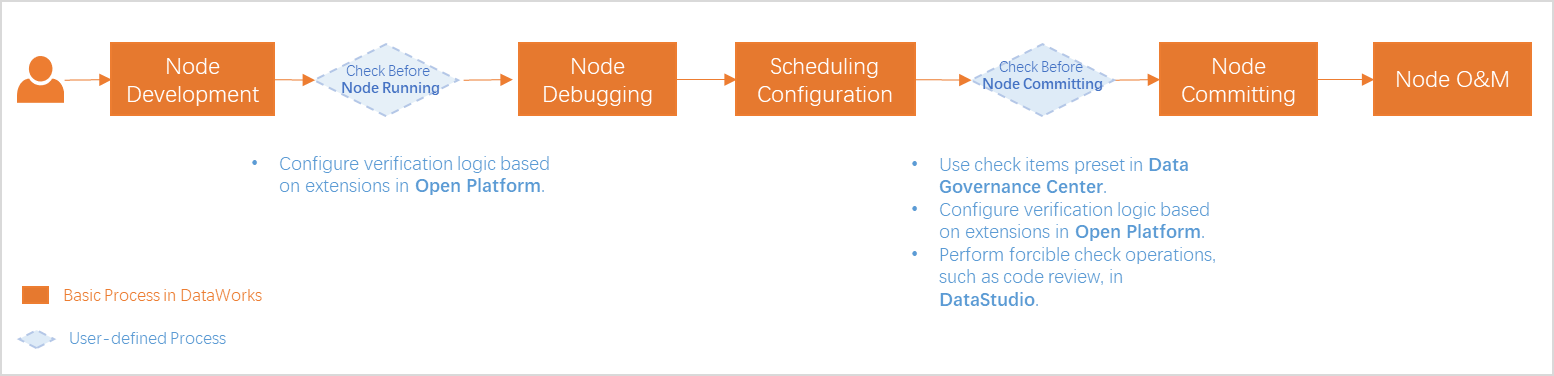
The following figure shows the development process in a workspace in standard mode.

The following figure shows the development process in a workspace in basic mode.
-
Basic process: Developing a scheduled task in a workspace in standard mode involves development, debugging, scheduling configuration, submission, deployment, and O&M. For more information about the general development process of tasks, see General development process.
-
Process control: During development, you can use the built-in features of DataStudio, such as code review and smoke testing, the checks that are preset in Data Governance Center, and the custom check logic that is implemented based on extensions of Open Platform to ensure that the developed task meets your business requirements.
NoteThe process control operations vary based on the workspace mode. Refer to the UI for the specific features available.
-
Management modes
In DataStudio, a workflow is the basic unit for code development and resource organization. It is an abstract business entity that helps you organize data development from a business perspective. Workflows and task nodes are developed independently in each workspace and do not affect each other. For more information, see Create a workflow.
Workflows are presented in a directory tree and on a visual pane, clarifying resource categories and business logic.
-
Directory tree structure: organizes code based on the task type.
-
Workflow pane: displays business logic in a process-oriented manner.
A solution groups and manages workflows of a specific type. You can double-click a workflow name to open the workflow pane. The directory tree organizes nodes by category, including Data Integration, Data Development, Table, Resource, Function, Algorithm, Data Service, and Control. The workflow pane displays the dependencies between nodes on a directed acyclic graph (DAG) canvas.
Get started
Prerequisites
To perform data modeling, data development, or periodic task scheduling in DataWorks, you must associate your data sources or clusters with DataStudio as computing resources. Once associated, you can read data from the sources or clusters and perform development operations. Otherwise, you cannot create nodes in DataStudio.
-
Create the required data sources or clusters in advance based on the types of tasks that you want to develop and schedule.
Data source or cluster
Description
When you create your first MaxCompute data source, DataWorks automatically associates the data source with DataStudio. You must manually associate any subsequent MaxCompute data sources.
After you create these data sources, you must manually associate them with DataStudio as described in this topic.
After you register a cluster, DataWorks automatically associates the cluster with DataStudio.
Log on to the DataWorks console. In the target region, click in the left-side navigation pane. Select a workspace from the drop-down list and click Go to Data Development.
-
In the left-side navigation pane, click Computing Resource to go to the page for creating computing resources.
If Computing Resource is not displayed in the left-side navigation pane, go to the Personal Settings page to add the module to the navigation pane. For more information, see DataStudio Modules.
-
Associate a computing resource.
On the Computing Resource page, you can search for the target data source or cluster by Computing Resource Name or Computing Resource Type, and then click Associate. Once associated, you can use the connection information of the data source to read its data and perform related development operations.
NoteIf data source information changes but the current page does not reflect the updates, refresh the page to load the latest data.
You can also filter by Status (All, Associated, or Not Associated) to locate the computing resource that you want to associate. Click the target resource to view the configurations of its production environment, such as Project Name and Access Identity.
-
In some cases, a data source or cluster may fail to be associated with DataStudio:
-
Whether a data source or cluster can be associated with DataStudio depends on its configuration. For example, data sources that are created in AccessKey ID and AccessKey secret mode cannot be associated with DataStudio. For more information about other limits, see the prompts on the association page.
-
The data source does not have a development environment or a production environment.
-
A MaxCompute computing resource cannot be associated with multiple DataWorks workspaces at the same time.
NoteAssociation can fail for various reasons. The platform displays the specific cause, which you can use to troubleshoot the issue.
-
-
You can associate only computing resources of MaxCompute, E-MapReduce, Hologres, AnalyticDB for MySQL, ClickHouse, CDH/CDP, and AnalyticDB for PostgreSQL with DataStudio.
-
The types and number of data sources or clusters that can be associated with DataStudio vary based on the DataWorks edition. For more information, see Editions.
-
Tutorial
For an introduction to the basic operations and development process, see Get started with DataStudio.
Supported node types
DataStudio provides various node types that support periodic task scheduling. Select a node type based on your business requirements. For the full list, see Supported node types.
Appendix: Key concepts
-
Task development
Concept
Description
solution
A collection of workflows. You can group workflows of a specific type into a solution for centralized management. A workflow can be reused across multiple solutions. This structure allows for collaborative development, where users in different solutions can edit the same referenced workflow.
workflow
An abstract business entity that is a collection of tasks, tables, resources, and functions for a specific business requirement. Tasks in a workflow can be triggered to run as scheduled.
manually triggered workflow
A collection of tasks, tables, resources, and functions for a specific business requirement.
Unlike a standard workflow that runs on a schedule, tasks in a manually triggered workflow must be started manually.
DAG
An acronym for
Directed Acyclic Graph. A DAG is used to display nodes and their dependencies. In DataStudio, all tasks in a workflow are displayed in the same DAG to facilitate task development and dependency configuration.task
A task is the basic execution unit in DataWorks. DataWorks runs tasks in sequence based on their dependencies.
node
A node represents a task in a DAG. DataWorks runs nodes in sequence based on their dependencies.
-
Task scheduling
Concept
Description
dependency
Dependencies define the execution order of tasks. If Node B can run only after Node A is complete, Node A is an upstream dependency of Node B. In a DAG, dependencies are represented by arrows between nodes.
output name
An identifier that distinguishes a node from other nodes. The output name is globally unique. A node can have multiple output names. DataWorks uses output names to configure scheduling dependencies between nodes.
output table name
Set this parameter to the name of the table that is generated by the current task. A correctly specified output table name helps a downstream task confirm whether data is from the expected upstream table when the downstream task sets a dependency. We recommend that you do not manually modify an automatically parsed output table name. The output table name serves only as an identifier. Modifying the output table name does not affect the name of the table that is actually generated by the SQL script. The name of the table that is actually generated is determined by the SQL logic.
NoteThe Output Name of a node must be globally unique, whereas the Output Table Name does not have this restriction.
resource group for scheduling
The resource group that is used for task scheduling. For more information about resource groups, see Overview of resource groups.
scheduling parameter
A variable in code whose value is dynamically assigned at runtime. If you want to obtain information about the runtime environment, such as the date and time, during repeated runs of your code, you can define scheduling parameters in the DataWorks scheduling system to dynamically assign values to the variables in your code.
data timestamp
Refers to the previous day. In offline computing, the data timestamp is the date on which a transaction occurs. By default, DataWorks uses the day before the task's scheduled runtime (yesterday) as the data timestamp, accurate to the day. For example, if you run a task today to calculate the sales of yesterday, "yesterday" is the date on which the transactions occurred, which is the data timestamp.
scheduling time
Refers to today, which is the expected execution time of a data processing task. By default, DataWorks uses the scheduled runtime of the task (today) as the scheduling time, accurate to the second. The expected execution time may not be the same as the actual start time. The actual start time may differ due to various factors.