This guide explains how to create, configure, and use the managed MLflow service within an Alibaba Cloud Data Management (DMS) workspace. DMS MLflow provides a secure, stable platform for tracking machine learning experiments within your Virtual Private Cloud (VPC), helping you efficiently manage the metadata, parameters, and metrics of your model training runs.
Core architecture
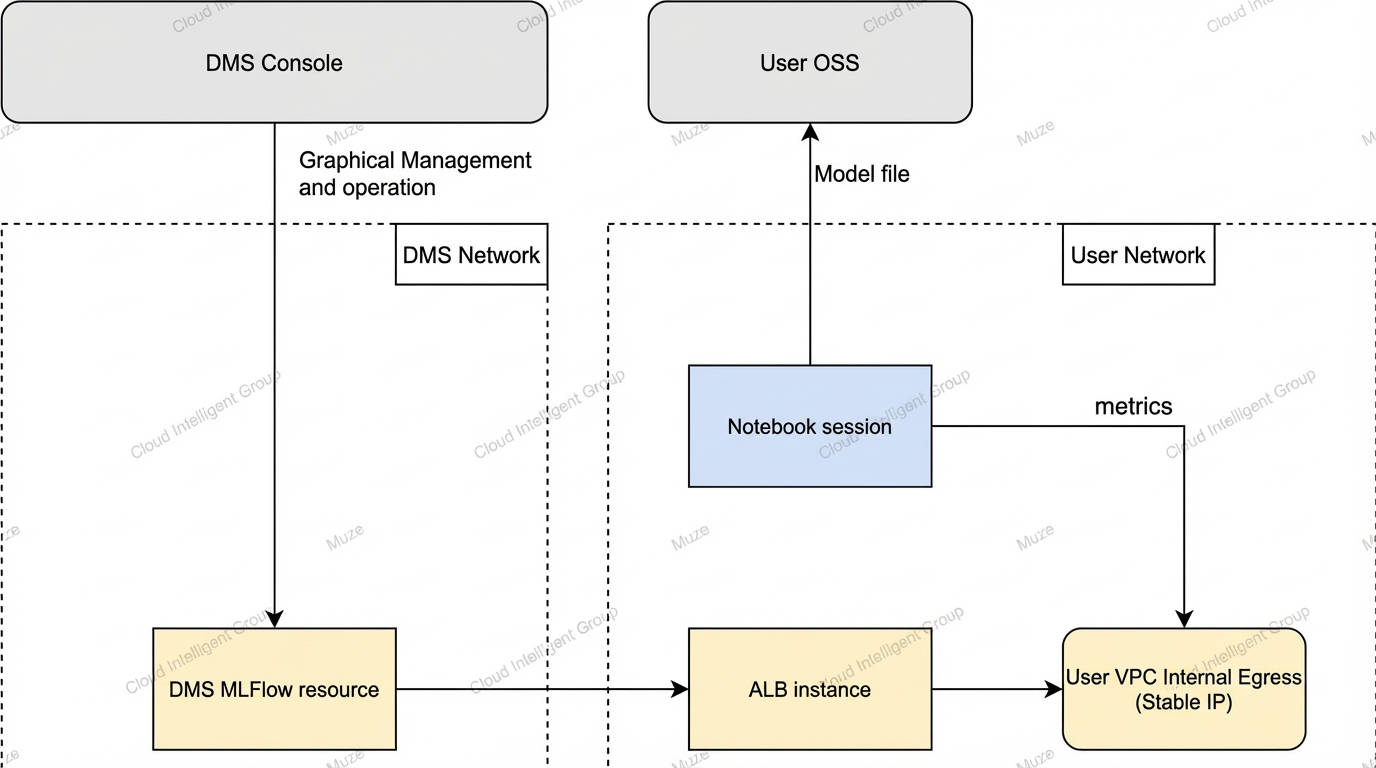
Managed service: DMS manages the lifecycle of your MLflow instance and the maintenance of its underlying resources.
Native VPC integration: The MLflow service is exposed securely within your VPC through an Application Load Balancer (ALB), ensuring network isolation and security.
Pay-as-you-go: Seamlessly integrates with environments like DMS Notebook, with billing based on actual compute resource consumption.
Supported regions
China (Beijing), China (Shanghai), and China (Hangzhou). (This service is currently in limited preview. Availability is subject to the visibility of the service entry in the console.)
Prerequisites
Before you create an MLflow instance, complete the following prerequisites.
Network resources
Virtual Private Cloud (VPC): An existing VPC is required.
vSwitch: At least two vSwitches are required in the VPC, in different availability zones to ensure high availability.
Security group: A security group is required. Network access to the MLflow service is controlled by the inbound rules of this security group.
Procedure: VPCs and vSwitches, Use security groups
Object Storage Service (OSS)
Purpose: Store model training artifacts (such as model files and datasets). DMS MLflow only records metadata (including training process metrics and artifact storage location metadata), while artifacts must be stored in an OSS bucket that you provide.
Procedure: Create a bucket
Workspace
Purpose: A workspace is a collaborative unit in DMS. The creation, management, and visualization of DMS MLflow instances must be performed within a workspace.
Procedure: Prepare a workspace
ALB service-linked role
Purpose: DMS MLflow provides access within your VPC through an Application Load Balancer (ALB). If your account has never used ALB, the required service-linked role does not exist, and MLflow instance creation will fail.
Procedure: Refer to Create a service-linked role. In the Create Service Linked Role panel, select ALB for Select Service.
Create a Notebook
Log in to DMS 5.0.
From the top menu bar, select Data+AI > Workspace, or in Simplified Mode, click the
 icon in the upper-left corner and select All Features > Data+AI > Workspace.
On the workspace list page, find the target workspace and click its ID to enter.
Within the workspace, navigate to the Notebook session management page.
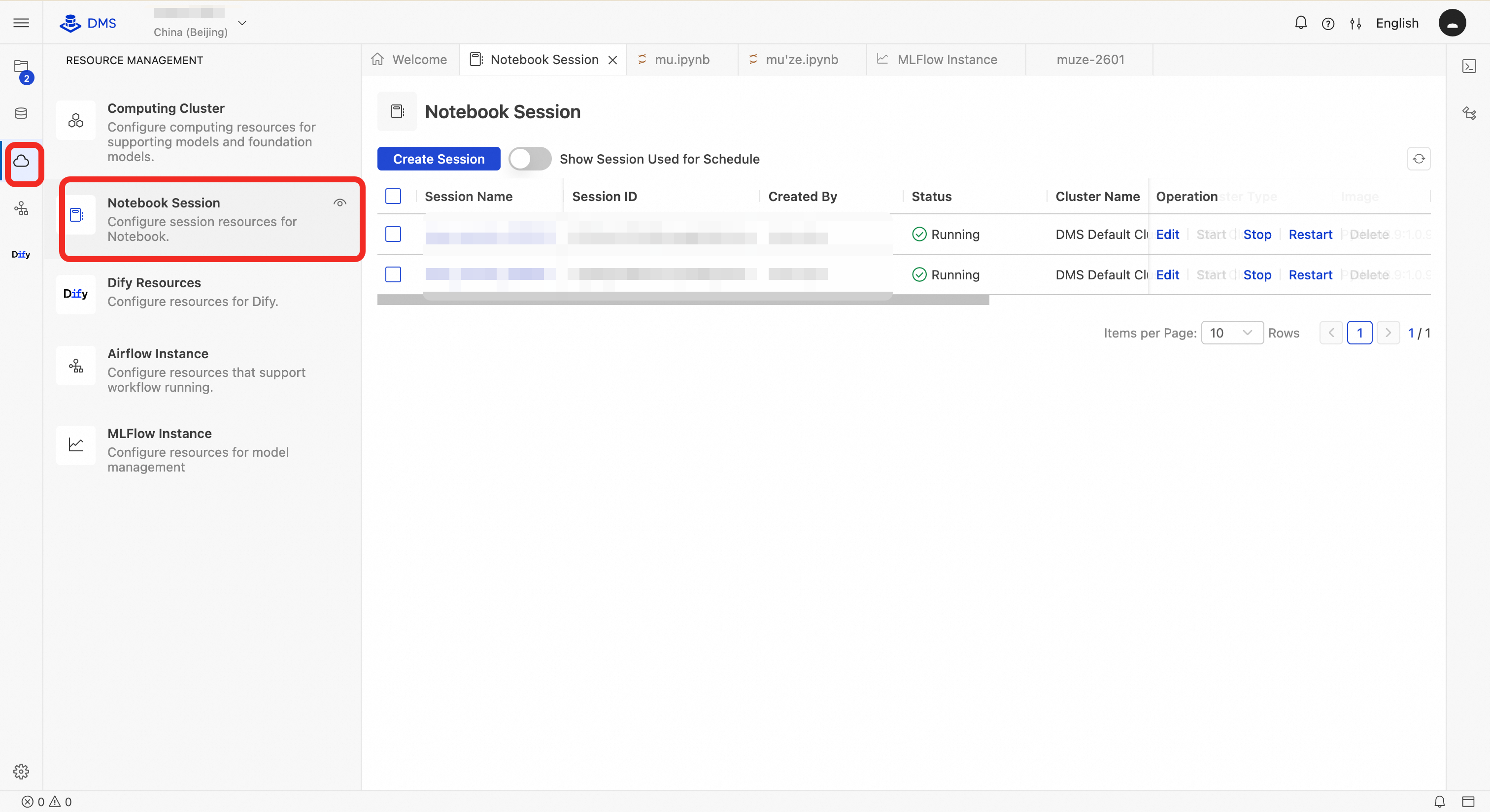
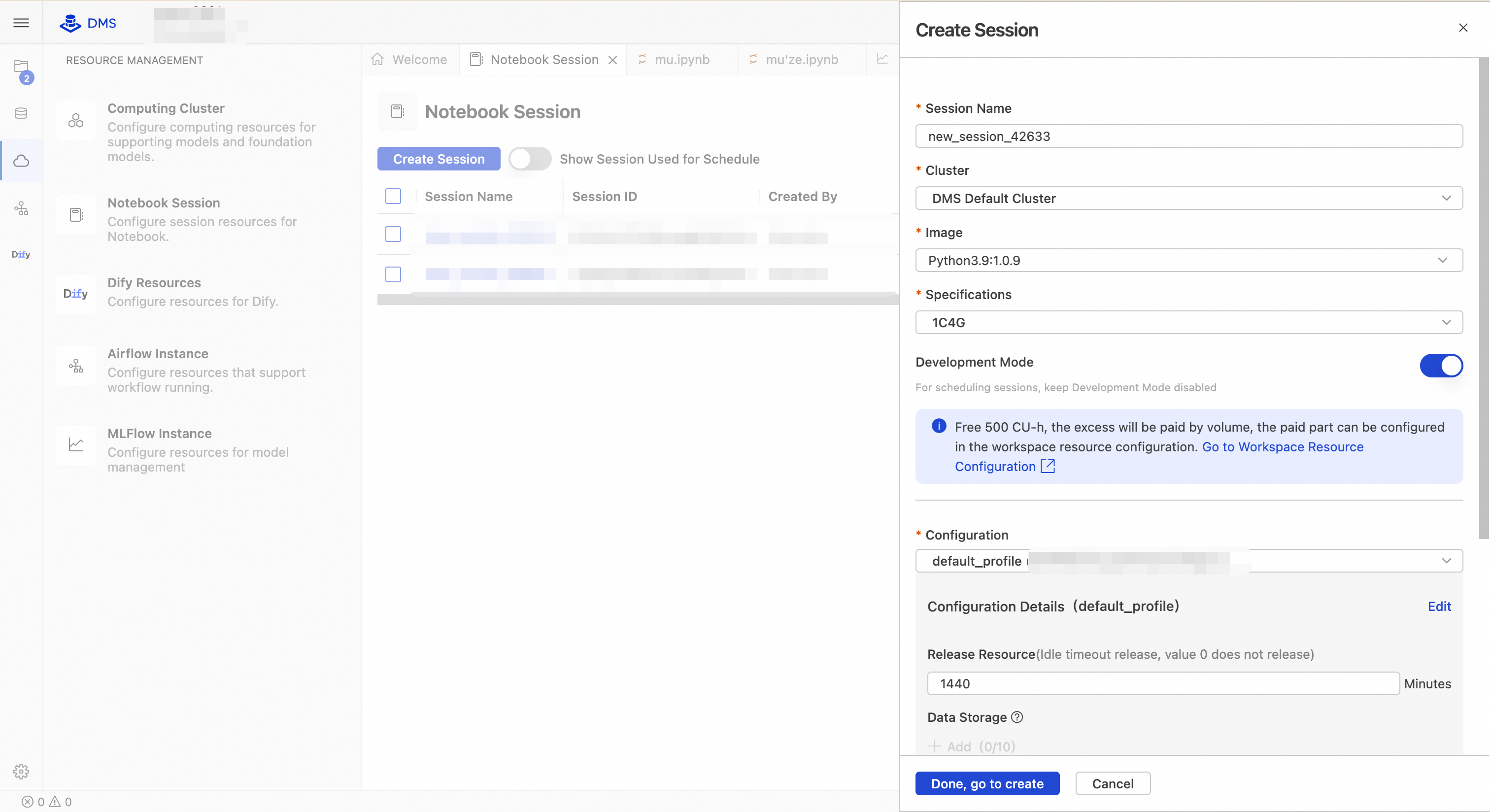
Click the create session button. In the dialog box that appears, fill in the required information, and then click Finish and Create.
Parameter
Description
Example
Session name
A unique name for the Notebook session to distinguish between different tasks. The name can contain letters, digits, and underscores, and should be 64 characters or less.
new_session_20250401Cluster
The compute cluster on which the Notebook runs. By default, the shared cluster provided by DMS is used. You can also select an authorized dedicated cluster.
DMS default clusterImage
The base container image for the runtime environment. It includes a pre-installed Python version and common AI and data science libraries, such as pandas, numpy, and dashscope.
Python3.9:1.0.9Specifications
The compute resources allocated to the Notebook instance, formatted as "CPU cores + memory size." More resources provide higher processing power but also increase costs.
1C4G(1 CPU core, 4 GB memory)Development mode
Controls whether to enable enhanced debugging and interactive features such as auto-save and hot-reloading. Enabling this mode slightly increases resource consumption and is suitable for development and debugging. We recommend disabling it for production environments.
Off/OnConfiguration
A preset runtime configuration template that can include network policies, mount points, and security contexts.
default_profileis the system's default security configuration.default_profileResource release
The idle timeout period in minutes after which the session is automatically released. After the timeout, the instance is reclaimed to save resources. Unsaved content may be lost, so be sure to persist your data.
1440(24 hours)Data storage
Specifies whether to mount a persistent storage volume. If you select "None," all data is stored in the temporary container and is lost when the session stops or restarts. To persist data, bind an OSS or NAS volume.
None/oss://my-bucket/notebookPyPI-managed packages
A list of additional third-party Python packages to install via pip. Separate multiple packages with commas. You can specify versions, for example,
dashscope==1.19.0.None/dashscope, pandas==2.1.0Environment variables
Custom runtime environment variables, often used to configure API keys, regions, or log levels. Use the format
KEY=VALUE. Separate multiple variables with newlines or semicolons.None/DASHSCOPE_API_KEY=sk-xxxIn the Notebook Session list, find the target session and click Start in the Actions column.
Create and configure an MLflow instance
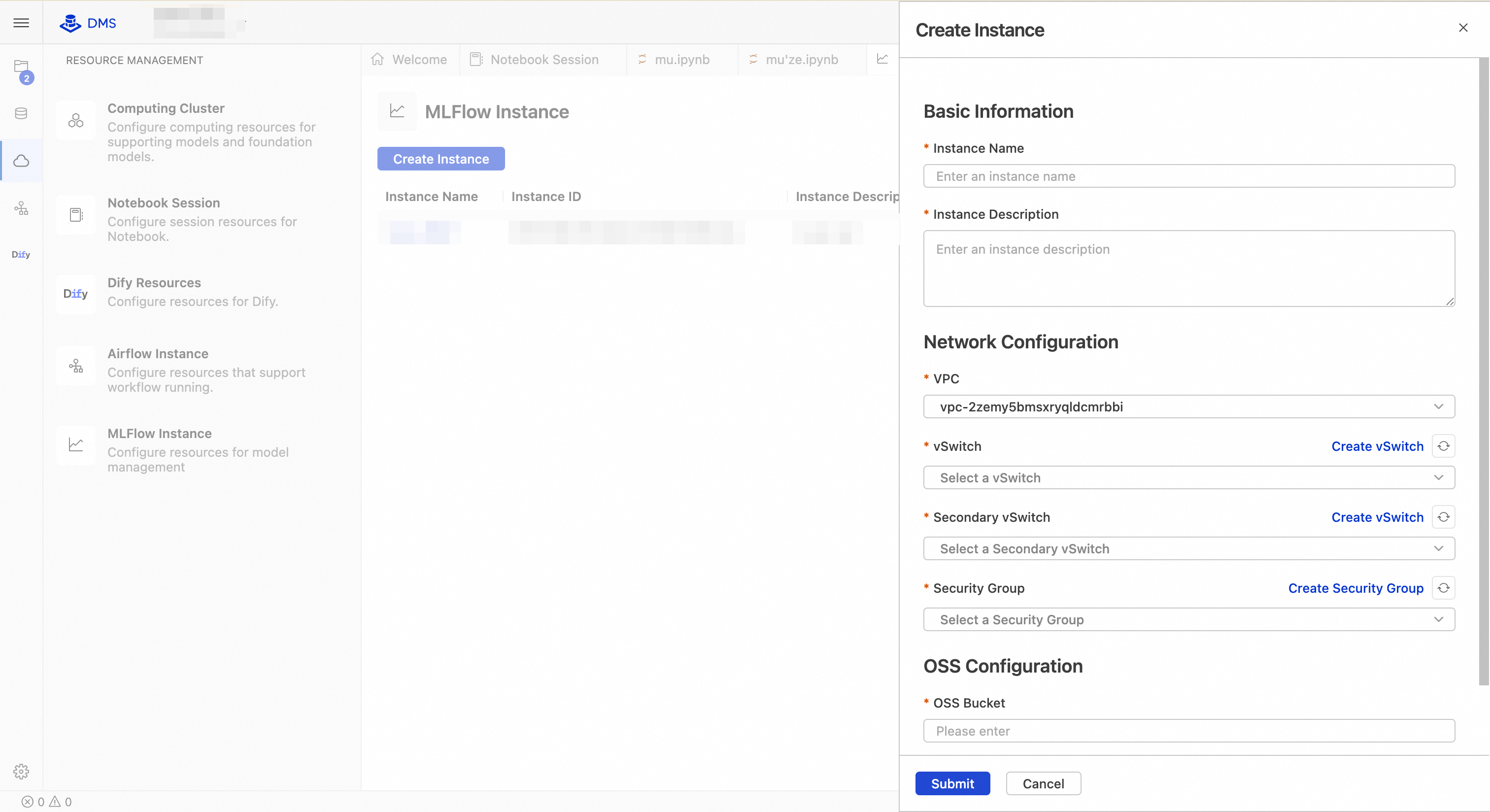
Create an MLflow instance
In your DMS workspace, navigate to the MLflow management page.
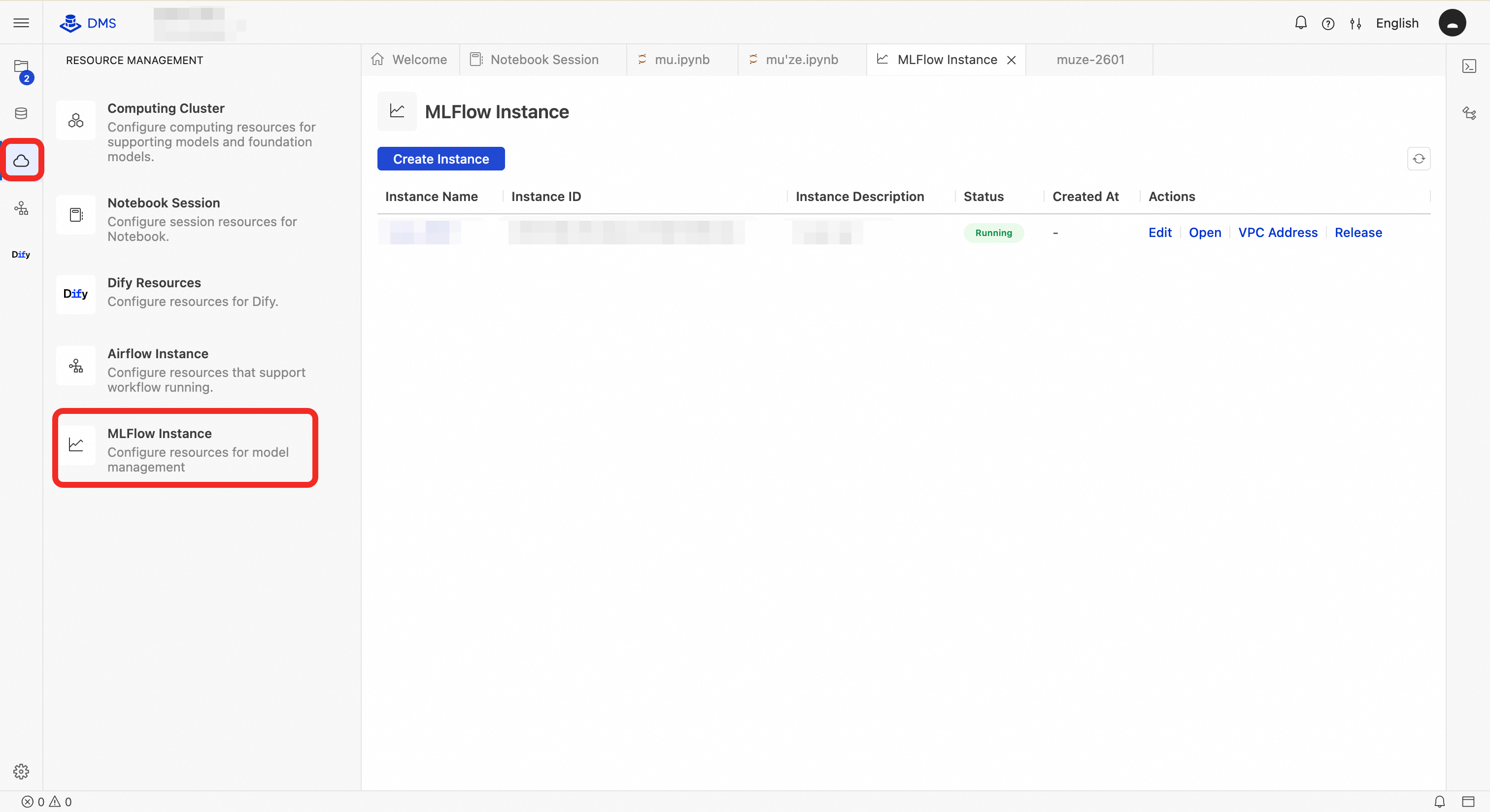
Click Create Instance and configure the following parameters in the wizard:

Parameter
Description
Example
Instance name
The name of the MLflow instance.
my-mlflow
Instance description
A description for the MLflow instance.
Description of my MLflow.
VPC
Select the VPC to use. By default, the VPC of the current workspace is selected. Notebook and MLflow instances in different VPCs cannot communicate with each other.
vpc-fs******4a
vSwitch
Select the primary vSwitch. MLflow resources and the load balancer will each occupy one IP address in this vSwitch. Ensure the vSwitch has enough available IP addresses.
vsw-sg******7h
Standby vSwitch
Select the standby vSwitch for load balancer high availability. The load balancer will occupy one IP address in this vSwitch. The standby vSwitch must be in a different availability zone from the primary vSwitch. Otherwise, MLflow instance creation will fail.
vsw-hq******v9
Security group
Select the security group. Network access to the MLflow instance is controlled by this security group's inbound rules. Ensure that the rules allow access from the source IP address (such as the Notebook IP), otherwise, the MLflow instance will be unreachable. You must select a standard security group; using a managed security group will cause instance creation to fail.
sg-zb******iq
OSS bucket
The name of your Alibaba Cloud OSS bucket. If you do not specify an Artifact Root when creating an experiment, DMS MLflow uses
oss://<OSS Bucket>/<OSS Path>by default.my-bucket
OSS path
The path in your Alibaba Cloud OSS bucket. If you do not specify an Artifact Root when creating an experiment, DMS MLflow uses
oss://<OSS Bucket>/<OSS Path>by default.mlflow-root
After confirming the configuration, click OK. The instance creation process takes a few minutes. Wait until its Status changes to Running.
NoteIf instance creation fails without an explicit error message, or takes longer than expected, check the following:
Confirm that the ALB service-linked role has been created for your Alibaba Cloud account. If your account has never used ALB, this role does not exist, which will cause instance creation to fail.
Verify that both the primary vSwitch and standby vSwitch have sufficient available IP addresses. We recommend keeping at least 10 free IP addresses in each vSwitch.
Confirm that the security group's inbound rules allow TCP traffic on port 80 from your VPC CIDR block.
Confirm that the primary vSwitch and standby vSwitch are in different zones. If they are in the same zone, instance creation will fail.
DMS MLflow automatically provisions an RDS database instance in the background to serve as its backend store. This database instance is fully managed by the system—no manual action is required from you. The full instance creation process, including the RDS provisioning, typically takes ten minutes or more. Wait patiently for the Status to change to Running.
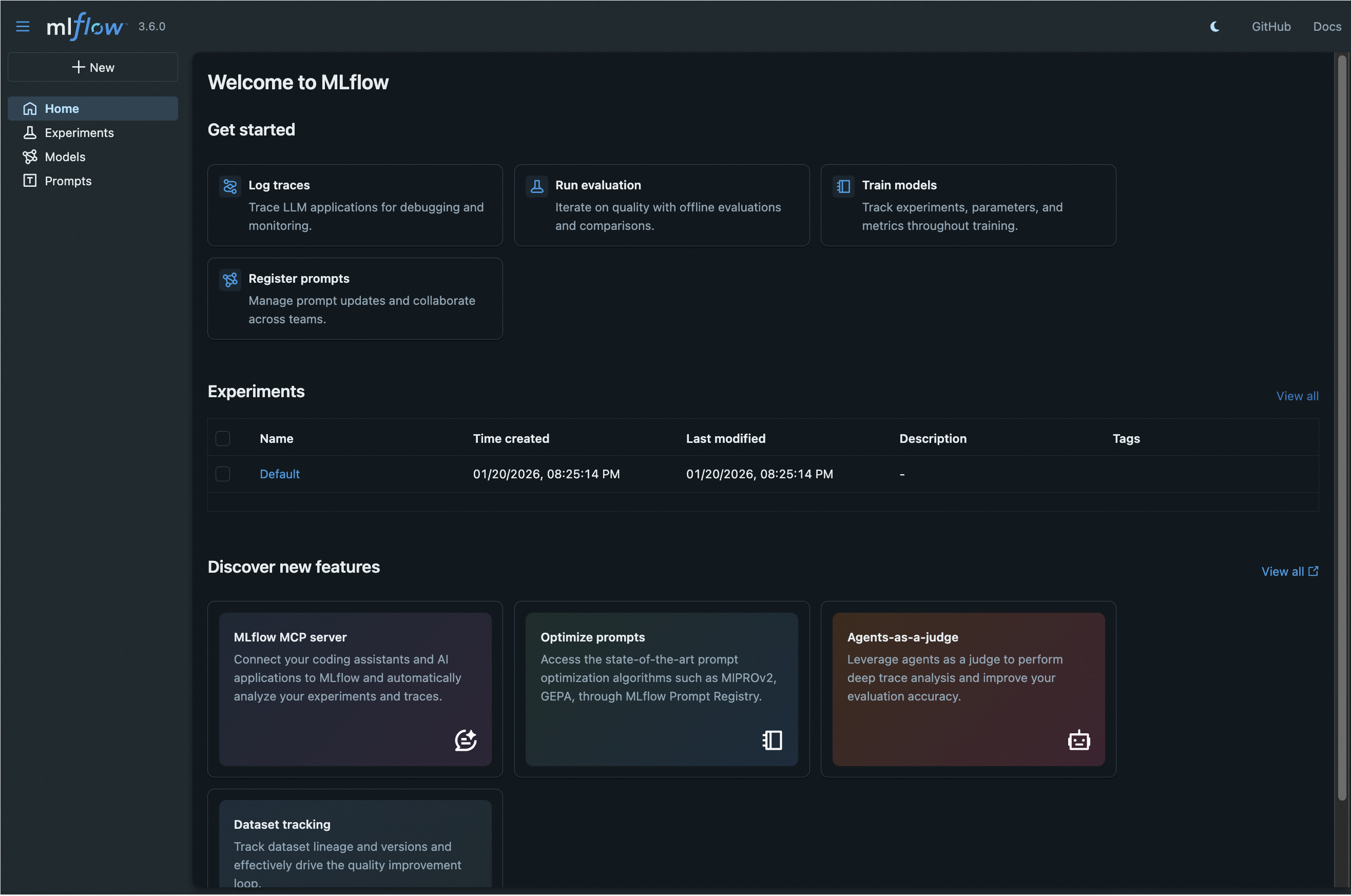
The Actions column provides the following operations:
Edit: Allows you to modify the instance name and description.
Open: Opens the MLflow UI in an embedded page.
VPC address: These are stable IP addresses provided by the ALB for access within your VPC. Click the copy icon to copy an IP address. You can use either address as the MLflow tracking server URI. The port is 80, so the address can be used directly for access from within the same VPC.
Redeploy: This operation is not currently supported.
Release: Releases the instance and destroys its associated database and compute resources in the backend.
Configure ALB access control
For network security, the ALB associated with your MLflow instance denies all traffic by default. You must configure an access control policy to allow access from within your VPC.
On the MLflow instance details page, copy the instance ID.
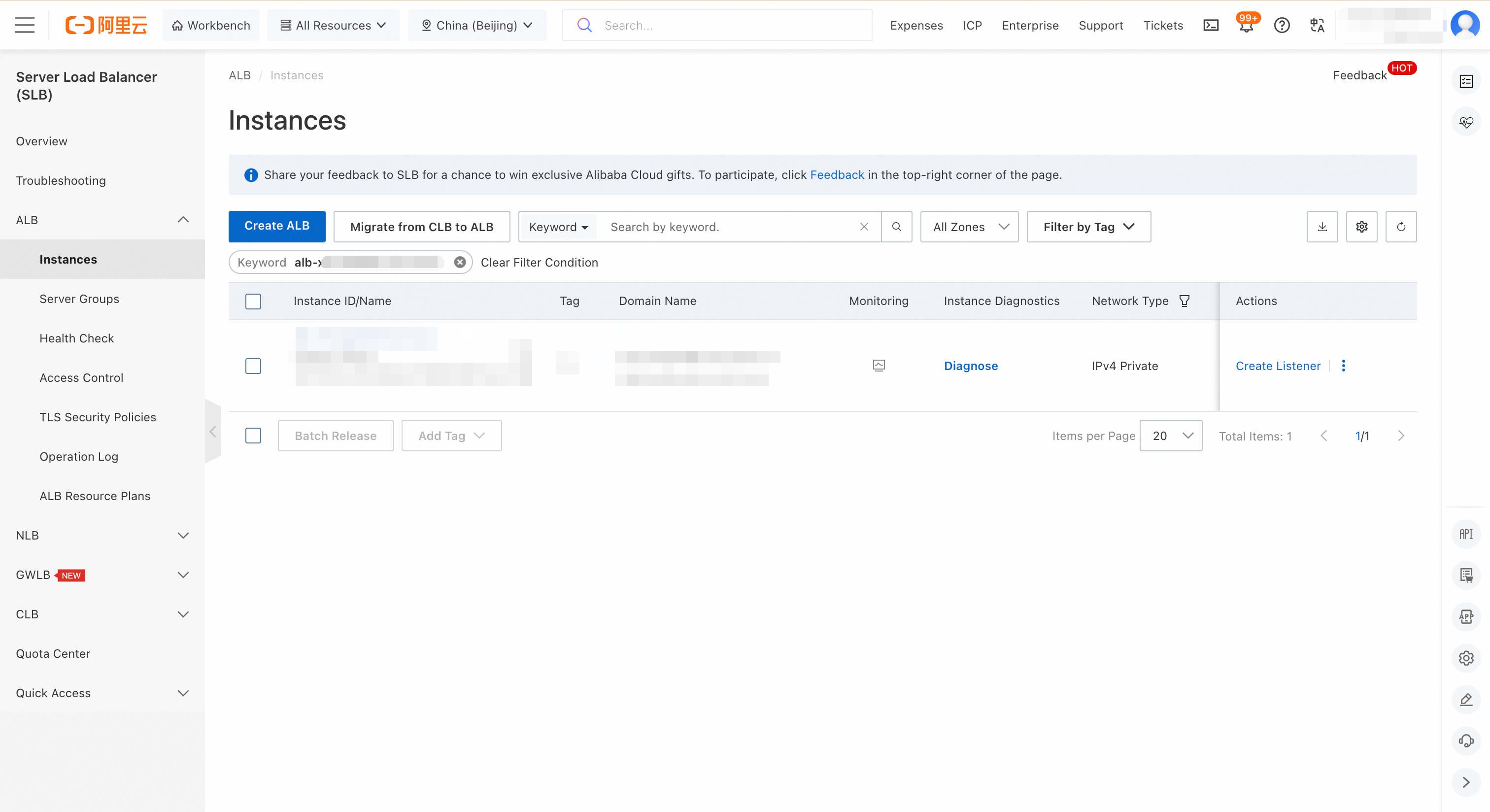
Navigate to the ALB console. Ensure you select the same region as your MLflow instance. In the left navigation pane, choose Instances.
On the Instances page, use the instance ID as a Keyword to search for the corresponding ALB instance.
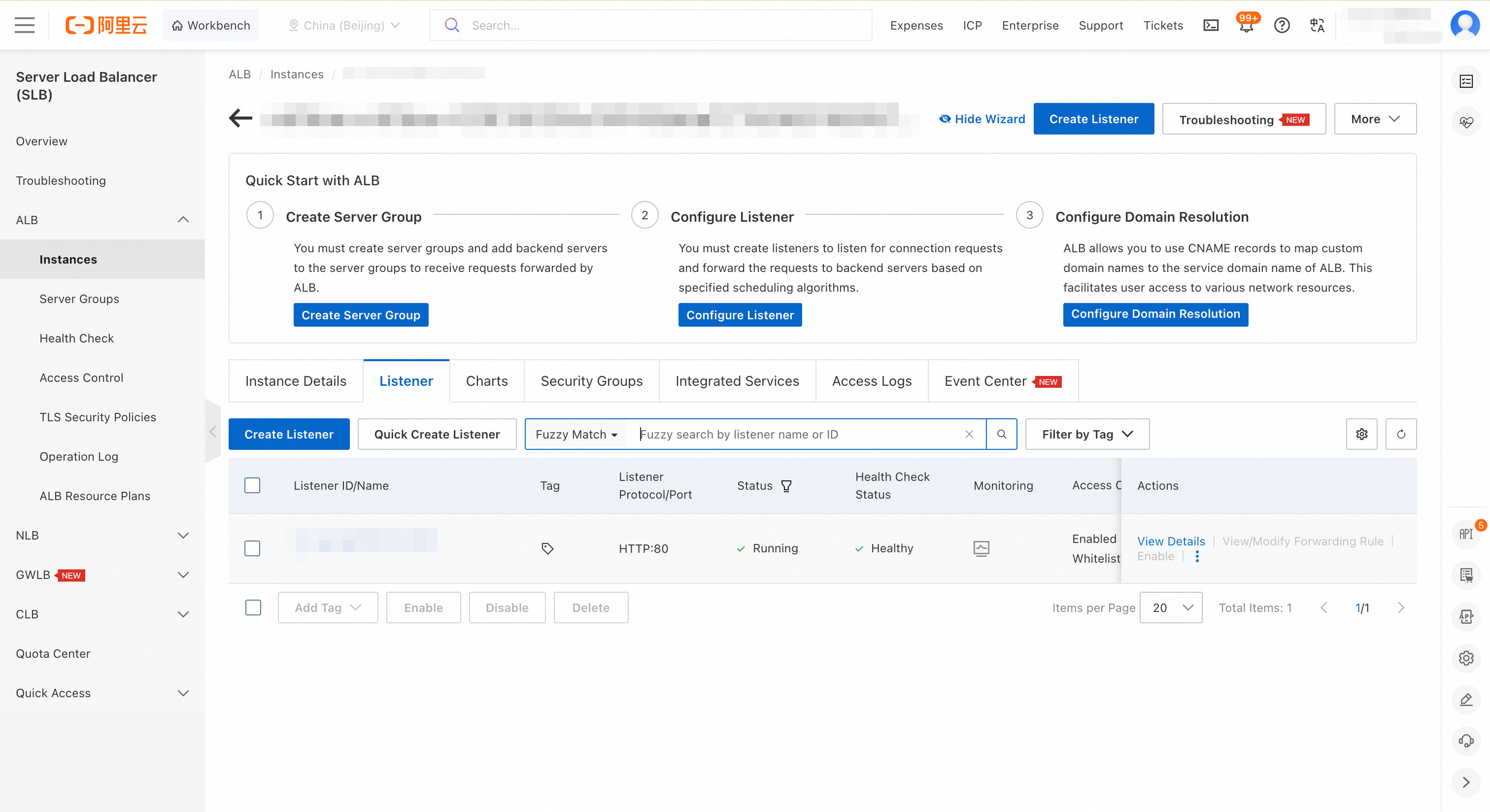
Click the instance ID to go to the Instance Details page, then switch to the Listener tab.
Find the listener for port 80 and click View Details in the Actions column.
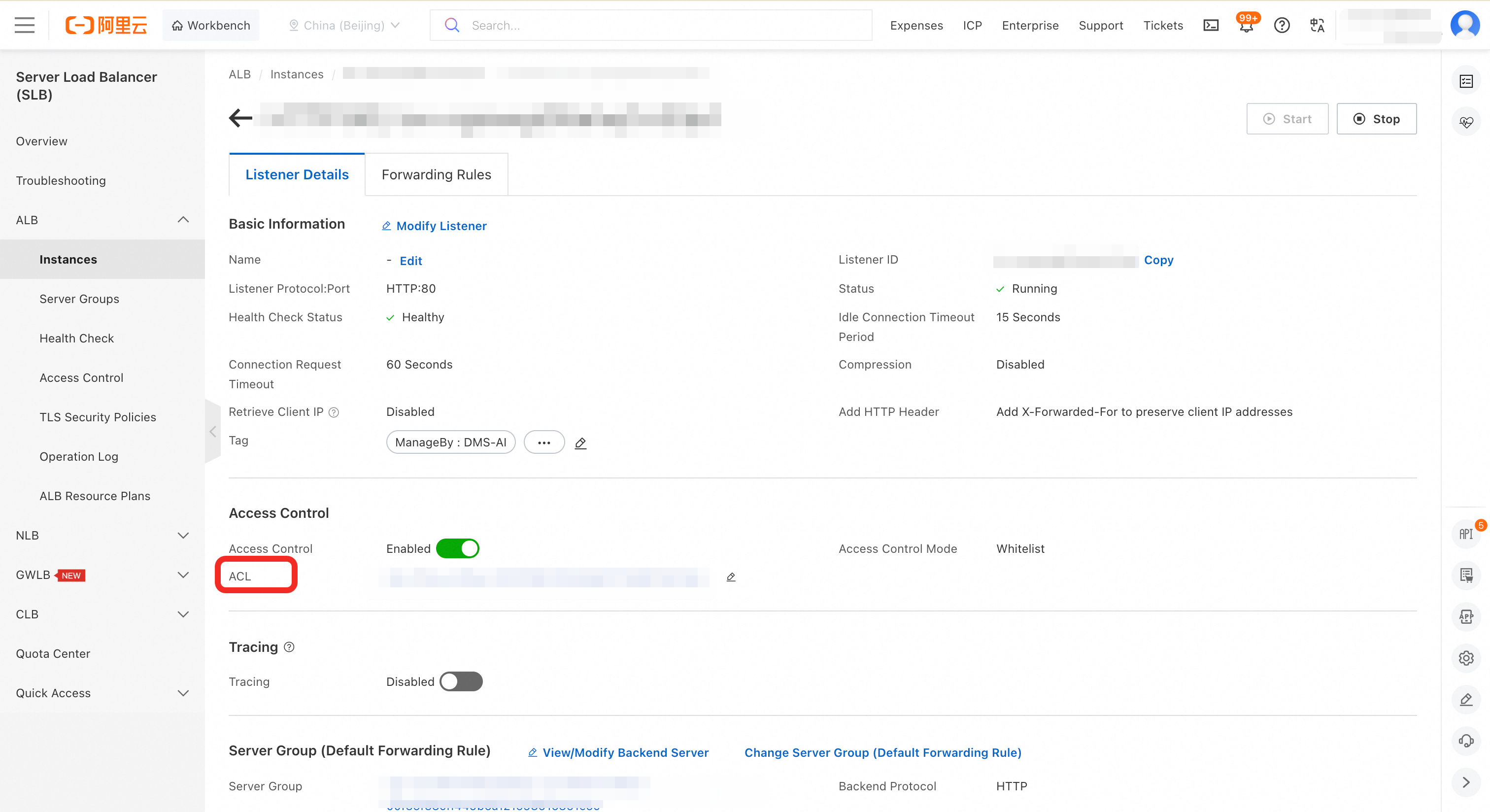
On the Listener Details tab, in the Access Control section, click the ID of the ACL.
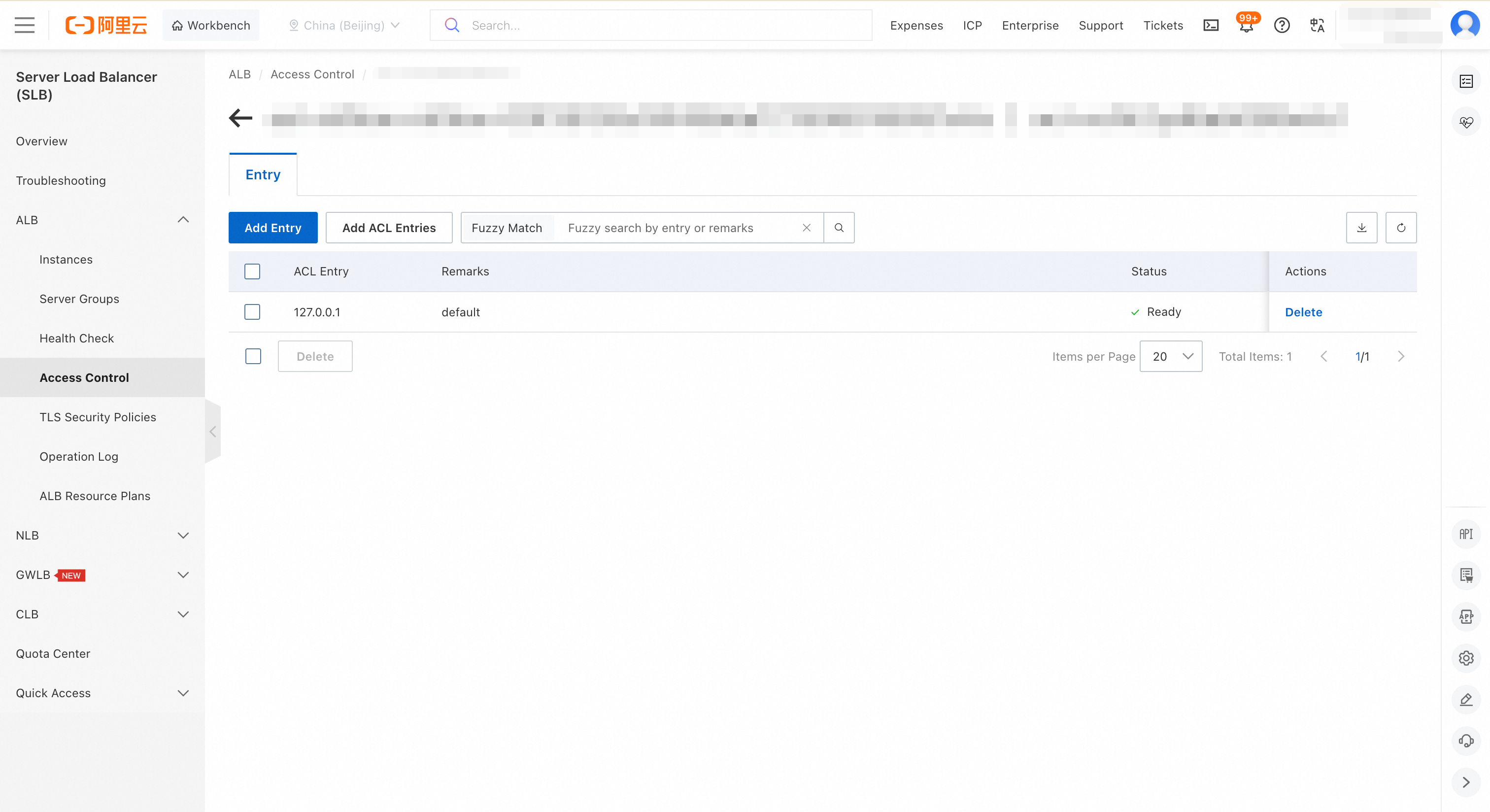
On the Entry tab, click Add Entry to configure the allowed sources. We recommend that you add your VPC CIDR block (for example,
192.168.0.0/16) or the more specific CIDR block of your Notebook to allow access from these network segments.
Use MLflow in a Notebook
Before you start, ensure your MLflow instance is running and its ALB access control policy is configured to allow connections from your Notebook environment.
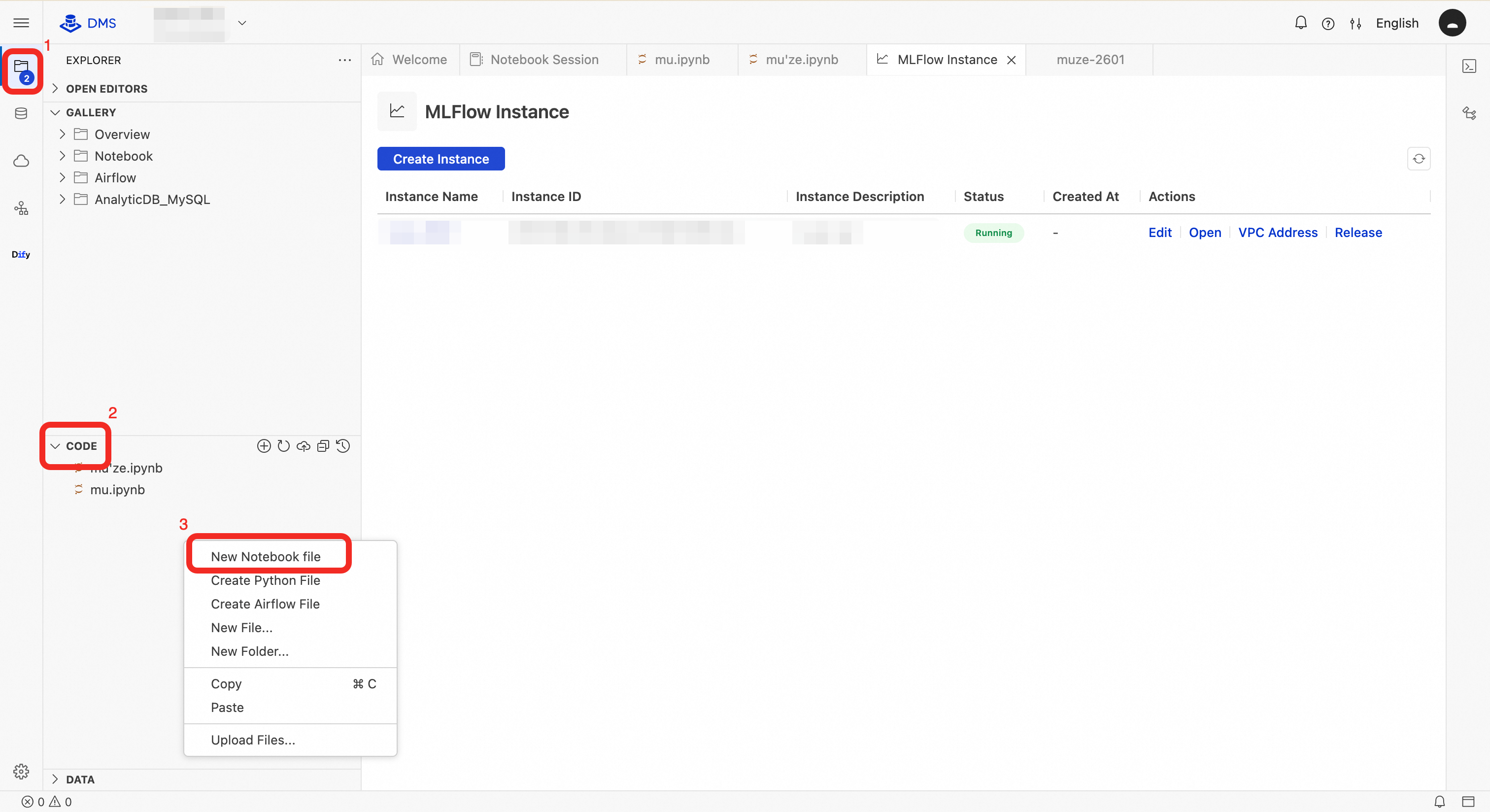
Create a new file: In the Explorer, right-click within the CODE section and select New Notebook File.
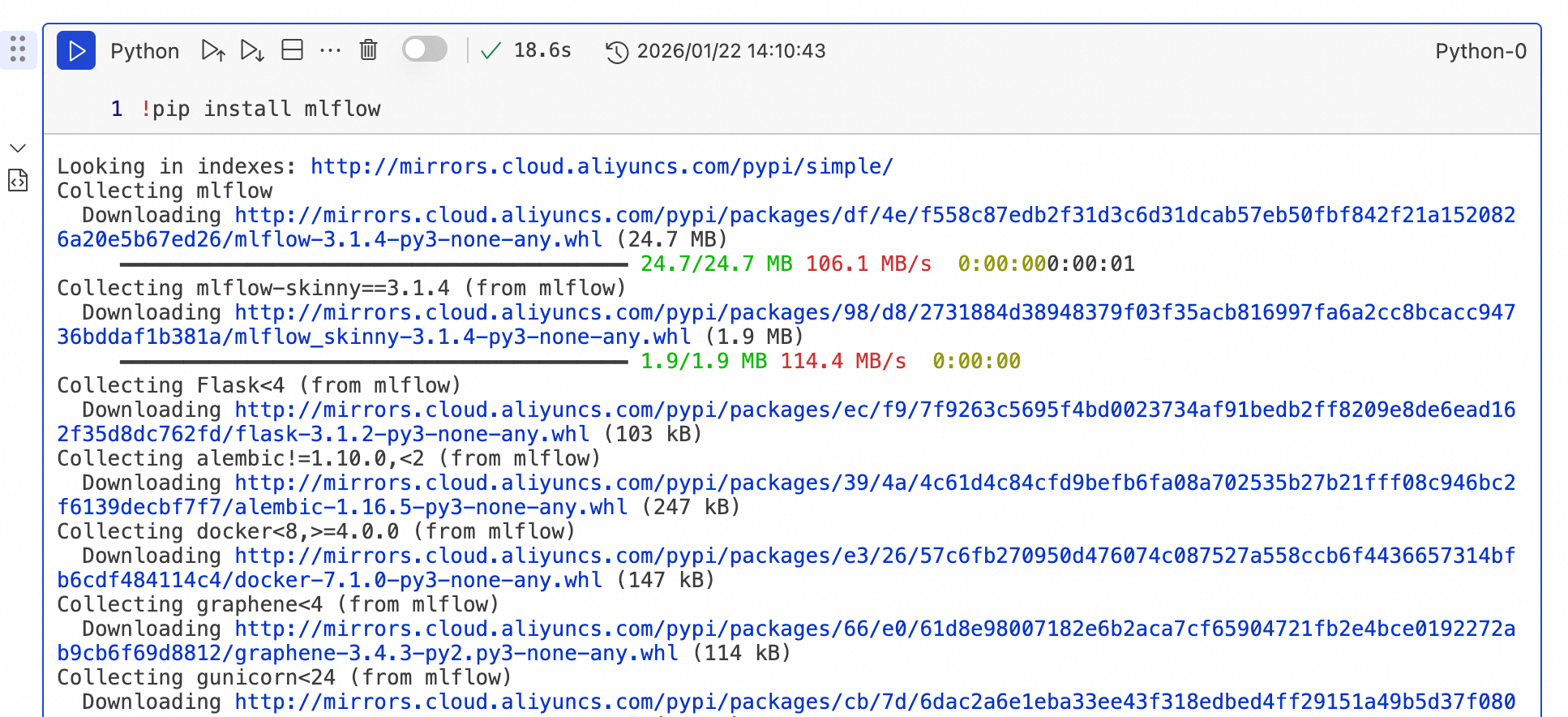
Install the MLflow Python SDK: In a cell of a new Notebook file, enter the
!pip install mlflowcommand and click the Run button.Write the training code: In the code, use the VPC Address from the MLFlow instance details page to replace
SERVER_URL.import mlflow import mlflow.sklearn from sklearn import datasets from sklearn.model_selection import train_test_split from sklearn.ensemble import RandomForestClassifier from sklearn.metrics import accuracy_score, precision_score, recall_score, f1_score import pandas as pd def main(): # Set the remote tracking URI (for metadata logging only) mlflow.set_tracking_uri("http://SERVER_URL") # Set the MLflow experiment name mlflow.set_experiment("Iris Classification") # Load the Iris dataset iris = datasets.load_iris() X = iris.data y = iris.target # Create a DataFrame for feature names (optional, for easier logging) feature_names = iris.feature_names target_names = iris.target_names # Split data into training and test sets X_train, X_test, y_train, y_test = train_test_split( X, y, test_size=0.2, random_state=42, stratify=y ) # Define hyperparameters n_estimators = 100 max_depth = 3 random_state = 42 # Start an MLflow run with mlflow.start_run(run_name="RandomForest_Iris"): # Log hyperparameters mlflow.log_param("n_estimators", n_estimators) mlflow.log_param("max_depth", max_depth) mlflow.log_param("random_state", random_state) mlflow.log_param("test_size", 0.2) # Create and train the model model = RandomForestClassifier( n_estimators=n_estimators, max_depth=max_depth, random_state=random_state ) model.fit(X_train, y_train) # Make predictions y_pred = model.predict(X_test) # Calculate evaluation metrics accuracy = accuracy_score(y_test, y_pred) precision = precision_score(y_test, y_pred, average='weighted') recall = recall_score(y_test, y_pred, average='weighted') f1 = f1_score(y_test, y_pred, average='weighted') # Log evaluation metrics mlflow.log_metric("accuracy", accuracy) mlflow.log_metric("precision", precision) mlflow.log_metric("recall", recall) mlflow.log_metric("f1_score", f1) # Log feature and target names as tags mlflow.set_tag("features", ", ".join(feature_names)) mlflow.set_tag("targets", ", ".join(target_names)) mlflow.set_tag("algorithm", "RandomForestClassifier") print(f"Model trained successfully!") print(f"Accuracy: {accuracy:.4f}") print(f"Precision: {precision:.4f}") print(f"Recall: {recall:.4f}") print(f"F1 Score: {f1:.4f}") # Log the model mlflow.sklearn.log_model(model, "iris_model") # Get information about the current run run_id = mlflow.active_run().info.run_id experiment_id = mlflow.active_run().info.experiment_id print(f"Run ID: {run_id}") print(f"Experiment ID: {experiment_id}") if __name__ == "__main__": main()
FAQ
Q: Why can't I access DMS MLflow using its IP address?
A: Troubleshoot the issue by checking the following in order:Access control: Confirm that you have added a rule to the ALB's access control policy that allows traffic from your current device or the Notebook's CIDR block.
Security group: Verify that the inbound rules of the security group associated with your MLflow instance allow traffic on port 80 from your source IP address.
Network connectivity: Ensure that your client environment (such as a local PC or an ECS instance) has a network path to the MLflow instance's VPC (for example, via a VPN or Cloud Enterprise Network).
Q: Where are my trained model files stored?
A: DMS MLflow does not store binary artifacts like model files. The Alibaba Cloud OSS bucket and path you configure become the default artifact root. You can also explicitly specify an artifact root when you create an experiment. Your execution environment (for example, a Notebook) must have the necessary credentials to upload artifacts to OSS. If you use Alibaba Cloud OSS for artifact storage, we recommend using the MLflow plugin: https://mlflow.org/docs/latest/ml/plugins/#storage--persistenceQ: Will the associated ALB and RDS resources be automatically deleted after I release a DMS MLflow instance?
A: Under normal circumstances, when you release a DMS MLflow instance, the system automatically cleans up and releases both the associated ALB instance and the backend RDS database instance. No manual deletion is required.If the ALB instance is not automatically cleaned up after the MLflow instance is released, and manual deletion fails with an error, this indicates a residual underlying resource issue. In this case, please submit a ticket to contact Alibaba Cloud technical support for assistance.
Q: Does DMS MLflow support public network access? How do I configure it?
A: For data security reasons, we do not recommend accessing the MLflow service directly over the public internet. We recommend using it within your VPC.If your workload requires public network access, you can configure a DNAT rule on a NAT Gateway to map a public IP address on a specified port (such as port 80) to the private IP address of the ALB instance associated with your MLflow instance.
WarningExposing MLflow over the public internet increases security risks. Ensure that you configure strict security group policies and access control whitelists.