Using the privacy permission dialog box
Regulatory authorities require that your app does not call sensitive APIs before the user clicks the Agree button in the privacy policy dialog box. To meet this requirement, mPaaS provides support in Android baselines 10.1.32.17 and later (32 series) and 10.1.60.5 and later (60 series). If you use a component-based integration method, follow the instructions in this topic to modify your project.
Usage
The Activity that displays the privacy dialog box cannot inherit from the mPaaS `BaseActivity`. This is because `BaseActivity` performs instrumentation data collection, which causes the app to collect private data before the user agrees to the privacy policy.
Create a new class that implements the `PrivacyListener` interface to serve as the callback for the privacy permission dialog box. For an example of the class implementation, see the following code:
public class MyPrivacyListener implements PrivacyListener { // Display the privacy permission dialog box in this method. @Override public void showPrivacy(final Activity activity, final PrivacyResultCallback privacyResultCallback) { if(null==privacyResultCallback){ return; } if(null!=activity){ new AlertDialog.Builder(activity) .setTitle("Privacy Permission") .setMessage("Main content goes here.") .setPositiveButton("Agree and Continue", new DialogInterface.OnClickListener() { @Override public void onClick(DialogInterface dialogInterface, int i) { // After the user clicks Agree, cancel the dialog box. dialogInterface.cancel(); // Set the dialog box result to true. privacyResultCallback.onResult(true); } }) .setNegativeButton("Disagree and Exit", new DialogInterface.OnClickListener() { @Override public void onClick(DialogInterface dialogInterface, int i) { // After the user clicks Disagree, cancel the dialog box. dialogInterface.cancel(); // Set the dialog box result to false. privacyResultCallback.onResult(false); // Finish the current activity. The framework will kill the process. if(null!=activity){ activity.finish(); } } }) .setCancelable(false) .create() .show(); }else{ // If the activity is null, set the callback result to false. privacyResultCallback.onResult(false); } } }NoteIf you use baseline 10.1.68.42 or later and need to clear the privacy status, you must implement the `PrivacyListener2` interface and the `shouldClear` function.
The following code provides details about the `shouldClear` function:
@Override
public boolean shouldClear(Context context) {
  // By default, if the user has not agreed to the privacy policy, SharedPreferences stores false, so return false. To show the dialog again, store true in SharedPreferences and return true.
  return false; // The return value is the boolean value stored in SharedPreferences.
}
When the callback is invoked, you must display a dialog box to trigger `windowFocusChange`. The framework performs subsequent operations only after this trigger. This callback class is initialized by the system framework through reflection early in the application lifecycle. Therefore, do not add parameterized constructors or include specific logic in the constructor.
The method for accessing resources in the dialog box depends on the baseline version.
For baseline 32, call the following method:
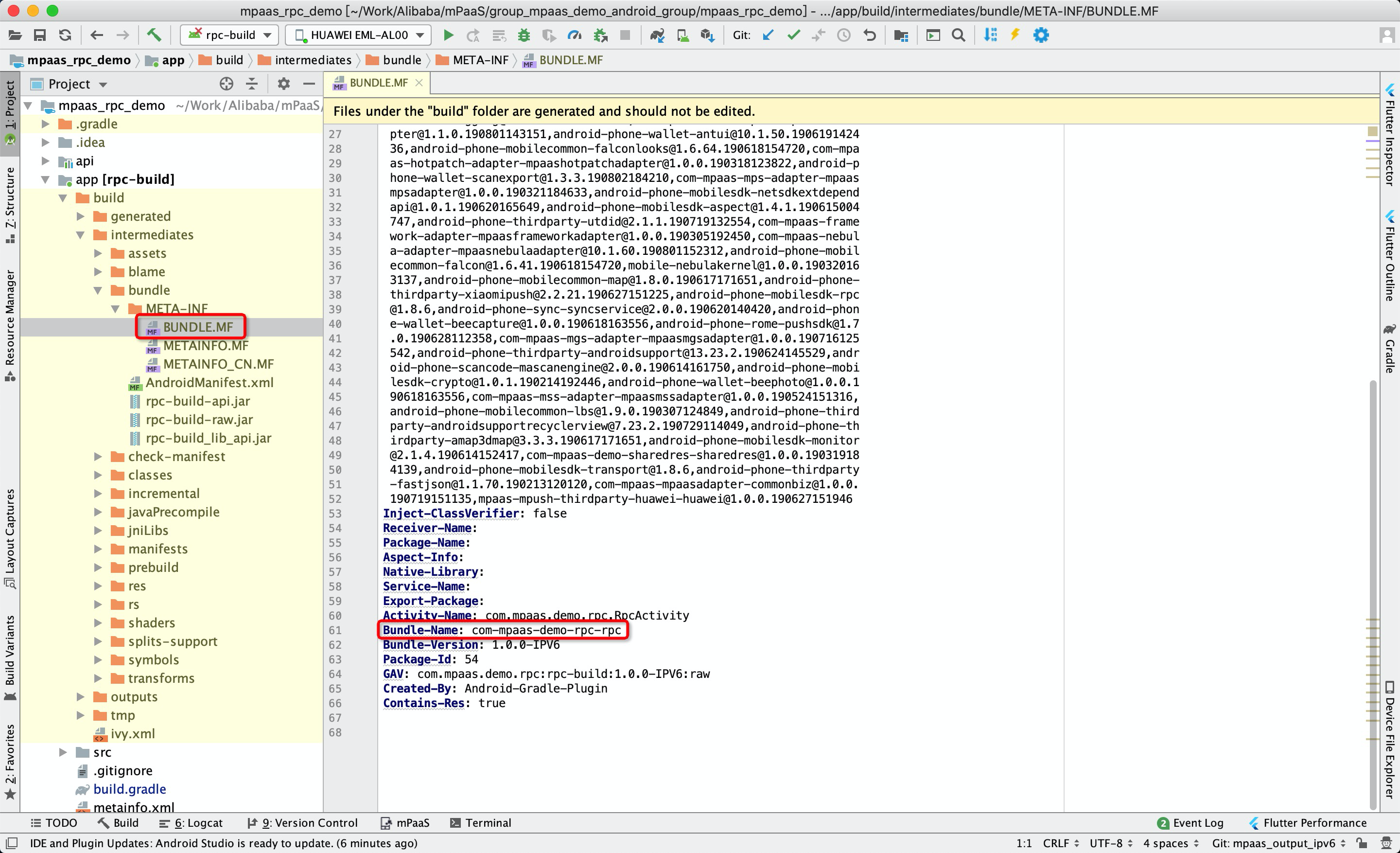
Resources resource = QuinoxAgent.getInstance().getResourcesByBundle("name of the bundle that contains the resource");NoteYou can find the `bundlename` in the `/build/intermediates/bundle/META-INF/BUNDLE.MF` file of the main module in the Bundle project.
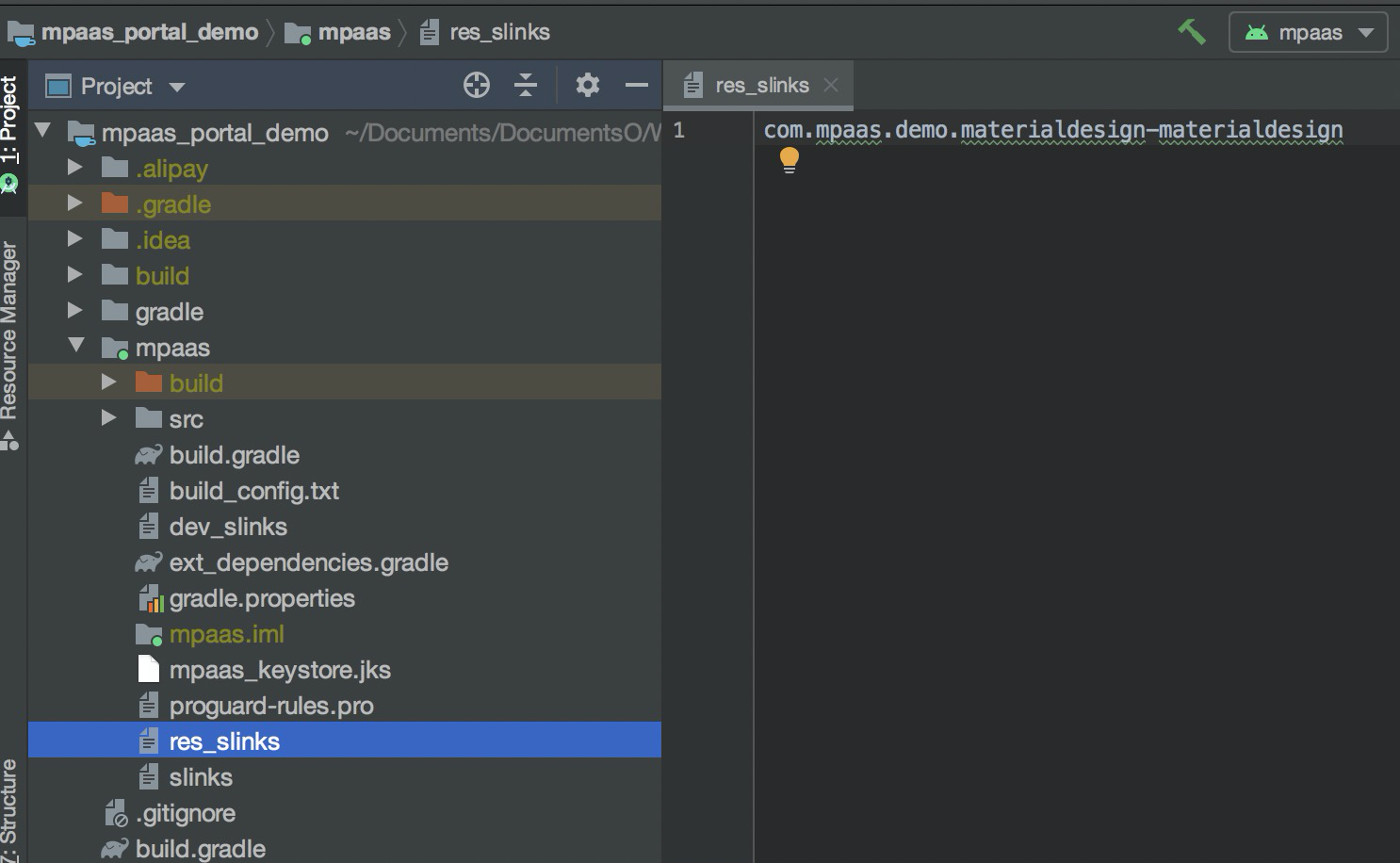
For the 60 series baseline, create a `res_slinks` file in the main module of the Portal project. In this file, add the `group` and `artifact` of the bundle that contains your resources. The required format is the `group` name, a hyphen, and the part of the `artifact` name that precedes the first hyphen. For example, if `group = com.mpaas.demo.materialdesign` and `artifact = materialdesign-build`, the value to add to the `res_slinks` file is `com.mpaas.demo.materialdesign-materialdesign`. If the combined content is long and requires a line break, ensure that the line break is handled correctly.
After you complete this configuration, you can access resources directly by calling `LayoutInflator.inflate(R.layout.xxx)`.
Register the privacy permission dialog box callback class in the `AndroidManifest` file of the `portal`. The `value` must be the fully qualified path of the callback class that you implemented. The following code shows an example. Make sure to replace the full path and class name with your specific callback class.
<!--Privacy permission dialog box callback-->
<meta-data
 android:name="privacy.listener"
 android:value="com.mpaas.demo.launcher.MyPrivacyListener" />
Enable dialog box interception by adding the required code to the `preInit` method of `MockLauncherApplicationAgent`. The following code shows an example:
// Check if the privacy permission dialog box needs to be displayed to the user.
if(!PrivacyUtil.isUserAgreed(getApplicationContext())){
 PermissionGate.getInstance().waitForUserConform(mContext, getMicroApplicationContext());
}
Start the first Activity by navigating to it in the
postInitmethod ofMockLauncherActivityAgent. The code is as follows:public class MockLauncherActivityAgent extends LauncherActivityAgent { private Handler mUIHandler = new Handler(Looper.getMainLooper()); @Override public void preInit(Activity activity) { super.preInit(activity); } @Override public void postInit(final Activity activity) { super.postInit(activity); if (PrivacyUtil.isUserAgreed(activity)) { mUIHandler.postDelayed(new Runnable() { public void run() { Intent intent = new Intent(activity, MainActivity.class); activity.startActivity(intent); activity.finish(); } }, 1000); } else { PermissionGate.getInstance().registerPrivacyCallback( new PrivacyCallback() { @Override public void onTermsOfUseAgreed() { mUIHandler.postDelayed(new Runnable() { public void run() { Intent intent = new Intent(activity, MainActivity.class); activity.startActivity(intent); activity.finish(); } }, 1000); } } ); } } }