Push user tag datasets to Data Bank
You can push the ID field and enumeration-type tag fields from a user tag dataset to Data Bank. This process also applies to custom tag datasets.
Procedure
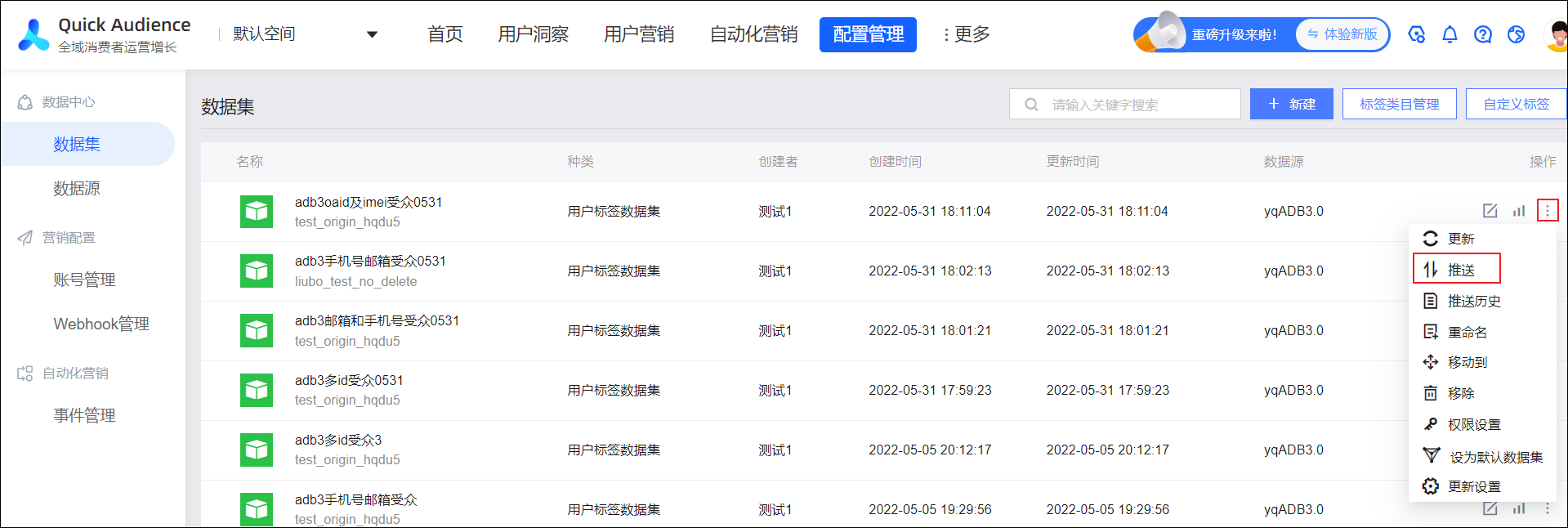
Go to Workspace > Configuration Management > Data Center > Dataset. In the row that contains the user tag dataset, click the
 icon and select Push.
 Note
NoteThe user tag dataset must contain more than 5,000 and fewer than 200 million records.
The number of matched users in Data Bank must be at least 2,000.
In the dialog box, select Data Bank from the Push to drop-down list, and then select the target brand.
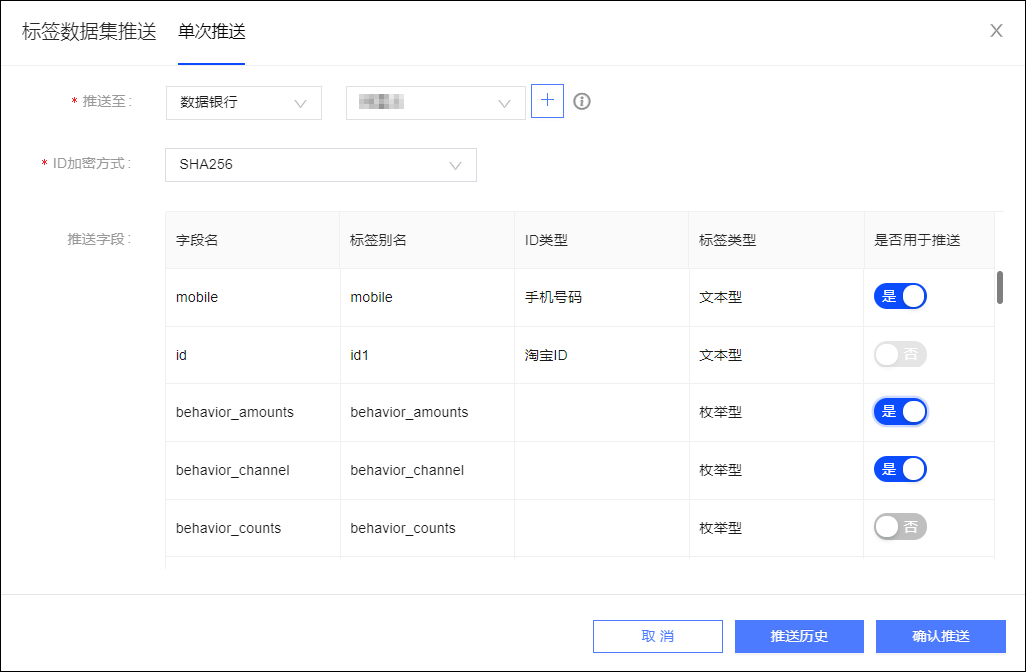
ID encryption method: Select whether the ID field is encrypted. If it is, select the encryption method.
NoteIf the ID field is encrypted, select the corresponding encryption method. The options are MD5, SHA256, and AES. If the ID field is not encrypted, select Unencrypted.
If you select AES, the AES-encrypted IDs are decrypted during the push. Decryption requires an AES key. For more information about how to configure the AES key, see Organization Settings.
If you select MD5 or SHA256, only some marketing channels support these encrypted IDs for marketing activities. For more information, see the documentation for the relevant marketing channels.
Fields to push: In the list, select one ID field and the tag fields of the enumeration type that you want to push.
NoteYou must select exactly one ID field. You cannot push IDs of the following types to Data Bank: OneID, UnionID, OpenID, Weibo ID, or Alipay ID.
In addition to the ID field, you can only push tags of the enumeration type that contain 200 or fewer values.
A single push can include a maximum of 10 fields, including the ID field and tag fields.
If a tag value exceeds 8 Chinese characters or 16 English characters, or contains a sensitive word, Data Bank processes it as an unknown value.
If a tag that you are pushing conflicts with an existing tag in Data Bank, the message Tag already exists, please select a processing method is displayed for that tag. You have the following options:
Overwrite existing tag: Overwrites the data of the existing tag.
Add as a new tag: Adds a new tag named `OriginalFieldName_OrdinalNumber`.
To set all conflicting tags to overwrite the existing ones, select Overwrite All in the upper-right corner of the field list.
Click Confirm Push. The data is then pushed to Data Bank.
NoteIf a push concurrency limit is set for Data Bank in the Management Center, push requests that exceed the limit are queued. For more information about how to set the limit, see Space System Settings.
Click Push History to view the results.
As shown in the figure, the crowd size in the list indicates the number of pushed user identities.
If a push fails, click Repush. If a push is successful, click Go to Data Bank to use the pushed data.