Developer tools FAQ
This page lists frequently asked questions about developer tools, such as Xcode and the mPaaS Extension. Click a question to view the answer.
The guide page does not open after running the mPaaS Xcode Extension installation command
The mPaaS menu item is missing in Xcode after a successful mPaaS Xcode Extension installation
Can I use the mPaaS Xcode Extension with multiple Xcode installations?
File selection is slow in the mPaaS plugin after installation
Xcode crashes on startup after the mPaaS plugin is installed
The guide page does not open after running the mPaaS Xcode Extension installation command
If you are installing the mPaaS Xcode Extension for the first time, check the installation log in the terminal. If an error occurred, review the error message. If the log shows that the installation was successful, you can manually open the application to start the guide page.
For subsequent installations, use the built-in upgrade feature to upgrade the extension. To reinstall the extension, you must close Xcode and all mPaaSPlugin processes before you run the installation command. Otherwise, the installation fails.
The mPaaS menu item is missing in Xcode after a successful mPaaS Xcode Extension installation
Confirm that the terminal displays an "Installation Successful" message and that you have opened the guide page and clicked "Start". If the guide page did not open, you can open it manually. Then, perform the following checks:
Restart Xcode.
Confirm that Xcode is not in an unsigned state.
Check whether the mPaaS extension is enabled. Go to System Preferences > Extensions > Xcode Source Editor and make sure that the mPaaS checkbox is selected. If it is not selected, select it.
If the mPaaS option is not displayed in System Preferences, the extension has failed to load. You can run the following command to check:
pluginkit -m -p com.apple.dt.Xcode.extension.source-editorIf the result is empty, you can try to fix the issue by running the following command:
/System/Library/Frameworks/CoreServices.framework/Frameworks/LaunchServices.framework/Support/lsregister -f /Applications/Xcode.appAfter the command finishes, run the first command again. If the output includes the mPaaS plugin, the fix was successful. You can then restart Xcode. If the issue persists, you must reinstall Xcode.
Accidentally clicked "Don't Allow" during system authorization after installing the mPaaS Xcode Extension
You can grant the authorization manually in System Preferences. Go to System Preferences > Security & Privacy > Privacy > Automation. Under mPaaSPlugin, select the checkboxes for Xcode and System.
Can I use the mPaaS Xcode Extension with multiple Xcode installations?
No, you cannot. The Xcode Extension loading mechanism supports only one Xcode path. The extension loads from the default path: /Applications/Xcode.app.
How to restore the Xcode signature
Removing the signature does not affect the functionality of Xcode. You can use one of the following methods to restore the signature:
Run the following command in your terminal:
mpaas xcode restoreInstall
reuse_xcode_pluginsand then restore the signature:gem install reuse_xcode_plugins reuse_xcode_plugins --restore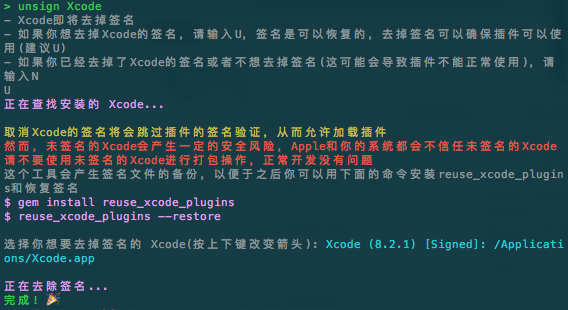
File selection is slow in the mPaaS plugin after installation
Preventing Xcode from accessing the address book:
Open System Preferences > Security & Privacy > Privacy > Contacts and clear the Xcode checkbox.
Open System Preferences > Security & Privacy > Privacy > Contacts and clear the Xcode checkbox.
If the previous step does not resolve the issue, a system bug may have been triggered. For more information, see Handling Font Book. If the issue persists, you can try switching your system language to English.
Xcode crashes on startup after the mPaaS plugin is installed
This crash occurs because an existing plugin is not compatible with Xcode 8 or later. In the ~/Library/Application\ Support/Developer/Shared/Xcode/Plug-ins directory, delete any plugins other than mPaaSPlugin.xcplugin. Then, restart Xcode.