Resolve the "NoSuchKey. The specified key does not exist" error when loading an H5 application in the mPaaS Nebula container.
Symptoms
After you complete the basic integration, an H5 application fails to open and the container page displays the error message "NoSuchKey. The specified key does not exist...", as shown in the following figure: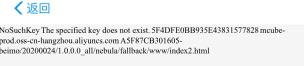
Error example:
<Error>
<Code>NoSuchKey</Code>
<Message>The specified key does not exist.</Message>
<RequestId>5F4DFBE4F1AC943937FBCA6D</RequestId>
<HostId>mcube-prod.oss-cn-hangzhou.aliyuncs.com</HostId>
<Key>A5F87CB301605-beimo/20200024/1.0.0.0_all/nebula/fallback/www/index2.html</Key>
</Error>
Common causes
The mPaaS Nebula container is trying to access a file that does not exist on the MDS server. This typically happens when the client requests a resource that is not included in the offline package and the resource cannot be found in the local client cache or at the online fallback address.
Troubleshooting steps
Perform the following checks to troubleshoot this issue:
-
Verify that the page address of the H5 app is correct.
-
Verify that the relevant resources are correctly packaged in the offline package.
Confirm that the H5 app page address is correct
Check the following scenarios:
-
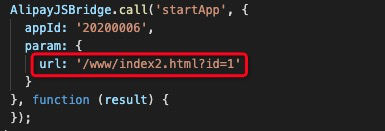
If you are opening the H5 app directly, verify that the URL parameter is correct.

-
Check the page redirection logic of the H5 app. Verify that the target URL is set correctly for redirection methods, such as
pushWindow()andlocation.href. -
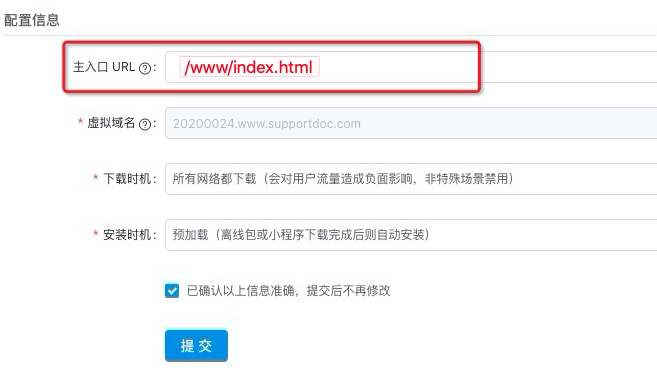
When you upload the offline package, you must configure a default entry URL for the H5 app. If this URL is not configured or is incorrect, the container cannot find the correct page address when opening the H5 app, which causes this error.
Confirm that the relevant resources are packaged correctly in the offline package
-
Download the
.amrfile from the console. Change the file extension to.zipand decompress the file. Then, decompress the.tarfile in the new folder to view the resource files from the offline package.
 Then, verify that the folder contains the page resource file that you want to open.
 -
Verify that the app's environment configuration matches the offline package's environment:
-
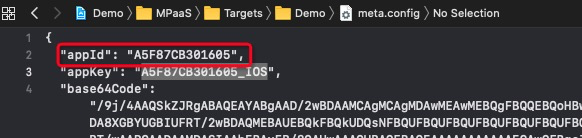
Check the App ID in the
meta.configfile of the app project: -
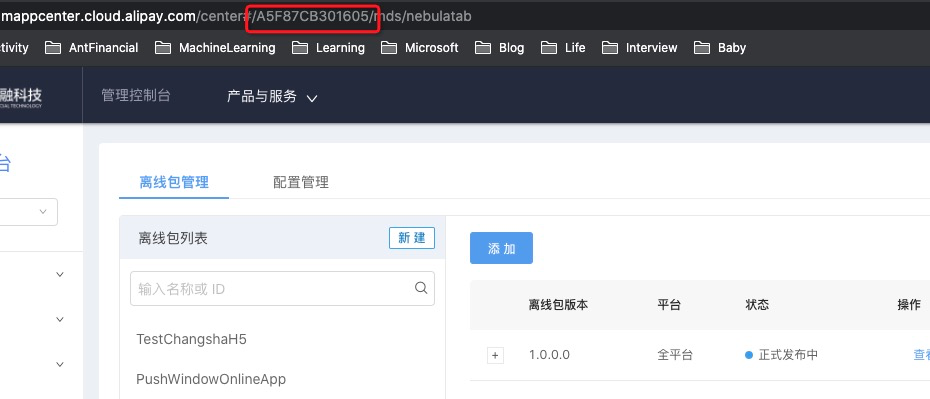
Check the App ID for the target H5 app's offline package in the console.
-
 Then, verify that the folder contains the page resource file that you want to open.