Service routing
When a service consumer can choose from multiple service providers, routing rules determine which provider to use. Service routing provides flexible routing capabilities, allowing you to define multiple routing rules for various scenarios.
Features
Service routing is often used for offline joint testing, blue-green deployments, and canary releases. It helps minimize the impact of issues caused by version upgrades.
Offline joint testing
During offline testing, if the required environment is unavailable, you can register the test application online and use a routing rule to direct traffic to your local machine for testing.
Blue-green deployment
For a blue-green deployment, you can use a routing rule to switch traffic to the green group. This lets you test if the new application version works correctly.
Canary release
For a canary release, you can use a routing rule to direct traffic to the canary application version. This lets you test if the canary version works correctly.
The current version supports routing for SOFA, Spring Cloud, and Dubbo services.
Service routing filters service providers based on the configured rules. These rules take effect on the service consumer, which is the client. The two main execution entities are the RPC-Client for classic microservices and MOSN for Service Mesh.
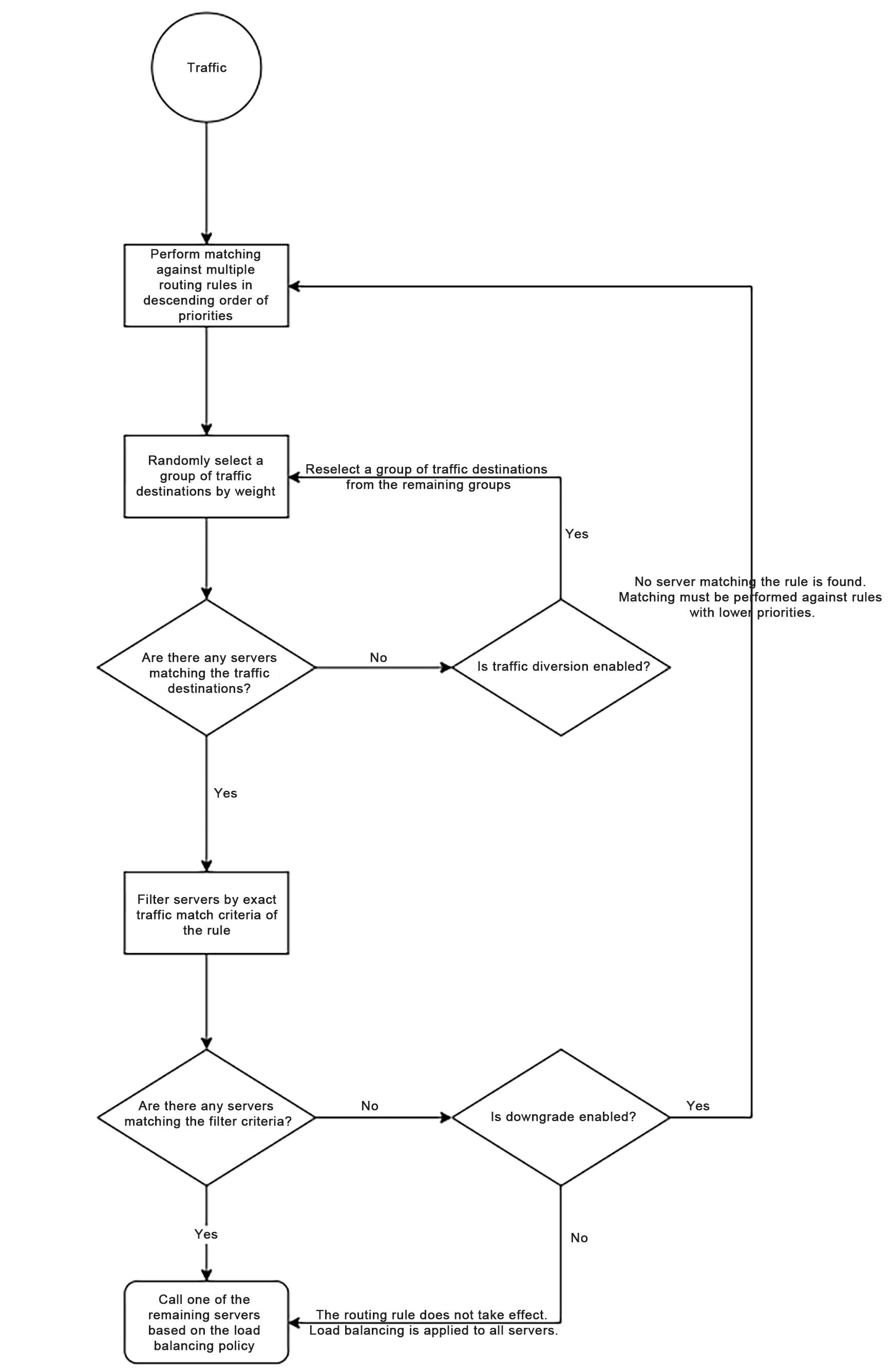
When you deploy a service provider, you can add a label in a fixed format to the machine, such as `LABEL=A`.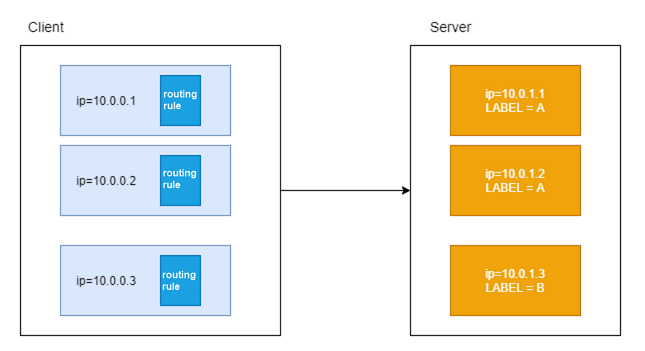 The following figure illustrates how a routing rule takes effect.
Add a routing rule
Log on to the Service Mesh console.
In the navigation pane on the left, click Service Administration, and then click the Service Routing tab.
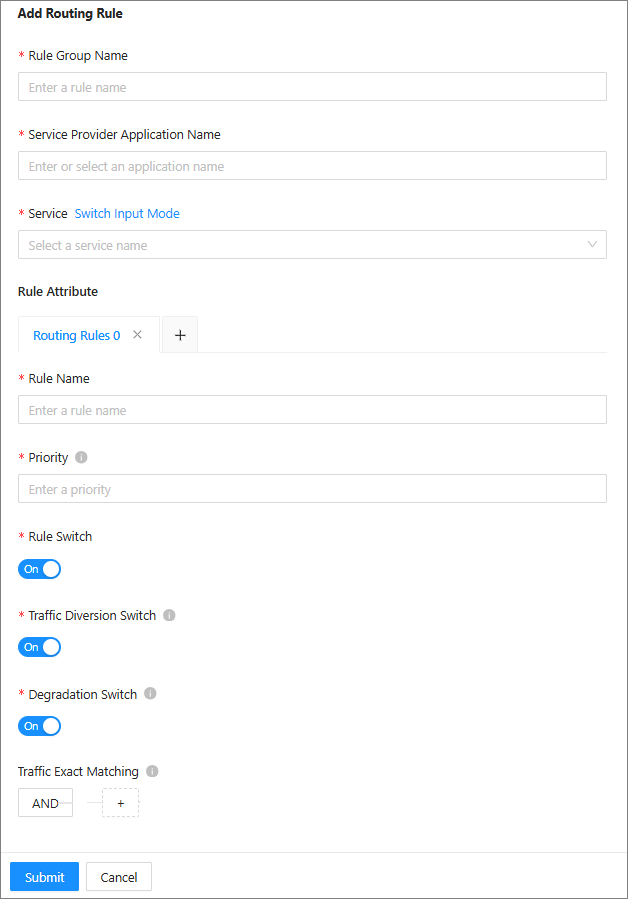
Click Add Routing Group Rule and configure the following parameters:
Area
Parameter
Description
Basic Information
Rule Group Name
The name of the routing rule group.
Server-side Application Name
The name of the server-side application.
Service
You can configure the application services.
Click Switch Input Mode to switch between manual entry and dropdown selection.
Rule Properties
Rule Name
The name of the routing rule.
Priority
The priority of the route. A larger number indicates a higher priority.
If multiple routes exist, they are matched based on priority.
Rule Switch
Enable or disable the routing rule. The rule is enabled by default.
Traffic Diversion Switch
Forward traffic to other groups if no service instance is available in the destination group.
If this switch is turned on and no service instance is matched in a high-weight group, traffic is matched against other groups.
If this switch is turned off, traffic is not matched against other groups.
Fallback Switch
Match other rules if no service instance is matched for the entire rule.
If this switch is turned on and no service instance is matched for the current rule, traffic is matched against routing rules with lower priorities.
If this switch is turned off, traffic is not matched against other routing rules.
Exact Traffic Match (Optional)
Filter requests that require a routing rule based on traffic matching conditions. Only traffic that meets these conditions uses this rule. Traffic that does not meet the conditions follows the fallback logic and is matched against lower-priority routing rules. If you leave this blank, all traffic is matched.
Multiple conditions are executed in order until a rule intercepts the traffic or all conditions are met. The rule includes the following content:
Field: Includes system fields, request headers, and label scopes.
Field Name: The value varies based on the field type.
System field: Includes traffic type, caller application name, caller IP address, and server-side application name.
Request header: Refers to the request header of a protocol. For example, for the Dubbo protocol, it is the attachment. For the HTTP protocol, it is the Request Header. You can define custom request header parameters and values in your application.
Label scope: Enter a label.
Logic: Includes equals, not equals, in, not in, and regex.
Field Value: The value that corresponds to the field name.
Traffic Destination
Weight
Set the weight of the current traffic destination group. The sum of weights for all traffic destinations must be 100%.
Click the Add button at the bottom to configure multiple traffic destination groups.
Service Instance Grouping Condition
Configure the conditions for grouping service instances. Multiple conditions have a logical AND relationship.
Field Name: The property of the service instance. You can select a value from the dropdown list or enter a custom value.
Logic: Equals.
Field Value: The value that corresponds to the field name.
Click the Add button below to configure multiple grouping conditions.
Click Submit.
In the service routing list, change the status of the new routing rule to Enabled.
You can add multiple routing rules. Rules for the same application are merged.
Edit a routing rule
You can edit an existing routing rule at any time. The changes take effect in real time after you submit them.
On the Service Routing tab, click the plus sign (+) to the left of the target application.
Click Edit to the right of the target routing rule.
Edit the routing rule as needed, and then click Submit.
Delete a routing rule
You can delete an existing routing rule. The deletion takes effect in real time. Proceed with caution.
On the Service Routing tab, click the plus sign (+) to the left of the target application.
Click Delete to the right of the target routing rule.
Click OK.