Inject faults into applications to test how they respond to abnormal conditions. This helps you identify and resolve potential issues before deployment. Fault injection is typically performed in staging environments.
Add a fault injection rule
Log on to the Service Mesh console.
In the navigation pane on the left, click Service Governance, and then click the Fault Injection tab.
Click Add Injection Group Rule and configure the following parameters:
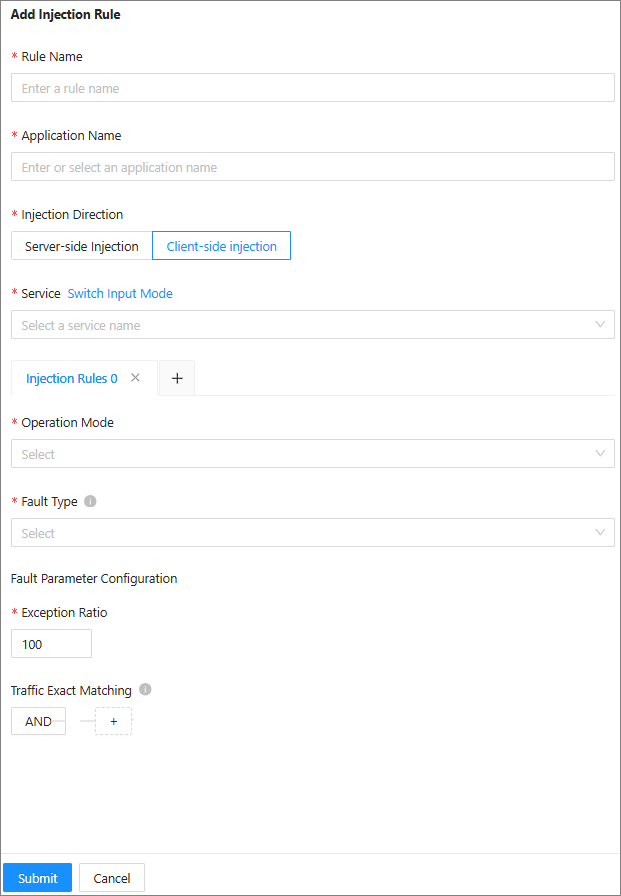
Parameter
Description
Rule Name
The name of the fault injection rule.
The name can be up to 255 characters long.
Application
Select or enter the name of the target application. An asterisk (*) indicates all applications.
Injection Direction
The direction of fault injection. Valid values:
Server-side Injection: Injects faults on the server-side of the application.
Client-side Injection: Injects faults on the client side of the application.
Service
The service where faults are injected. Click Switch Input Mode to switch between manual entry and dropdown selection.
Method
The method for fault injection. An asterisk (*) indicates all methods.
Runtime Mode
The runtime mode of the fault injection rule. Valid values:
Block Mode: Injects faults into requests that meet the conditions.
Observer Mode: Does not inject faults into requests that meet the conditions. Instead, it only prints logs in MOSN.
Fault Type
Fault injection supports injecting events such as faults or timeouts to test how a service handles exceptions. This simulates abnormal service conditions. Valid values:
Abort Fault: Injects a runtime exception to abort the request and returns a predefined status code.
Timeout Fault: Increases the response time for matching requests. The request is still called normally.
Anomaly Ratio
Set the percentage of unusual traffic to inject. For example, a value of 80 injects unusual traffic into 80% of the traffic.
Exact Traffic Match (Optional)
The conditions for matching traffic. The fault injection rule applies only to traffic that meets these conditions. If you leave this empty, all traffic is matched.
You can configure multiple matching conditions. The conditions are combined with a logical AND and are matched in order. The parameters are as follows:
Field: You can select system fields and request headers.
Field Name: The value depends on the field type.
System Field: Includes traffic type, caller application name, caller IP, service provider application name, and service provider IP.
Request Header: Refers to the request header of the protocol. For example, for the Dubbo protocol, this is the attachment. For the HTTP protocol, this is the Request Header. You can define custom request header parameters and values in your application.
Logic: Includes equals, not equals, in, not in, and regex.
Field Value: The value that corresponds to the field name.
Click Submit, and then click OK.
In the list of fault injection rules, set the status of the rule that you just created to Enabled.
NoteIf multiple fault injection rules target the same service, only the first rule takes effect.
Edit a fault injection rule
You can edit an existing fault injection rule at any time. The changes take effect in real time after you submit them.
On the Fault Injection tab, click Edit in the row of the target fault injection rule.
Edit the rule as needed, and then click Submit.
Delete a fault injection rule
You can delete an existing fault injection rule. The deletion takes effect immediately. Proceed with caution.
On the Fault Injection tab, click Delete in the row of the target fault injection rule.
Click OK.