Best Practices for Building a Proprietary Knowledge Base Q&A System with Qianxun Search and Alibaba Cloud Model Studio
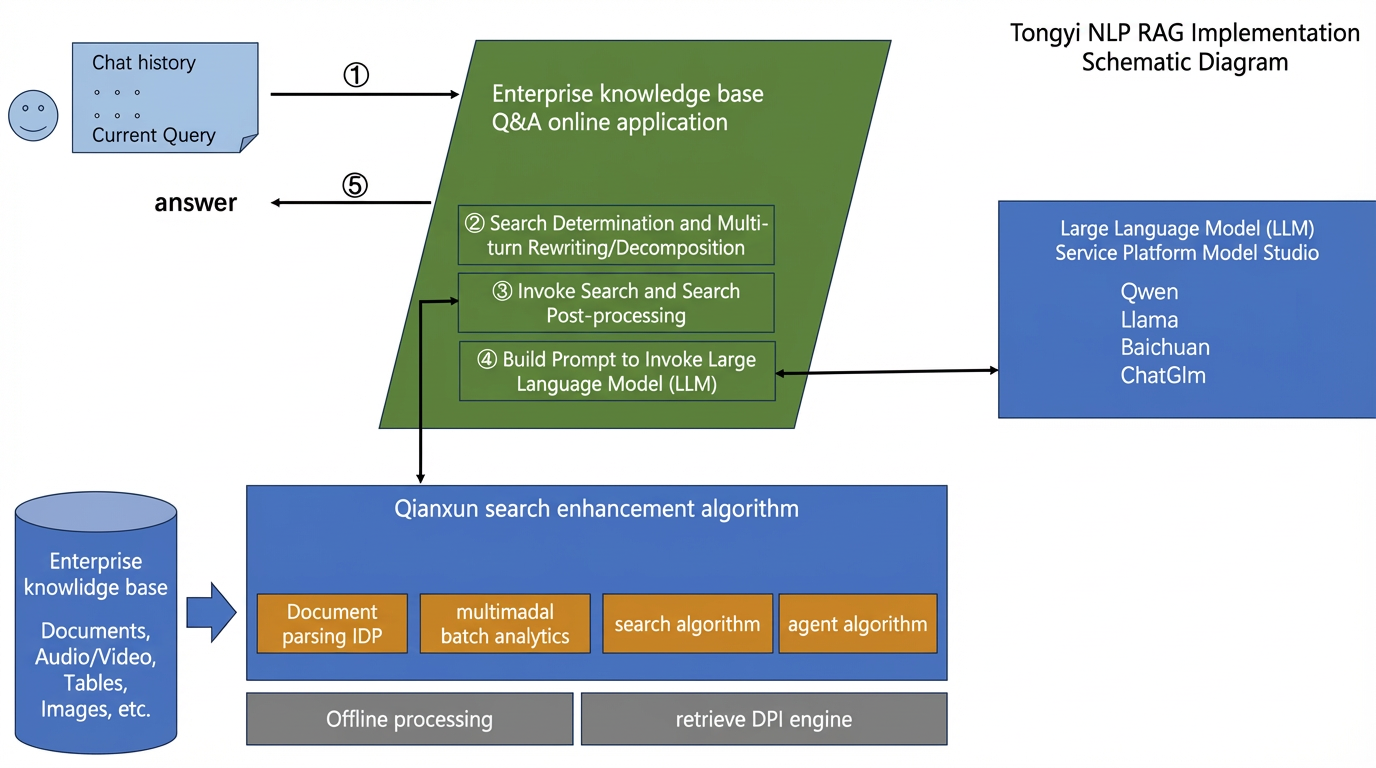
1. Build Qianxun Large Language Model Search Service
Qianxun Large Language Model Search Service is a one-stop intelligent search Platform as a Service (PaaS) built on a large-scale distributed search engine. It provides infrastructure, APIs, and search tools for enterprise developers. The service integrates fully self-developed multilingual query analysis capabilities (such as tokenization, named entity recognition (NER), error correction, rewriting, and categorization), pre-trained vector representation capabilities with multiple model structures (encoder-only, decoder-only), and hybrid retrieval and multi-factor sorting capabilities (such as text-matching, deep semantic matching). Compared to pure vector retrieval, it achieves industry-leading search performance.
For more information, see Enterprise Intelligent Search: Natural Language Processing (NLP) - Alibaba Cloud Help Center.
The service is not yet generally available. To try the product, you must use the targeted whitelist configuration method. It will be officially released to the public in the future. Therefore, building a Qianxun Large Language Model Search service currently involves the following five steps:
-
Apply for a trial
-
Purchase resources
-
Prepare data
-
Configure the service
-
Test Service
1.1. Apply for a Trial
-
Step 1: Activate the NLP service
-
Step 2: Navigate to the NLP console
-
Step 3: Log in to your Alibaba Cloud account
-
Step 4: Click to enter the Qianxun Large Language Model Search platform
After purchasing and activating the product, you can use it.
1.2. Purchase Resources
Purchase the following resources:
-
Search engine
-
Data storage
1.2.1. Search Engine
The search engine provides the basic components for retrieval services. You can add an engine in Resource Center > Engine Management, or directly select or add one from Overview > Create Service. If no engine is available, click I need to purchase a new engine.
The following table lists the supported engines. Configure them as needed:
| Supported Engines |
Version |
Configuration |
Plugin |
Links |
| Alibaba Cloud Elasticsearch |
|
|
|
-
Engine configuration process:
-
Select specifications: For non-vector scenarios, at least 2 cores and 8 GB of memory. For vector scenarios, at least 8 cores and 32 GB of memory is recommended.
-
Select plugins: Install the aliws plugin. To do this, navigate to Configuration and Management > Plugin Configuration > System Default Plugin List.
-
Configure secure connections: Enable public network access for the Elasticsearch instance in Configuration and Management > Security Configuration. Then, add the IP address range to the whitelist. (For specific IP address range configuration, contact @Zhang Jiadong. The QR code for the DingTalk group is at the end of this document.)
-
Add an engine:
After configuring the engine, add the public network address and public network port from the basic information of the Elasticsearch instance to the engine management of Qianxun Large Language Model Search. Proceed as follows:
1.2.2. Data Storage Service
Data storage is used to store enterprise knowledge bases. You can manage data sources in the Resource Center, or select or add them directly on the Quick Create page. The following table lists the supported data sources:
| Supported Data Sources |
Links |
| Alibaba Cloud ApsaraDB RDS for MySQL |
|
| Alibaba Cloud MaxCompute |
|
| Alibaba Cloud OSS |
Choose different data building methods based on the data source type:
-
RDS data source: Suitable for storing database data. You can flexibly select database table fields for parsing and index building.
-
OSS data source: Suitable for storing file data. You can specify the bucket and sub-path, and parse specified file types to build an index.
-
Hybrid data source: If the data source includes both file and database data, you can choose the hybrid data source method for access.
For hybrid data source access, purchase ApsaraDB RDS. After purchasing it, navigate to the ApsaraDB RDS console and configure it as follows:
-
Service endpoint: After enabling the public network address, use it to enter the database address in the enterprise search console.
-
Network configuration: Navigate to the ApsaraDB RDS instance, then Whitelist and Security Group > Whitelist Settings > Add Whitelist Group. (For specific IP address range configuration, contact @Zhang Jiadong. The QR code for the DingTalk group is at the end of this document.)
-
Account creation: Navigate to the ApsaraDB RDS instance, then Account Management > User Accounts > Create Account.
Add the public network address and public network port from the ApsaraDB RDS instance's database connection information to the data source management of Qianxun Large Language Model Search.
1.3. Prepare Data
After preparing the data storage service, import and connect data to the service. Some formatting alignment is required:
-
RDS data source: Supports access to database data. Parsing fields are the same as the selected database table fields and are not fixed. If the parsed data is of FAQ type, the database table fields must include the following: id, question, answer, sim_question, url, and gmt_modified.
-
OSS data source: Supports access to file data. Supported file formats for parsing include .pdf, .docx, .txt, .md, and .html. Parsing fields are default fields and are all selected by default. If the parsed data is of FAQ type, supported file formats are .csv or .xlsx, and the data source fields must include id, question, answer, sim_question, and url.
-
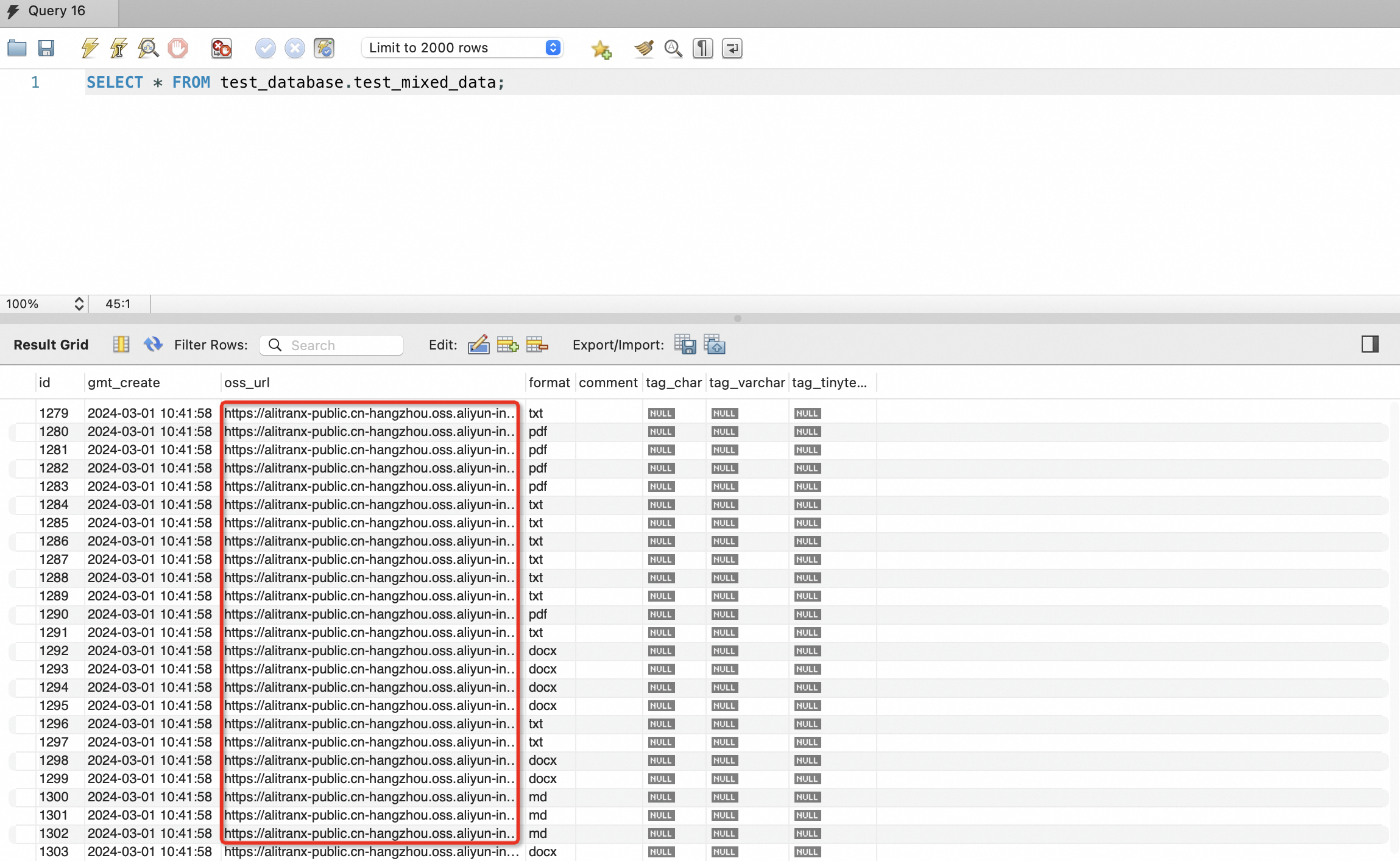
Hybrid data source: Supports access to database and file data. Database data is stored in the corresponding fields for parsing. If file data is also needed, the required fields in ApsaraDB RDS are the primary key, file path field, and file type field, such as id, oss_url, and format in the example. The file path field supports downloadable links or OSS file paths, as shown in the following figure. If you use OSS file paths, configure the corresponding OSS data source during the index building phase. If the parsed data is of FAQ type, it must meet the format requirements of the different data sources mentioned above.
1.4. Configure the Service
After the search engine and data preparation are complete, return to the Qianxun Large Language Model Search service console to create and configure the search service. The specific steps are as follows:
1.4.1. Create a Search Service
-
Navigate to Overview > Search Enhancement > Create Service to enter the service creation interface.
-
Edit the service name and select the engine that the service will use. After creation, proceed to index configuration.
Key concepts for index configuration are as follows:
-
Field name
The field name corresponds to the table field name for instances that use a database table as a data source. The field type remains consistent with the field type defined in the source data table. For instances that use OSS file format as a data source, the field name corresponds to the offline data parsing result field.
-
Index field type
The index field type defines the data type of a field, which allows search engines (such as Elasticsearch) to correctly process and index its values. Common index field types, such as those in Elasticsearch, include the following:
| Index Field Type |
Field Type Description |
| text |
Used to index long text, such as article content or descriptions. Text types undergo tokenization for word-based searching and matching. |
| keyword |
Used to index short text, such as tags or keywords. Keyword types do not undergo tokenization; the entire field is indexed and matched as a whole. |
| integer |
Used to index INT type numbers. Number types can be used for sorting, range queries, and other operations. |
| long |
Used to index LONG type numbers. Number types can be used for sorting, range queries, and other operations. |
| double |
Used to index DOUBLE type numbers. Number types can be used for sorting, range queries, and other operations. |
| float |
Used to index FLOAT type numbers. Number types can be used for sorting, range queries, and other operations. |
| date |
Used to index dates and times. Date types can be used for date range queries, sorting, and other operations. |
| Boolean |
Used to index Boolean values, which are true or false. |
| binary |
Used to index binary data, such as images or files. |
-
Text Chunking
If the text length of this field is long and needs to serve as reference content for Large Language Model answers, select this field. If enabled, the long text in this field is chunked into shorter text blocks. If disabled, the latter part of some longer texts will be truncated. The content field of OSS data sources is enabled by default.
-
Vectorization
Text vectorization is the process of converting text data into numerical vectors. It represents words and sentences in text as vectors to calculate relevance in tasks such as information retrieval. Enabling vectorization improves search accuracy, which allows for correct knowledge retrieval even when user input queries do not literally match relevant knowledge base content.
-
Analyzer
During index building, an analyzer (or tokenizer) is a tool that splits text data into words. It is an important component in text analytics, used to build inverted indexes for searching and matching text. An analyzer splits input text according to specific rules, which allows a long text to be divided into multiple words for indexing and searching.
1.4.2. Select Vectorization Version
Currently, you can select two vectorization versions: text-embedding-v1 and text-embedding-v2.
1.4.3. Associate File Data
If the data source includes both file and database data, and both the 'file path field' and 'file type field' are database fields, enable the 'Associate File Data' feature. After enabling it, the system automatically validates the configuration. If there are duplicate fields between the source data table and the system's automatically extended fields ('title', 'content', 'parent', 'hier_title', 'nid'), you must exit the process and change the field names.
-
Enable the 'Associate File Data' switch. File storage types support both OSS and HTTP. If you select OSS, configure the corresponding OSS data source. The file path field content will then be the OSS path of the source file. If you select HTTP, the file path field must be a downloadable link.
-
Set the primary key, the time field for data updates, search fields, API return fields, and the auto-update option.
Concepts are explained as follows:
-
Primary key
The unique identifier for data.
-
Time field for data updates
Specify the update time field, which serves as the identifier for subsequent index updates. If not specified, the index data will only undergo initial building and will not receive incremental updates.
-
Search fields
Full-text index fields, which must be of keyword or text type. They are used to perform search operations, match query conditions, and limit the search scope.
-
API return fields
API return fields are the result fields returned after a search request. You can select the required business fields in the index configuration. These fields can then be used as reference content in Large Language Model multi-turn conversations.
-
Auto-update
If the data source index configuration requires regular updates, enable this switch. It supports automatic updates hourly, daily, or monthly, and lets you configure the update time and time zone.
1.4.4. Configure Loading
-
Click Create to start creating the service and wait for data processing and engine import.
-
The service is created successfully.
1.5. Test service
Currently, service testing offers two methods:
-
Console testing.
-
SDK testing.
1.5.1. Console Testing:
-
Navigate to Service Management, locate the created service, and click Service Test.
-
You can enter search parameters to perform a search. For more information about configuring search parameters, see Request Parameters in the product documentation.
1.5.2. SDK Testing
Configure environment variables:
export ALIBABA_CLOUD_ACCESS_KEY_ID=YOUR_ALIBABA_CLOUD_ACCESS_KEY_ID
export ALIBABA_CLOUD_ACCESS_KEY_SECRET=YOUR_ALIBABA_CLOUD_ACCESS_KEY_SECRET
1.5.2.1. Python SDK
-
Install dependencies using pip:
pip install alibabacloud-alinlp20200629-
Python example code:
import os
import json

from alibabacloud_alinlp20200629 import client, models
from alibabacloud_tea_openapi import models as api_models


# Create a search client.
config = api_models.Config(
  access_key_id=os.environ['ALIBABA_CLOUD_ACCESS_KEY_ID'],
  access_key_secret=os.environ['ALIBABA_CLOUD_ACCESS_KEY_SECRET'],
  region_id="cn-beijing")
nlp_client = client.Client(config)

# Configure a search request.
request = models.PostMSSearchEnhanceRequest()
request.service_id = 1017  # Service ID.

# Online query.
query = 'test'

# Configure and request the search service.
request.uq = query  # User query.
request.page = 1  # Page number.
request.rows = 5  # Number of rows per page.
response = nlp_client.post_mssearch_enhance(request)

# Print the search results.
print(json.dumps(response.body.data, ensure_ascii=False))
1.5.2.2. Java SDK
-
Maven dependencies:
<dependency>
    <groupId>com.aliyun</groupId>
    <artifactId>alinlp20200629</artifactId>
    <version>3.0.0</version>
</dependency>

<!--Introduce if java.lang.NoSuchMethodError: com.aliyun.credentials.Client.getCredential()Lcom/aliyun/credentials/models/CredentialModel; exception occurs-->
<dependency>
    <groupId>com.aliyun</groupId>
    <artifactId>credentials-java</artifactId>
    <version>0.3.0</version>
</dependency>-
Java example code:
public static void main(String[] args) throws Exception {
    // Create a search client.
    Config config = new Config();
    config.setEndpoint("alinlp.cn-beijing.aliyuncs.com");
    config.setAccessKeyId("xxxx");
    config.setAccessKeySecret("xxxx");
    Client client = new Client(config);

    // Configure a search request.
    PostMSSearchEnhanceRequest postMSSearchEnhanceRequest = new PostMSSearchEnhanceRequest();
    postMSSearchEnhanceRequest.setServiceId(1017L);	// Service ID.

    // Online query.
    postMSSearchEnhanceRequest.setUq("test");	// User query.

    // Configure and request the search service.
    postMSSearchEnhanceRequest.setPage(1);		// Page number.
    postMSSearchEnhanceRequest.setRows(5);		// Number of rows per page.
    postMSSearchEnhanceRequest.setFields(Lists.newArrayList("name","title", "content"));	// Retrieval fields (forward index).
    PostMSSearchEnhanceResponse response = client.postMSSearchEnhance(postMSSearchEnhanceRequest);

    // Print the search results.
    System.out.println(JacksonUtils.toJson(response));
}
2. Alibaba Cloud Model Studio Service Setup
2.1. Introduction to Alibaba Cloud Model Studio
A complete knowledge base Q&A pipeline requires an LLM to summarize the question and retrieved knowledge base content, then generate a final response after relevant knowledge is retrieved. However, packaging a large language model into a stable, reliable, maintainable, and extensible service is a complex engineering task. Alibaba Cloud Model Studio packages various AI models into API services through standardized packaging, which enables application developers to invoke them easily.
Alibaba Cloud Model Studio supports multiple Large Language Models (LLMs), including proprietary Qwen series models and third-party models such as Llama and Baichuan. For more information about models, see Model List.
2.2. Activate and Build
For more information about enabling and setting up Alibaba Cloud Model Studio, see the relevant information on the Alibaba Cloud official website: Quick Start.
3. Build an Online Q&A Pipeline
After building the search service and integrating with Alibaba Cloud Model Studio, you will have:
-
Knowledge base search capabilities.
-
Large Language Model generation capabilities.
Next, combine these two capabilities to build a complete online knowledge base Q&A pipeline, as shown in the following figure:

Phased Example Description
Step 1. Pre-search Processing - Multi-turn Search Intent Determination
The input for pre-search processing is the historical turn Q&A information (History) and the current turn's original input (Query). The output is the rewritten Query that will be passed to the search service. You can achieve this by calling the Multi-turn Rewriting API. In real-world scenarios, there are also special cases that do not require a search (such as a 'hello' query, which does not need knowledge base search). You can handle these questions using the Search Determination API. Therefore, first perform multi-turn rewriting to summarize the core intent of multi-turn queries. Then, the search determination module categorizes the rewritten query.
For details about the API, see the Development Reference: Natural Language Processing (NLP) document. The following are examples of API calls.
Search Determination API Features and Call Example
Feature summary: In many scenarios, a search engine may not be necessary, because Large Language Models can answer well. However, many open-domain real-time questions cannot be answered without a search engine. Therefore, the goal of the search determination module is to determine when retrieval is needed. This improves the efficiency of retrieval-augmented generation (RAG) and enhances overall performance.
Call example:
import os
import json

from alibabacloud_alinlp20200629 import client, models
from alibabacloud_tea_openapi import models as api_models


# Create a search client
config = api_models.Config(
  access_key_id=os.environ['ALIBABA_CLOUD_ACCESS_KEY_ID'],
  access_key_secret=os.environ['ALIBABA_CLOUD_ACCESS_KEY_SECRET'],
  region_id="cn-beijing")
nlp_client = client.Client(config)

# Configure a search determination request
request = models.PostISRetrieveRouterRequest()

# Configure and request the search determination service
request.algorithm = 'retrieve_router'
input_str = '{\"query\": \"Search determination test\"}'
request.input = json.loads(input_str)
response = nlp_client.post_isretrieve_router(request)

# Print search determination results
print(json.dumps(response.body.data, ensure_ascii=False))
Multi-turn Query Rewriting API Features and Call Example
Feature summary: In scenarios involving multi-turn conversations with users, search engines typically cannot directly process user queries or conversation history. Therefore, in the RAG process, understanding conversation history and rephrasing user queries is crucial. Multi-turn query rewriting can significantly improve RAG's retrieval efficiency, content generation quality, and user experience. This enhances RAG's overall performance.
Call example:
import os
import json

from alibabacloud_alinlp20200629 import client, models
from alibabacloud_tea_openapi import models as api_models


# Create a search client
config = api_models.Config(
  access_key_id=os.environ['ALIBABA_CLOUD_ACCESS_KEY_ID'],
  access_key_secret=os.environ['ALIBABA_CLOUD_ACCESS_KEY_SECRET'],
  region_id="cn-beijing")
nlp_client = client.Client(config)

# Configure a multi-turn query rewriting request
request = models.PostISConvRewriterRequest()

# Configure and request the multi-turn query rewriting service
request.algorithm = 'conversation_rewriter'
request.model = 'dashscope-conv-rewrite-1.8b'
input_str = '{\n' + \
            '    \"query\": \"Is it expensive?\",\n' + \
            '    \"history\": [\n' + \
            '        {\n' + \
            '            \"role\": \"user\",\n' + \
            '            \"content\": \"What is black catalpa wood?\"\n' + \
            '        },\n' + \
            '        {\n' + \
            '            \"role\": \"assistant\",\n' + \
            '            \"content\": \"Black catalpa wood is a widely used timber, also known as \'stinky parasol\' in Northeast China. It is widely distributed and produced in large quantities, often used for many decorative components.\"\n' + \
            '        }\n' + \
            '    ]\n' + \
            '}'
request.input = json.loads(input_str)
response = nlp_client.post_isconv_rewriter(request)

# Print multi-turn query rewriting results
print(json.dumps(response.body.data, ensure_ascii=False))
Step 2. Search Processing
from alibabacloud_alinlp20200629 import client, models
from alibabacloud_tea_openapi import models as api_models


# Create a search client
config = api_models.Config(
    access_key_id=os.environ['ALIBABA_CLOUD_ACCESS_KEY_ID'],
    access_key_secret=os.environ['ALIBABA_CLOUD_ACCESS_KEY_SECRET'],
    region_id="cn-beijing")
search_client = client.Client(config)

# Configure a search request
request = models.PostMSSearchEnhanceRequest()
request.service_id = YOUR_SERVICE_ID  # Get the service_id after building it in the console


# Online query
query = 'What is the focal length of the TD3B bulb camera?'

# Request the search service
request.uq = query
request.rows = 5  # Set search parameters: number of documents to return
response = search_client.post_mssearch_enhance(request)
search_results = response.body.data["data"]["docs"]
print(search_results)
Step 3. Post-search Processing
To improve the final Q&A performance of the LLM, post-processing is usually required after calling the search service and retrieving search results. The most common post-processing involves placing search results into the prompt and using chain-of-thought to enhance the LLM's answering effectiveness.
Example Code for Prompt Construction with Search Results
By parsing the response data from the search service, you obtain a list of search results. Each element in the list is a relevant document segment. In the preset format, each document segment contains at least 'title' and 'content' fields to store text information. You can use the following native Python code to construct the prompt and message for LLM answers:
# Search result example
search_results = [
    {"title": "Title text of the search result.", "content": "Content text of the search result."}
]

# Assemble search results into prompt/messages
system = f'You are a helpful assistant.\n\n'
messages = [{'role': 'system', 'content': system}]
if len(search_results) != 0:
    text_result_str = '\n\n'.join([f'{x.get("title", "")}: {x.get("content", "")}' for x in search_results]).strip()
    ctx = f'\n\nThe following information comes from your knowledge base and may help answer some questions:\n\n{text_result_str}\n\nPlease remember this knowledge base information.'
    messages.append({'role': 'user', 'content': ctx})
    a = 'Okay, I have remembered this knowledge base information. How can I help you with your questions?'
    messages.append({'role': 'assistant', 'content': a})
messages.append({'role': 'user', 'content': query})
print(messages)
For time-sensitive questions, you can also add current time information to the prompt:
import datetime

def get_current_date_str() -> str:
    beijing_time = datetime.datetime.utcnow() + datetime.timedelta(hours=8)
    cur_time = beijing_time.timetuple()
    date_str = f'Current time: {cur_time.tm_year} year {cur_time.tm_mon} month {cur_time.tm_mday} day, '
    date_str += ['Mon', 'Tue', 'Wed', 'Thu', 'Fri', 'Sat', 'Sun'][cur_time.tm_wday]
    date_str += '.'
    return date_str

system = f'You are a helpful assistant.\n\n{date_str}'
messages = [{'role': 'system', 'content': system}]
Step 4. Call Alibaba Cloud Model Studio for Q&A
After assembling the prompt, call the DashScope SDK for Q&A.
import dashscope


# Request DashScope for Q&A
response = dashscope.Generation.call(
    model=dashscope.Generation.Models.qwen_max,
    prompt=prompt)

if response.status_code == 200:
    print(response.output)  # The output text
    print(response.usage)  # The usage information
else:
    print(response.code)  # The error code.
    print(response.message)  # The error message.
Full Pipeline Example Code
Integrating the full pipeline code results in the following practice:
Configure Environment Variables
export ALIBABA_CLOUD_ACCESS_KEY_ID=YOUR_ALIBABA_CLOUD_ACCESS_KEY_ID
export ALIBABA_CLOUD_ACCESS_KEY_SECRET=YOUR_ALIBABA_CLOUD_ACCESS_KEY_SECRET
export DASHSCOPE_API_KEY=YOUR_DASHSCOPE_API_KEY
Single-turn Q&A Python Example Code
import datetime
import dashscope
from alibabacloud_alinlp20200629 import client, models
from alibabacloud_tea_openapi import models as api_models


# Create a search client
config = api_models.Config(
    access_key_id=os.environ['ALIBABA_CLOUD_ACCESS_KEY_ID'],
    access_key_secret=os.environ['ALIBABA_CLOUD_ACCESS_KEY_SECRET'],
    region_id="cn-beijing")
search_client = client.Client(config)

# Configure a search request
request = models.PostMSSearchEnhanceRequest()
request.service_id = YOUR_SERVICE_ID  # Get the service_id after building it in the console

# Online query
query = 'What is the focal length of the TD3B bulb camera?'

# Request the search service
request.uq = query
request.rows = 5  # Set search parameters: number of documents to return
response = search_client.post_mssearch_enhance(request)
search_results = response.body.data["data"]["docs"]

# Assemble search results into prompt/messages
def get_current_date_str() -> str:
    beijing_time = datetime.datetime.utcnow() + datetime.timedelta(hours=8)
    cur_time = beijing_time.timetuple()
    date_str = f'Current time: {cur_time.tm_year} year {cur_time.tm_mon} month {cur_time.tm_mday} day, '
    date_str += ['Mon', 'Tue', 'Wed', 'Thu', 'Fri', 'Sat', 'Sun'][cur_time.tm_wday]
    date_str += '.'
    return date_str

system = f'You are a helpful assistant.\n\n{date_str}'
messages = [{'role': 'system', 'content': system}]

if len(search_results) != 0:
    text_result_str = '\n\n'.join([f'{x.get("title", "")}: {x.get("content", "")}' for x in search_results]).strip()
    ctx = f'\n\nThe following information comes from your knowledge base and may help answer some questions:\n\n{text_result_str}\n\nPlease remember this knowledge base information.'
    messages.append({'role': 'user', 'content': ctx})
    a = 'Okay, I have remembered this knowledge base information. How can I help you with your questions?'
    messages.append({'role': 'assistant', 'content': a})
messages.append({'role': 'user', 'content': query})

# Request DashScope for Q&A
response = dashscope.Generation.call(
    model=dashscope.Generation.Models.qwen_max,
    messages=messages,
    result_format='message')

if response.status_code == 200:
    print(response.output)  # The output text
    print(response.usage)  # The usage information
else:
    print(response.code)  # The error code.
    print(response.message)  # The error message.
Multi-turn Q&A Python Example Code
import json
import dashscope
from alibabacloud_alinlp20200629 import client, models
from alibabacloud_tea_openapi import models as api_models


# Create a search client
config = api_models.Config(
    access_key_id=os.environ['ALIBABA_CLOUD_ACCESS_KEY_ID'],
    access_key_secret=os.environ['ALIBABA_CLOUD_ACCESS_KEY_SECRET'],
    region_id="cn-beijing")
aliyun_client = client.Client(config)

# Query & history
query = 'What about the lens aperture?'
history = [
    {
        "role": "user",
        "content": "What is the focal length of the TD3B bulb camera?"
    },
    {
        "role": "assistant",
        "content": "The focal length of the TD3B bulb camera is 2.8 mm."
    }
]

# Multi-turn rewriting
# Configure and request the multi-turn query rewriting service
rewrite_request = models.PostISConvRewriterRequest()
rewrite_request.algorithm = 'conversation_rewriter'
rewrite_request.model = 'dashscope-conv-rewrite-1.8b'
rewrite_request.input = {
    "query": query,
    "history": history
}
rewrite_response = aliyun_client.post_isconv_rewriter(rewrite_request)

# Configure a search request
search_request = models.PostMSSearchEnhanceRequest()
search_request.service_id = 1007  # Get it after building in the console

# Request search and print results
search_request.uq = query
search_request.rows = 5  # Number of documents to return
response = aliyun_client.post_mssearch_enhance(search_request)
search_results = response.body.data["data"]["docs"]

# Construct the prompt
prompt = f'You are a Q&A chatbot assistant. You can answer some questions, but only those you know.'
if len(search_results) != 0:
    text_result_str = '\n\n'.join([f'{x.get("title", "")}: {x.get("content", "")}' for x in search_results]).strip()
    prompt += f'\n\nThe following information comes from your knowledge base and may help answer some questions:\n\n{text_result_str}\n\nPlease remember this knowledge base information.'
prompt += f'\n\nPlease answer the question: {query}'

# Request LLM
response = dashscope.Generation.call(
    model=dashscope.Generation.Models.qwen_max,
    prompt=prompt
)

# Print results
if response.status_code == 200:
    print(response.output)  # The output text
    print(response.usage)  # The usage information
else:
    print(response.code)  # The error code.
    print(response.message)  # The error message.
4. Additional Notes
The Qianxun Large Language Model Search service console provides knowledge base Q&A services. Its building process is consistent with that of the search enhancement service. For the specific process, see Build Qianxun Large Language Model Search Service in Chapter 2. During offline algorithm processing and index building, configure Large Language Model reference fields. After building it, test the service by following these steps:
-
Navigate to Service Management, locate the created service, and click Service Test.
-
Configure the LLM and search settings. For more information, see the Multi-turn Conversation Search topic in the product documentation.
-
Enter content to search.
-
For specific API calls, see the Java SDK documentation for the product.
5. Contact Us
Scan the QR code to join the DingTalk group:
