Add a virtual MFA device on the Alibaba Cloud app
The virtual MFA tool in the Alibaba Cloud app generates dynamic passwords based on the Time-based One-Time Password (TOTP) protocol (RFC 6238). You can add a virtual MFA device by scanning a QR code or by manual entry. This is used for multi-factor authentication to enhance account security. This topic describes how to add a virtual MFA device by scanning a QR code.
Background information
Virtual MFA (Virtual Multi-Factor Authentication) is a simple and effective security best practice that adds an additional layer of security protection beyond usernames and passwords. These factors combined provide enhanced security for your account. After enabling multi-factor authentication, you will be required to provide two layers of security factors when logging in to Alibaba Cloud:
-
First security factor: Enter your username and password.
-
Second security factor: Enter the verification code generated by your virtual MFA device, or authenticate using a U2F security key.
Before you uninstall the Alibaba Cloud app or delete an attached virtual MFA device from the app, go to the Alibaba Cloud official website to disable the virtual MFA feature or detach the virtual MFA device. Otherwise, you will not be able to log on to Alibaba Cloud. For more information, see Delete a virtual MFA device on the Alibaba Cloud app.
Prerequisites
Make sure that your Alibaba Cloud app is updated to version 4.6 or later.
Procedure
The virtual MFA tool in the Alibaba Cloud app can be attached to third-party services that support multi-factor authentication (MFA). For example, you can associate it with your accounts on platforms such as Google, AWS, and GitHub.
Generate a QR code on the Alibaba Cloud console for PC.
Add an MFA device for an Alibaba Cloud account
Prerequisites: Before you add an MFA device, make sure that you have completed identity verification on your PC. For more information, see Individual identity verification or Enterprise identity verification.
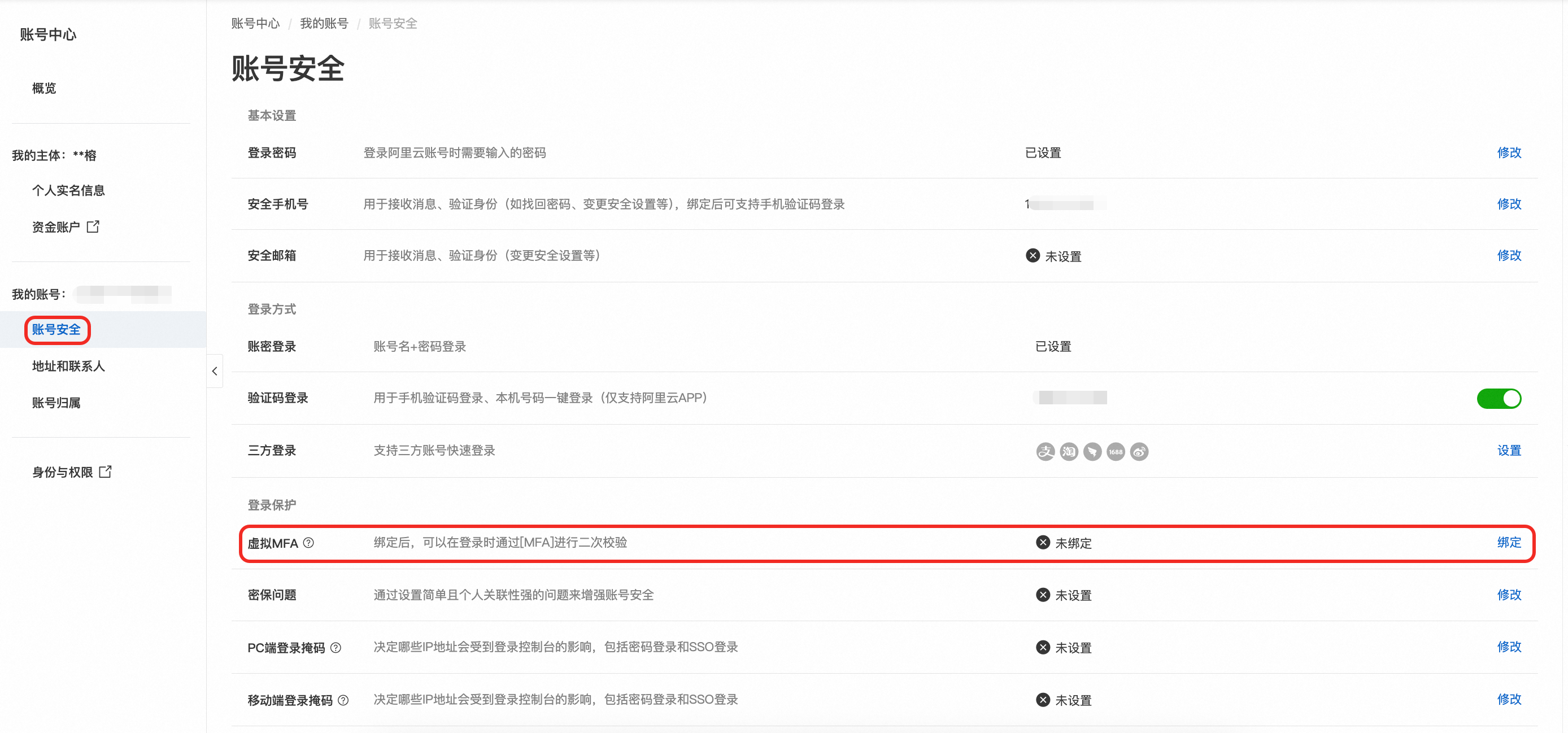
Log on to the Account Center. Under My Account, select Security. Then, click Bind next to Virtual MFA.
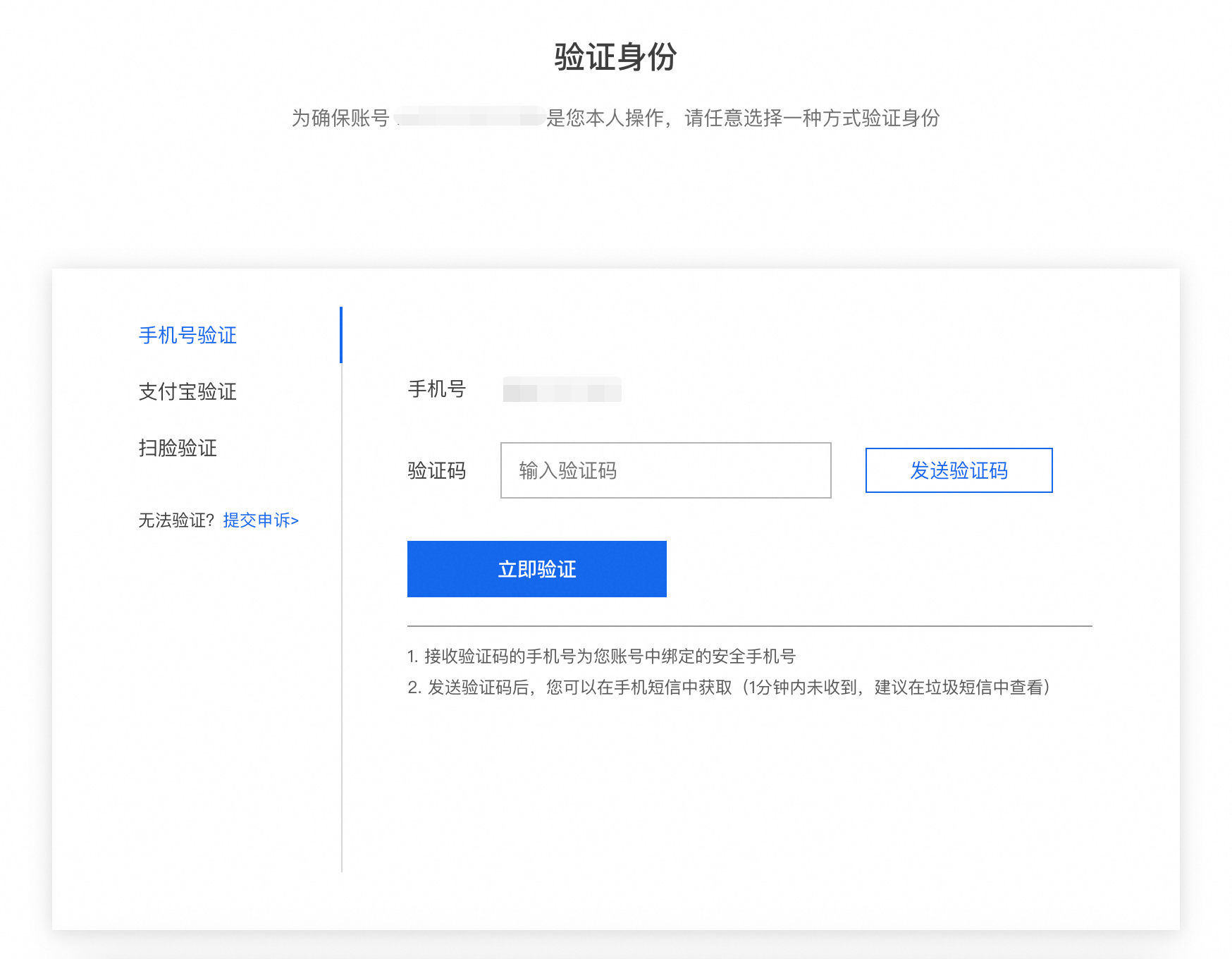
On the Verify Identity page, select an identity verification method.
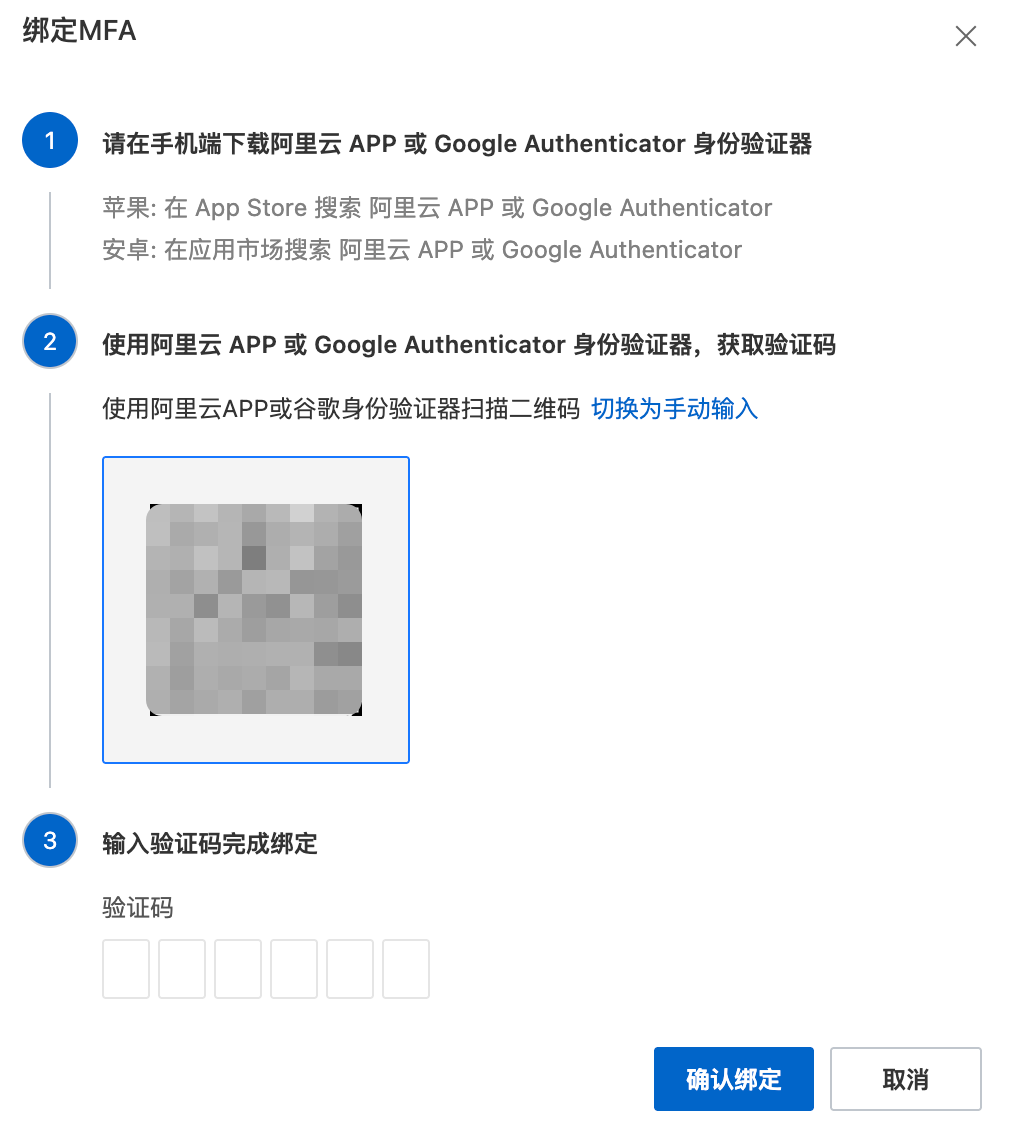
On the Enable MFA page, download and install the Alibaba Cloud app or Google Authenticator as prompted. Then, use the app to get a verification code. Enter the code and click Enable.
Add an MFA device for a RAM user
Limits:
This applies only to Resource Access Management (RAM) users who have not configured a secure phone, virtual MFA device, or passkey. If the RAM user already has other multi-factor authentication methods configured, see Attach a device on the Security Information page of a RAM user.
A RAM user can attach either a virtual MFA device or a U2F security key, but not both.
Go to the RAM user logonRAM user logon page and enter the RAM username and logon password.
Select Virtual MFA Device.
Scan the QR code to add the device using the Alibaba Cloud app.
Open the Alibaba Cloud app and tap the Console tab at the bottom.
In the upper-right corner, tap the
 icon.
icon.On the Virtual MFA page, tap the + icon in the upper-right corner. Tap Scan to Add.
Use your mobile device to scan the QR code that was generated in Step 1. Generate a QR code on the Alibaba Cloud console for PC, and then tap OK.
On the Virtual MFA page, back up the MFA device. You can tap Back Up Now (recommended) or Back Up Later.
NoteWe recommend that you back up the MFA device as soon as possible. Data loss can occur if you replace or lose your phone, clear the Alibaba Cloud app cache, or accidentally delete the MFA device. To avoid business interruptions, back up your data promptly.
For more information about MFA device backup, see Import and export MFA devices on the Alibaba Cloud app.
On the Virtual MFA page of the Alibaba Cloud app, view the verification code.
On the Attach MFA page on your PC, enter the verification code and click Next.
The MFA device is added.