Email rules
Email administrators can set up rules for email moderation, forwarding, and filtering to secure members' incoming and outgoing emails.
Change History:
The features for email monitoring, moderation, and filtering have been consolidated into email rules. Your existing rules have been migrated, so you do not need to create them again.
Procedure
1. Go to domain management > security management > email rules and click create rule.
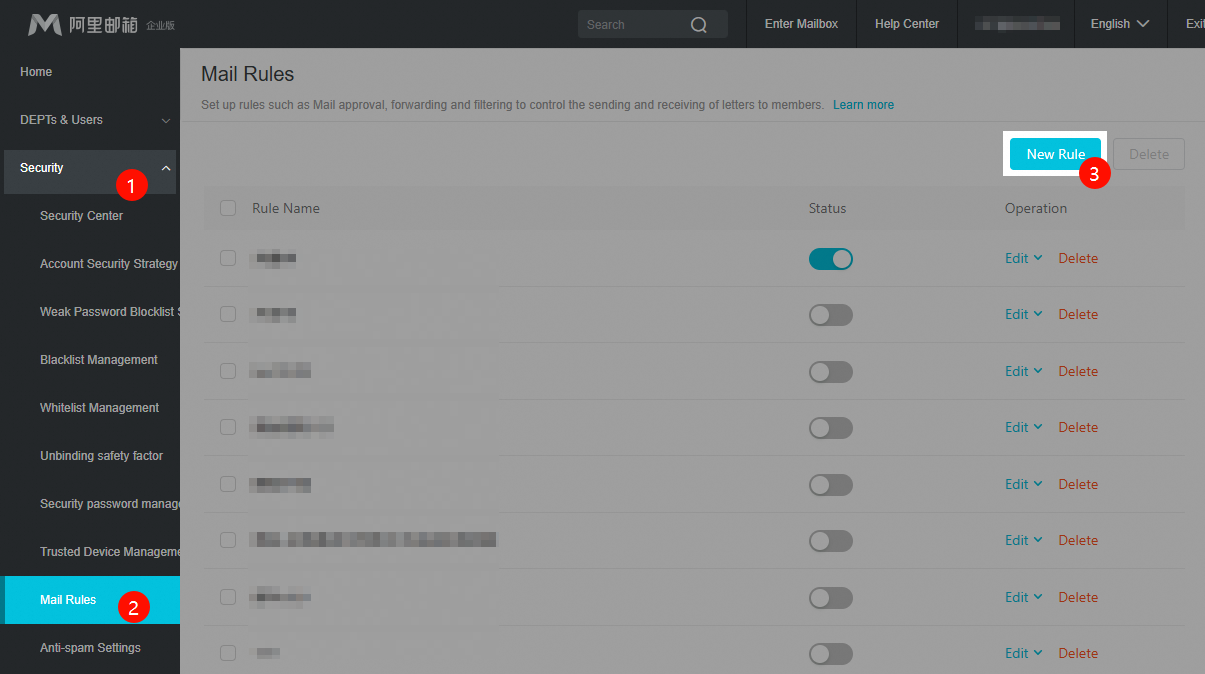
2. Configure the rule details.
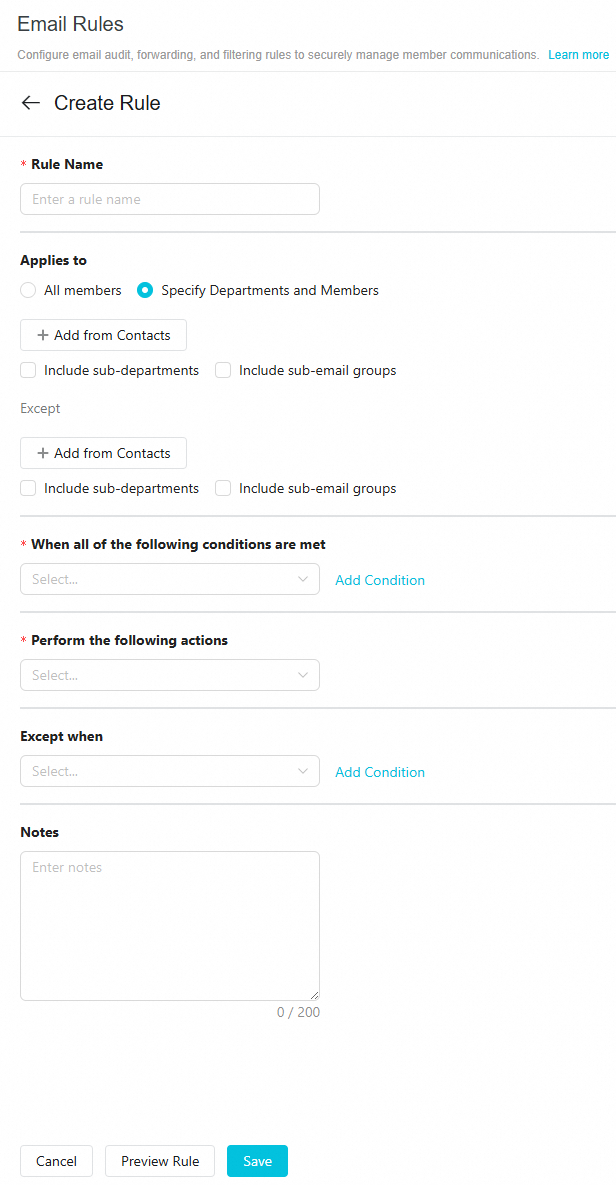
Rule name
Enter a unique name to identify the rule.
Apply to
Select the scope of the rule: All Members or Specified Departments and Members.
Except
You can exclude specific members from the rule.
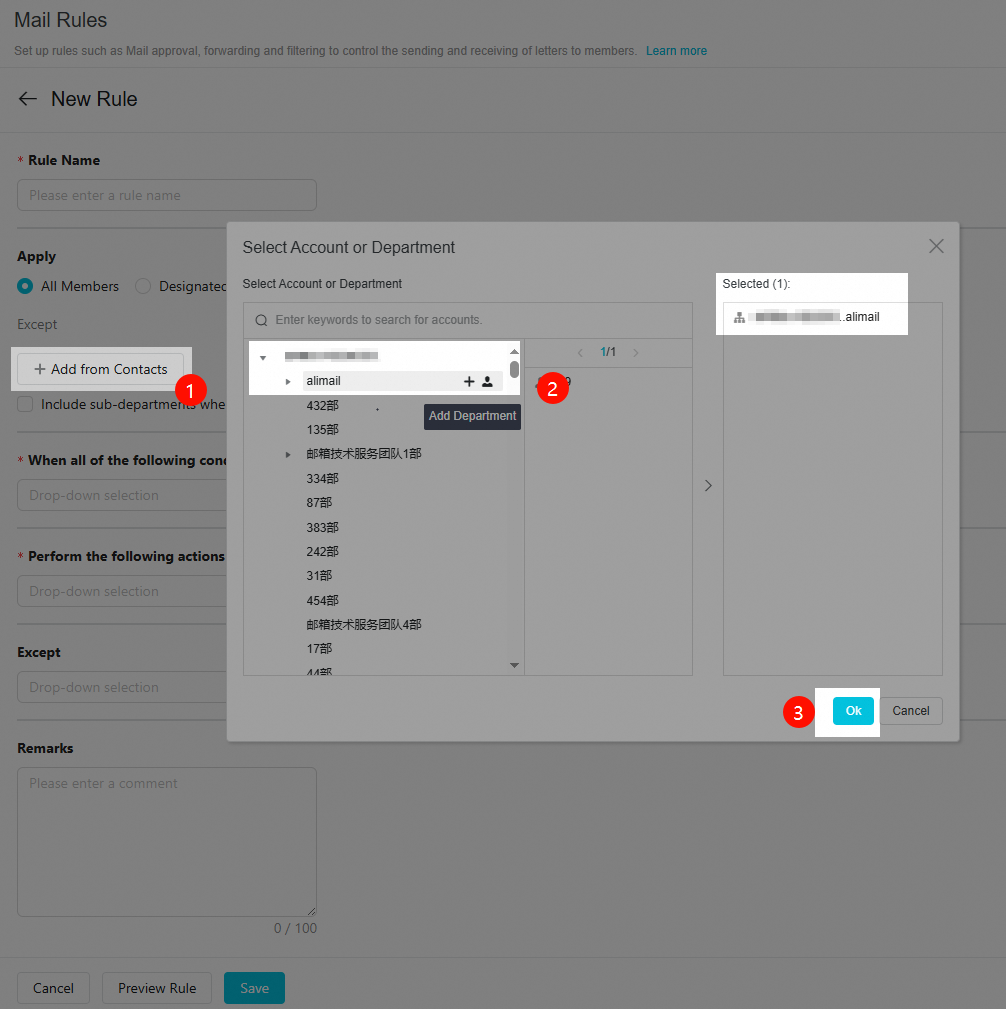
To add departments or members in bulk, click Add from Contacts.
When adding a department, you can choose to include its sub-departments.
Test the rule on a small scope before applying it broadly to prevent disrupting normal email traffic.
When all of the following conditions are met
Available conditions:
Email scope

sender

recipient


Email size is between
The minimum and maximum values are not included in the range.
 The minimum and maximum values are not included in the range.
Contains keywords
You can match keywords in the sender name (the user-defined display name), subject, message body, attachment name, and attachment content (About attachment scanning rules for monitoring and moderation). To add multiple keywords, press Enter to separate them.
 You can match keywords in the sender name (the user-defined display name), subject, message body, attachment name, and attachment content (
Email has attachment

Applies to all emails

Actions
Define the actions to take when an email matches the rule's conditions.

For more details on these actions, see the following topics:
If an email from a specified account or department member matches the specified conditions, the system holds it for approval. A moderator must approve the email before it is delivered to the recipient's mailbox.
The email system automatically processes incoming emails that match the specified conditions. Based on your settings, you can configure the system to reject these emails, mark them as spam, or delete them directly.
email monitoring and forwarding
If an email from a specified account or department member matches the specified conditions, the system automatically forwards it to the monitor's mailbox.
Exceptions
Specify conditions here to exclude emails from this rule.

Description
Enter a description for the rule to clarify the rule's purpose for future reference. The maximum length is 100 characters.
3. After configuring the settings, click preview rule to verify its behavior, then click save rule.

4. The rule is disabled by default. To activate it, toggle the status switch to Enabled.
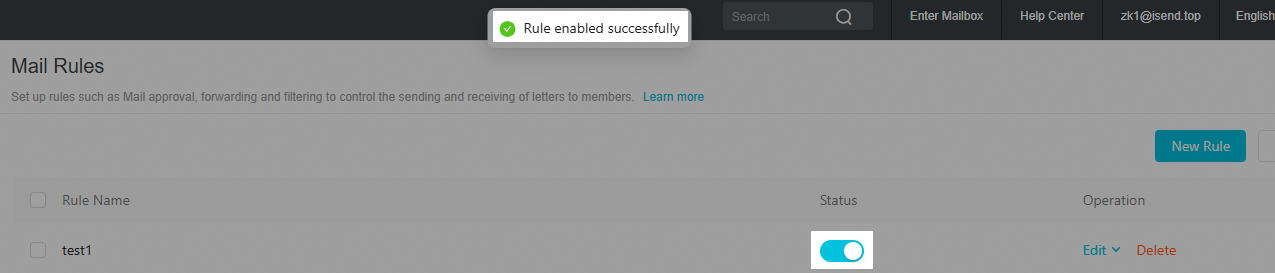
5. To adjust the rule later, you can use the Edit Rule/View Rule/Delete/Disable actions on the email rules management page.
A tiered administrator with email rules permissions can view all email rules.