Command generation helper
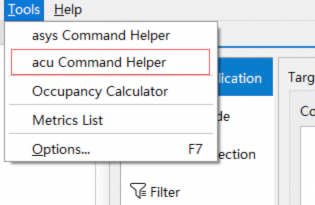
To open the acu command generation helper, click Tools > acu Command Helper on the Asight Compute GUI menu bar.
The command generation helper consists of the following areas:
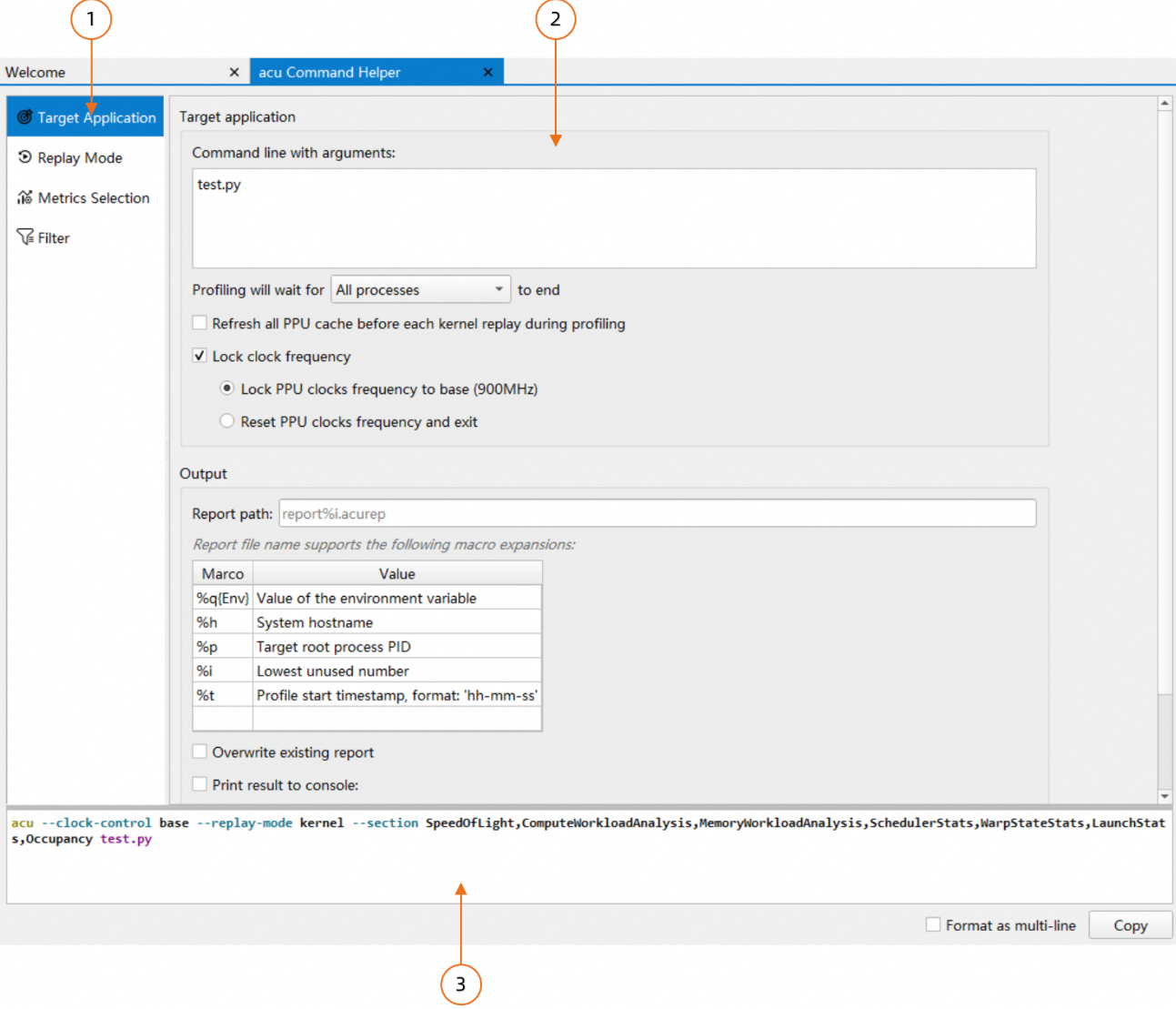
The menu bar, which groups parameters by type.
The parameter configuration area, where you can enable and configure collection options.
The command display area, which generates the
acucommand.
1. Menu bar
The menu is categorized to help you quickly find the collection options you need to configure.
Menu item | Description |
Target application | Configure options related to the target application, such as its path, parameters, and the output report path. |
Replay mode | Configure the replay mode and its specific parameters. |
Metrics selection | Specify the collection scope for metrics and periodically sample the state of the warp scheduler. |
Filter | Configure filters to control the collection scope by kernel, device, and collection time range. |
2. Parameter configuration area
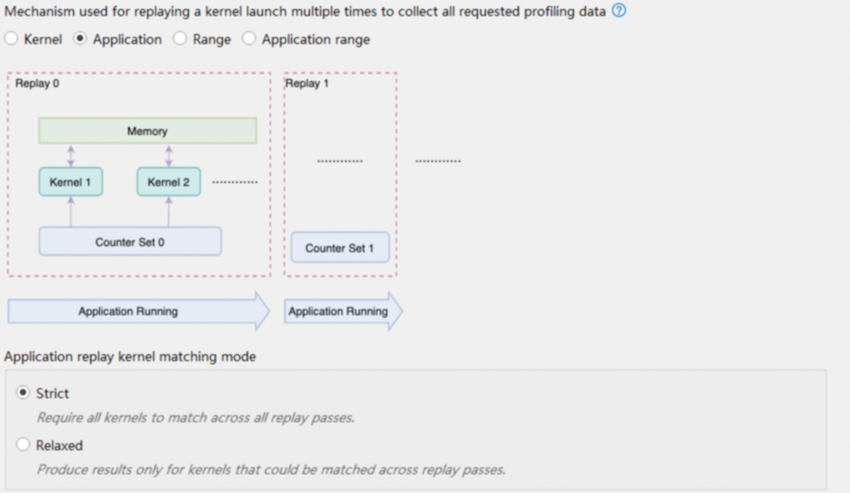
Each configurable option has a text description, and some include a diagram. Supplementary information appears below the option in gray italics.
2.1. Input validation
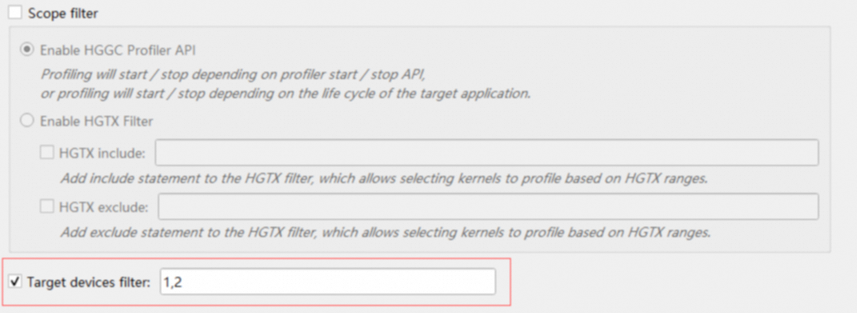
Some input fields validate the content and format of your input. For example, the target devices filter text box only accepts numbers and commas.
2.2. Error messages
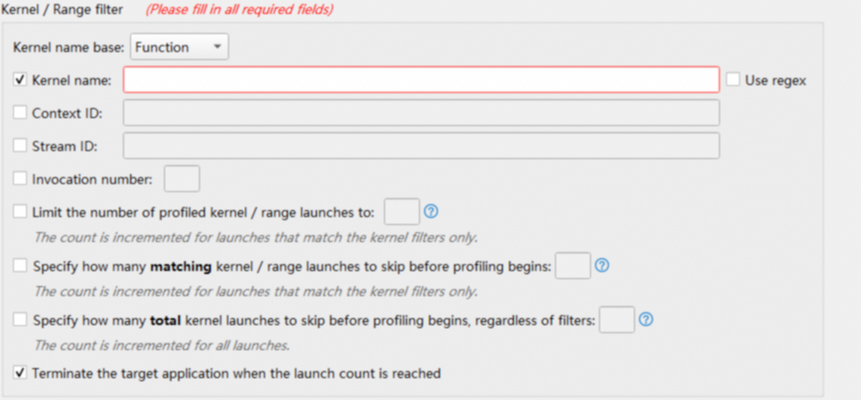
When you enable some options, you must also provide a parameter. If the parameter is left empty, a red error message appears.
2.3. Link to help document
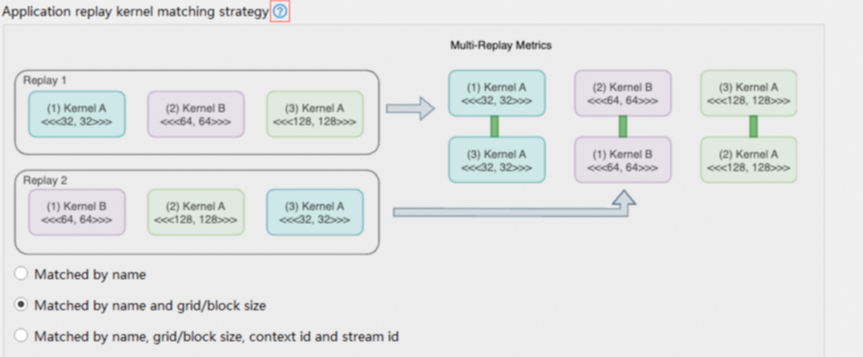
Some options have a Help icon next to them. Click the Help icon next to an option to open the relevant section in the help document.
2.4. Select metrics
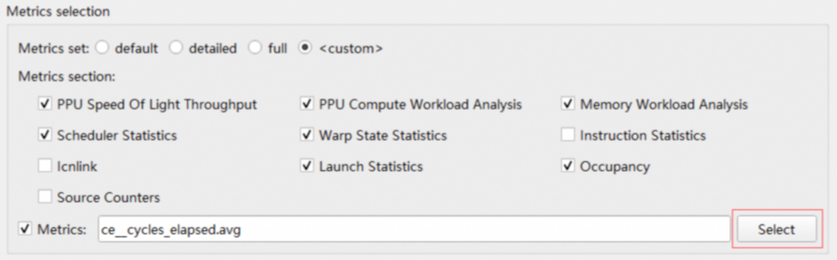
Some options require you to enter metrics. The command generation helper provides a metrics selection dialog. Click the following button to open it:
After you click it, the metrics selection dialog opens:
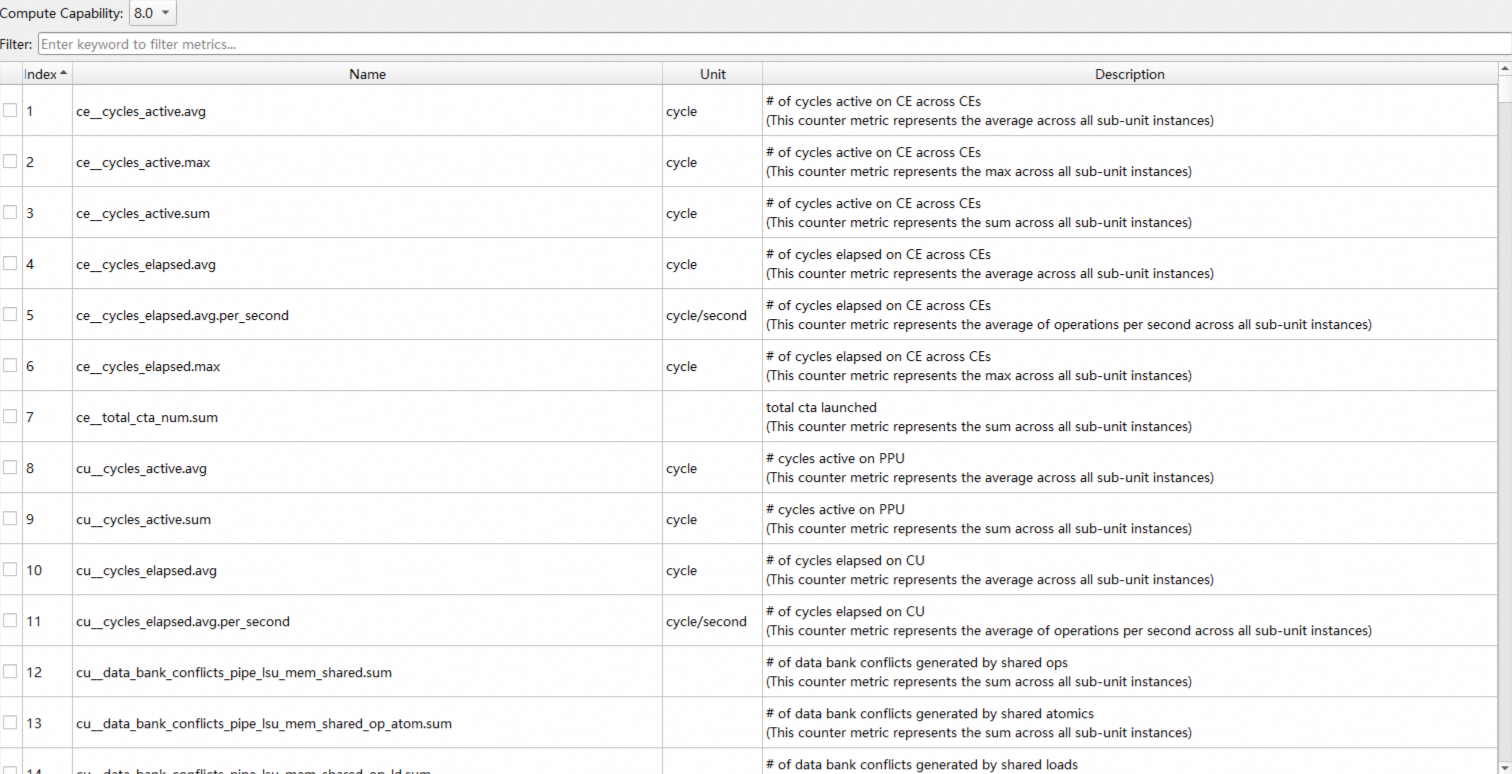
In this dialog, you can select compute capabilities to load corresponding metrics lists. The dialog also includes a filter.
3. Command display area
As you configure parameters, the helper automatically generates and displays the corresponding acu command in the command display area below:

Select the Format as multi-line check box to format the command line across multiple lines:

Click the Copy button to copy the command to the clipboard. Paste it into a terminal and run it to profile the target application.