Rule system
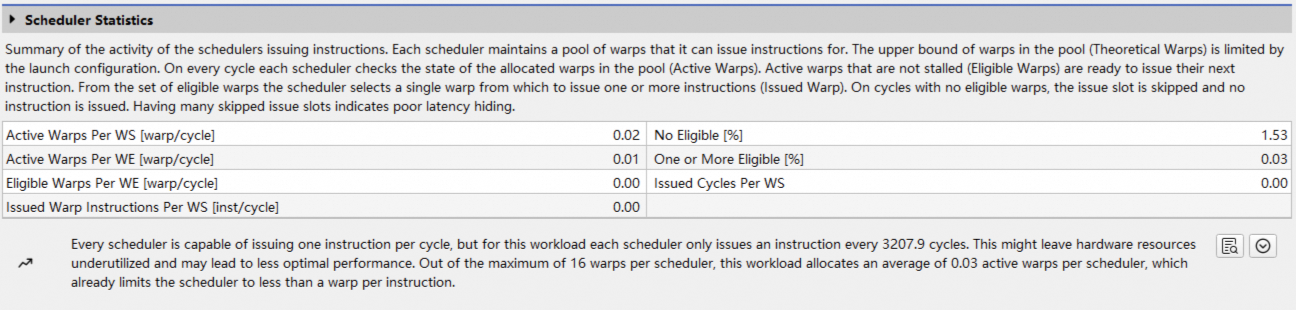
Asight Compute uses a Python-based rule system to detect potential performance issues and provide optimization suggestions in reports. Rules analyze collected metrics and generate messages, warnings, or error messages when they detect specific conditions, as shown in the following figure:
1. Managing rule files
Each rule is a Python (.py) file located in the current user's Documents directory, for example:
C:\Users\<username>\Documents\Asight Systems\2.0.0.0\Sections\
In addition to built-in rules, you can write custom rules as Python files to define rule names, dependent metrics, trigger conditions, and optimization suggestions. All rules are displayed in the Sections Info window. To open it, select View > Show Section Tool:
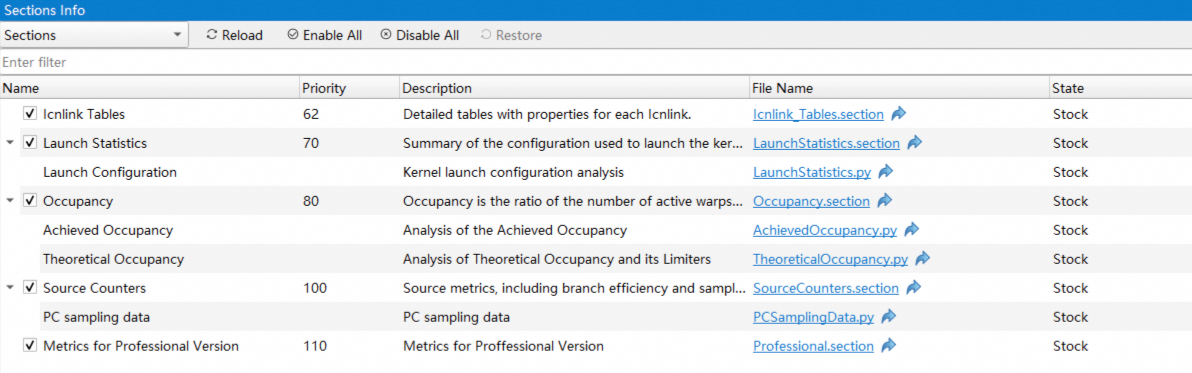
This window displays rules under their corresponding section nodes. The State column shows the current status of each rule:
Stock: An unmodified built-in rule.
User Modified: A rule modified by the user.
User Created: A user-created rule.
User Deleted: A rule deleted by the user.
Clicking the File Name column opens the rule's folder. After modifying a rule, click the Reload button at the top to reload it. If a rule fails to load, the table displays an error message, for example:
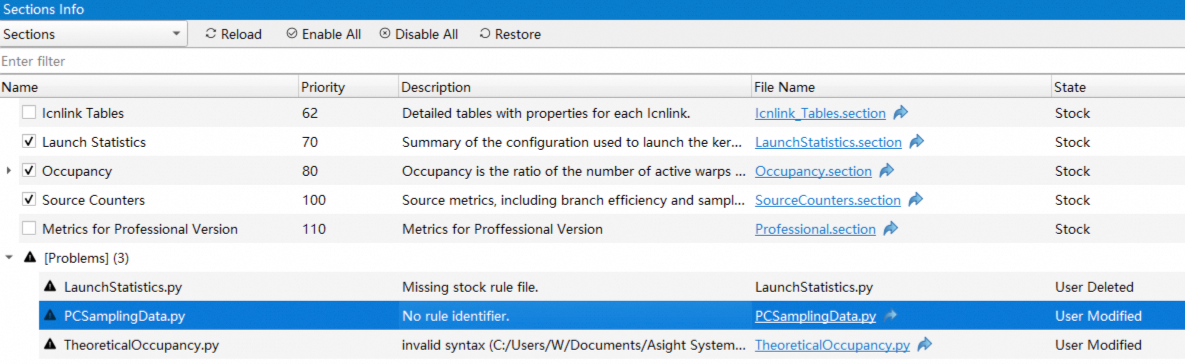
Click Restore to revert a selected rule file to its original state.
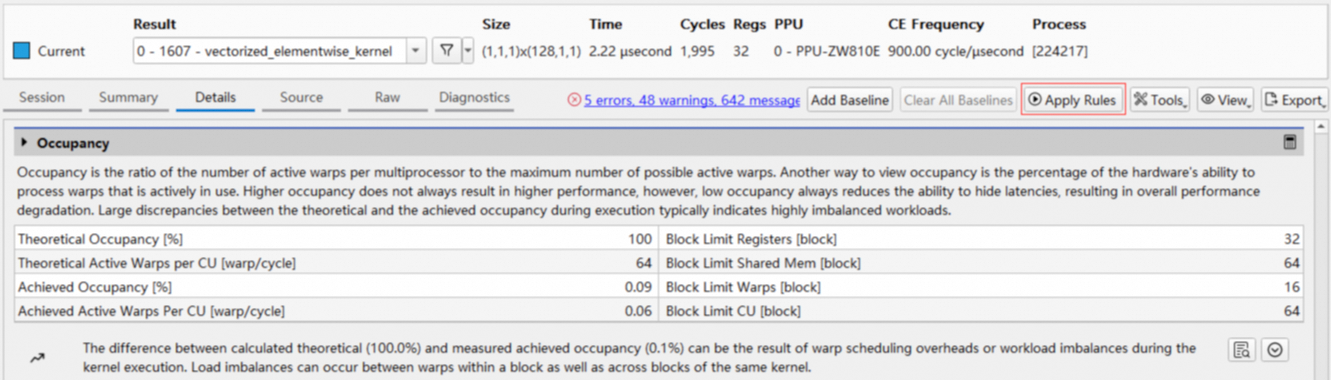
Click the Apply Rules button on the Details Page to apply rules:
2. Built-in rules
Asight Compute includes the following built-in rules to analyze potential performance issues, compute resource utilization, and memory resource utilization in reports.
LaunchStatistics: Analyzes kernel launch configurations, such as grid and block configurations.
TheoreticalOccupancy: Analyzes theoretical occupancy and its limiting factors, such as the maximum number of blocks a compute unit (CU) can manage, the number of registers and amount of shared memory used, and the block size.
AchievedOccupancy: Analyzes achieved occupancy.
IssueSlotUtilization: Analyzes the causes of various warp stall types based on the scheduler's instruction issue mechanism.
PCSamplingData: Analyzes the cause of zero-count PC sampling events.
3. Writing custom rules
Asight Compute provides an external Python interface through the HgRules module. Therefore, each custom rule needs to import HgRules.
Each rule must implement the following functions, as demonstrated in the "Custom Rule Example" below:
get_identifier(): The internal identifier for the rule.
get_name(): The human-readable name for the rule, for example,
Basic Template Rule.get_description(): The description of the rule, for example,
A rule template, demonstrating basic HgRules functionality.get_section_identifier(): The identifier of the
sectionto which the rule belongs, for example,LaunchStats.apply(): The main processing function for the rule. The
handleparameter provides the rule's context.
After implementing these functions, place the custom rule file in the same directory as the built-in rules.
Custom Rule Example:
import HgRules

def get_identifier():
    return "TemplateRule1"

def get_name():
    return "Basic Template Rule"

def get_description():
    return "A rule template, demonstration basic HgRules functionality"

def get_section_identifier():
    return "LaunchStats"

def apply(handle):
    # get the rule context, which provides all remaining functions, access to actions, metrics etc.
    ctx = HgRules.get_context(handle)

    # select the first action (CUDA workload) from the first range (CUDA stream)
    action = ctx.range_by_idx(0).action_by_idx(0)

    # get the frontend object, which interacts with the UI and profiler report
    fe = ctx.frontend()

    # get two metrics from this action
    grid_size = int(action.metric_by_name("launch__grid_size").as_double())
    block_size = int(action.metric_by_name("launch__block_size").as_double())

    # post a message to the frontend
    fe.message(HgRules.IFrontend.MsgType_MSG_OK, "Workload launch config: " + str(grid_size) + "x" + str(block_size))

    # post a warning message to the frontend
    fe.message(HgRules.IFrontend.MsgType_MSG_WARNING, "This is what a warning of the analysis might look like")