Customer Voice Insight
Customer Voice Insight is a self-service analytics tool for customer voice. The tool ingests customer voice from various enterprise channels in real time. It also performs real-time phrase extraction and text classification to better identify customer issues.
Customer Voice Insight lets you perform self-service searches on your omni-channel customer voice using keywords and various business analysis dimensions. This lets you view, classify, and analyze the data to identify its impact.
Page modules
The page is divided into two main areas:
The left side is the criteria input area, where you can enter keywords, keyword groups, products, voice tags, stores, and other filter criteria.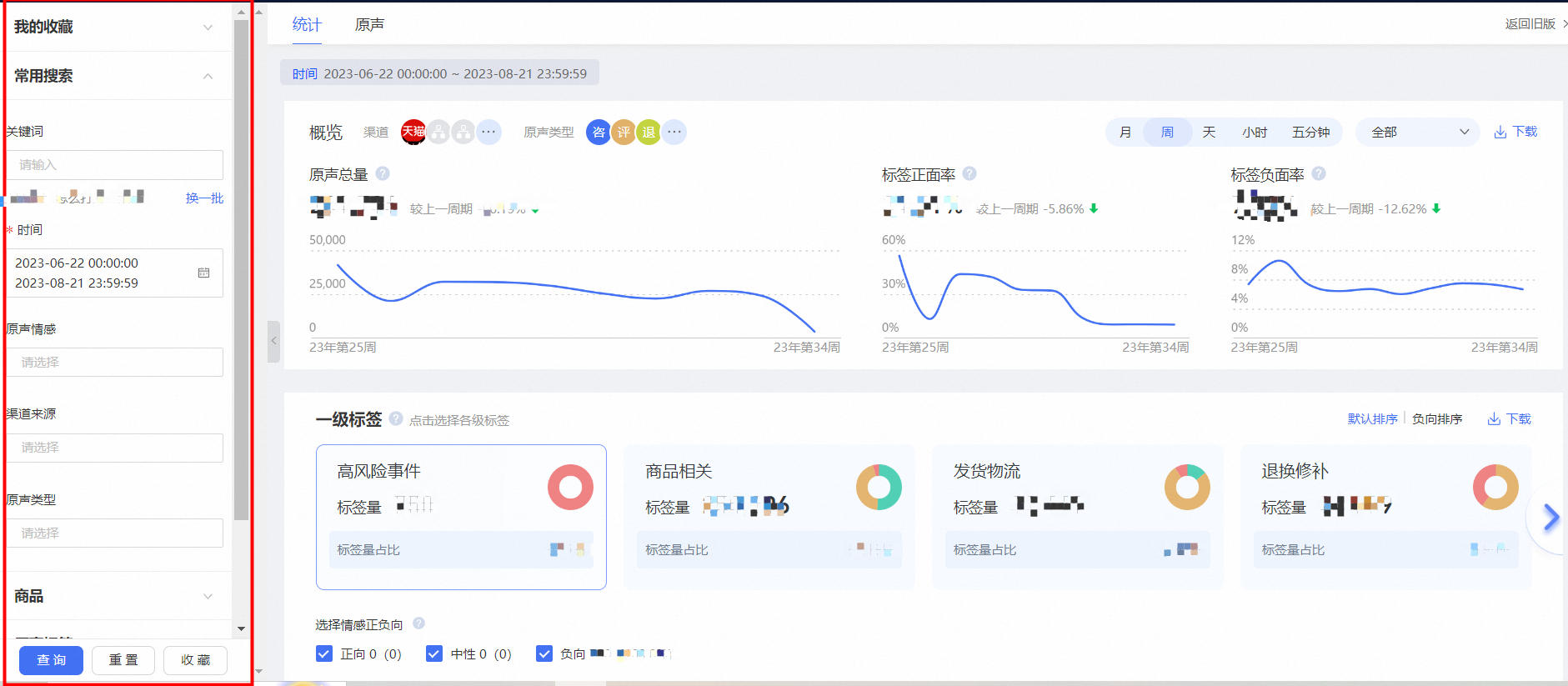 The right side is the search results area, which displays results in the Statistics tab and the Voice tab.
The Statistics tab displays analytics for the customer voice based on the filter criteria from the left panel. It includes channel volume, the positive and negative rates of tags, tag distribution, real-time keyword clustering, and business impact analysis.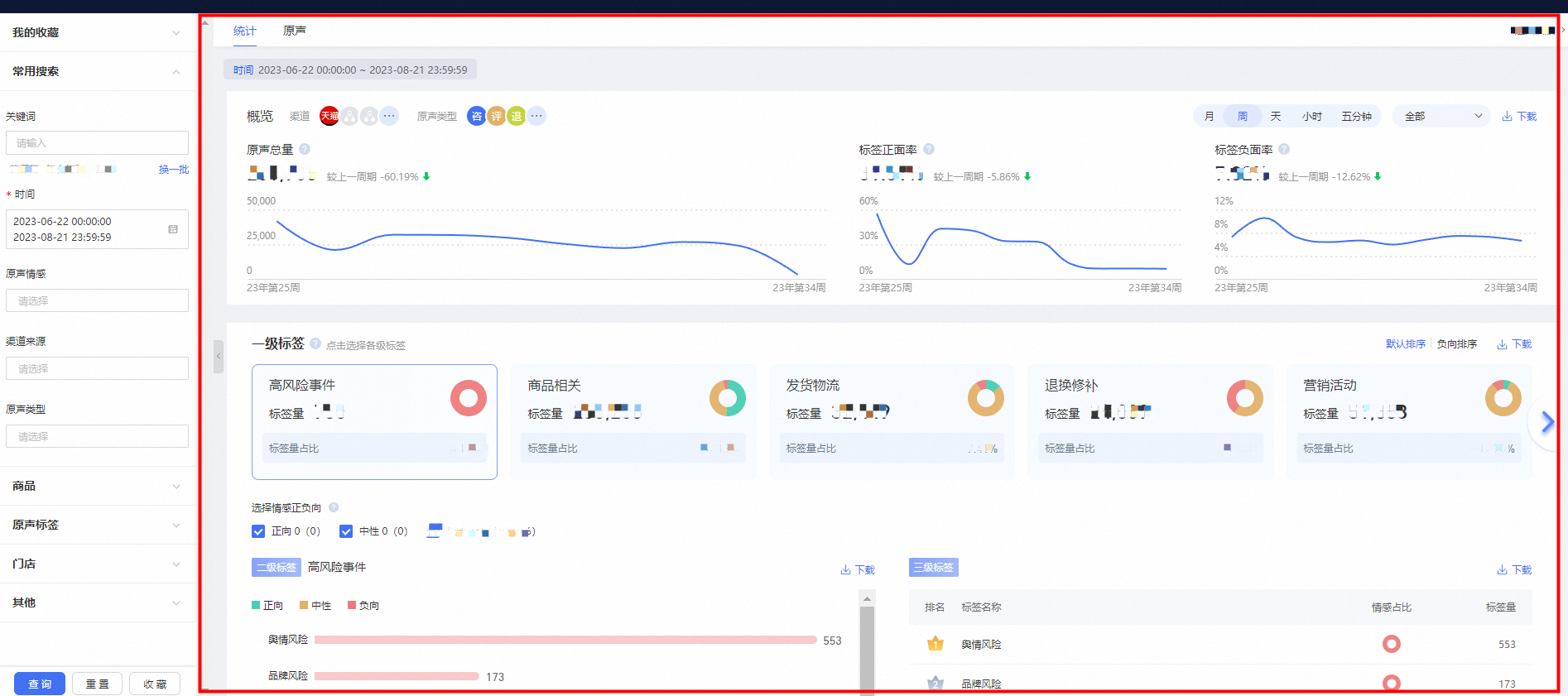 The Voice tab displays the voice list based on the filter criteria. You can view the list and its core information, including the voice ID, original text, and corresponding tags and stores.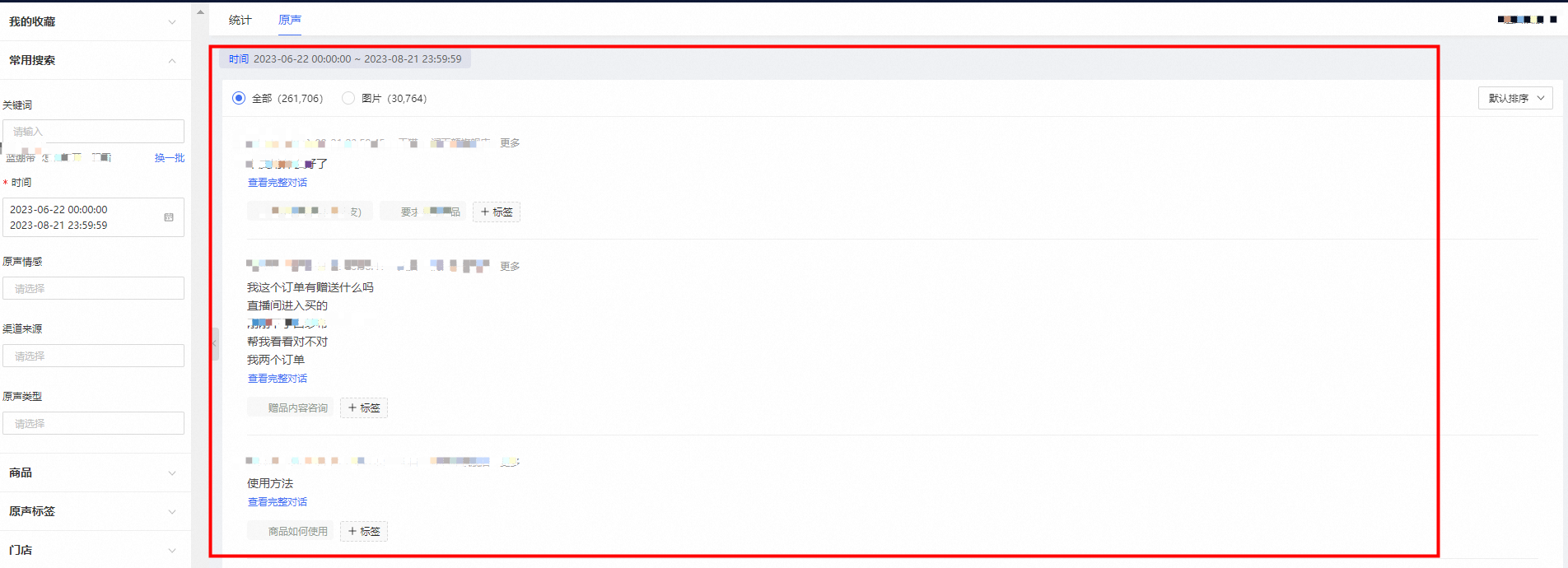
Features
Search and filter
My Favorites
You can save your search criteria as a favorite. After setting up your filters, such as keywords and time ranges, click the Favorite button below to save the search. You can then find this saved search in My Favorites at the top of the page.
Common Searches
Keyword search
You can search by using keywords as shown in the following figure:
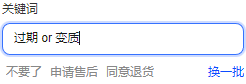
Enter your keywords. To create an AND relationship, separate keywords with a space. To create an OR relationship, use OR with spaces on both sides. The recommended keywords are the most frequent ones. Click Refresh to see the next set of frequent keywords. For example:
Search with an AND relationship for multiple keywords
Search with an OR relationship for multiple keywords
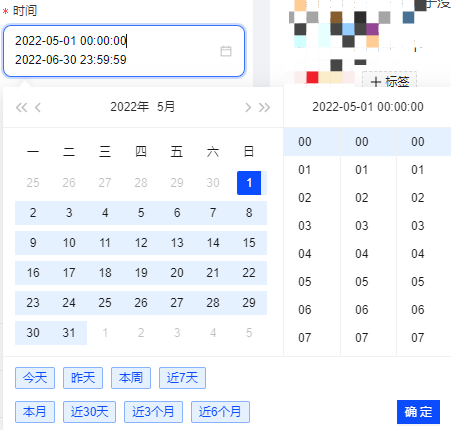
Time filter
You can filter by the time the customer provided feedback, with precision down to the minute.
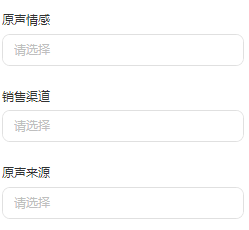
Sentiment, source, and sales channel
You can filter by positive, neutral, or negative sentiment, as well as by different sales channels and voice sources.
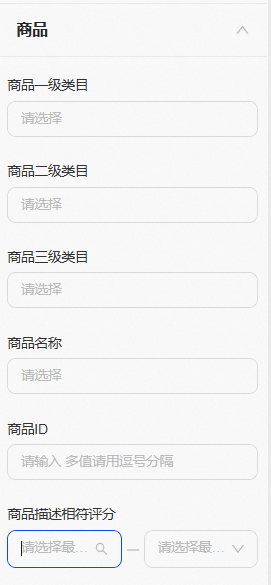
Product search
Filter customer voice by product category (Level 1, 2, and 3), name, or ID.
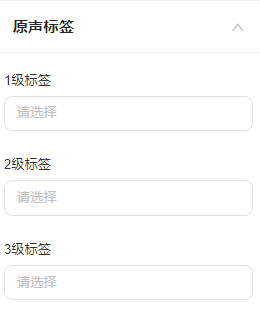
Voice tag search
Filter by Level 1, 2, and 3 voice tags.
Statistics
Voice overview
Total volume: Shows the total volume of customer voice matching the search criteria, broken down by channel and voice type, along with a trend chart for the selected period.
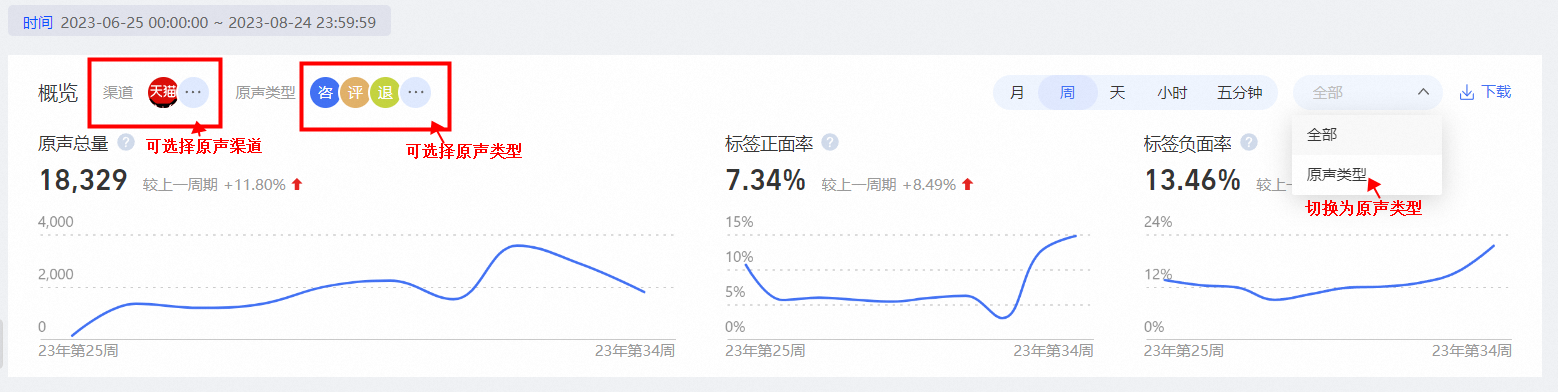
Positive and negative tag rates: Shows the proportion and trend of positive and negative tags among all tags.
Positive tag rate = Number of positive tags / (Number of positive tags + Number of negative tags + Number of neutral tags)
Negative tag rate = Number of negative tags / (Number of positive tags + Number of negative tags + Number of neutral tags)
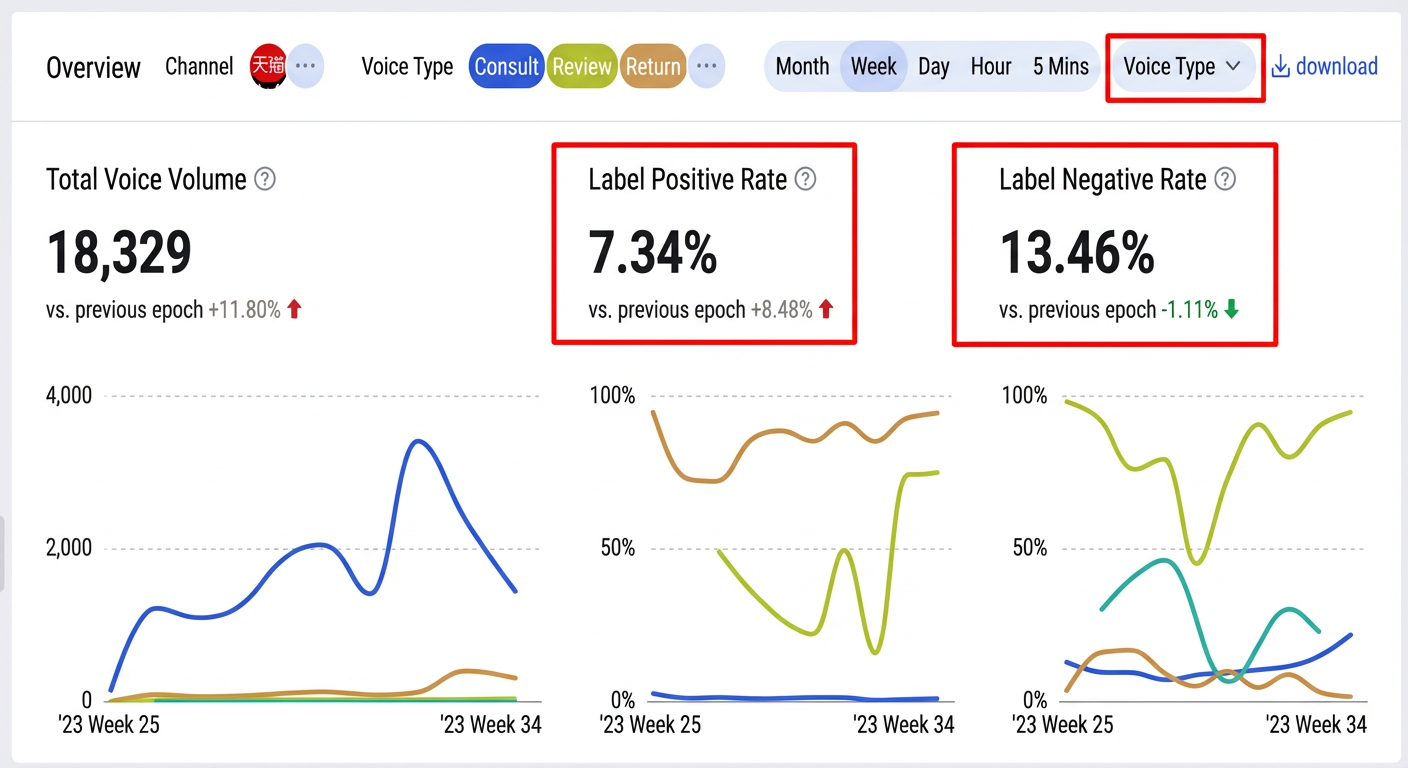
Time filter and download: You can filter data by month, week, day, hour, or five-minute intervals and by voice type.

Voice volume definitions:
Total volume: The total count of valid text entries provided by customers during consultations, in reviews, in Q&A sections, or in refund requests.
Consultation volume (session-based): A customer's feedback within a single day is counted as a single voice. This is session-based, meaning it is deduplicated by customer-agent pair per natural day. For example, all chats between the same customer and the same agent on the same day count as one voice. A new voice is counted if it is on a different day or with a different agent.
Review volume: Customer voice from product reviews and their follow-ups. An original review and its follow-up count as two separate voices.
Refund scenario: Customer voice from the refund process. It does not include consultations before or after the refund. If there are two separate entries on different days during the refund process, they are counted as two voices. For example, if a customer first consults an agent and then initiates a refund, only the text from the refund application is counted. The consultation text is counted as a consultation-type voice according to the consultation volume rules.
Q&A volume: Both customer questions and answers count as separate voices. Responses from the merchant are excluded.
Voice tag distribution
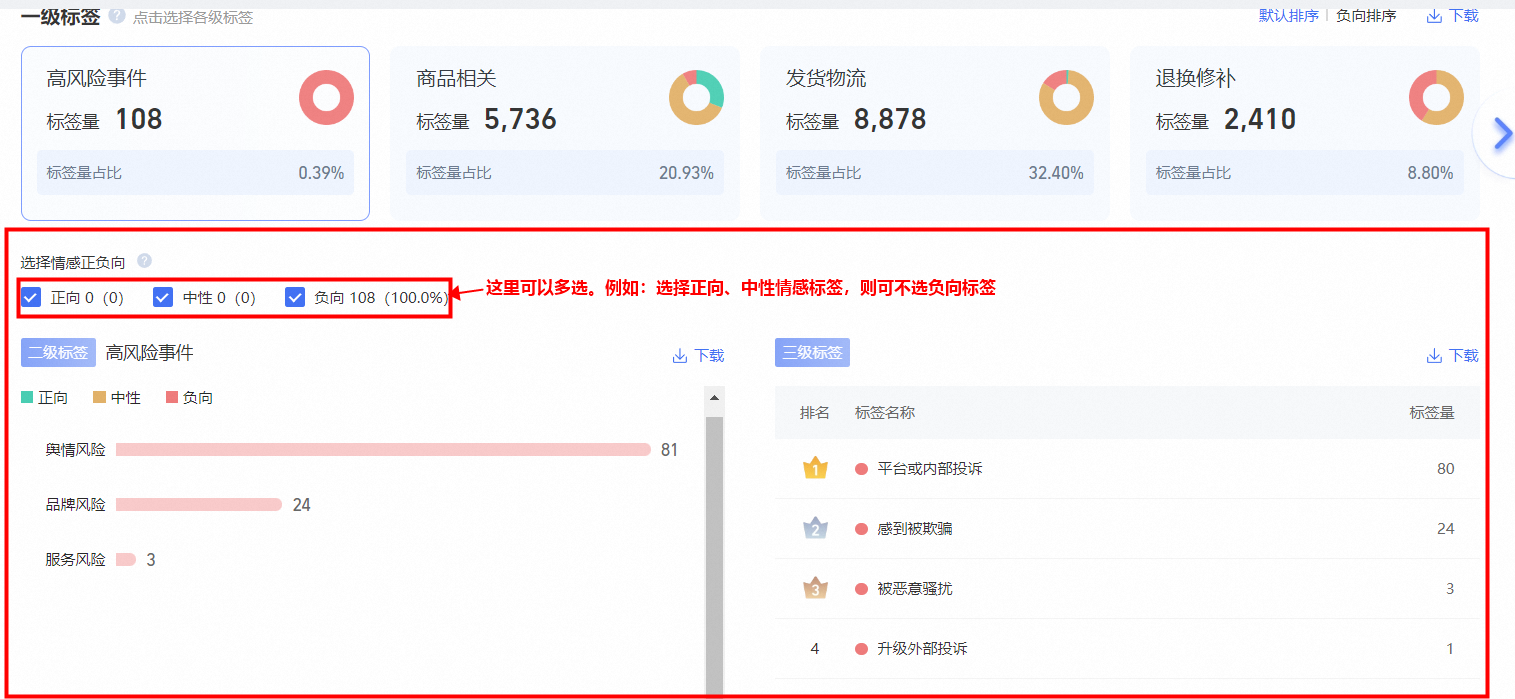
Based on the search criteria, this section displays the distribution of Level 1 tags. It shows the count and percentage of each Level 1 tag, and a donut chart shows the proportion of positive, neutral, and negative tags within that category.
By default, tags are sorted in the following order: High-risk Events, Product Related, Shipping & Logistics, Returns & Exchanges, Marketing Campaigns, Service Related, Ordering & Payment, Shipping Fee Related, Membership Benefits, Audience Related, Invoice Related, and Custom tags (tags that you have added to the system).

Sort by Negative: Sorts Level 1 tags in descending order of their negative impact. The donut chart shows the proportion of negative tags for a Level 1 category relative to all Level 1 tags.

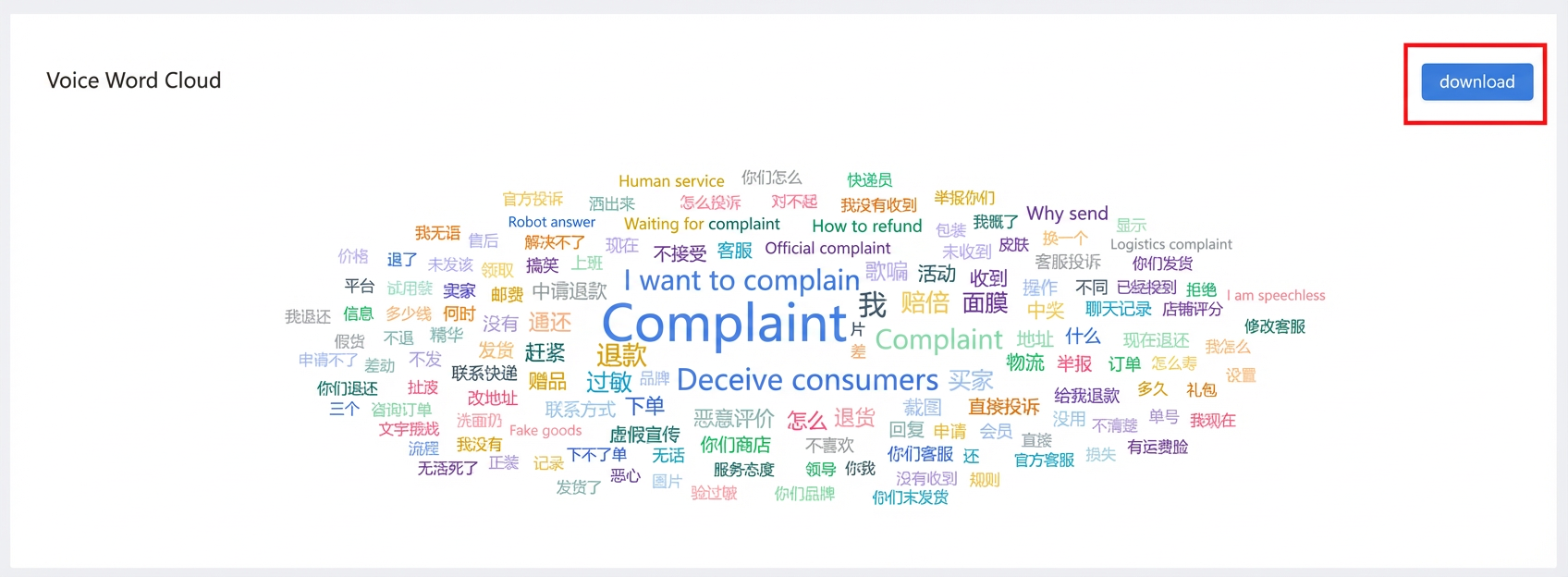
When you click a Level 1 tag card, the Level 2 categories, Level 3 categories, and the voice word cloud below are updated accordingly. You can also filter by positive or negative sentiment.
Calculation logic
Sentiment classification logic:
The positive, neutral, and negative sentiments here refer to the emotion associated with a tag. The statistics are based on the count of tags.
Positive, neutral, and negative sentiments apply to leaf-level tags.
Volume statistics logic
If a single customer voice is matched with three tags (one positive, one neutral, and one negative), the count for positive, neutral, and negative tags each increases by one.
If a single customer voice is matched with four tags, where three are 'Product Related' (one positive, one neutral, and one negative) and one is 'Shipping & Logistics' (positive), then the positive count increases by two, the neutral count by one, and the negative count by one.
Percentage calculation logic:
The formula for the positive percentage is: Number of positive tags / (Number of positive tags + Number of negative tags + Number of neutral tags).
Voice word cloud
Voice impact analysis
The voice impact analysis shows the number of users, orders, stores/shops, and products linked to the customer voice in your search results, along with a characteristic analysis, as shown in the following figure:
As an example, let's look at the product impact:
Click the Affected Products tab to view analysis related to the products mentioned in the customer voice, including a trend chart of the product-related voice:
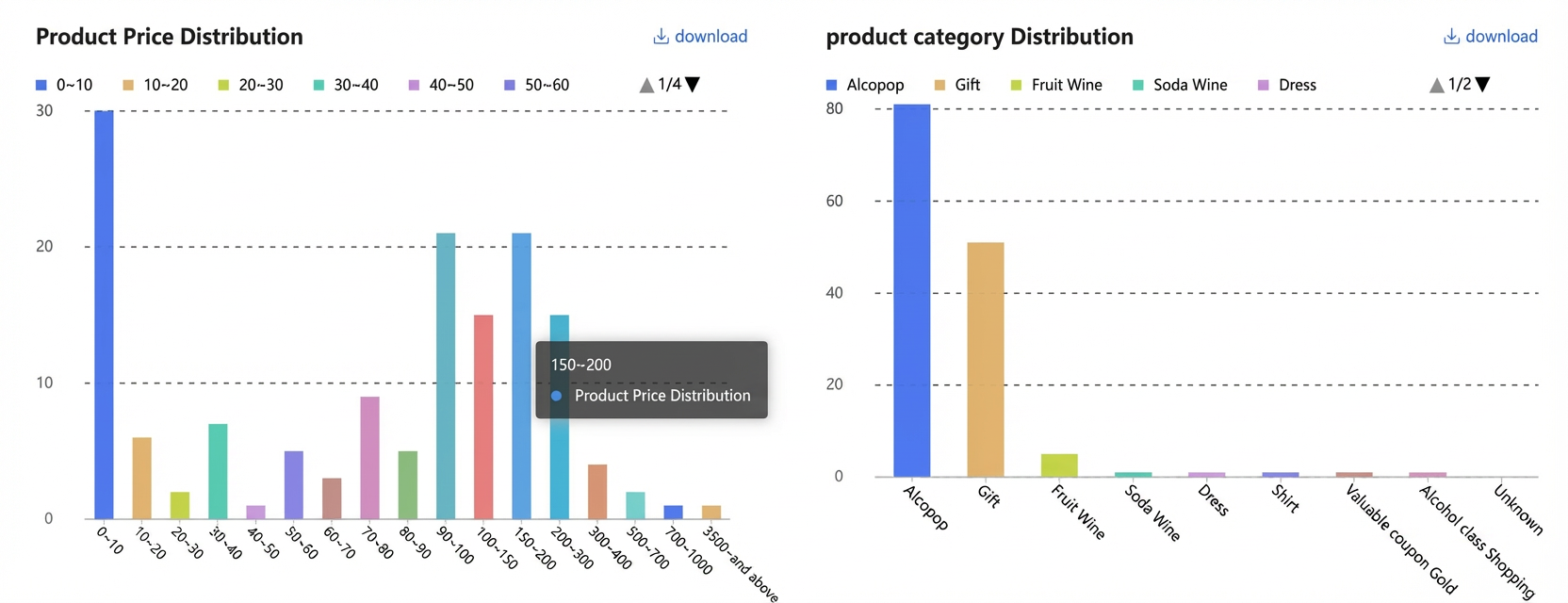
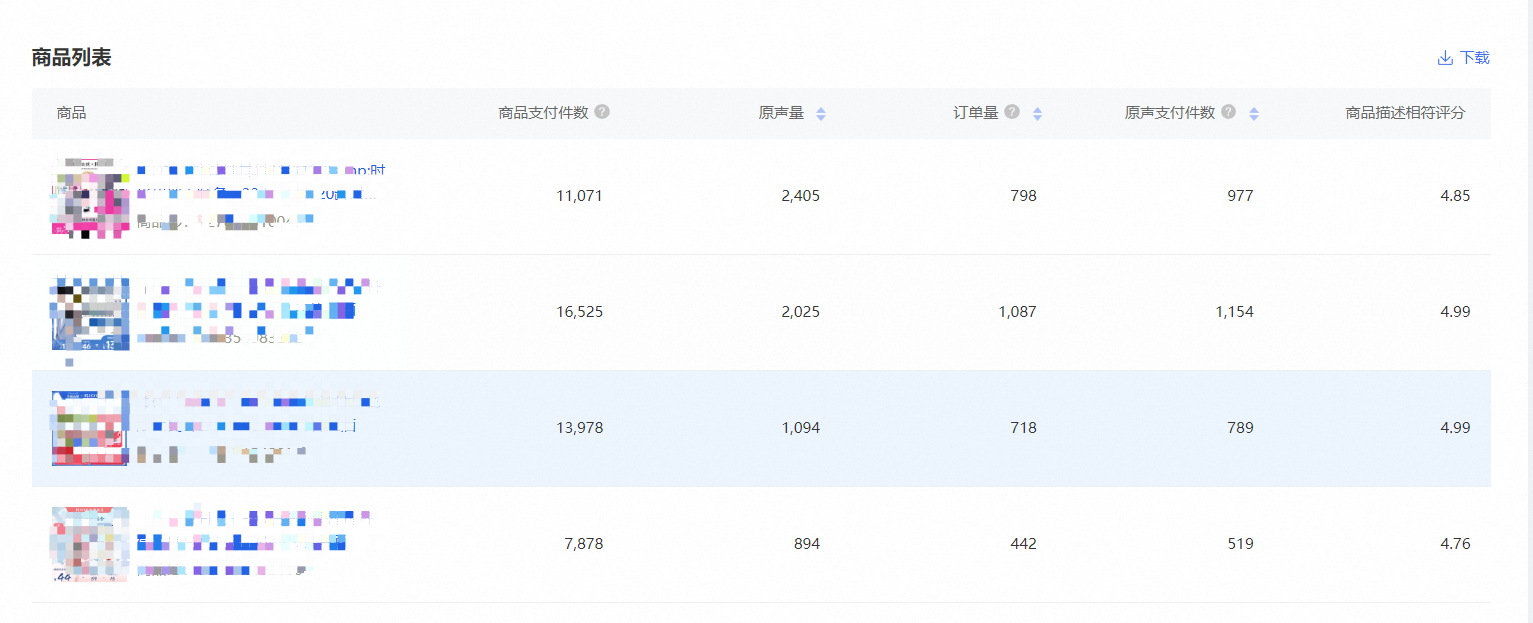
You can drill down into further analysis of product prices, product categories, and a list of specific products:
Voice
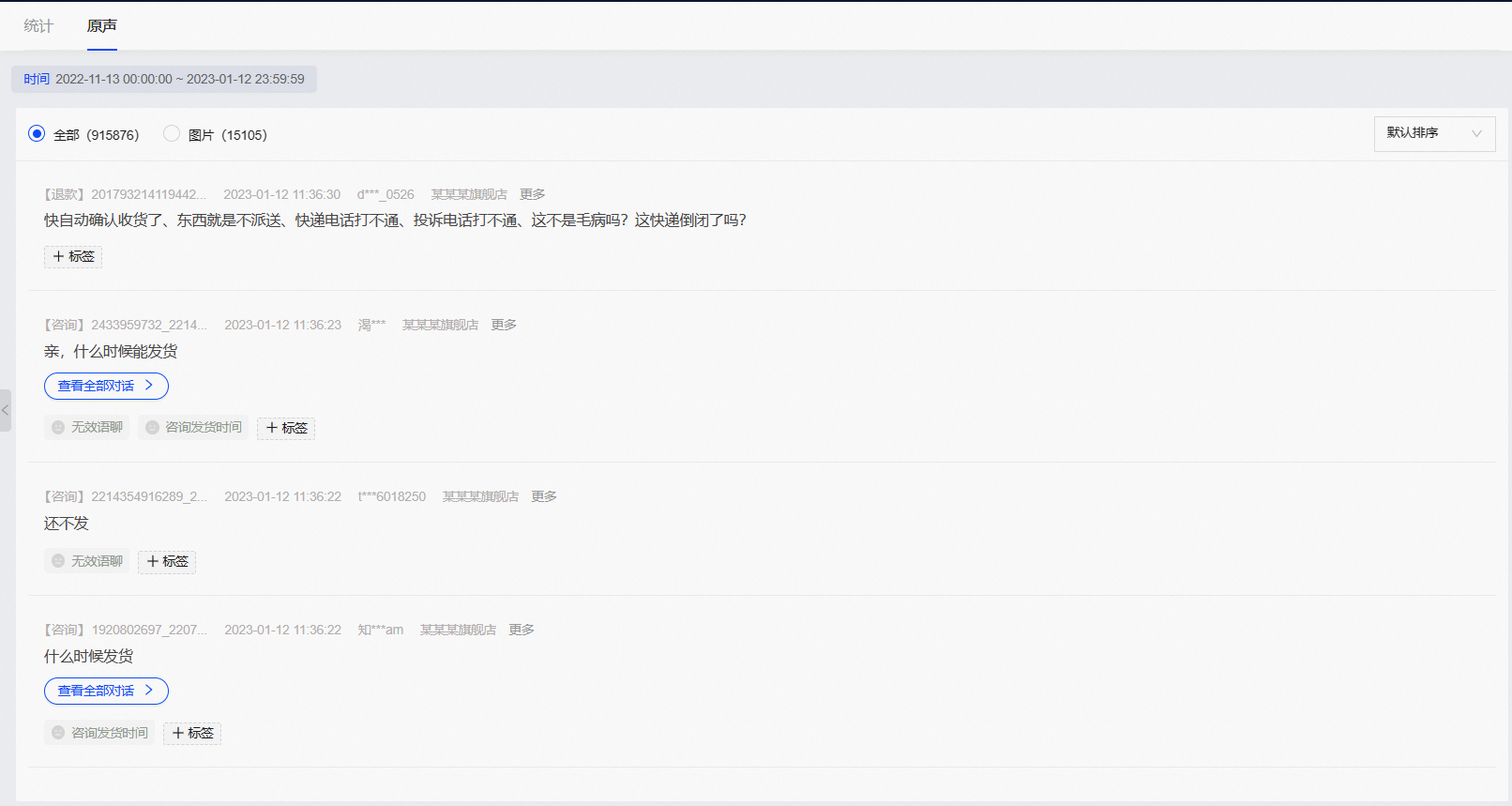
Voice list
This section displays the voice list that matches your search criteria, along with its details, including: source channel, time, text, user, shop name, and corresponding tags. Click More to see the order number, merchant ID, and product name.
Tag correction
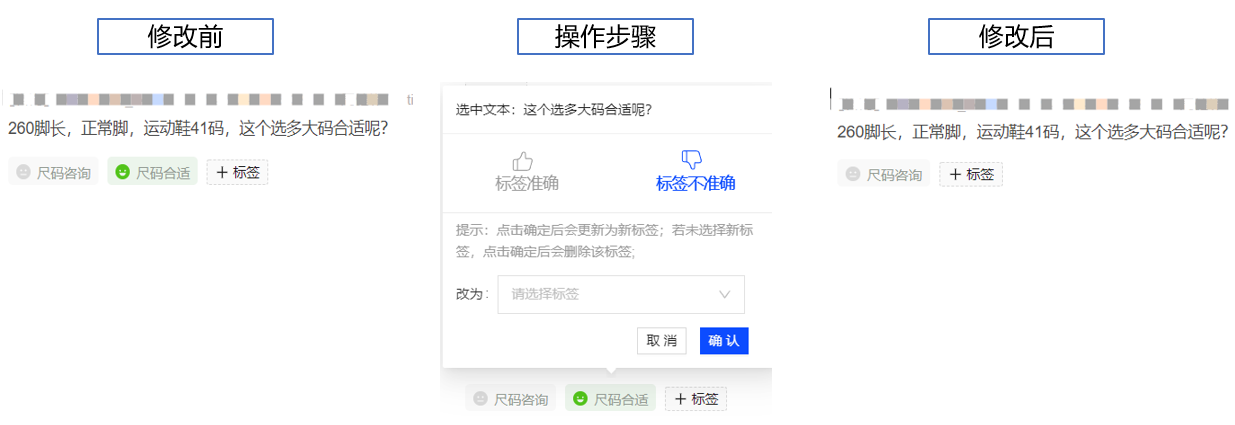
For any customer voice, you can add, update, or delete tags:
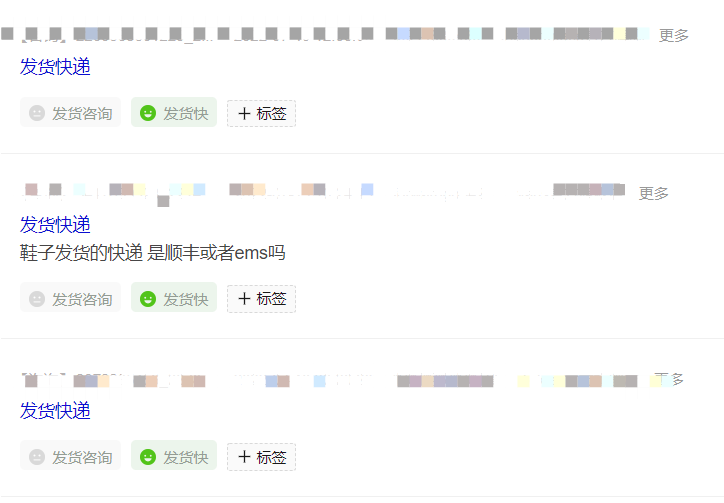
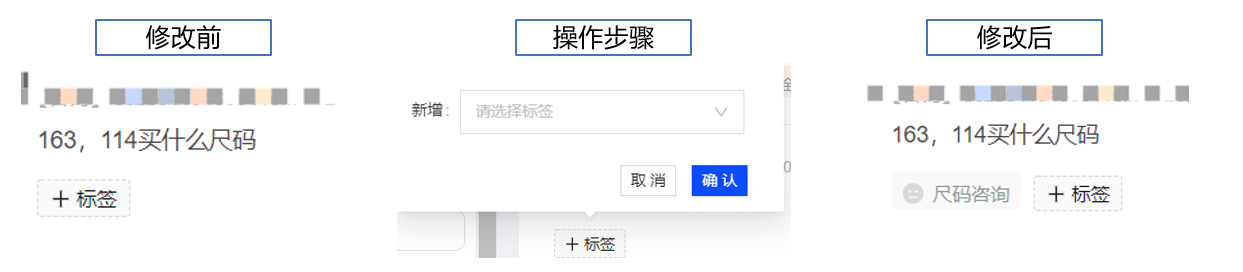
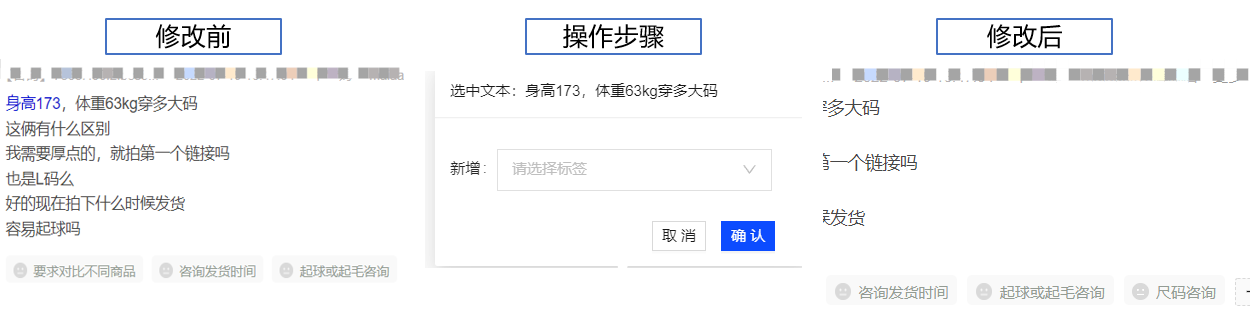
Add a tag: To add a missing tag, highlight the relevant text, click +Tag, select the correct tag from the dropdown list, and click Confirm.
Example 1: Add a fourth tag to a voice that already has three tags.
Example 2: Add a tag to an entire sentence that has no tags.
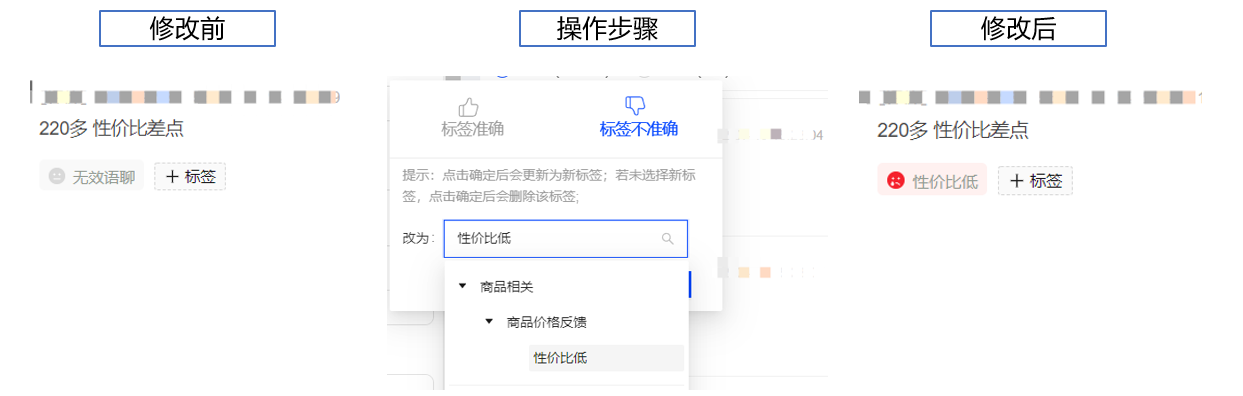
Update a tag: If a tag is incorrect, highlight the text associated with the wrong tag, click the tag itself, select the correct tag from the dropdown list, and click Confirm.
Example 1: Update one incorrect tag among several tags.
Example 2: Update a single, incorrect tag.
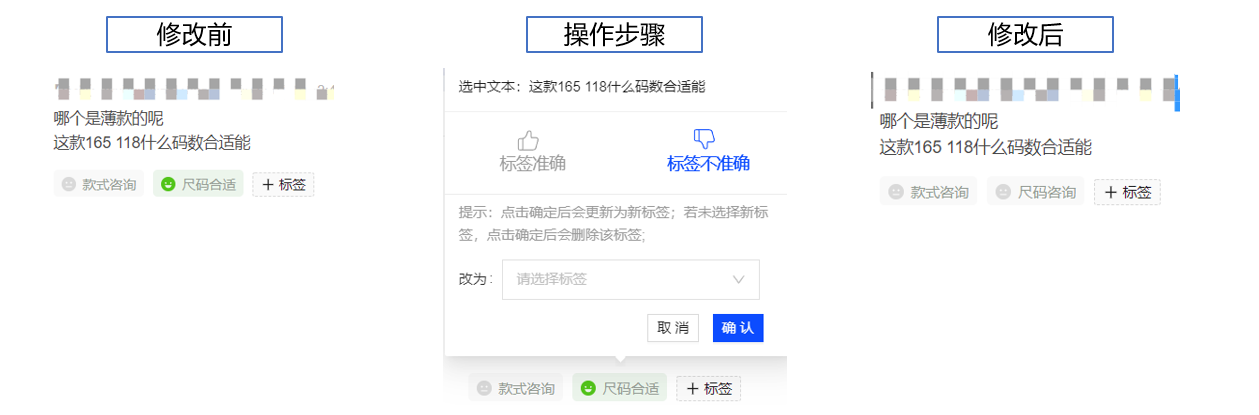
Delete a tag: If one of several tags is irrelevant to the text, click the tag, select Inaccurate Tag, and click Confirm to remove it.
FAQ:
If the same text is repeatedly mistagged, you only need to correct a few instances, not every one.