Role list
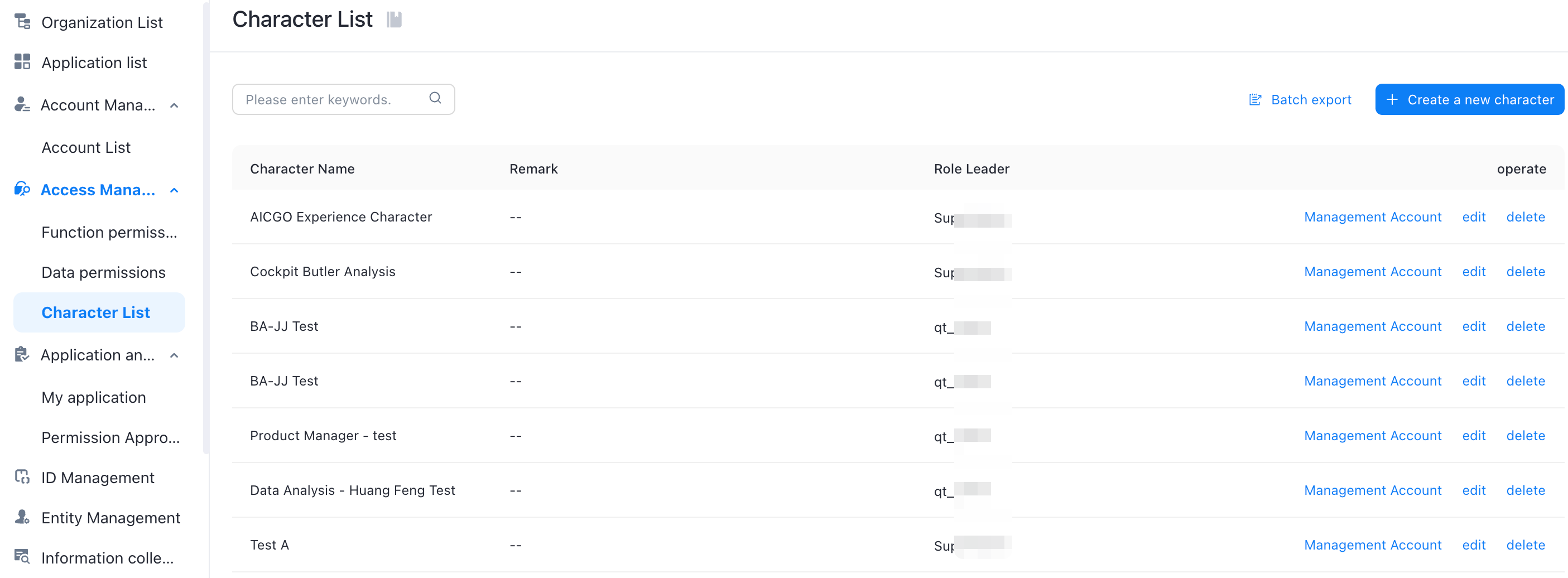
Role list: allows you to create roles and configure permissions based on your business and organization requirements. You can assign roles to accounts to implement clear and convenient permission management.
Feature overview
1. The role list displays all authorized roles under the current account, and the list displays information such as role owners. We can create roles and configure relevant permissions according to business and organizational requirements, and assign roles to accounts to realize clear and convenient permission management. As shown in the figure:
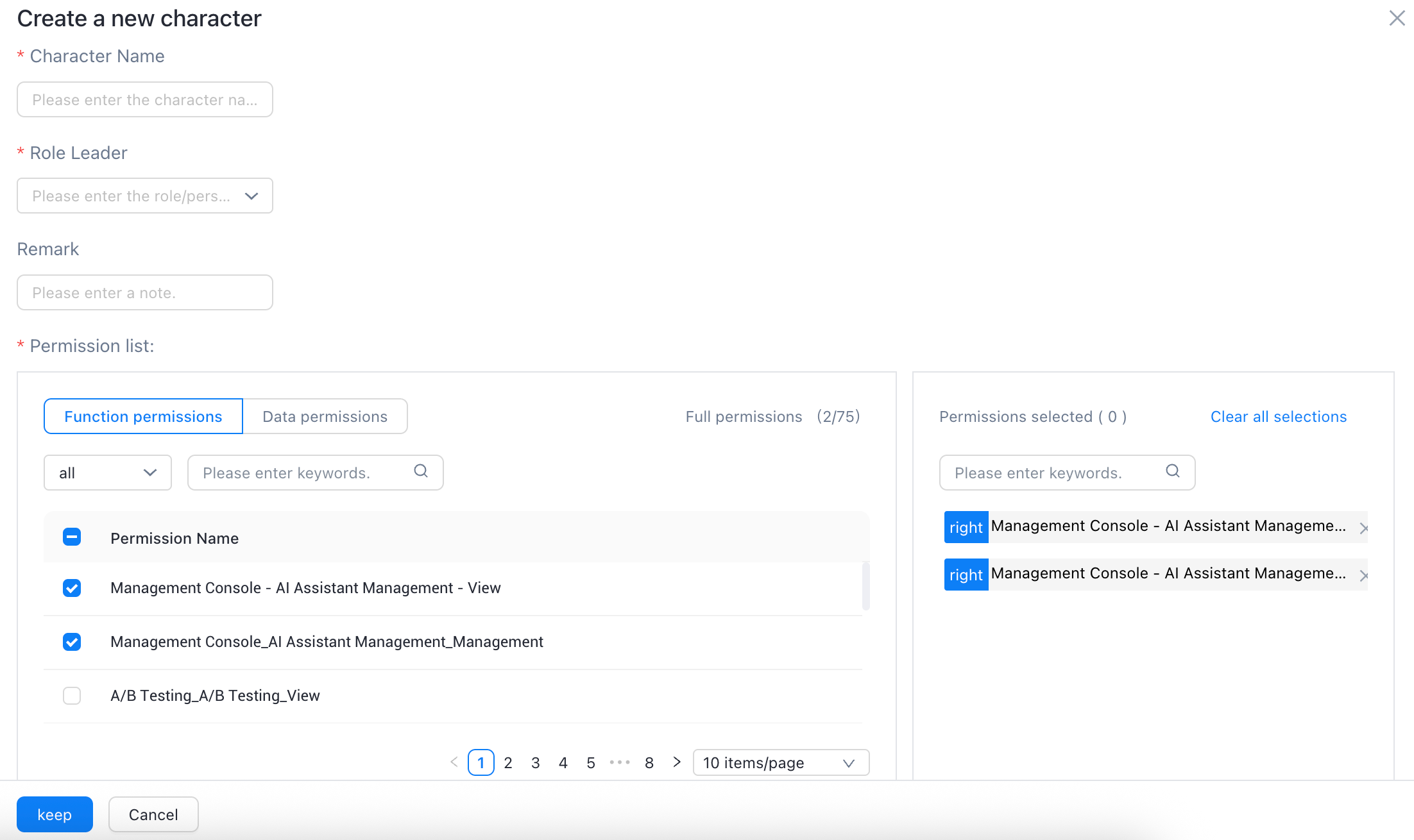
2. Click Create Role to open the Create Role page. The role name can be customized. The role owner needs to specify an account as the owner of the role. Select the required functional permissions and data permissions of the account from the permission list, confirm that the permissions are selected, and click Save. After saving, click Edit to modify. Click Delete to delete the role. As shown in the figure:
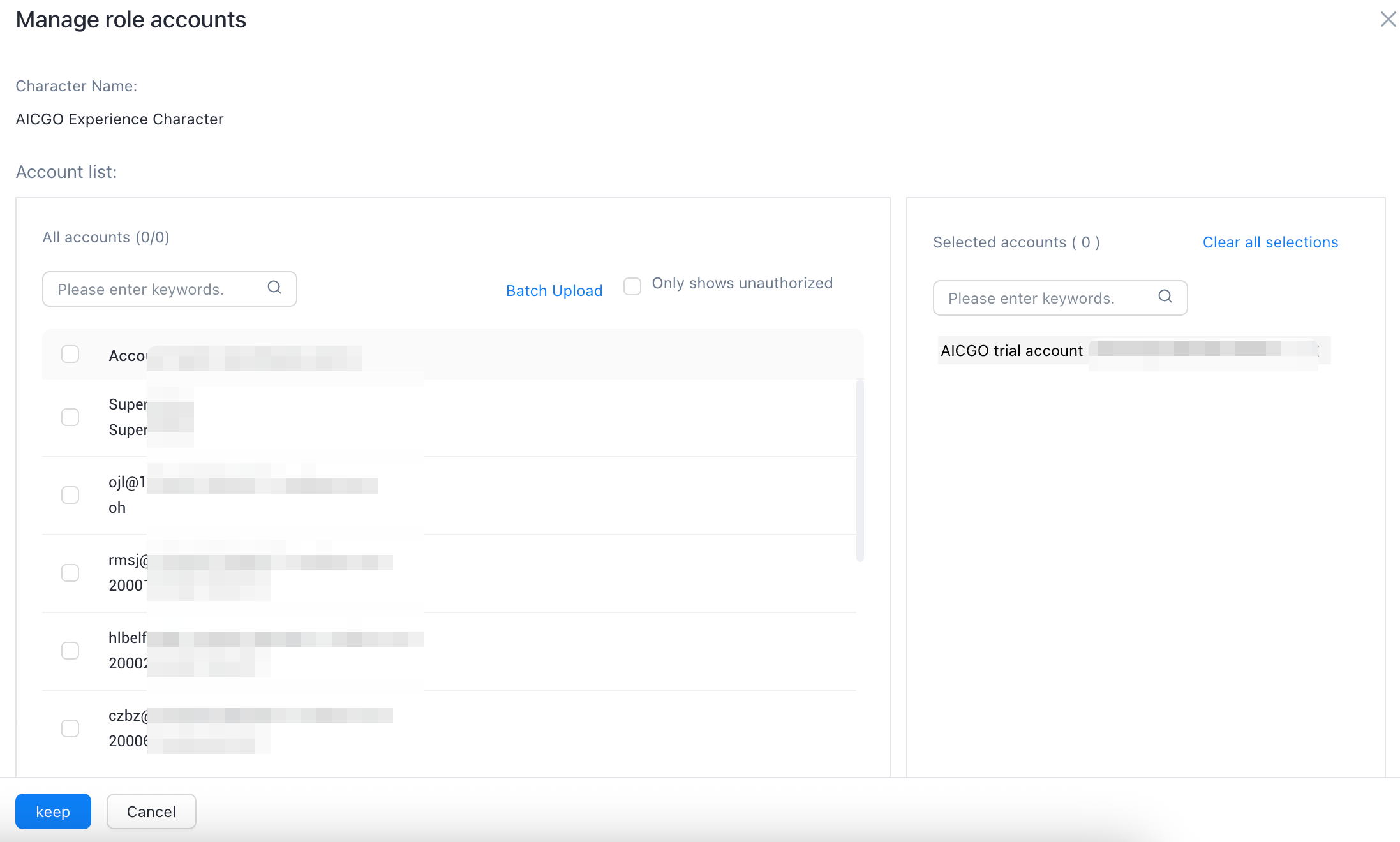
3. Click Manage Account to go to the Manage Roles page and authorize the current role to other specified accounts or multiple accounts. Click Edit to modify the role name, owner, and permission list of the current role. As shown in the figure:
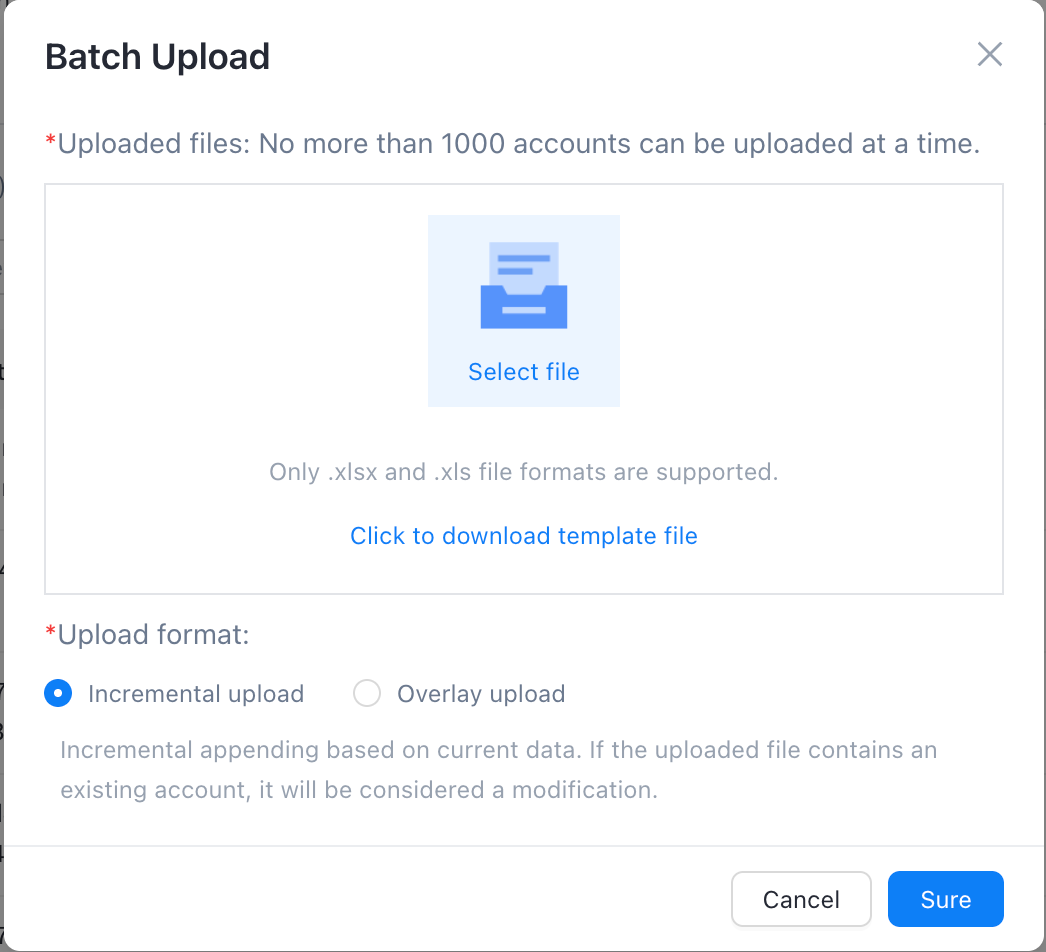
4. Click Batch Upload to download the template, fill in and upload the template as required, and authorize multiple accounts in batch. As shown in the figure: