MCP Square
MCP (Model Context Protocol) connectors act as a bridge between the AI in Quick BI AIPro and external tools or data sources. They let you integrate data and capabilities from external systems into the AI analysis workflow, extending the platform's analysis scope. In MCP Square, you can view and search for MCP connectors that have been imported into your organization and add them to the New Task dialog box. This article describes the steps.
Prerequisites
Subscription: Your organization has purchased the AIPro edition of Quick BI.
Permissions: You have at least basic feature permissions in Quick BI AIPro.
Connector availability: An administrator has imported MCP connectors in the Management Center and granted you permission to use them. For instructions, see MCP Management.
Entry point
In Quick BI AIPro, on the Enterprise tab, click MCP Square in the left-side navigation pane.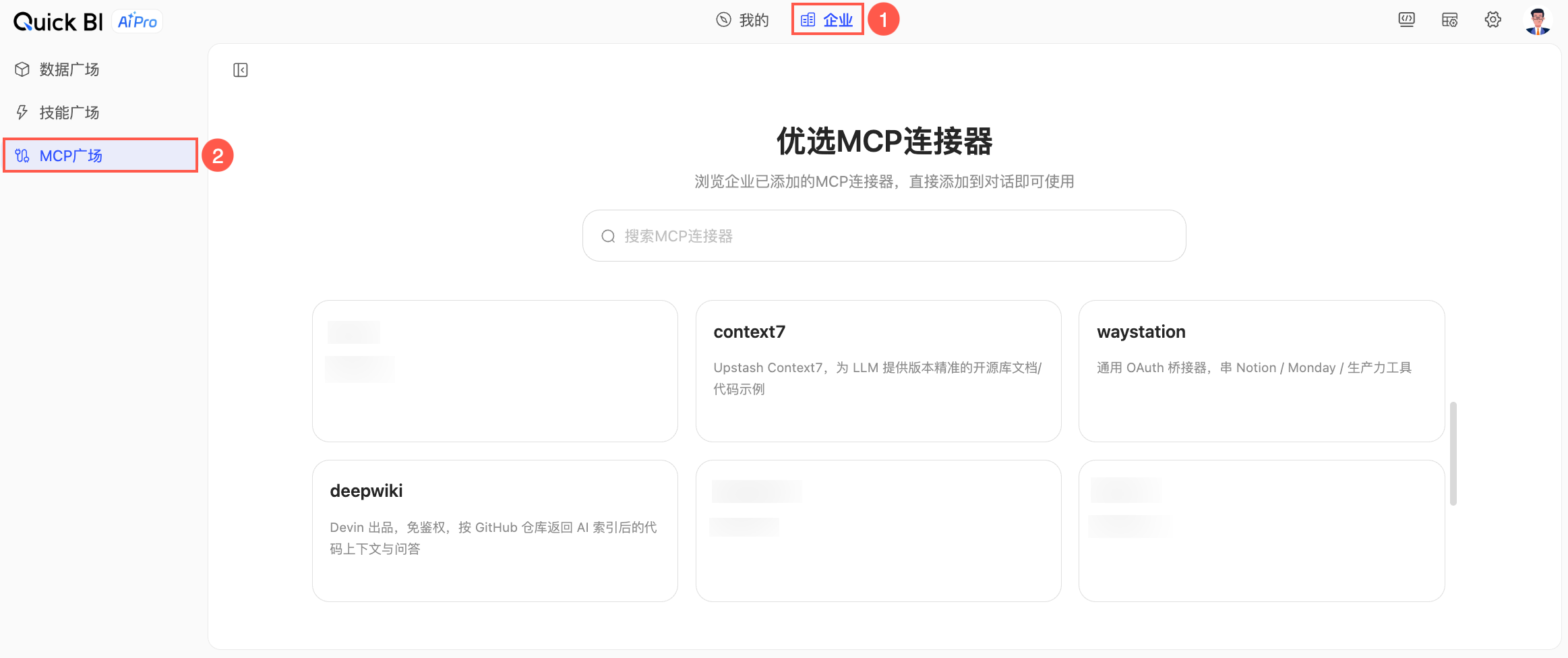
Operations
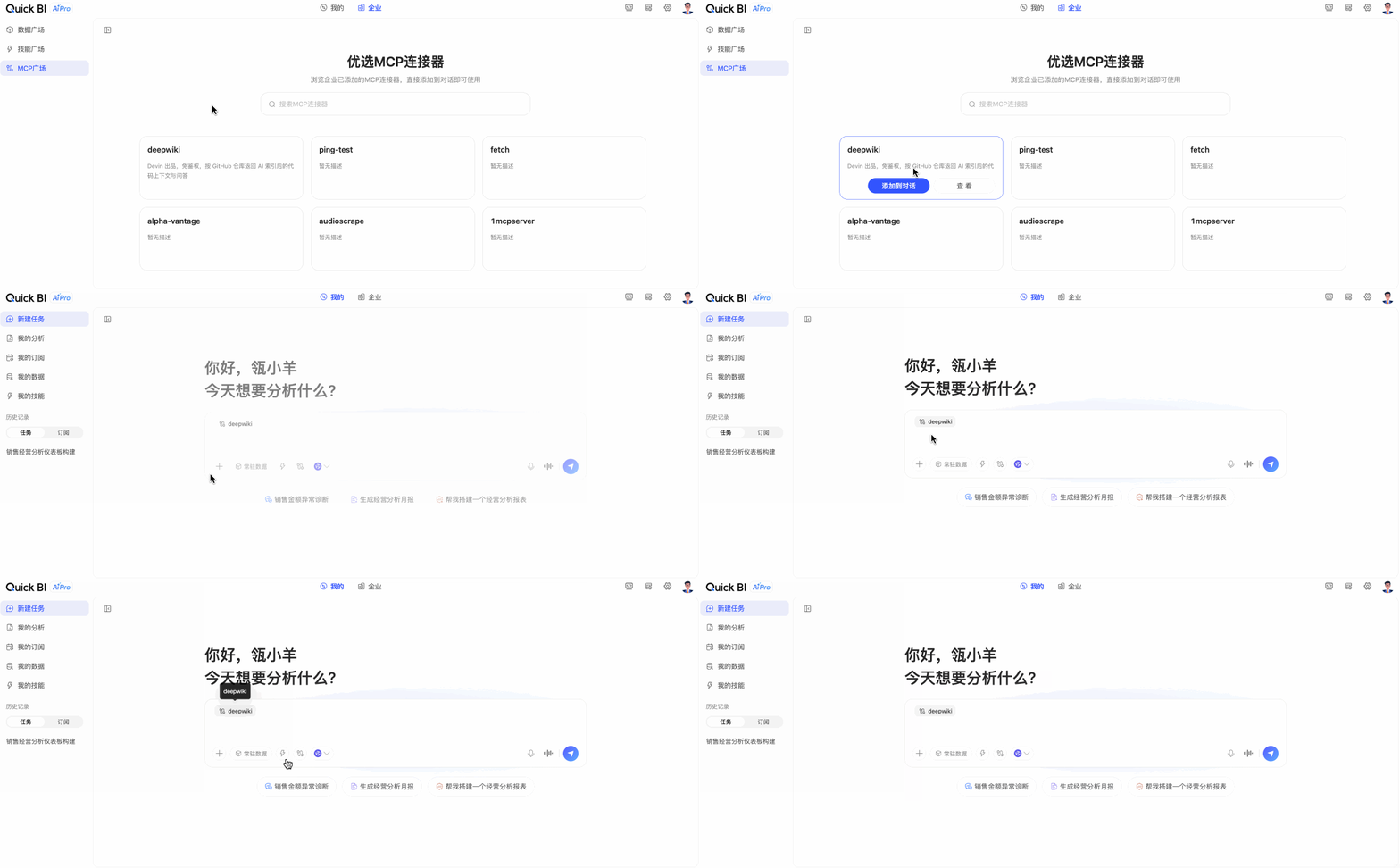
The MCP Square page lists MCP connectors available to you in your organization. You can view details for each connector, such as its name and description.
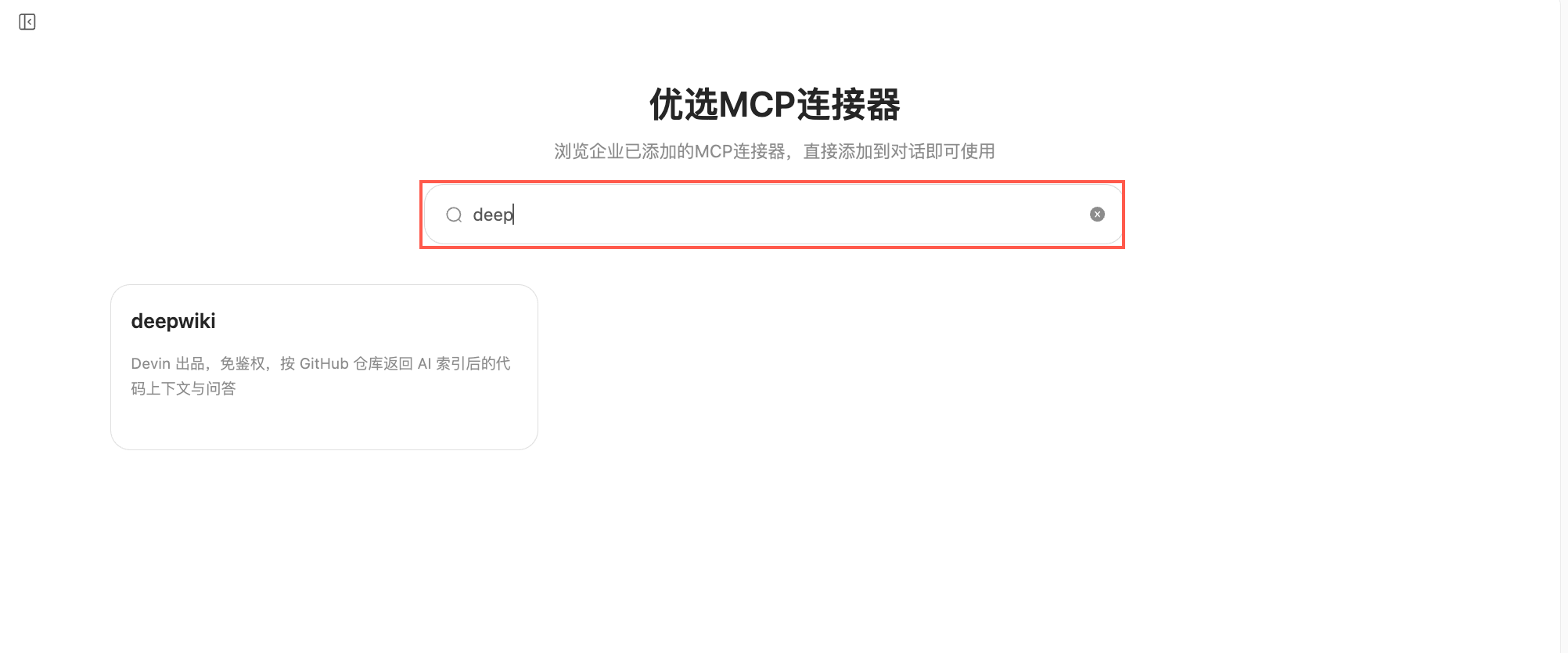
View and search for MCP connectors: Browse the list of cards to find a connector. If the list is long, enter keywords from the connector's name in the search box to filter the results.
Work with MCP connectors: You can perform the following actions on each connector.
Actions
Description
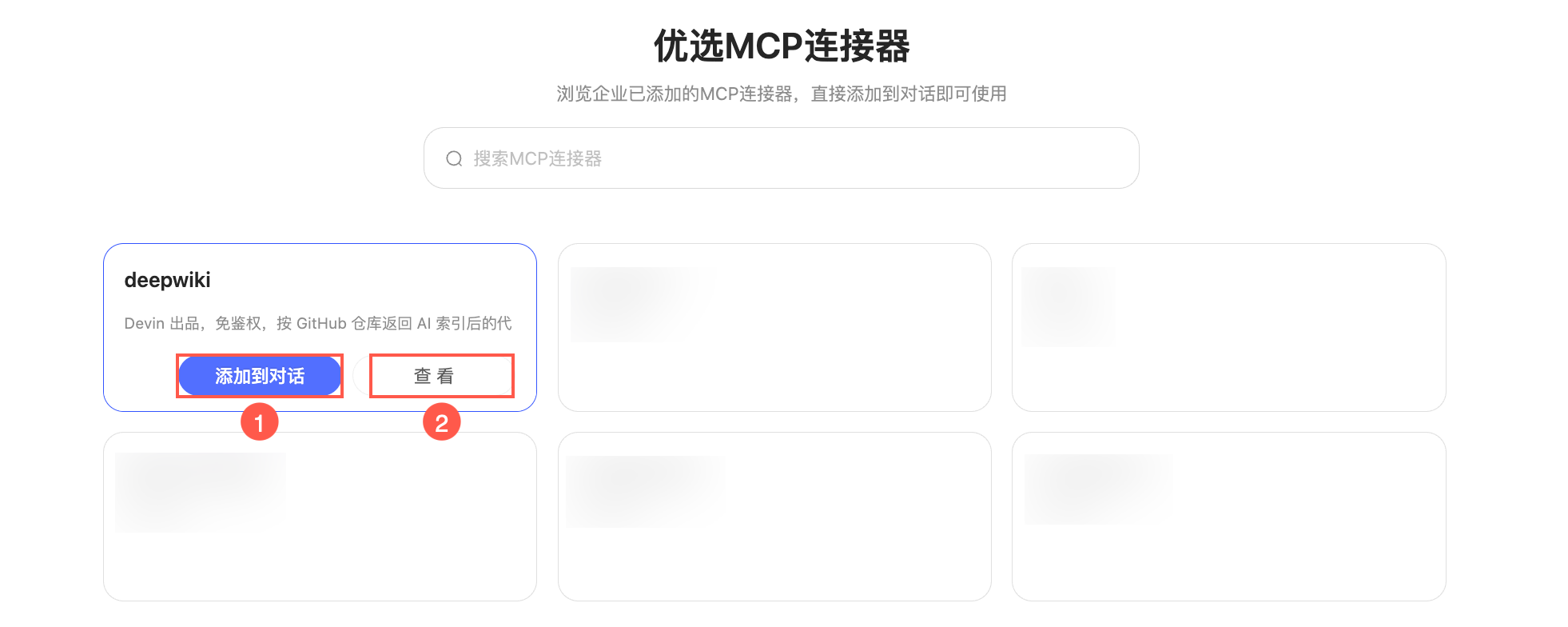
① Add to conversation
Find an MCP connector, hover over it, and click Add to conversation. This action injects the connector's capabilities into the New Task dialog box, allowing the large model to call external tools.
② View details
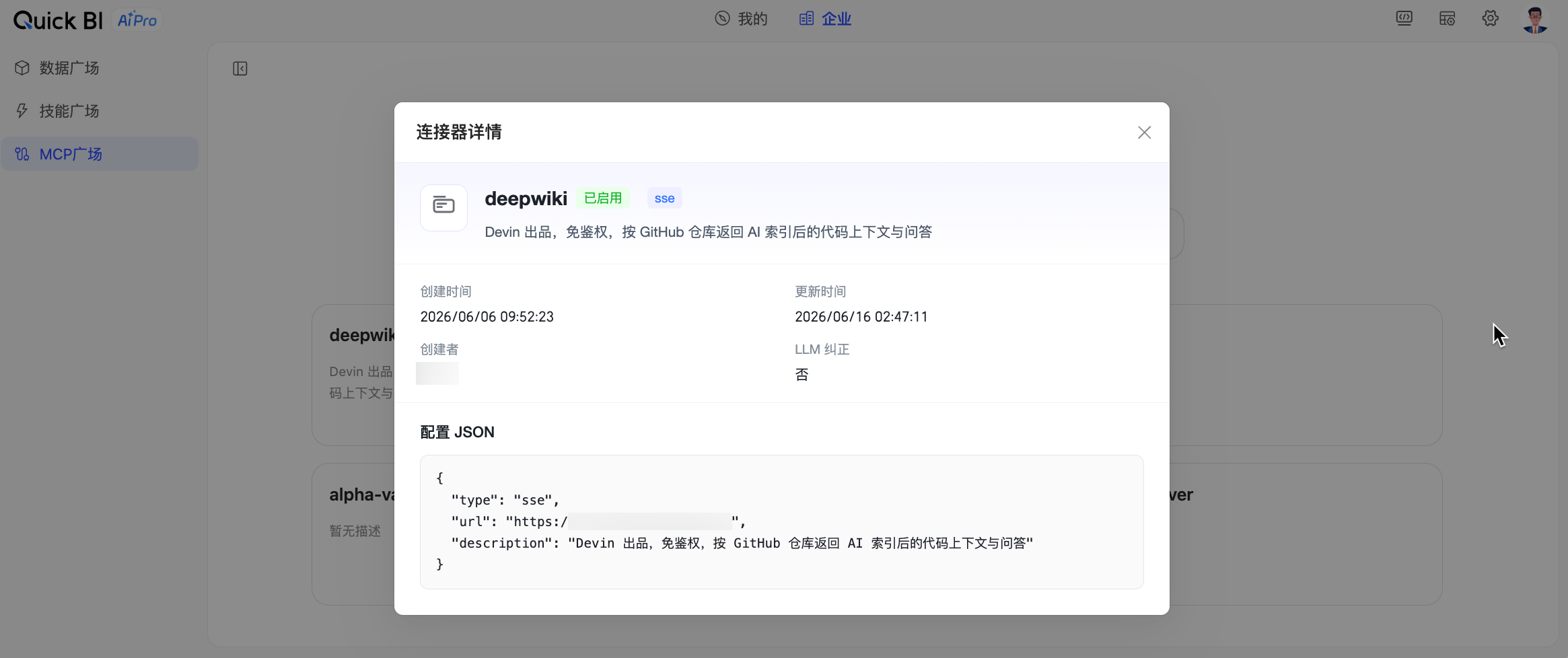
Hover over a connector and click View details. The Connector details dialog box displays information such as the connector's name, description, creation time, and update time.