Skill square
The Skill Square is the AI analysis skill management module in Quick BI AIPro, located in the Enterprise view. A skill is an encapsulated analytical capability you can invoke in a conversation with commands like "/" to perform specific analysis tasks. This topic describes how to view, create, and install skills.
Prerequisites
You have logged in to Quick BI AIPro.
You have at least the basic feature permissions for Quick BI AIPro.
To use a custom skill, an enterprise administrator or the skill creator must grant you access to it.
Accessing the feature
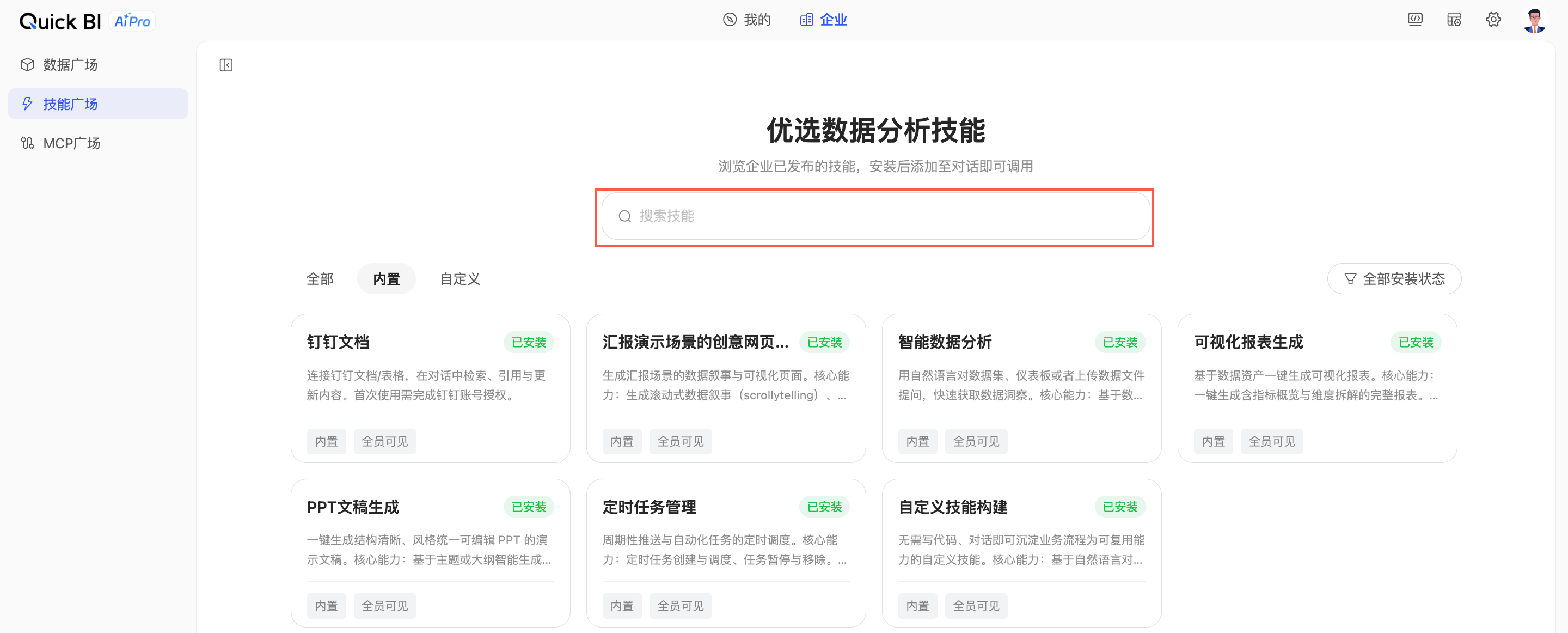
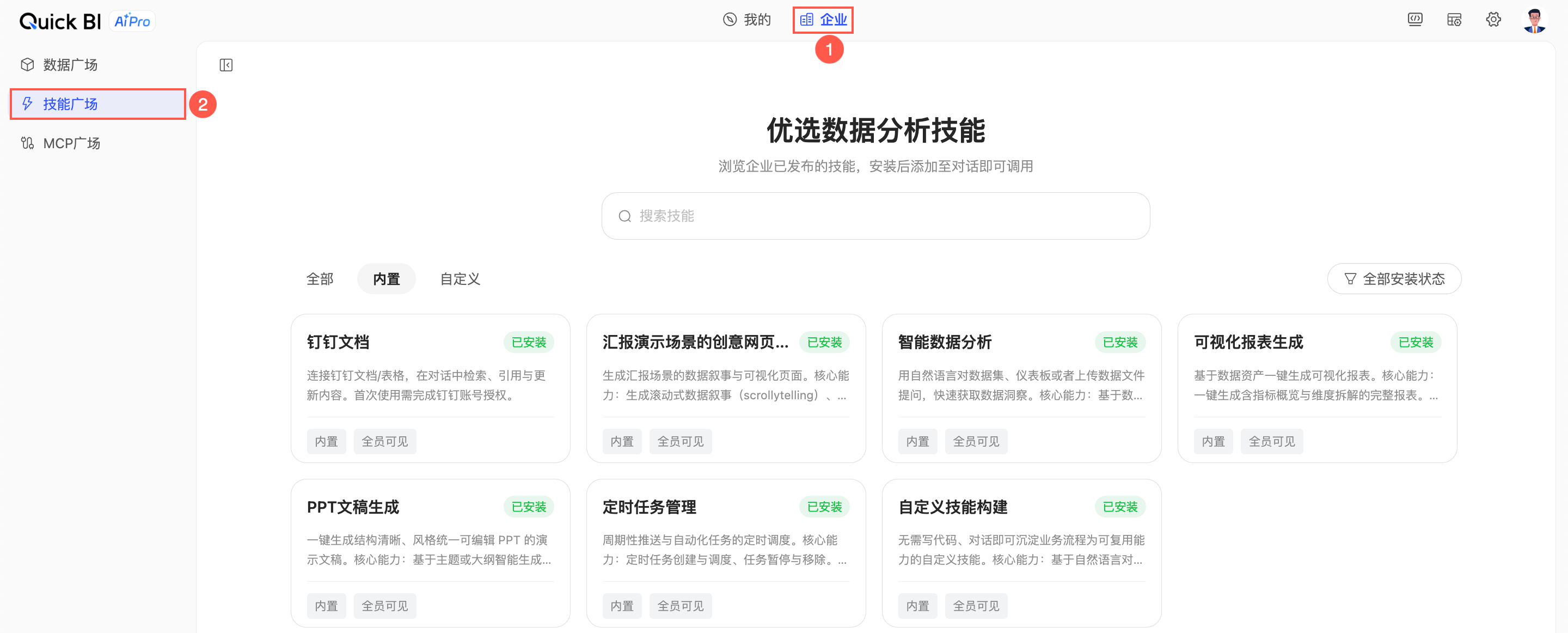
In Quick BI AIPro, go to the Enterprise tab and click Skill Square in the left-side navigation pane.
Operations
On the Skill Square page, you can view all skills that you have permission to access, including built-in and custom skills.
Built-in skills
Built-in skills are general-purpose analysis skills included with the system. Quick BI AIPro supports the following built-in skills:
Skill name | Description |
intelligent data analysis | Ask natural-language questions about datasets, dashboards, or uploaded data files to get data insights quickly. Core capability: Perform intelligent analysis based on dataset or dashboard data and your question, and return results. Typical prompts: "How much did sales increase year over year this month?" or "Analyze performance by region." |
visualized report generation | Generate a visualized report from your data assets with a single click. Core capability: Create a complete report with key metric overviews and dimensional breakdowns. Typical prompts: "Generate a report based on this dataset," "Generate a dashboard in one click," or "Create a visual dashboard automatically." |
scheduled task management | Schedule recurring push notifications and automated tasks. Core capability: Create, schedule, pause, and remove scheduled tasks. Typical prompt: "Generate a report from the analysis above and push it to me every day at 9 AM." |
custom skill building | Package a business workflow as a reusable, code-free custom skill through a natural-language conversation. Core capability: Generate a standards-compliant skill configuration from a natural-language conversation. Typical prompts: "Package this workflow as a skill" or "I want to create a new custom skill." |
PPT presentation generation | Generate a well-structured, consistently styled, and editable PPT presentation with a single click. Core capability: Intelligently generate content based on a topic or outline, automatically match templates and layouts, and export editable PPT files. Typical prompts: "Create a PPT for me," "Generate a presentation from this outline," or "Generate a presentation PPT in one click." |
DingTalk Workspace | Connect to and manage content and collaboration assets in your DingTalk Workspace, including online documents, AI-powered spreadsheets, knowledge bases, group chats, approvals, and more. Core capability: Use natural-language commands in a conversation to instruct the AI to find information in or update DingTalk documents and spreadsheets. Typical prompts: "Find the Top 3 sales figures in the 'Sales Data' spreadsheet" or "Update the analysis from this session to the 'Monthly Sales Analysis Report' document." Note For first-time use, you must complete DingTalk account authorization. For details about authorization and deauthorization, see My Skills. |
Custom skills
A custom skill is a business-specific analysis skill that your enterprise creates. You can create custom skills in the following ways.
Upload a custom skill at the enterprise level
In Admin Center > Skill Association, click the Add Skill icon to upload and create a skill. For details, see Skill Management.
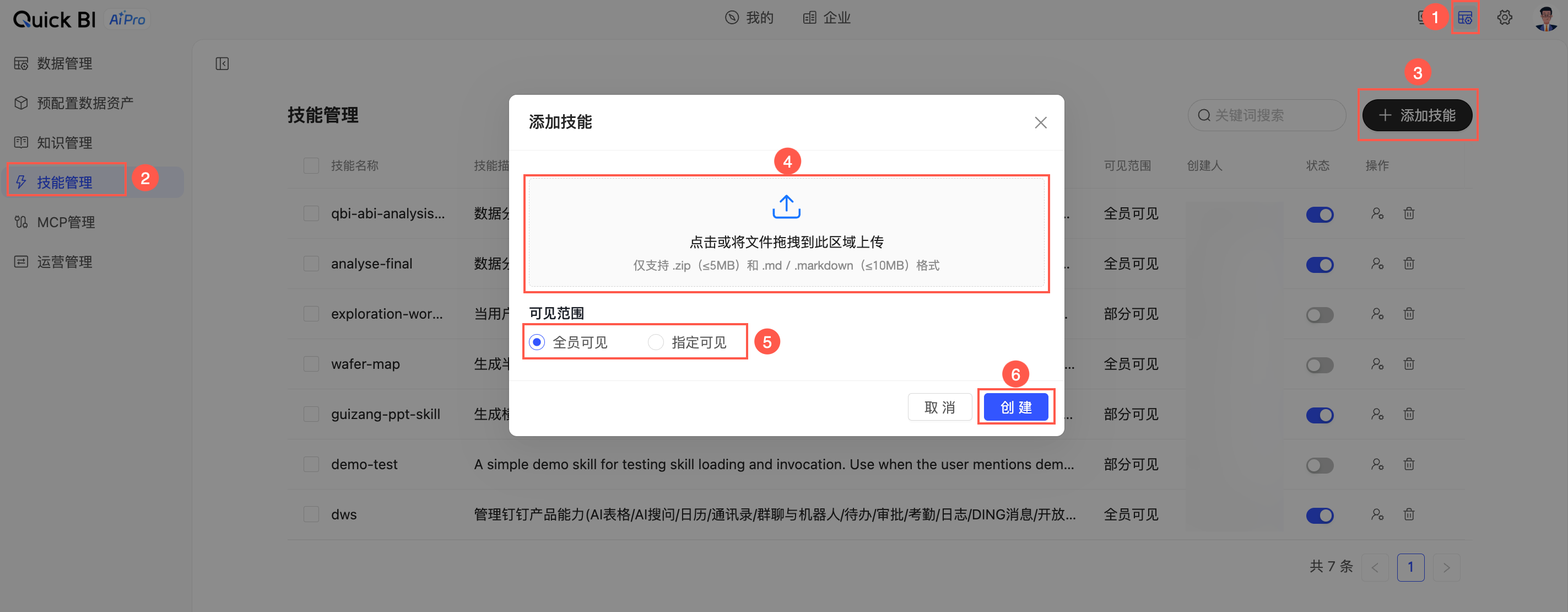
After uploading, you can modify its visibility and allow users to Install it.
Upload a custom skill at the personal level
Method 1: Create a personal skill in a conversation
On the conversation panel of the My > New Task page, enter a prompt to generate a skill.
For example, enter: "Help me turn the analysis logic above into a skill." The system automatically creates a skill.
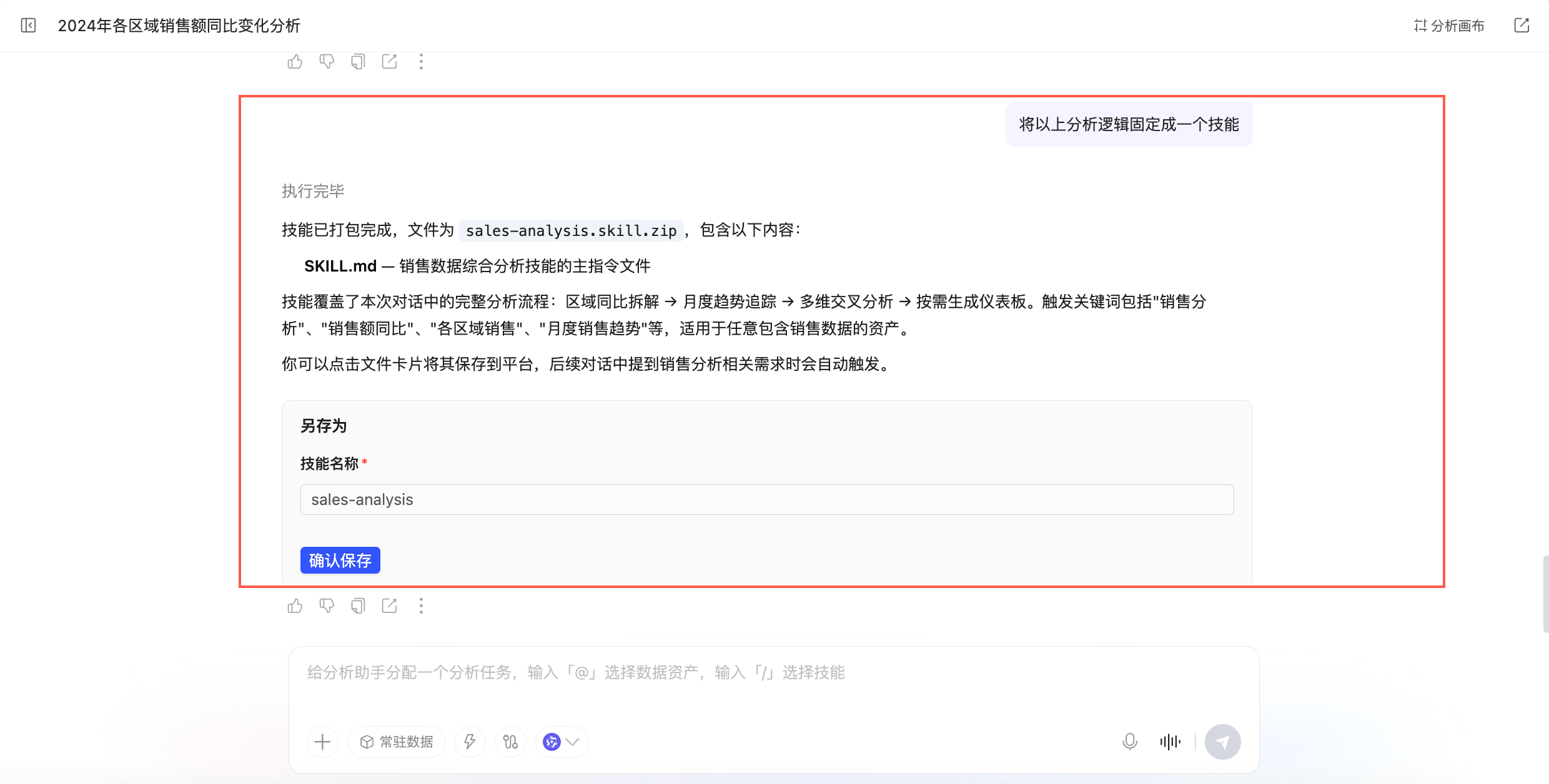
After the skill is generated, you can edit its name and click Confirm and Save. The skill is then packaged and ready for use. You can manage it on the My Skills page.
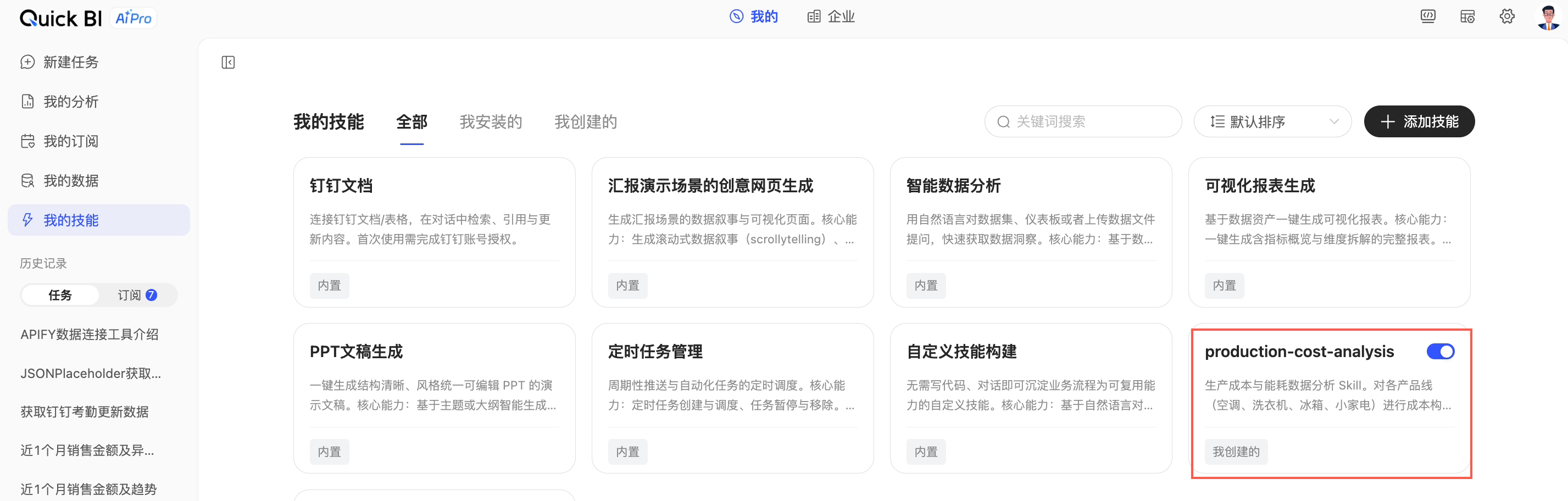
Method 2: Create a personal skill by uploading a skill package
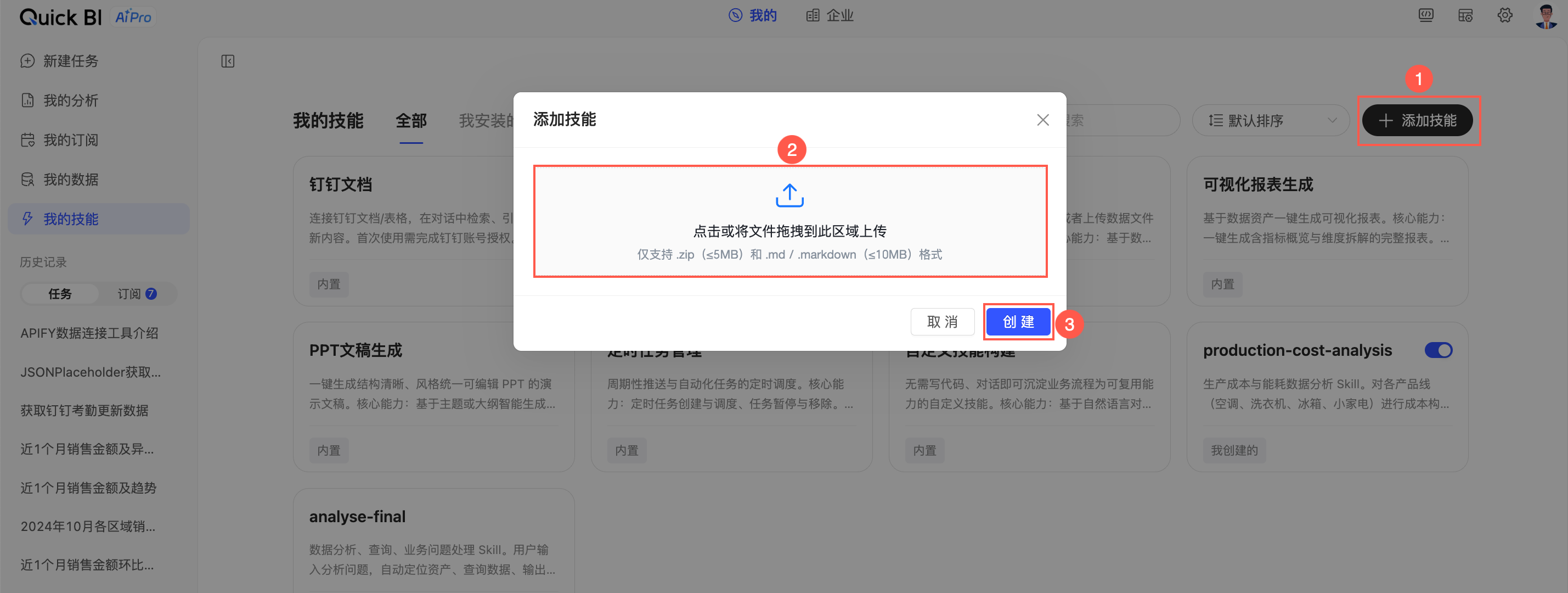
On the My > My Skills page, click the Add Skill icon to upload and create a skill. For details, see My Skills.
NoteOnly .zip files (5 MB or less) and .md or .markdown files (10 MB or less) are supported.
View and manage skills
Use the Search feature to quickly find specific skills.

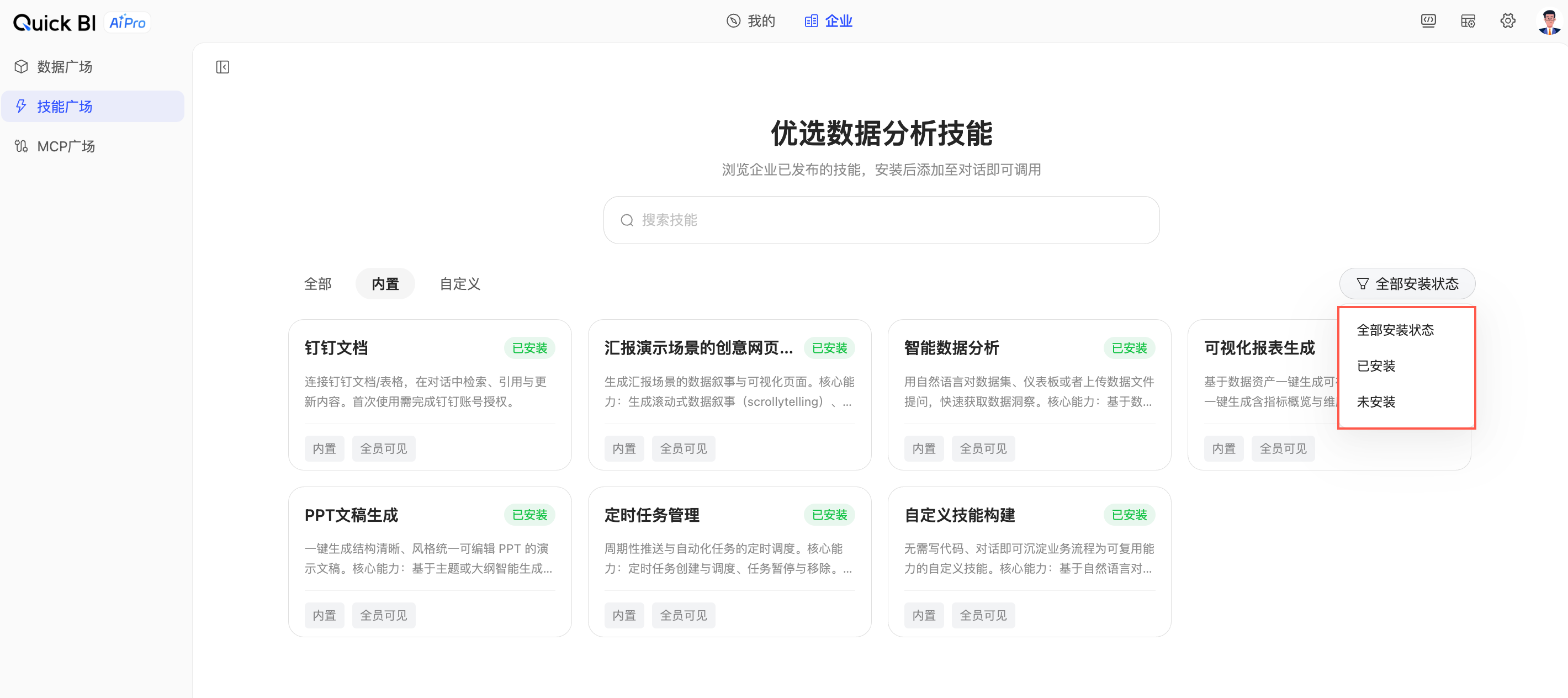
Filter by installation status to view Installed and Not Installed skills.
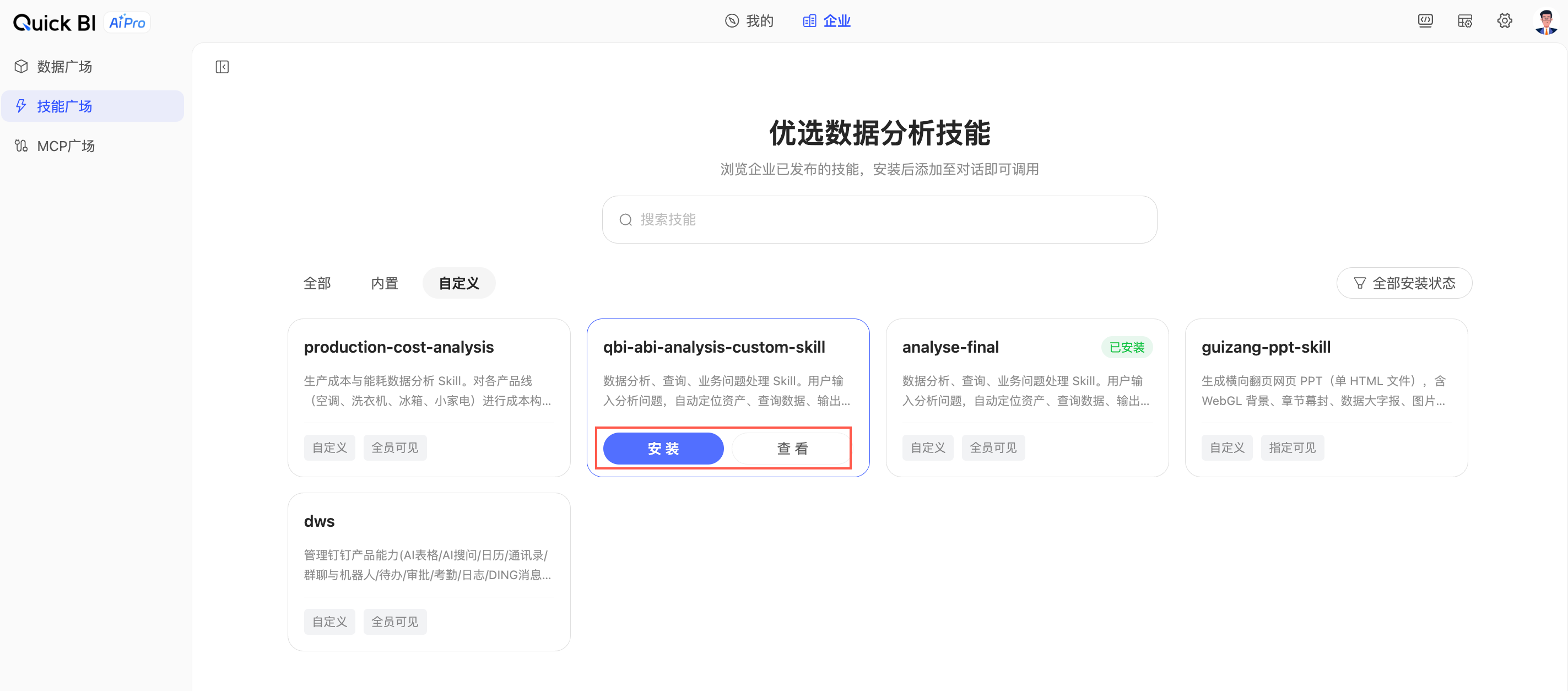
For installed skills, you can only View them.
For uninstalled skills, you can View and Install them.
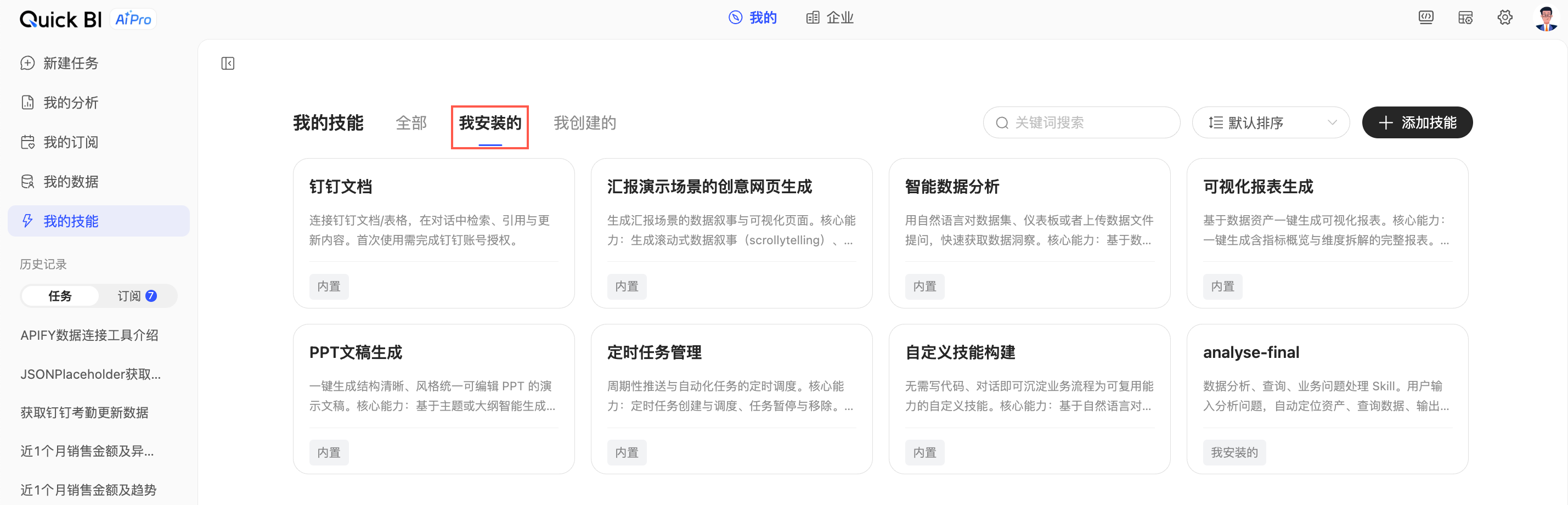
After installation, go to My > My Skills > Installed by Me to view the installed skill. You can then invoke it in conversations.