Edit an alert rule
Data Transmission Service lets you edit the alerting and monitoring settings for data migration and data synchronization tasks. This topic uses a data migration task as an example to describe the procedure.
Procedure
Log on to the OceanBase Management Console .
In the navigation pane on the left, click Data Transmission > Data Migration.
To configure alerting for a data synchronization task, click Data Transmission > Data Synchronization.
Click Edit Alert Rule next to the target task.

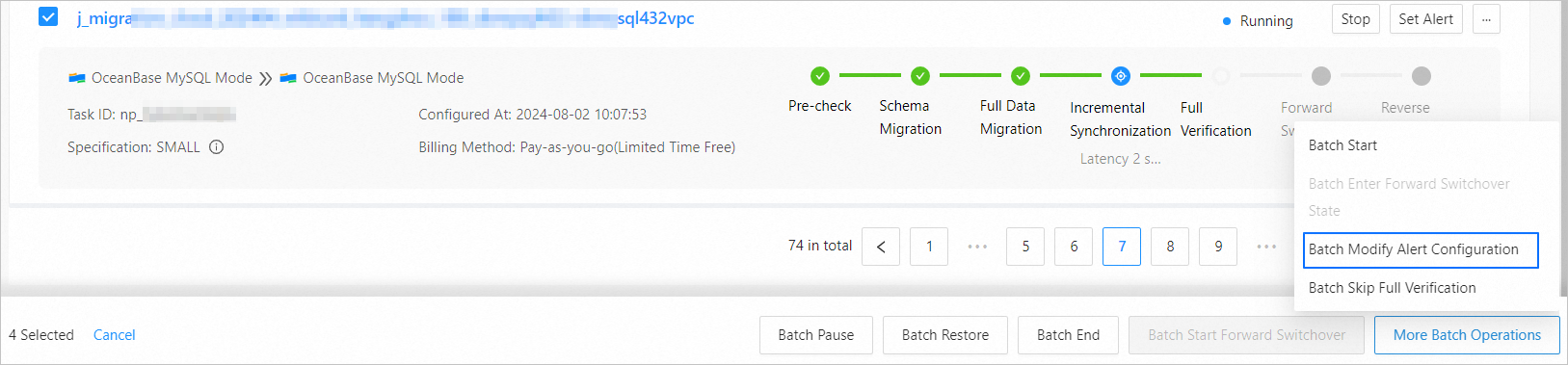
For batch operations, select the checkboxes for the target tasks, and then click More Batch Operations > Batch Edit Alert Rules in the lower-right corner.
 Important
Batch editing alert rules overwrites the existing alerting and monitoring settings of the selected tasks. Proceed with caution.
Data Transmission Service offers a new alerting plan. The batch editing feature is not supported if the selected tasks use a combination of the new and old alerting plans.
In the Edit Alerting and Monitoring dialog box, edit the configurations.
Edit the new alerting plan

Task status monitoring
Parameter
Description
Alert rule
The task status is abnormal.
This includes all exceptions that occur during the startup and running of precheck, schema migration, full migration, and incremental migration or incremental synchronization tasks.
Alert frequency
The interval at which an alert is sent. The value must be 60 seconds or more.
Alert method
Data Transmission Service supports three alert methods: DingTalk, Lark, and Alibaba Cloud CMS External Alert Address.
Alert address
After you select an alert method, enter the alert address of the corresponding alert bot. For more information, see Configure an alert address.
Remarks (Optional)
The remarks for the alert address.
Incremental delay monitoring
Parameter
Description
Incremental delay
The alert threshold for incremental delay.
If the incremental synchronization delay in a data migration or data synchronization task exceeds the specified threshold, an alert is triggered.
Alert frequency
The interval at which an alert is sent. The value must be 60 seconds or more.
Alert method
Data Transmission Service supports three alert methods: DingTalk, Lark, and Alibaba Cloud CMS External Alert Address.
Alert address
After you select an alert method, enter the alert address of the corresponding alert bot. For more information, see Configure an alert address.
Remarks (Optional)
The remarks for the alert address.
Edit the old alerting plan

If a task uses the old alerting plan, you can click Switch Version in the upper-right corner of the dialog box to use the new alerting plan. For more information, see the details under Edit the new alerting plan. If you want to continue using the old alerting plan, see the following parameter descriptions.
Task status monitoring
Parameter
Description
Alert rule
The task status is abnormal.
This includes all exceptions that occur during the startup and running of precheck, schema migration, full migration, and incremental migration or incremental synchronization tasks.
Alert frequency
The interval at which an alert is sent. The value must be 60 seconds or more.
Recipient
The recipients of the alert information. You can select up to three recipients.
If the target recipient is not in the drop-down list, click Add Alert Contact to go to the Cloud Monitor console and add the recipient.
Incremental delay monitoring
Parameter
Description
Incremental delay
The alert threshold for incremental delay.
If the incremental synchronization delay in a data migration or data synchronization task exceeds the specified threshold, an alert is triggered.
Alert frequency
The interval at which an alert is sent. The value must be 60 seconds or more.
Recipient
The recipients of the alert information. You can select up to three recipients.
If the target recipient is not in the drop-down list, click Add Alert Contact to go to the Cloud Monitor console and add the recipient.
Click Submit.
You can also click Submit and Test to test whether the alert message can be sent successfully. The alert message is sent to the recipients using the contact methods that you added to the Cloud Monitor platform.
To view alert messages for data migration or data synchronization tasks, see View task alert information.