Introduction to the Event Hub
Retrieve event models from the Event Hub to write programs that collect and report event data. You can also configure whether to store reported event data in an analysis source as a user behavior table or an order details table.
Event model
A complete behavior event that you collect and report consists of the following data:
-
Event ID: The unique identifier for an event. This is required.
-
User ID: This is required.
-
Event properties: An event can have several properties, such as the time of occurrence, channel, product, and quantity.
-
Property ID: The unique identifier for a property. This is required.
-
Property value: The value can be text, a number, or a time. This is required.
NoteFor standardized order events, the product information property in the model is an array. This array contains items such as product name, product ID, unit price, and quantity purchased.
-
You can configure the event ID and event properties when you define an event.
Event details
Go to Workspace > Configuration Management > Data Access Management > Event Hub. The event list appears as shown in the following figure.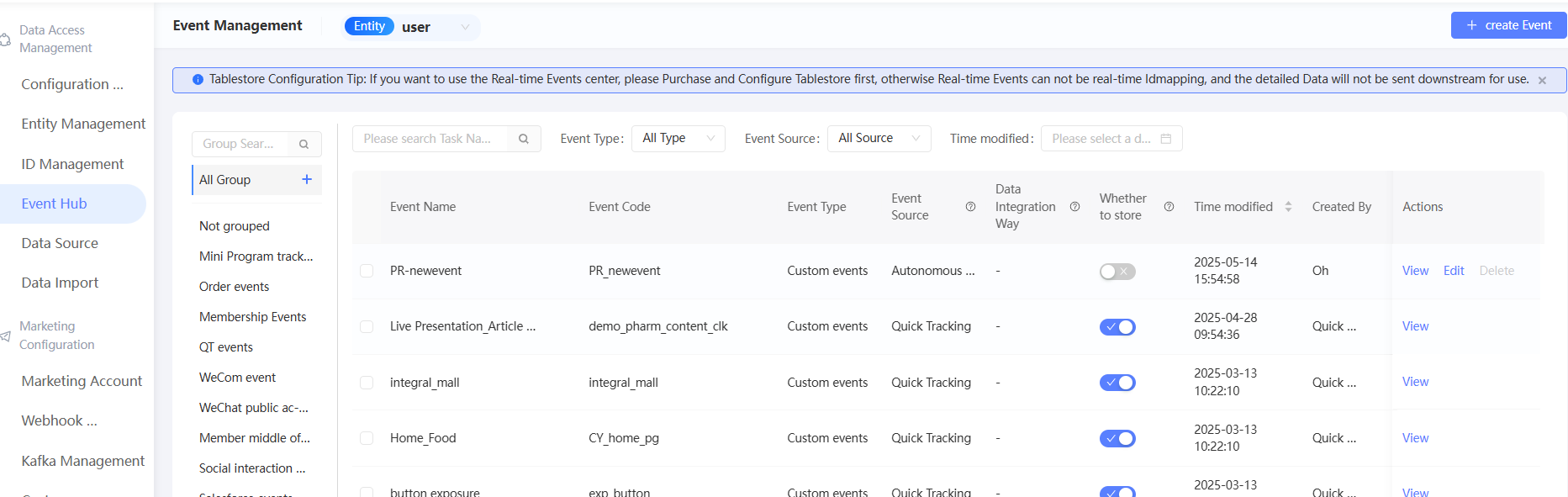
The left navigation pane displays event groups, including an Unassigned group and any custom groups you create. By default, all groups are shown. For more information about event grouping, see Event grouping.
The list on the right displays the events and includes information such as event ID, event type, event source, data ingestion method, and storage status.
Search for events by name or ID, or filter by event type, event source, or last modified time.
Event type
-
System-predefined events: These are common events with predefined IDs and properties. You can report data directly based on these definitions.
-
Custom events: Events that you define based on your business needs.
Event source
The event source in the list corresponds to the event reporting method:
-
Quick Tracking: This service collects and reports data from apps, miniapps, and web pages (including H5) through Alibaba Cloud's Quick Tracking. Quick Audience integrates with Quick Tracking, and applications can use the SDK provided by Quick Tracking to collect and report events.
Quick Tracking events are divided into system-predefined events and custom events:
-
Quick Tracking system-predefined events: Predefined events provided by Quick Tracking.
-
Quick Tracking custom events: Custom events that you create in the Quick Tracking console.
After you grant QT event authorization, these two types of events from the Quick Tracking application are automatically synchronized to the event list in the Quick Audience workspace.
-
-
Custom ingestion: This method works with any application type. Write a program to instrument your application and collect event data, then convert it to the Quick Audience event model and report it through the event reporting API.
Self-service integrated events are categorized as predefined events and custom events:
-
System-predefined custom ingestion events: System-predefined events for custom ingestion. In addition to general behavior events, the system predefines three standard order events: product purchase, product refund, and order cancellation. The event IDs are pay_order, refund_order, and cancel_order, respectively.
-
Custom events for custom ingestion: Custom events that you create in your Quick Audience workspace. For more information, see Create a custom event.
-
-
Membership Hub: If you have purchased the Membership Platform feature package, user behavior events defined in the Membership Platform module are automatically reported by the module.
All Membership Hub events are system-predefined. In addition to general behavior events, the system predefines three standard order events: product purchase, product refund, and order cancellation. The event IDs are pay_order, refund_order, and cancel_order, respectively.
-
Social Interaction: If you have purchased the Social Interaction feature package, user behavior events defined in the Social Interaction module are automatically reported by the module.
All Social Interaction events are system-predefined.
Data ingestion method
-
Message synchronization: Data is transmitted in real time through messages. This is the method used for Quick Tracking events, Membership Hub events, and Social Interaction events.
-
API synchronization: Data is transmitted in real time through an API. This is the method used for custom ingestion events.
The data ingestion method is displayed only after the first event is reported.
Create a custom event
If the system-predefined events do not meet your needs, you can create custom events:
-
If you use the custom ingestion method, you can create custom events for the current workspace in Quick Audience.
-
If you use the Quick Tracking method, first configure the application and its events in the Quick Tracking console as described in the Event Reporting Overview. Then, synchronize the configured events to the current Quick Audience workspace through QT event authorization.
To create a custom event in Quick Audience using the custom ingestion method:
-
Go to Workspace > Configuration Management > Data Access Management > Event Hub.
-
Click Create Event in the upper-right corner to open the event configuration page.
-
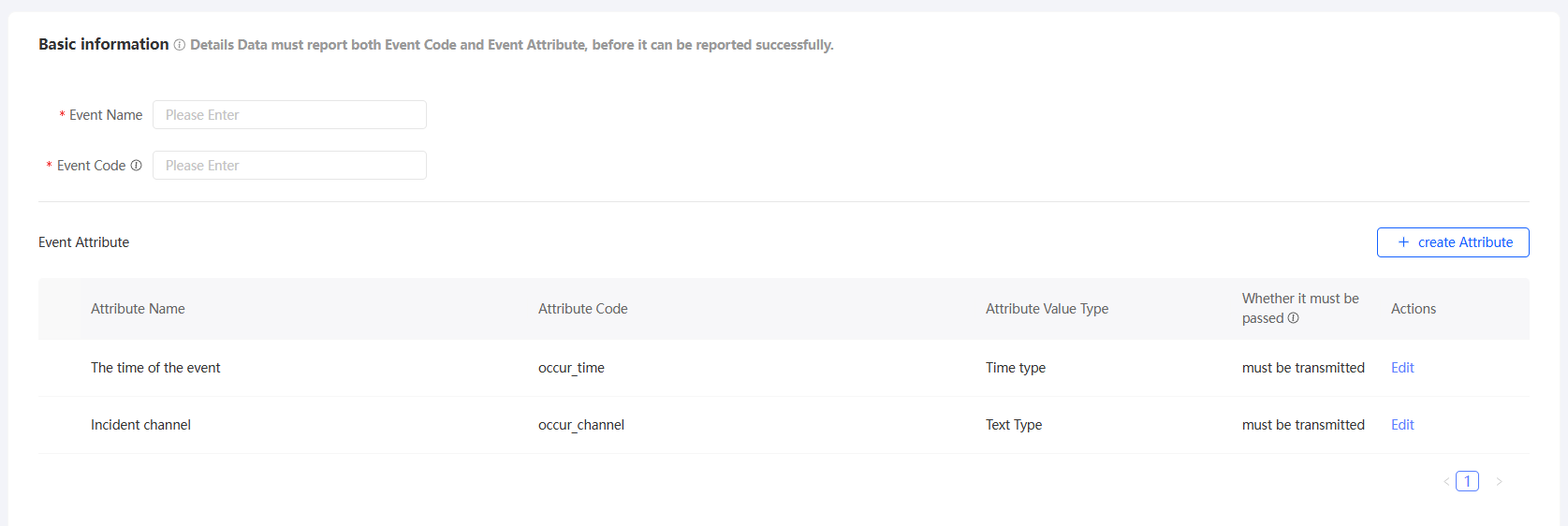
Configure the parameters as described in the following table.
Parameter
Description
Event name
Enter a name for the event.
Event ID
Enter an ID for the event. The event ID must be unique within the current workspace.
The event ID is required when you report event data and is used to uniquely identify an event.
Event properties
An event can have several properties, such as the time of occurrence, channel, product, and quantity.
-
When you create a custom event, two predefined properties are included by default:
-
Event occurrence time: The property ID is occur_time, the type is time, and it is required by default.
-
Event occurrence channel: The property ID is occur_channel, the type is text, and it is required by default.
You can click Edit for a predefined property to change whether it is required. The name, ID, and value type cannot be modified.
-
-
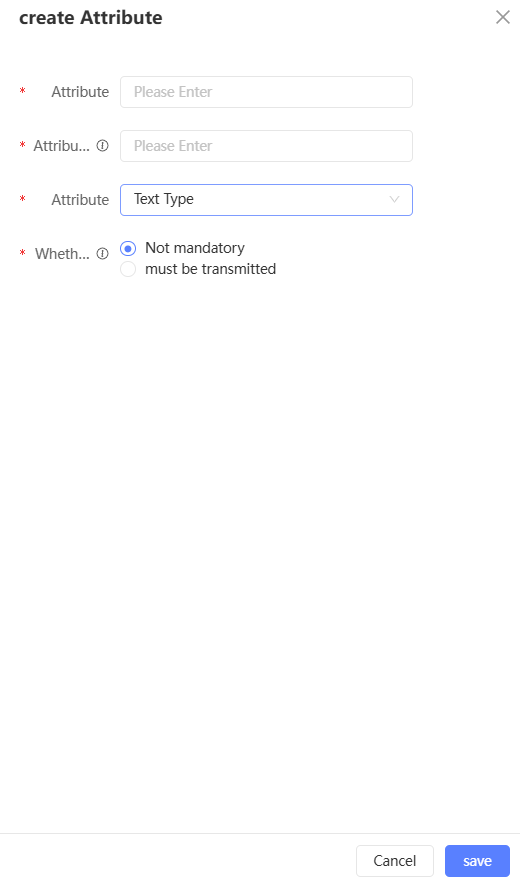
You can also add other properties. Click Create Property to open a dialog box where you can configure the property name, property ID, value type (text, number, or time), and whether it is required.
You can Edit or Delete new properties. All settings, including the name and ID, can be modified.
ImportantTo use the reported data in Automated Marketing, add an External Business ID property to the event. Set the property ID to outBizId and the value type to Text. When you report event data, this property must be included for the data to be used in Automated Marketing.
We recommend that you report the order ID as the outBizId for transaction-related events and the coupon ID as the outBizId for coupon-related events.
-
-
After you configure the event, click Save.
-
Batch import events:
-
Only standard Excel and CSV files are supported.
-
You can upload up to 1,000 events in a single file.
-
If an event ID in the uploaded file already exists, the event is updated with the latest content from the file. If an event ID does not exist, a new event is created based on the content in the file.
-
The event source for batch-imported events is set to "Custom Ingestion" by default.
-

As shown in the following figure, the created custom event is added to the event list, and its event source is displayed as Custom Ingestion.

Enable or disable storage
You can enable data storage for Quick Tracking events and custom ingestion events. Storage is enabled by default for Membership Hub events and Social Interaction events, but you can disable it. You cannot disable storage for order events from the Membership Hub.
After you enable storage, reported event data is stored in the analysis source. Normal behavior event data is saved to a user behavior table, and order event data is saved to an order details table. You can use this data for audience segmentation, AIPL/RFM dataset generation, and custom tag creation.
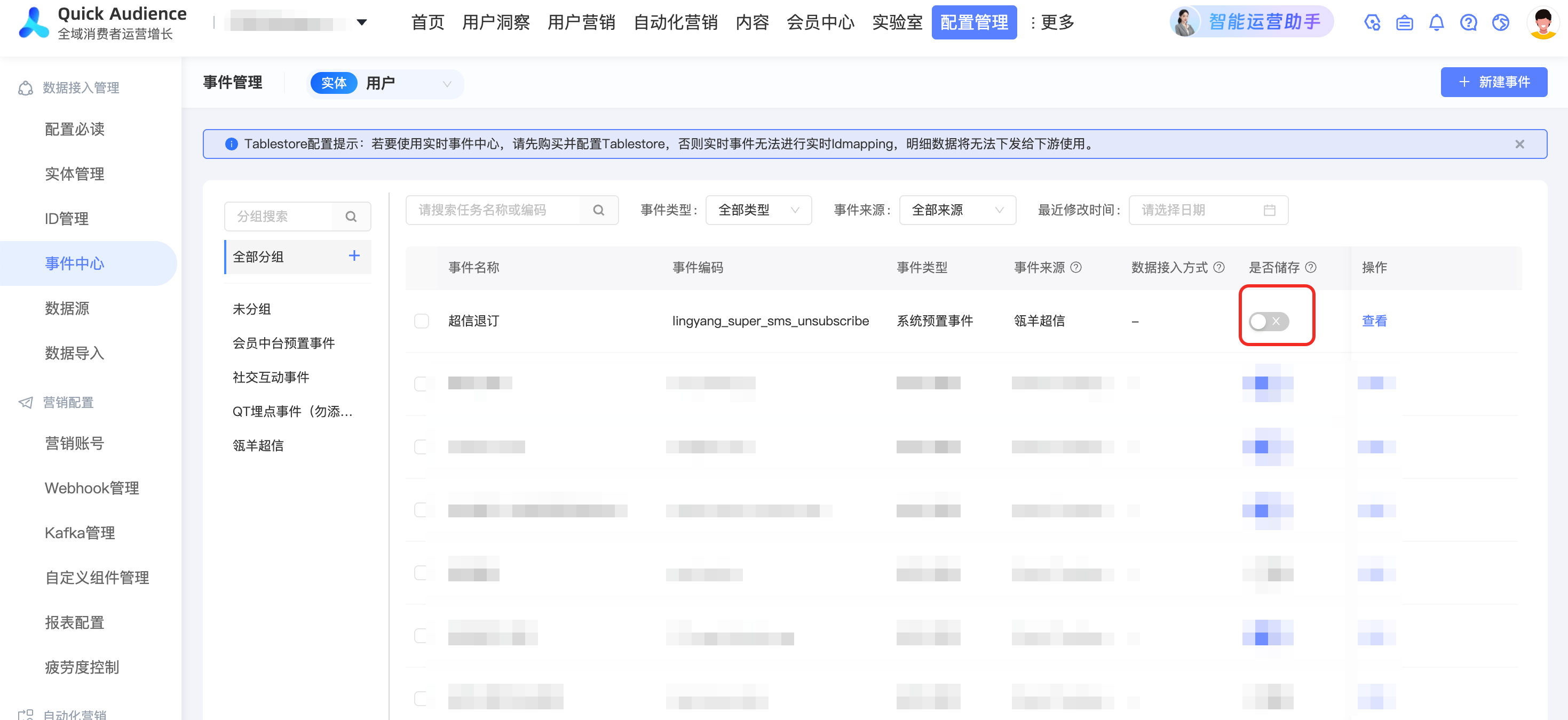
In the event list, turn the Storage switch on to enable storage. Turn the switch off to stop storing new data. Existing data is not deleted.
After you enable storage, event data received by Quick Audience is forwarded as follows:
-
After the data is received, it is temporarily stored in the Tablestore instance specified in the Tablestore Authorization Configuration. A real-time ID Mapping is performed in Tablestore to obtain the unified user identity, QAID.
Note-
Event data goes through this step regardless of whether storage is enabled. After this step, the event data can be used for Automated Marketing.
-
Data is temporarily stored in the Tablestore instance for two days and then automatically deleted.
-
-
The data, along with the QAID, is synchronized to the MaxCompute compute source in the early morning of the next day. It is then imported into the user behavior table in the Analysis Source Configuration.
In the same workspace, Quick Tracking events, custom ingestion events, Membership Hub events, and Social Interaction events are stored in different user behavior tables.
For more information about the data format of the user behavior table, see User Behavior Table Requirements. The behavior type field stores the event name, and the property and metric field names match the event property names.
Note-
Because MaxCompute limits a table to a maximum of 1,200 columns, and QAID and event name each occupy one column, any event properties beyond the 1,198-property limit are stored in a new table.
-
Stored event data cannot be deleted.
-
View an event
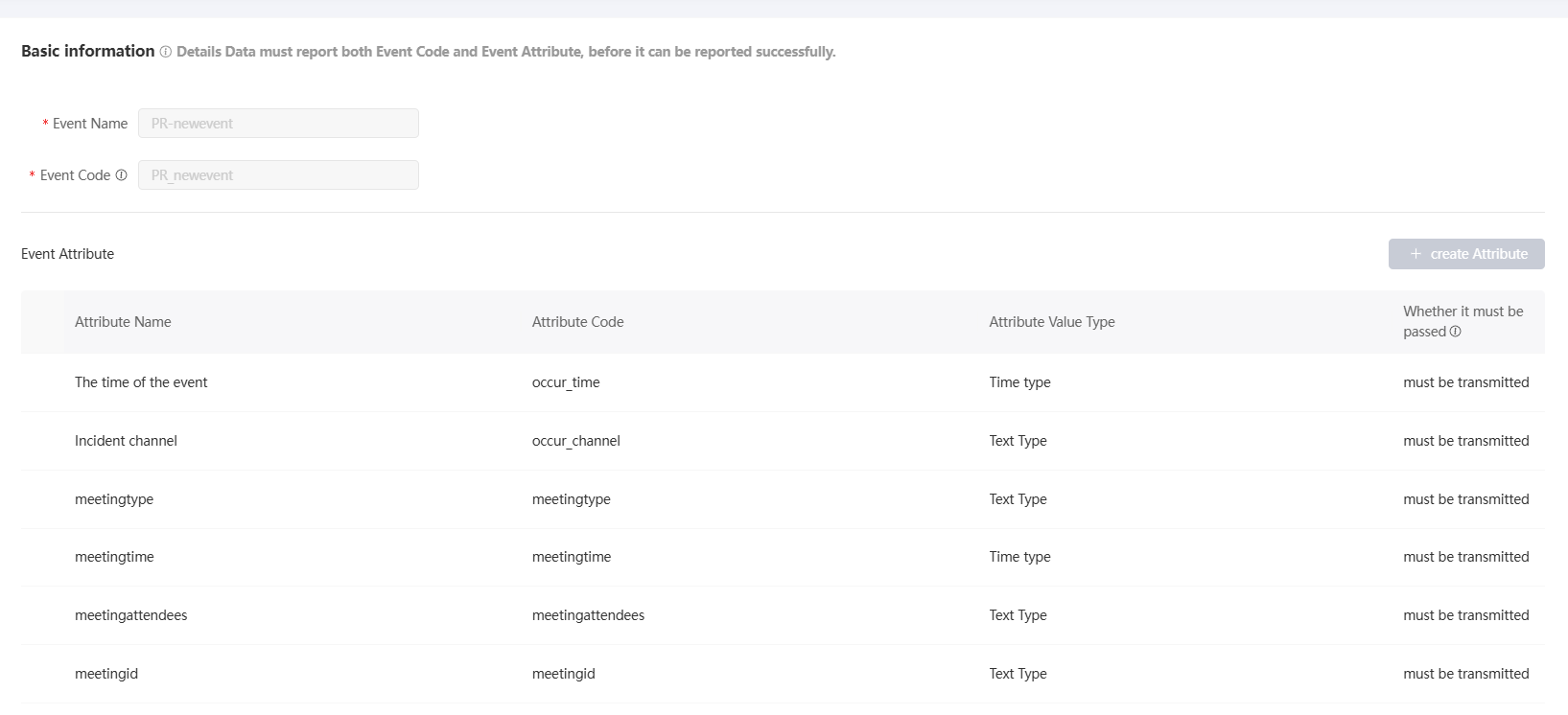
Click View to open the event details page, which shows the event configuration and the automated marketing campaigns that use it.
Edit an event
Quick Tracking events belong to an application configured in the Quick Tracking console and are associated with a Quick Audience workspace through QT event authorization. To edit a Quick Tracking event, you must edit the event within the application in the Quick Tracking console.
You can edit custom ingestion events and standardized order events for custom ingestion (with event IDs pay_order, refund_order, and cancel_order).
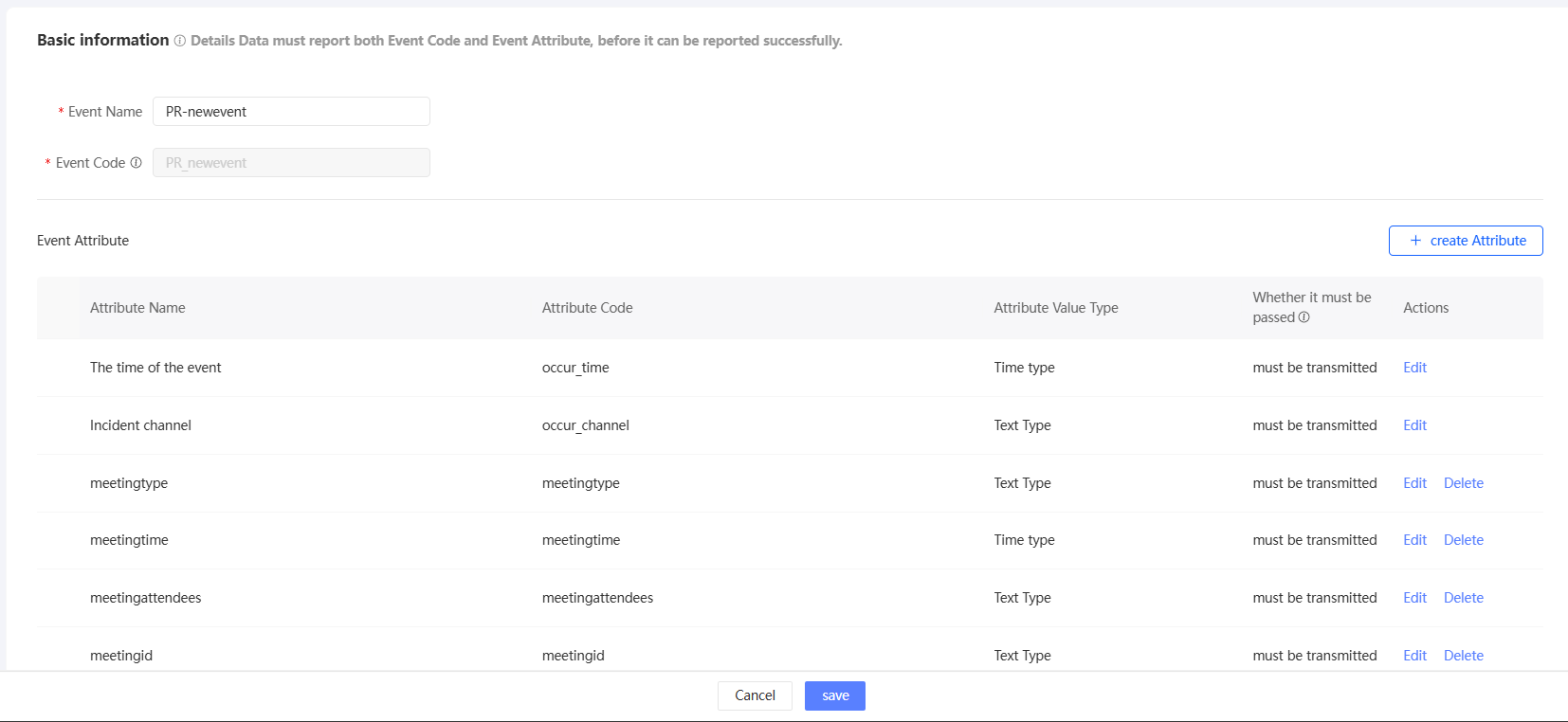
Click Edit to open the editing page for a custom ingestion event, as shown below. After editing, click Save.
You can:
-
Modify the event name.
-
Add new properties.
-
Change whether predefined and non-predefined properties are required. For order events, you cannot change whether predefined properties are required.
-
Modify the names of non-predefined properties.
-
Delete non-predefined properties. You can only delete non-predefined properties that are not used by any marketing campaigns.
Delete an event
You can delete custom ingestion events that have not been used in any marketing campaigns.
-
Single deletion: Click Delete and confirm the deletion to delete the event.
-
Batch deletion: Select the events to delete from the list, click Batch Delete at the bottom of the list, and confirm the deletion to delete the events.
Because Quick Tracking events belong to an application configured in the Quick Tracking console and are associated with a Quick Audience workspace through QT event authorization, you must delete them in the Quick Tracking console. Alternatively, you can disassociate the application from the workspace in the QT event authorization settings in Quick Audience.
Event grouping
You can create groups for events to manage them by category.
Add and move groups
Only first-level groups can be created. To create a group:
-
Hover over All Groups. A plus icon
 appears, as shown in the following figure. Click the plus icon.
 -
In the dialog box that appears, enter a name for the new group.
-
Click OK to create the group. The new group is added to the directory.
-
Drag the group to the desired position. When a blue line appears, release the mouse to change the group's order.
 appears, as shown in the following figure. Click the plus icon.
Rename a group
-
Hover over a custom group. An ellipsis icon
appears, as shown in the following figure. Click the icon, and then click the Rename button. -
In the dialog box that appears, enter a new name for the group and click OK.
 appears, as shown in the following figure. Click the icon, and then click the Rename button.
Delete a group
-
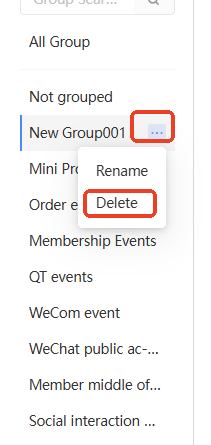
Hover over a custom group. An ellipsis icon
appears, as shown in the following figure. Click the icon, and then click the Delete button. -
If the group contains no events, it is deleted immediately.
If the group contains events, click OK in the confirmation dialog box to delete it. The events in the deleted group are moved to the Unassigned group.
Move events to a group
You can move events to a specified group.
Batch move: Select the events that you want to move from the list, click Move Group at the bottom of the list, select a group from the panel that appears, and click OK.
Enhanced Message Unsubscription
Background: Compiles a list of users who unsubscribe after receiving card or digital messages, enabling you to switch to a more suitable contact method. Returned information includes the SMS signature, unsubscribed mobile number, and unsubscribe time.
1. In the upper-right corner of the page, click "Organization Management", click "Organization Settings", and then select the workspaces to receive unsubscribe events for SMS signatures.

2. Click "Configuration Management" > "Event Hub".
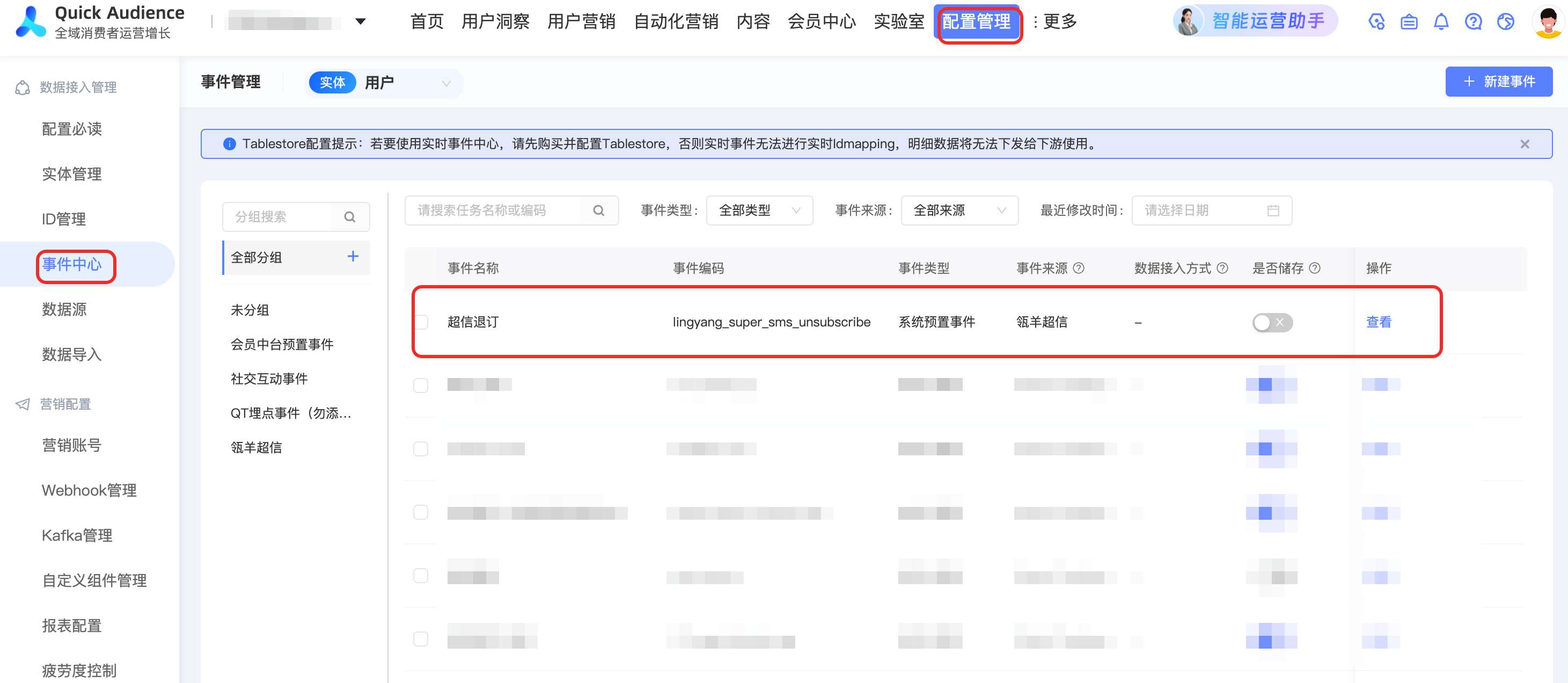
3. Click the "Storage" switch to enable storage.

4. You can set up corresponding marketing policies in Automated Marketing.

FAQ
What is the difference between reported event data and imported user behavior tables?
A: Note the following differences:
|
Difference |
Reported event data |
Imported user behavior table |
|
Data source |
Real-time data. |
Offline data that has been saved to a MaxCompute compute source according to the User Behavior Table Requirements. |
|
Documentation |
User Behavior table schema configuration and Scheduled Import |
|
|
Data forwarding |
|
Imported from the MaxCompute compute source to the analysis source for storage. |
|
ID Mapping |
Performed in Tablestore during data forwarding. |
Performed in the MaxCompute compute source during data forwarding. |
|
Data usage |
Reported real-time data can be used for Automated Marketing. If stored, data from normal behavior events is saved as a user behavior table, and data from order events is saved as an order details table. Like imported tables, this data can be used for audience segmentation, generating RFM datasets, AIPL datasets, and custom tags such as preference tags. |
Can be used for audience segmentation, generating AIPL datasets, and custom tags such as preference tags. |
If reported event data is not stored, how is the data forwarded?
A: Reported event data is not stored. The data flows as follows:
-
After the data is received, it is temporarily stored in the Tablestore instance specified in the Tablestore Authorization Configuration. A real-time ID Mapping is performed in Tablestore to obtain the unified user identity, QAID.
NoteEvent data goes through this step regardless of whether storage is enabled. After this step, the event data can be used for Automated Marketing.
-
The data is automatically deleted from the Tablestore instance after being stored for two days and cannot be recovered.
In contrast, if reported event data is stored, the data forwarding process is described in Enable or disable storage.